
 AOMEI Partition Assistant
How to Change Administrator on Windows
In this guide, we'll walk you through the process, step by step, ensuring that you can confidently change administrator on Windows system.

By Lucas / Updated on February 22, 2024


Understanding User Accounts
The Microsoft Administrator Account on Windows 10 holds paramount importance in ensuring seamless system management and security. Unlike regular user accounts, the administrator account empowers users with comprehensive control over system settings and software installation, making it indispensable for efficient computer operation.
1.1 Types of User Accounts
Windows offers three primary types of user accounts: Administrator, Standard, and Guest. Each account type has its own set of permissions and restrictions, with the Administrator account holding the highest level of control.
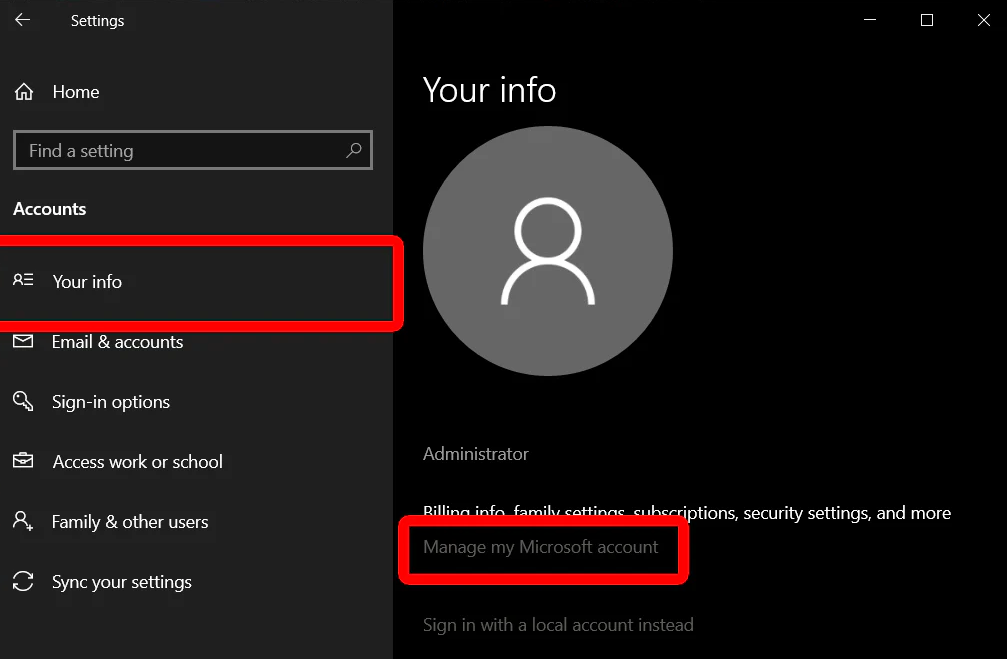
1.2 Identifying the Current Administrator
To initiate any changes, you must first identify the current administrator on your Windows system. This ensures that you're aware of who holds the reins of control before proceeding with any modifications.
As an administrator, you hold significant responsibility for overseeing and maintaining your Windows system. Familiarize yourself with these essential duties to ensure smooth operation and optimal performance.
Setting System Policies
Establish system policies and guidelines to govern user behavior and access privileges. Define acceptable use policies, password requirements, and data protection protocols to mitigate risks and maintain compliance.
Managing File Permissions
Control access to sensitive files and directories by configuring granular file permissions. Restrict access to authorized users and groups, minimizing the risk of unauthorized data exposure or tampering.
Accessing User Account Settings
Navigating to the user account settings is the first step towards making any administrative changes on your Windows system. Here's how to access these settings with ease.
2.1 Opening the Control Panel
The Control Panel serves as the central hub for system settings and configurations. To access it, simply follow these steps:
- Click on the Start menu located at the bottom left corner of your screen.
- Type "Control Panel" into the search bar and press Enter.
- Once the Control Panel window appears, navigate to the "User Accounts" section.
2.2 Navigating to User Accounts
Within the Control Panel, locating the User Accounts section is crucial for initiating any user-related changes. Here's how to find it:
- Within the Control Panel window, locate and click on the "User Accounts" option.
- This will open up a new window displaying various user-related settings and options.
How to Add a New Administrator
Adding a new administrator to your Windows system can be done quickly and efficiently through the User Accounts settings. Follow these steps to grant administrative privileges to a new user.
3.1 Selecting "Add a User"
To begin the process of adding a new user, follow these simple steps:
- Within the User Accounts window, locate and click on the option labeled "Add a user account."
- This will prompt a new window to appear, allowing you to input the necessary details for the new user.
3.2 Entering Administrator Credentials
After selecting "Add a user account," you'll need to input the relevant information for the new user, including their username and password. Additionally, ensure that you designate the account type as "Administrator" to grant the appropriate level of access.
How to Chang an Existing Administrator
In some cases, you may need to modify the privileges of an existing administrator or transfer these privileges to another user. Here's how to navigate this process seamlessly.
4.1 Accessing User Account Properties
To modify the privileges of an existing administrator, follow these steps:
- Navigate to the User Accounts window within the Control Panel.
- Select the option labeled "Manage another account."
- Locate the account you wish to modify and click on it to access its properties.
4.2 Modifying Administrator Privileges
Within the account properties window, you'll find various options for modifying the user's privileges. To change an existing administrator's privileges, click on the "Change the account type" option and select either "Administrator" or "Standard User," depending on your requirements.
How to Remove an Administrator
Removing an administrator from your Windows system is a straightforward process, but it's essential to proceed with caution to avoid any unintended consequences.
5.1 Accessing User Account Properties
Before removing an administrator, ensure that you're logged in with an account that has administrative privileges. Once confirmed, follow these steps:
- Navigate to the User Accounts window within the Control Panel.
- Select the option labeled "Manage another account."
- Locate the administrator account you wish to remove and click on it to access its properties.
5.2 Selecting the Administrator to Remove
Within the account properties window, you'll find an option labeled "Delete the account." Click on this option to initiate the removal process, ensuring that you follow any on-screen prompts to confirm the action.
Troubleshooting Administrator Changes
While changing administrators on Windows is typically a smooth process, there may be instances where you encounter issues or complications. Here are some common troubleshooting steps to help you overcome any obstacles.
6.1 Resolving Permissions Issues
If you encounter permissions issues while attempting to change administrators, try the following solutions:
- Ensure that you're logged in with an account that has administrative privileges.
- Double-check that the account you're trying to modify is not currently in use or locked.
- Restart your computer and attempt the changes again to refresh system settings.
6.2 Dealing with Forgotten Passwords
In the event that you forget the password for an administrator account, you can reset it using the following steps:
- Restart your computer and press the "F8" key repeatedly during startup.
- This will launch the Advanced Boot Options menu. Select the "Safe Mode" option and press Enter.
- Once in Safe Mode, navigate to the Control Panel and access the User Accounts settings.
- From here, you can reset the password for the administrator account in question.
Conclusion
Mastering the art of changing administrators on Windows is a fundamental skill for any computer user. By following the step-by-step instructions outlined in this guide, you can confidently navigate user account settings and take control of your system's administration. Remember to adhere to best practices for administrator management and system security to ensure a seamless and secure computing experience.
FAQs
-
How do I change the administrator on Windows 10? To change the administrator on Windows 10, navigate to the User Accounts settings in the Control Panel, select "Manage another account," and then choose the account you wish to modify. From there, you can change the account type or remove the administrator as needed.
-
Can I reset the password for an administrator account if I forget it? Yes, you can reset the password for an administrator account by restarting your computer in Safe Mode and accessing the User Accounts settings in the Control Panel. From there, you can reset the password for the desired account.
-
What are some best practices for administrator management? Some best practices for administrator management include regularly reviewing user accounts, enabling two-factor authentication, implementing strong password policies, and keeping software up to date.
-
How can I ensure the security of my Windows system? You can ensure the security of your Windows system by implementing strong password policies, keeping software up to date, establishing system policies, and managing file permissions effectively.
-
What responsibilities do administrators have in maintaining a Windows system? Administrators are responsible for setting system policies, managing file permissions, overseeing user accounts, and ensuring the overall security and integrity of the Windows system.
-
What should I do if I encounter issues while changing administrators on Windows? If you encounter issues while changing administrators on Windows, try troubleshooting common problems such as permissions issues or forgotten passwords. Restarting your computer and attempting the changes again can often resolve these issues.
