AOMEI Partition Assistant
 Uncovering Why Deleting Files Doesn't Free Up Space in Windows
Explore the baffling phenomenon where deleting files doesnt free up space in Windows. Delve into the intricacies of this problem, uncover its potential causes, and learn effective solutions to reclaim lost storage space on your Windows system.

By Phoebe / Updated on February 26, 2024


Have you ever found yourself perplexed by the situation where deleting files doesnt free up space in Windows? This article explores this frustrating issue, delving into its causes and offering practical solutions to reclaim lost storage space.
Overview of the Problem
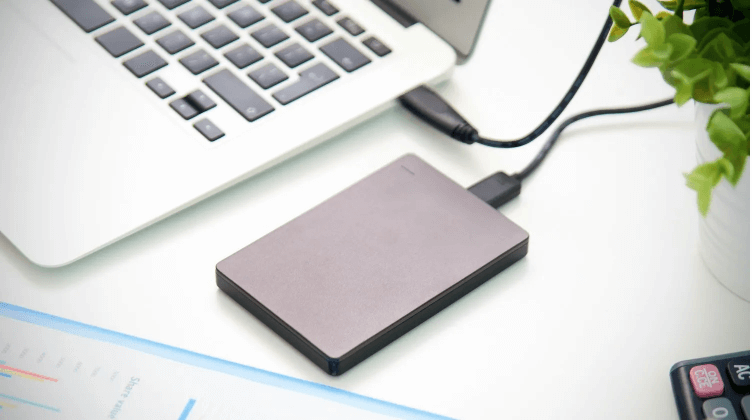
When you delete files from your Windows computer, you expect that the storage space they occupied would become available for use. However, in some instances, you may notice that despite deleting files, your available storage space remains unchanged or even decreases. This phenomenon can be incredibly frustrating and may leave you wondering what exactly is going on.
Potential Causes
1. **Recycle Bin Retention:** One common reason why deleting files doesn't free up space is that they may still be lingering in the Recycle Bin. Windows doesn't immediately remove files from the Recycle Bin upon deletion, so until you empty it, the space occupied by deleted files remains allocated.
2. **Temporary Files Accumulation:** Temporary files generated by various applications and processes can accumulate over time, consuming valuable disk space. Deleting user files may not address this issue if temporary files continue to multiply unchecked.
3. **Disk Fragmentation:** Disk fragmentation occurs when files are broken up into pieces and stored in non-contiguous sectors on the disk. Deleting files may not necessarily free up contiguous space, especially if the disk is heavily fragmented.
Solutions to Consider
Solution 1: Empty the Recycle Bin
1. Open the Recycle Bin by double-clicking its icon on the desktop.
2. Click on the "Empty Recycle Bin" option located at the top of the window.
3. Confirm the action when prompted to permanently delete all items in the Recycle Bin.
Solution 2: Use Disk Cleanup
1. Press the Windows key + S, then type "Disk Cleanup" and select it from the search results.
2. Choose the drive you want to clean up and click OK.
3. Check the boxes next to the types of files you want to delete, then click OK.
4. Confirm the action when prompted.
Solution 3: Defragment Your Hard Drive
1. Press the Windows key + S, then type "Defragment and Optimize Drives" and select it from the search results.
2. Select the drive you want to defragment and click "Optimize."
3. Allow the defragmentation process to complete.
FAQ: Answering Your Burning Questions
**Q1: Why doesn't deleting files free up space on Windows?**
A: Deleting files only removes their references from the file system, but the actual data may still reside on the disk until overwritten or permanently removed.
**Q2: Can I recover deleted files that are still taking up space?**
A: Yes, using data recovery software, you may be able to recover deleted files that are still present on the disk.
**Q3: Does disk encryption affect file deletion and space recovery?**
A: Disk encryption may introduce additional complexities, but deleting files should still free up space regardless of encryption status.
**Q4: Will clearing the browser cache help free up disk space?**
A: Yes, clearing browser cache can help reclaim disk space by removing temporary files stored by the browser.
**Q5: How often should I defragment my hard drive?**
A: The frequency of defragmentation depends on disk usage patterns, but performing it monthly or quarterly is generally recommended.
Key Technical Terms
1. **Recycle Bin:** A temporary storage location for files that have been deleted from the file explorer.
2. **Disk Cleanup:** A built-in Windows utility that helps users remove unnecessary files from their computer to free up disk space.
3. **Disk Fragmentation:** The condition where files are stored in non-contiguous sectors on a disk, leading to decreased system performance.
Helpful Tips
1. Regularly empty the Recycle Bin to ensure deleted files are permanently removed.
2. Use disk cleanup and optimization tools to regularly maintain your disk and reclaim lost space.
3. Consider using third-party disk management software for more advanced disk cleanup and optimization features.
Conclusion
In conclusion, the issue of deleting files doesnt free up space in Windows can be attributed to various factors, including Recycle Bin retention, temporary file accumulation, and disk fragmentation. By implementing the solutions outlined in this article and adopting best practices for disk management, you can effectively reclaim lost storage space and optimize the performance of your Windows system.