
 AOMEI Partition Assistant
How to Fix Disk Usage Error in Windows 10/11
Dive into the realm of troubleshooting as we unveil effective strategies to fix disk usage error in Windows 10. From understanding the root causes to implementing practical solutions, empower yourself with the knowledge to resolve disk usage issues and enhance your system's efficiency.

By Hedy / Updated on January 26, 2024


Are you encountering the dreaded disk usage error on your Windows 10 or Windows 11 system? Fear not! In this comprehensive guide, we'll explore the ins and outs of troubleshooting and fix disk usage error in Windows 10. From understanding the root causes to implementing effective solutions, we've got you covered. Let's dive in!
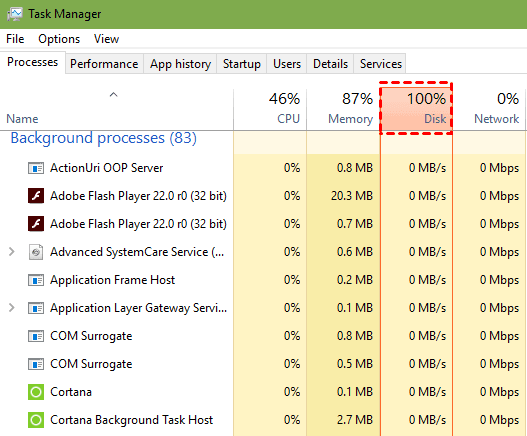
Overview: Understanding the Disk Usage Error
The disk usage error in Windows 10/11 can be a frustrating roadblock that slows down your system and hampers productivity. At its core, this error indicates that your disk drive is being overly taxed, leading to performance bottlenecks and sluggishness. Several factors can contribute to this issue, including:
1. Background Processes
Certain applications or system processes running in the background may consume excessive disk resources, causing the disk usage to spike.
2. Faulty Hardware
A failing hard drive or storage device can result in erratic disk usage behavior and performance issues.
3. Software Glitches
In some cases, software bugs or conflicts may trigger abnormal disk activity, leading to the error.
Now that we've identified the potential causes, let's explore practical solutions to address the disk usage error effectively.
Solutions: How to Resolve Disk Usage Error
Solution 1: Disable Superfluous Background Processes
1. Press `Ctrl + Shift + Esc` to open Task Manager.
2. Navigate to the "Processes" tab and identify resource-intensive applications.
3. Right-click on the offending processes and select "End Task" to terminate them.
Solution 2: Perform Disk Cleanup
1. Type "Disk Cleanup" in the Windows search bar and select the corresponding utility.
2. Choose the drive you wish to clean and click "OK."
3. Select the types of files you want to delete and click "OK" to initiate the cleanup process.
Solution 3: Update Device Drivers
1. Right-click on the Start button and select "Device Manager."
2. Expand the categories and locate the devices with outdated drivers.
3. Right-click on each device and select "Update Driver" to install the latest drivers.
FAQ: Answers to Common Queries
**Q1: Why is my disk usage at 100%?**
A: A disk usage of 100% typically indicates that your system is struggling to handle the load imposed by active processes and applications.
**Q2: Can a failing hard drive cause disk usage errors?**
A: Yes, a failing hard drive can contribute to disk usage errors due to read/write errors and performance degradation.
**Q3: How do I check disk usage in Windows 10/11?**
A: You can check disk usage by opening Task Manager (`Ctrl + Shift + Esc`) and navigating to the "Performance" tab.
**Q4: What is the difference between SSD and HDD disk usage errors?**
A: SSDs (Solid State Drives) and HDDs (Hard Disk Drives) may exhibit similar disk usage errors, but SSDs tend to offer faster performance and better reliability.
**Q5: Can malware cause high disk usage?**
A: Yes, malware infections can significantly impact disk usage by initiating malicious processes and consuming system resources.
Tech Terms Explained
1. **Disk Usage:** The amount of disk space or resources being utilized by active processes and applications.
2. **Task Manager:** A system utility in Windows that provides information about running applications, processes, and performance metrics.
3. **Device Manager:** A Windows utility used to manage and update device drivers and hardware components.
4. **Disk Cleanup:** A built-in Windows tool that helps users remove unnecessary files and reclaim disk space.
5. **Driver Update:** The process of installing the latest device drivers to ensure optimal performance and compatibility.
Tips for Optimal Disk Health
1. Regularly perform disk maintenance tasks such as disk cleanup and defragmentation to keep your system running smoothly.
2. Monitor your system's disk usage regularly to identify and address any performance issues promptly.
3. Invest in reliable antivirus software to safeguard your system against malware and malicious threats.
Conclusion: Resolving Disk Usage Errors
In conclusion, dealing with disk usage errors in Windows 10/11 may seem daunting, but with the right approach, you can effectively diagnose and fix disk usage error in Windows 10. By following the solutions outlined in this guide and staying proactive with disk maintenance, you can ensure optimal performance and stability for your Windows system. Don't let disk usage errors slow you down—take control and keep your system running smoothly!
