
 AOMEI Partition Assistant
Resolving Last USB Device Malfunctioned Error: Quick Fixes
Discover effective solutions to resolve USB device issues and troubleshoot last USB device malfunctioned errors effortlessly.

By Irene / Updated on February 22, 2024


In today's interconnected world, USB devices play a pivotal role in our daily lives, facilitating data transfer and device connectivity. However, encountering the "Last USB Device Malfunctioned" error can disrupt productivity and cause frustration. We understand the importance of resolving USB device issues promptly to ensure seamless operations.
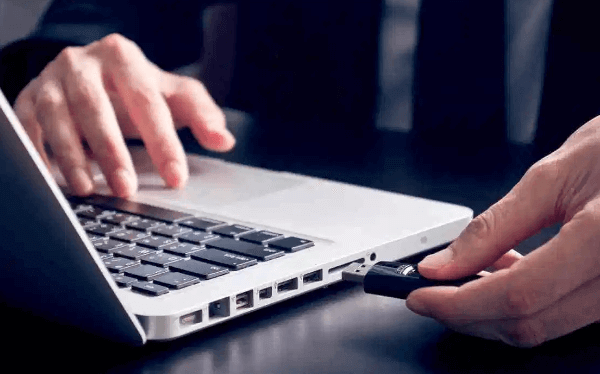
Understanding the Last USB Device Malfunctioned Error
The "Last USB Device Malfunctioned" error typically indicates a problem with the connection or functionality of a USB device. This error can occur due to various reasons, including:
-
Driver Issues: Outdated or incompatible device drivers can lead to communication errors between the USB device and the computer.
-
Hardware Problems: Physical damage or defects in the USB port or cable can hinder proper connectivity and functionality.
-
Power Supply Issues: Insufficient power supply to the USB device or port may cause malfunctions and errors.
Troubleshooting USB Device Errors
Updating Device Drivers
To address driver-related issues, we recommend updating the device drivers for your USB devices. You can do this by accessing the Device Manager in Windows, locating the USB device, and selecting the option to update the driver software.
Checking Hardware Connections
Inspect the USB port and cable for any signs of damage or wear. Ensure that the USB device is securely connected to the port and that there are no obstructions preventing proper contact.
Resetting USB Controllers
You can reset the USB controllers on your computer to resolve connectivity issues. Simply navigate to the Device Manager, expand the "Universal Serial Bus controllers" section, right-click on each controller, and select the option to uninstall. Restart your computer, and Windows will automatically reinstall the USB controllers.
Testing on Different Ports and Systems
Try connecting the USB device to different USB ports on your computer or test it on another system to rule out port-related issues or system-specific errors.
Checking Power Supply
Ensure that the USB device is receiving adequate power supply. Avoid using USB hubs or extension cables that may diminish power delivery to the device.
Resolving USB Device Issues
By following these troubleshooting steps, you can effectively address the "Last USB Device Malfunctioned" error and restore functionality to your USB devices. Remember to exercise caution when manipulating hardware components and seek professional assistance if needed.
Conclusion
In conclusion, addressing the "Last USB Device Malfunctioned" error requires a systematic approach and diligent troubleshooting. By understanding the underlying causes of the error and implementing targeted solutions, you can effectively resolve USB device issues and restore seamless functionality to your digital peripherals.
Remember to stay vigilant when handling USB devices and ensure regular maintenance to prevent potential issues in the future. With the comprehensive guide provided, you can navigate through USB device malfunctions with confidence and efficiency, minimizing disruptions to your workflow and productivity.
If you encounter persistent issues or require further assistance, don't hesitate to seek professional support from qualified technicians or consult reputable online resources for additional guidance.
FAQs (Frequently Asked Questions)
-
Q: How do I know if the "Last USB Device Malfunctioned" error is caused by hardware or software issues?
- A: To determine the root cause of the error, try connecting the USB device to different ports or systems. If the error persists across multiple devices, it may indicate hardware issues. Conversely, if the error is specific to one system, software conflicts or driver issues may be the culprit.
-
Q: Can I fix the "Last USB Device Malfunctioned" error by reinstalling Windows?
- A: While reinstalling Windows can sometimes resolve software-related issues, it should be considered a last resort. Exhaust other troubleshooting steps, such as updating drivers and resetting USB controllers, before resorting to a full operating system reinstall.
-
Q: Is it safe to use third-party driver update software to fix USB device errors?
- A: Exercise caution when using third-party driver update software, as it may install outdated or incompatible drivers, leading to further complications. It's recommended to obtain drivers directly from the manufacturer's website or use built-in Windows update tools.
-
Q: What should I do if none of the troubleshooting steps resolve the USB device error?
- A: If standard troubleshooting methods fail to address the issue, consider consulting a professional technician for advanced diagnostics and repair. They can conduct thorough hardware inspections and provide tailored solutions to resolve the problem.
-
Q: How can I prevent future occurrences of the "Last USB Device Malfunctioned" error?
- A: To minimize the risk of USB device malfunctions, regularly update device drivers, avoid physical damage to USB ports and cables, practice safe ejection procedures, and utilize surge protectors to safeguard against power surges and fluctuations.
