
 AOMEI Partition Assistant
Unlock Seamless Connectivity: Ralink 802.11 N USB Wireless Driver for Windows 7 x32!
Discover the key to seamless connectivity on Ralink 802.11 N USB Wireless Driver for Windows 7 x32. Unleash the full potential of your device with this groundbreaking driver, ensuring a smoother and faster online experience.

By Hedy / Updated on January 16, 2024


In the fast-paced digital era, a reliable and efficient wireless connection is non-negotiable. Windows 7 x32 users often face connectivity challenges, and that's where the Ralink 802.11 N USB Wireless Driver for Windows 7 x32 comes to the rescue. Let's delve into the intricacies of this powerful driver, addressing common issues, providing solutions, and answering pertinent questions.
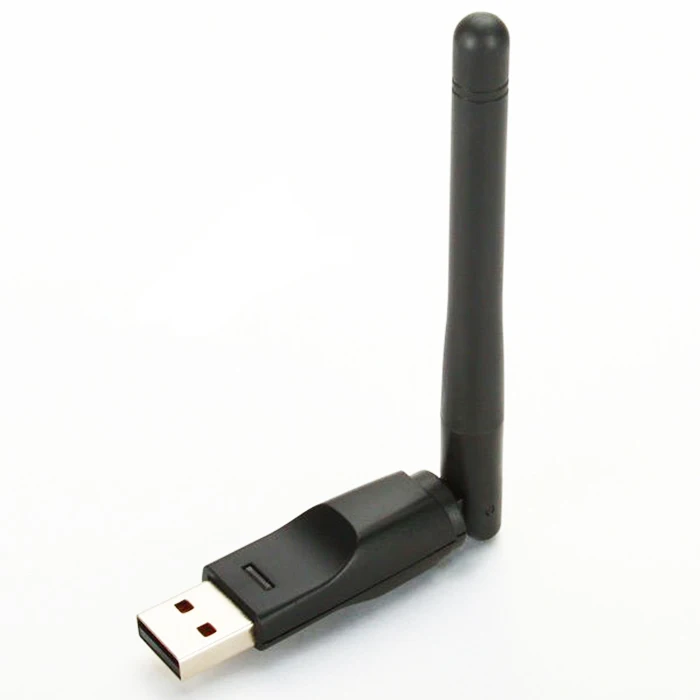
The Connectivity Conundrum
What's the Problem?
Windows 7 x32 users frequently encounter connectivity issues that hinder their online experience. The problem lies in the outdated or incompatible drivers that struggle to keep up with modern network demands.
Unraveling the Causes
1. **Outdated Drivers:**
Aging drivers may lack the necessary updates for optimal performance.
2. **Compatibility Concerns:**
Some drivers may not sync seamlessly with Windows 7 x32, leading to disruptions.
3. **Signal Interference:**
External factors like electronic devices and physical obstructions can weaken the signal.
4. **Configuration Mismatch:**
Incorrect settings can impede the driver's ability to establish a stable connection.
5. **Hardware Malfunctions:**
Faulty hardware components may contribute to connectivity woes.
Solutions for Seamless Connectivity
Solution 1: Driver Update Dance
1. **Identify Current Driver:** Locate the existing driver in your device manager.
2. **Visit Manufacturer's Website:** Head to the official Ralink website to download the latest driver version.
3. **Uninstall Old Driver:** Remove the outdated driver from your system.
4. **Install New Driver:** Execute the installation of the freshly downloaded Ralink 802.11 N USB Wireless Driver.
5. **Restart Your System:** A reboot ensures the changes take effect.
Solution 2: Configuration Checkup
1. **Access Network Settings:** Navigate to your network settings through the Control Panel.
2. **Review Wireless Configuration:** Ensure the wireless configuration aligns with your network specifications.
3. **Adjust Channel Settings:** Optimize channel settings to minimize interference.
4. **Inspect Hardware Connections:** Check physical connections to rule out any hardware issues.
5. **Update Operating System:** Ensure your Windows 7 x32 is up-to-date with the latest patches and updates.
Frequently Asked Questions
**Q:** How do I check my current driver version?
**A:** Navigate to the Device Manager, find the network adapters, and locate your wireless driver. Right-click for properties to view the version.
**Q:** Can I use a Windows 10 driver on Windows 7 x32?
**A:** Compatibility is crucial. Stick to drivers designed explicitly for Windows 7 x32 to avoid compatibility issues.
**Q:** What's the role of channel settings in wireless connectivity?
**A:** Channels determine the frequency your wireless network uses. Adjusting them helps avoid interference from other devices.
**Q:** Is it necessary to restart my system after installing a new driver?
**A:** Yes, a system reboot is essential to apply the changes and ensure the new driver functions correctly.
**Q:** How often should I update my wireless driver?
**A:** Regularly check for updates, especially if you experience connectivity issues. Aim for updates every few months.
Tech Terms
1. **Wireless Protocol:** The set of rules governing communication between devices in a wireless network.
2. **Driver Compatibility:** The ability of a driver to work seamlessly with a specific operating system.
3. **Signal Interference:** External factors disrupt the wireless signal, affecting connectivity.
4. **Network Configuration:** Settings that determine how a device connects to a network.
5. **Device Manager:** A Windows utility that allows users to view and control hardware attached to the computer.
6. **Reboot:** The process of restarting a computer or device to apply changes and refresh system resources.
Connectivity Tips
- Regularly update your wireless driver for optimal performance.
- Choose the right channel settings to minimize interference.
- Keep an eye on your network configuration to ensure proper alignment.
- Perform hardware checks periodically to identify and address potential issues.
- Stay informed about the latest tech terms to navigate connectivity challenges effectively.
Conclusion
In the realm of seamless connectivity, the Ralink 802.11 N USB Wireless Driver emerges as a game-changer for Windows 7 x32 users. By understanding the common issues, implementing effective solutions, and staying informed, users can unlock a world of uninterrupted online experiences. Embrace the power of connectivity with Ralink 802.11 N USB Wireless Driver for Windows 7 x32!
