
 AOMEI Partition Assistant
Unleash Connectivity: Ralink 802.11 N USB WLAN Driver for Windows 7!
Embark on a journey of seamless connections with the Ralink 802.11 N USB WLAN Driver Windows 7. Enhance your wireless experience, overcome challenges, and elevate your connection to new heights.

By Hedy / Updated on January 16, 2024


In the fast-paced digital landscape, a robust and efficient wireless connection is paramount. The Ralink 802.11 N USB WLAN Driver Windows 7 emerges as a key player in elevating your connectivity experience. Let's delve into the intricacies of this driver, explore why it matters, and uncover effective solutions to enhance your wireless performance.
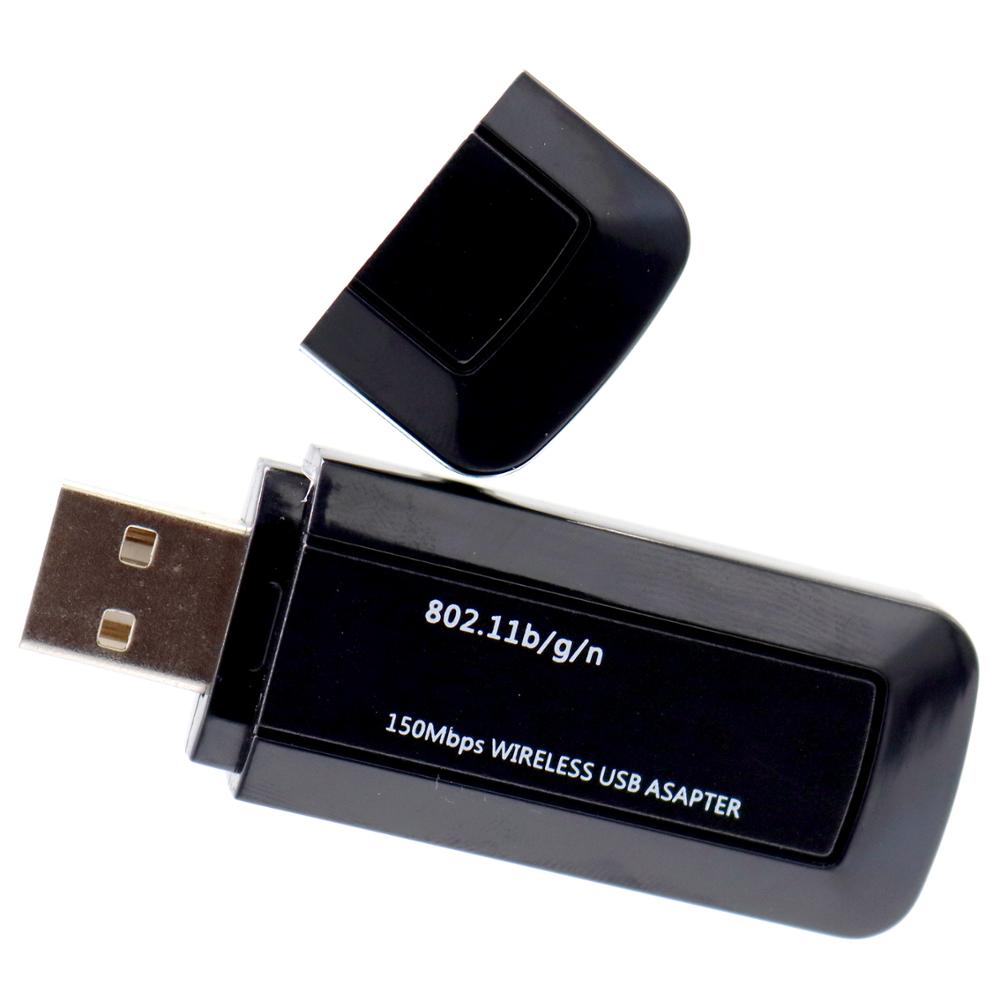
Overview of Ralink 802.11 N USB WLAN Driver for Windows 7
The Ralink 802.11 N USB WLAN Driver for Windows 7 is a crucial component that facilitates wireless communication between your device and the network. It serves as the bridge, enabling seamless connectivity for various online activities. Whether you're streaming, gaming, or simply browsing a reliable WLAN driver is essential for a smooth experience.
Why It Matters
1. **Optimal Performance:** The right WLAN driver ensures that your wireless connection operates at its full potential, minimizing lag and disruptions. 2. **Compatibility:** Tailored for Windows 7, this driver is designed to seamlessly integrate with the operating system, ensuring stability and reliability. 3. **Enhanced Security:** Keeping your WLAN driver updated is crucial for addressing security vulnerabilities, safeguarding your system against potential threats.
Solutions for Optimal Wireless Performance
Solution 1: Driver Update Dance
1. **Identification:** Locate the current driver in the Device Manager on Windows 7.
2. **Official Source Visit:** Head to the official Ralink website to download the latest Windows 7-compatible driver.
3. **Uninstallation:** Remove the outdated driver using the Device Manager.
4. **Installation:** Execute the installation of the newly downloaded Ralink 802.11 N USB WLAN Driver.
5. **Reboot:** Ensure the changes take effect by restarting your Windows 7 system.
Solution 2: Configuration Checkup
1. **Access Network Settings:** Navigate to the Control Panel and access network settings on Windows 7.
2. **Wireless Configuration Review:** Ensure the wireless configuration aligns with your network specifications.
3. **Channel Optimization:** Adjust channel settings to minimize interference and enhance connectivity.
Solution 3: Signal Strength Enhancement
1. **Reposition Router:** Experiment with different router placements to find the optimal position for signal strength.
2. **Invest in Signal Boosters:** Consider signal boosters to extend the range and strength of your wireless connection on Windows 7.
3. **Secure Network:** Password-protect your network to prevent unauthorized usage that may impact signal quality.
Solution 4: Firmware Update Endeavor
1. **Router Access:** Log in to your router's admin panel using a web browser.
2. **Firmware Check:** Locate the firmware update section and check for the latest version.
3. **Download and Install:** Download the latest firmware from the official website and follow the instructions to install.
4. **Restart Router:** After the update, restart your router to apply the changes.
Frequently Asked Questions
**Q:** Can I use a Windows 10 WLAN driver on Windows 7?
**A:** It's crucial to use drivers specifically designed for Windows 7 to ensure compatibility and stability.
**Q:** How often should I update my WLAN driver on Windows 7?
**A:** Regular updates are essential. Aim for updates every few months or when you experience connectivity issues.
**Q:** Is signal interference only caused by electronic devices?
**A:** No, physical obstacles like walls and furniture can also impact wireless signal strength on Windows 7.
**Q:** Do I need to restart my system after installing a new driver?
**A:** Yes, a system reboot is crucial to apply the changes and ensure the new driver functions correctly.
**Q:** What's the role of channel settings in wireless connectivity?
**A:** Channels determine the frequency your wireless network uses. Adjusting them helps avoid interference from other devices.
Demystifying Tech Terms
1. **Wireless LAN Driver:** Essential software that enables wireless communication between a device and a network.
2. **Compatibility:** The ability of a driver to seamlessly integrate with a specific operating system.
3. **Channel Optimization:** Adjusting channel settings to minimize interference and enhance connectivity.
4. **Signal Boosters:** Devices that enhance the strength and range of wireless signals.
5. **Firmware Update:** Installing the latest software for a router to improve functionality and security.
Connectivity Tips
- Regularly update your WLAN driver for optimal performance on Windows 7.
- Optimize channel settings to minimize interference and enhance connectivity.
- Experiment with router placement to find the optimal position for signal strength.
- Invest in signal boosters to extend the range and strength of your wireless connection. - Password-protect your network to prevent unauthorized usage that may impact signal quality.
Conclusion
In the world of digital connectivity, the Ralink 802.11 N USB WLAN Driver Windows 7 stands as a catalyst for unleashing seamless connections. By addressing common challenges and implementing effective solutions, you can elevate your wireless experience and embark on a journey of uninterrupted connectivity. Unleash the full potential of your Windows 7 system with this essential WLAN driver!
