
 AOMEI Partition Assistant
Enhance Your Connection: Unveiling the Ralink 802.11 N WiFi Adapter Driver for Windows 7!
Dive into the world of advanced connectivity as we explore the benefits and solutions provided by the Ralink 802.11 N WiFi Adapter Driver Windows 7. Elevate your wireless experience with this essential driver, ensuring a smooth and uninterrupted connection on your Windows 7 system.

By Hedy / Updated on January 16, 2024


https://www.diskpart.com/screenshot/en/others/others/ralink-usb-adapter.pngUnlock the full potential of your wireless experience as we delve into the intricacies of the Ralink 802.11 N WiFi Adapter Driver Windows 7. From understanding what this driver is to exploring effective solutions, we're on a journey to enhance your connectivity on Windows 7.
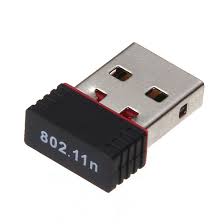
Exploring the Ralink 802.11 N WiFi Adapter Driver for Windows 7
What is the Ralink 802.11 N WiFi Adapter Driver?
In essence, the Ralink 802.11 N WiFi Adapter Driver is a critical component that facilitates communication between your device and the WiFi network. It acts as a bridge, ensuring a seamless connection, and is specifically tailored for Windows 7, making it an essential tool for optimal performance.
Why Does it Matter?
1. **Optimal Performance:** This driver ensures that your WiFi connection operates at its full potential, minimizing lags and disruptions.
2. **Windows 7 Compatibility:** Tailored for Windows 7, it integrates seamlessly with the operating system, ensuring stability and reliability.
3. **Security:** Keeping this driver updated is crucial for addressing security vulnerabilities and safeguarding your system against potential threats.
Solutions for Optimizing Your Wireless Experience
Solution 1: Driver Update Dance
1. **Identification:** Locate the current driver in the Device Manager on Windows 7.
2. **Official Source Visit:** Head to the official Ralink website to download the latest Windows 7-compatible driver.
3. **Uninstallation:** Remove the outdated driver using the Device Manager.
4. **Installation:** Execute the installation of the newly downloaded Ralink 802.11 N WiFi Adapter Driver.
5. **Reboot:** Ensure the changes take effect by restarting your Windows 7 system.
Solution 2: Configuration Checkup
1. **Access Network Settings:** Navigate to the Control Panel and access network settings on Windows 7.
2. **Wireless Configuration Review:** Ensure the wireless configuration aligns with your network specifications.
3. **Channel Optimization:** Adjust channel settings to minimize interference and enhance connectivity.
Solution 3: Signal Strength Enhancement
1. **Reposition Router:** Experiment with different router placements to find the optimal position for signal strength.
2. **Invest in Signal Boosters:** Consider signal boosters to extend the range and strength of your wireless connection on Windows 7.
3. **Secure Network:** Password-protect your network to prevent unauthorized usage that may impact signal quality.
Frequently Asked Questions
**Q:** Can I use a Windows 10 WiFi adapter driver on Windows 7?
**A:** It's crucial to use drivers specifically designed for Windows 7 to ensure compatibility and stability.
**Q:** How often should I update my WiFi adapter driver on Windows 7?
**A:** Regular updates are essential. Aim for updates every few months or when you experience connectivity issues.
**Q:** Is signal interference only caused by electronic devices?
**A:** No, physical obstacles like walls and furniture can also impact wireless signal strength on Windows 7.
**Q:** Do I need to restart my system after installing a new driver?
**A:** Yes, a system reboot is crucial to apply the changes and ensure the new driver functions correctly.
**Q:** What's the role of channel settings in wireless connectivity?
**A:** Channels determine the frequency your wireless network uses. Adjusting them helps avoid interference from other devices.
**Q:** How do I find the current WiFi adapter driver on Windows 7?
**A:** Go to the Device Manager, locate the Network Adapters section, and find your WiFi adapter to identify the current driver.
Demystifying Tech Terms
1. **Wireless Adapter Driver:** Essential software facilitating wireless communication between a device and a network.
2. **Compatibility:** The ability of a driver to seamlessly integrate with a specific operating system.
3. **Channel Optimization:** Adjusting channel settings to minimize interference and enhance connectivity.
4. **Signal Boosters:** Devices that enhance the strength and range of wireless signals.
5. **Security Vulnerabilities:** Weaknesses in the system that could be exploited by malicious entities.
6. **Device Manager:** A Windows utility that allows users to view and control the hardware attached to the computer.
Connectivity Tips
- Regularly update your WiFi adapter driver for optimal performance on Windows 7.
- Optimize channel settings to minimize interference and enhance connectivity.
- Experiment with router placement to find the optimal position for signal strength.
- Invest in signal boosters to extend the range and strength of your wireless connection.
- Password-protect your network to prevent unauthorized usage that may impact signal quality. - Familiarize yourself with the Device Manager for better control and understanding of your hardware.
Conclusion
As we conclude our exploration, the Ralink 802.11 N WiFi Adapter Driver Windows 7 emerges as a pivotal tool in elevating your wireless experience. By addressing common challenges and implementing effective solutions, you can unlock seamless connectivity and ensure your Windows 7 system operates at its full potential. Embrace the power of this essential driver and embark on a journey of enhanced connectivity!
