
 AOMEI Partition Assistant
Revolutionize Your Wireless Connectivity with Ralink 802.11 Wireless LAN Adapter Driver for Windows 7!
Embark on a journey to redefine your wireless experience as we delve into the world of Ralink 802.11 Wireless LAN Adapter Driver Windows 7. Uncover the key features, troubleshooting tips, and solutions to common connectivity issues. Discover how this driver can be the game-changer in unleashing unparalleled wireless connectivity on your Windows 7 device.

By Hedy / Updated on January 22, 2024


In the fast-paced digital age, a seamless and robust wireless connection is paramount. If you find yourself grappling with connectivity issues on your Windows 7 device, fear not! The Ralink 802.11 Wireless LAN Adapter Driver Windows 7 is here to transform your experience and elevate your connectivity game.
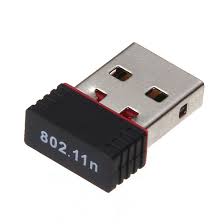
Overview: Unraveling Connectivity Challenges
Is your wireless connection acting up? Are you experiencing frequent drops or sluggish performance? It's a common woe, and several factors could be at play. Let's delve into the core of the problem.
Common Causes of Connectivity Issues
1. **Outdated Drivers:**
Outdated or incompatible drivers can be a major hindrance to optimal wireless performance. The Ralink 802.11 Wireless LAN Adapter Driver addresses this by providing the latest updates and compatibility enhancements.
2. **Interference and Signal Weakness:**
Physical obstacles, other electronic devices, or a weak Wi-Fi signal can disrupt your connection. Discover strategies to mitigate these challenges and ensure a stable connection.
3. **Configuration Errors:**
Misconfigurations in your network settings can lead to connectivity headaches. Learn how to navigate and adjust your configurations to achieve an optimal setup.
Solutions: Unleashing the Power of Ralink 802.11 Wireless LAN Adapter Driver
Now that we've identified the problems, let's explore the solutions.
Solution 1: Update Your Drivers
1. Locate the Ralink 802.11 Wireless LAN Adapter Driver on the official website.
2. Download the latest version compatible with Windows 7.
3. Install the driver following the step-by-step instructions.
Solution 2: Optimize Your Wi-Fi Environment
1. Position your router strategically to minimize interference.
2. Invest in signal boosters or Wi-Fi extenders for larger spaces.
3. Ensure your device is within a reasonable distance from the router.
Solution 3: Tweak Network Configurations
1. Access your network settings through the control panel.
2. Adjust the channel and frequency settings for better performance.
3. Ensure your network security settings are correctly configured.
FAQs: Navigating Common Queries
*Q1: Is the Ralink 802.11 Wireless LAN Adapter Driver compatible with other Windows versions?*
A: While its primary focus is on Windows 7, the driver may have compatibility with other Windows versions. It's recommended to check the official website for detailed compatibility information.
*Q2: Can I install the driver without professional assistance?*
A: Absolutely! The installation process is designed to be user-friendly. Follow the provided instructions carefully, and you'll have the driver up and running in no time.
*Q3: What makes Ralink 802.11 stand out among other wireless LAN drivers?*
A: Ralink is renowned for its commitment to delivering reliable and efficient drivers. It excels in providing timely updates, enhanced compatibility, and robust performance.
*Q4: How frequently should I update the Ralink driver?*
A: It's advisable to check for updates periodically, especially when you notice performance issues. Regular updates ensure your driver is equipped with the latest features and optimizations.
*Q5: Can the Ralink driver improve gaming performance?*
A: Yes, a stable and fast connection provided by the Ralink driver can significantly enhance your online gaming experience.
Tech Terms Decoded: Enhancing Your Tech Vocabulary
1. **Wireless Protocol:**
Understand the wireless communication standards that dictate how devices communicate over the airwaves.
2. **Router Configuration:**
Gain insights into optimizing router settings to ensure a secure and efficient network.
3. **Signal Interference:**
Explore the concept of signal interference and how it impacts wireless communication.
4. **Frequency Band:**
Learn about different frequency bands and their implications on network performance.
5. **Driver Compatibility:**
Understand the importance of using drivers that are compatible with your operating system and hardware.
Tips for Optimal Connectivity
1. Position your router in a central location for better coverage.
2. Regularly update your Ralink 802.11 Wireless LAN Adapter Driver.
3. Invest in a quality Wi-Fi router for improved performance.
Conclusion
As we conclude our journey through optimizing wireless connectivity with the Ralink 802.11 Wireless LAN Adapter Driver Windows 7, remember that a smooth connection is within your reach. Embrace the solutions, decode the tech terms, and witness the transformation of your wireless experience. Revolutionize your connectivity today!
