
 AOMEI Partition Assistant
Optimizing Realtek 802.11n WLAN Driver for Windows 7 32-bit: A Comprehensive Guide
Uncover practical insights and actionable strategies to troubleshoot and optimize your Realtek 802.11 n WLAN driver for Windows 7 32 bit. From identifying common issues to implementing effective solutions, this guide offers valuable assistance in improving driver performance and system stability.

By Hedy / Updated on February 29, 2024


Are you encountering challenges with your Realtek 802.11 n WLAN driver for Windows 7 32 bit? Dive into this comprehensive guide to explore troubleshooting techniques, practical solutions, and expert recommendations to optimize driver performance and enhance system functionality.
Understanding Realtek 802.11n WLAN Driver for Windows 7 32-bit
The Realtek 802.11n WLAN driver plays a crucial role in enabling wireless connectivity on Windows 7 32-bit systems. However, users may face various issues that can hamper driver performance and system functionality. Some common problems include:
- Compatibility Issues: The driver may not be fully compatible with the Windows 7 32-bit operating system, leading to compatibility conflicts and performance issues.
- Outdated Driver Version: Using an outdated driver version can result in compatibility issues, security vulnerabilities, and performance degradation.
- Driver Corruption: Corrupted driver files can cause malfunctions, system crashes, and connectivity issues, impacting overall system stability and performance.
Solutions for Realtek 802.11n WLAN Driver Issues
To address Realtek 802.11n WLAN driver issues on Windows 7 32-bit, consider implementing the following solutions:
- Update the Driver: Download and install the latest driver version compatible with Windows 7 32-bit from the official Realtek website or Windows Update.
- Uninstall and Reinstall the Driver: Remove the existing driver from Device Manager and perform a fresh installation to resolve any corruption or compatibility issues.
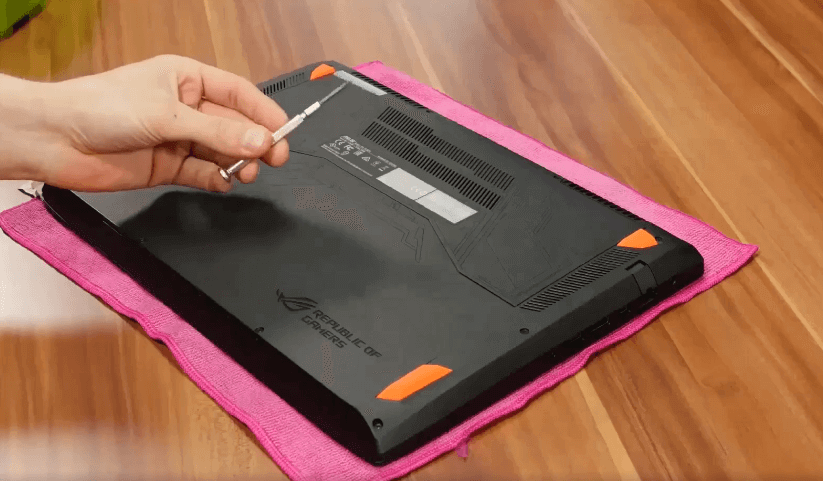
- Check for Hardware Problems: Inspect the WLAN adapter hardware for physical damage or malfunctioning components, and replace them if necessary.
FAQ: Answering Common Questions
Q1: How can I update the Realtek 802.11n WLAN driver on Windows 7 32-bit?
A: You can update the driver by visiting the Realtek website, accessing Device Manager, or using Windows Update to download and install the latest compatible driver version.
Q2: What should I do if the driver installation fails?
A: If the driver installation fails, try using a different method to update or reinstall the driver, such as using Device Manager or downloading the driver from the manufacturer's website.
Q3: Why does my Realtek 802.11n WLAN adapter keep disconnecting?
A: The adapter may be experiencing interference from other wireless devices, or there may be issues with the driver or hardware components causing intermittent connectivity problems.
Q4: Can I roll back to a previous driver version?
A: Yes, you can roll back to a previous driver version by accessing Device Manager, selecting the WLAN adapter, and choosing the "Roll Back Driver" option if available.
Q5: How can I troubleshoot hardware-related issues with the WLAN adapter?
A: You can troubleshoot hardware-related issues by checking for physical damage, ensuring proper connections, and testing the adapter on another computer if possible.
Key Tech Terms
- Driver Compatibility: The ability of a driver to function effectively with a specific operating system and hardware configuration.
- Driver Update: The process of installing the latest driver version to enhance compatibility, performance, and functionality.
- Corrupted Driver Files: Driver files that have become damaged or compromised, leading to malfunctioning and instability of associated hardware components.
- Device Manager: A Windows utility that allows users to view and manage hardware devices, drivers, and system settings.
- Hardware Malfunction: Physical defects or issues with hardware components that result in malfunctioning or non-functional devices.
Tips for Driver Maintenance and Troubleshooting
- Regular Driver Updates: Keep your drivers up to date to ensure optimal performance and compatibility with the latest software and hardware.
- Backup Driver Versions: Create backups of driver installations to facilitate easy restoration in case of issues or compatibility conflicts.
- Hardware Inspection: Regularly inspect hardware components for signs of damage or wear and address any issues promptly to prevent further damage or malfunction.
Conclusion
In conclusion, optimizing the Realtek 802.11 n WLAN driver for Windows 7 32 bit requires proactive troubleshooting, effective solutions, and regular maintenance. By following the guidelines outlined in this guide, you can overcome driver-related issues, enhance system performance, and enjoy seamless wireless connectivity on your Windows 7 32-bit device.
