
 AOMEI Partition Assistant
Streamlining Connectivity: Realtek 802.11 b/g/n WiFi Driver Download for Windows 7
Explore the benefits of the Realtek 802.11 b/g/n WiFi driver download Windows 7 and unlock enhanced connectivity on your device. This article delves into the installation process, troubleshooting tips, and optimization techniques to ensure smooth and reliable wireless networking.

By Hedy / Updated on February 29, 2024


In today's digital age, seamless connectivity is paramount. From browsing the web to streaming content and gaming online, a stable and fast wireless connection is essential for a smooth user experience. However, many Windows 7 users encounter connectivity issues due to outdated or malfunctioning drivers. Fortunately, by downloading and installing the Realtek 802.11 b/g/n WiFi driver download Windows 7, you can optimize your wireless connectivity and enjoy uninterrupted online activities.
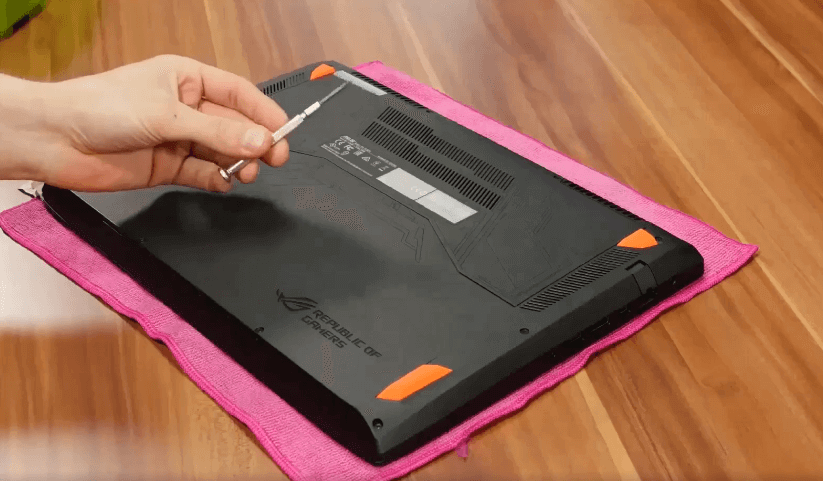
Understanding the Problem
The Importance of Updated Drivers Outdated drivers can significantly impact your computer's performance, especially concerning network connectivity. The Realtek 802.11 b/g/n WiFi driver serves as the interface between your operating system and your wireless network adapter. Without the latest driver updates, your device may experience connection drops, slow internet speeds, or even complete network failures.
Common Causes of Connectivity Issues
1. **Outdated Drivers**: As technology evolves, older drivers may become incompatible with new software updates or hardware configurations.
2. **Software Conflicts**: Conflicts between third-party software applications or system updates can disrupt network functionality.
3. **Hardware Malfunctions**: Physical damage or hardware failures within the wireless network adapter can lead to connectivity issues.
Solutions for Seamless Connectivity
Solution 1: Update Realtek WiFi Driver
1. Visit the Realtek website and navigate to the drivers section.
2. Locate the appropriate driver for your wireless network adapter model and Windows 7 operating system version.
3. Download the driver package to your computer.
4. Run the installer and follow the on-screen instructions to complete the installation process.
5. Restart your computer to apply the changes.
Solution 2: Check for Software Conflicts
1. Open the Control Panel and navigate to the "Programs and Features" section.
2. Review the list of installed programs for any applications that may be conflicting with the network adapter driver.
3. Uninstall any unnecessary or conflicting software.
4. Restart your computer to remove any lingering software conflicts.
Solution 3: Troubleshoot Hardware Issues
1. Physically inspect the wireless network adapter for any signs of damage or loose connections.
2. If possible, try using the adapter on another computer to determine if the issue persists.
3. Consider replacing the wireless network adapter if hardware malfunctions are detected.
Frequently Asked Questions
**Q1: How do I know if I need to update my Realtek WiFi driver?**
A: Check the Device Manager for any yellow exclamation marks next to your network adapter. This indicates that the driver may need updating.
**Q2: Can I install the Realtek driver without an internet connection?**
A: Yes, you can download the driver package on another device and transfer it to your computer using a USB drive or external storage device.
**Q3: Will updating my WiFi driver improve internet speed?**
A: While driver updates may enhance network stability, internet speed primarily depends on your service provider and network conditions.
**Q4: Is it safe to download drivers from third-party websites?**
A: It's recommended to download drivers directly from the manufacturer's official website to ensure authenticity and security.
**Q5: How often should I update my Realtek WiFi driver?**
A: It's advisable to check for driver updates periodically, especially after major Windows updates or hardware changes.
Key Technical Terms
1. **Realtek 802.11 b/g/n WiFi Driver**: Software that enables communication between the operating system and the wireless network adapter.
2. **Driver Update**: The process of installing the latest software version to enhance device performance and compatibility.
3. **Network Adapter**: Hardware component that allows a computer to connect to a wireless network.
4. **Connectivity**: The ability of a device to establish and maintain a connection to a network or the internet.
5. **Driver Installation**: The process of installing device drivers onto a computer system to enable proper hardware functionality.
Tips for Optimal Connectivity
1. Regularly check for driver updates to ensure optimal performance.
2. Avoid downloading drivers from unverified sources to prevent malware infections.
3. Consider investing in a reliable antivirus program to safeguard your system against potential threats.
Conclusion
In conclusion, the Realtek 802.11 b/g/n WiFi driver download Windows 7 is a valuable tool for enhancing connectivity and optimizing network performance. By following the outlined solutions and tips, you can address connectivity issues effectively and enjoy a seamless online experience. Stay connected, stay informed, and elevate your digital lifestyle with the latest driver updates.
