
 AOMEI Partition Assistant
Resolving Windows 10 File History Recognition Issues with Hard Drives
Learn how to address the frustrating issue of Windows 10 File History doesn't recognize the hard drive. Gain insights into troubleshooting methods and effective solutions to ensure seamless file backup and data protection on your Windows 10 system.

By Hedy / Updated on February 27, 2024


Have you ever encountered the frustrating scenario where Windows 10 File History doesn't recognize the hard drive? It's a common issue that can leave you feeling helpless, especially when you rely on File History to back up your important files and documents. In this guide, we'll delve into the causes behind this problem and explore effective solutions to resolve it once and for all.
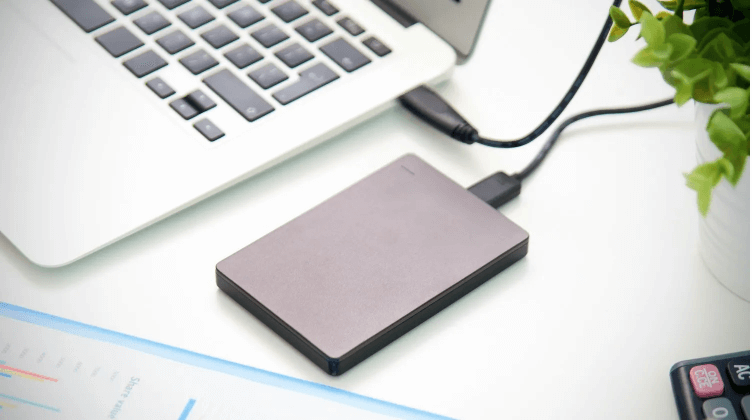
Understanding the Problem
At its core, the issue of Windows 10 File History not recognizing the hard drive can stem from various factors. First and foremost, compatibility issues between the hard drive and the operating system can lead to recognition issues. Additionally, corrupt system files or misconfigured settings may also contribute to this problem. Furthermore, hardware malfunctions or driver conflicts could be the underlying reasons behind the issue.
Exploring the Causes
1. **Compatibility Issues**: Certain hard drives may not be fully compatible with Windows 10, leading to recognition issues.
2. **Corrupt System Files**: If critical system files related to File History are corrupted, it can prevent the feature from recognizing the hard drive.
3. **Misconfigured Settings**: Incorrect settings within the File History configuration or system settings can interfere with proper recognition.
Solutions to Resolve the Issue
Here are three effective solutions to troubleshoot and resolve Windows 10 File History recognition issues with hard drives:
1. Check Hard Drive Compatibility
- Ensure that the hard drive is compatible with Windows 10 by checking the manufacturer's specifications.
- Update the hard drive firmware and drivers to the latest versions to ensure compatibility with the operating system.
2. Repair Corrupt System Files
- Run the System File Checker (SFC) tool to scan and repair any corrupted system files.
- Use the Deployment Imaging Service and Management Tool (DISM) to repair the Windows image and fix underlying system file issues.
3. Adjust File History Settings
- Access the File History settings in Windows 10 and verify that the correct hard drive is selected for backup.
- Reset File History settings to default and reconfigure the backup options to ensure proper recognition of the hard drive.
Frequently Asked Questions
Q1: How do I check if my hard drive is compatible with Windows 10?
A: You can check the manufacturer's website for compatibility information or consult the Windows Device Manager to verify compatibility.
Q2: Can outdated drivers cause recognition issues with File History?
A: Yes, outdated or incompatible drivers can interfere with File History recognition. It's essential to keep drivers updated to ensure smooth operation.
Q3: Is it possible to use File History with an external hard drive?
A: Yes, File History supports external hard drives for backup purposes. Ensure that the drive is properly connected and recognized by Windows 10.
Q4: What should I do if File History still doesn't recognize my hard drive after trying the solutions mentioned?
A: In such cases, consider formatting the hard drive and setting it up again for File History backup. Be sure to back up any existing data before formatting.
Q5: Are there any alternative backup solutions if File History continues to pose recognition issues?
A: Yes, you can explore third-party backup software options available for Windows 10, such as Acronis True Image or EaseUS Todo Backup.
Key Technical Terms
1. **File History**: Windows 10 feature that allows users to automatically back up files to an external drive.
2. **System File Checker (SFC)**: Windows utility that scans and repairs corrupted system files.
3. **Deployment Imaging Service and Management Tool (DISM)**: Command-line tool used to service and repair Windows images.
Helpful Tips
1. Regularly update your Windows 10 system and drivers to ensure compatibility and stability.
2. Maintain backups of important files using multiple methods to mitigate the risk of data loss.
3. Perform routine maintenance tasks, such as disk cleanup and defragmentation, to optimize system performance.
Conclusion
In conclusion, resolving Windows 10 File History doesn't recognize the hard drive requires a systematic approach to troubleshooting and problem-solving. By understanding the underlying causes and implementing the solutions outlined in this guide, you can restore File History functionality and ensure reliable backup of your valuable data. Remember to stay proactive in maintaining your system and backups to safeguard against unexpected data loss events.
