
 PartitionAssistant NTFS for Mac
How to Convert FAT32 to NTFS without Formatting Mac
Looking to convert FAT32 to NTFS without formatting Mac? Get the full explanation here and learn a practical workaround that lets you achieve the same result.

By Hedy / Updated on April 2, 2026


Despite being an older file system, FAT32 remains popular for USB drives, digital cameras, MP3 players, and devices that rely on legacy systems. Its broad compatibility with various operating systems and devices contributes to its continued use.
However, FAT32 comes with several limitations: it restricts file sizes to 4GB, caps volume sizes at 2TB, and lacks modern security and reliability features. For these reasons, many users opt for NTFS, the default file system for Windows, which offers support for larger files and volumes, improved performance, faster file handling, and stronger security and data integrity.
If you're thinking of making the switch, this guide will walk you through the process. Keep reading to learn how to convert your USB drive, pendrive, SD card, or external hard drive from FAT32 to NTFS on a Mac.
Can I convert FAT32 to NTFS without formatting Mac?
Curious if you can switch from FAT32 to NTFS on a Mac without formatting? Unfortunately, the answer is no. Converting between file systems, especially from FAT32 to NTFS, requires formatting the drive. This is due to the fundamental differences in how each file system handles data, making them incompatible without reformatting.
When you format a drive from FAT32 to NTFS on a Mac, the following steps take place:
► Data removal: All files on the drive are deleted. This is necessary because FAT32 and NTFS organize data in completely different ways.
► File system overhaul: The formatting process sets up a new file system structure, which includes how files, directories, and metadata are stored.
► New features activation: NTFS brings advanced features that FAT32 lacks, such as better support for large files and volumes, file-level security, efficient file management, and journaling for transaction logging. These enhancements can only be activated by creating a fresh NTFS system.
How to convert FAT32 to NTFS without formatting Mac
There is another, less-recommended method to convert FAT32 to NTFS on a Mac: using Terminal commands. However, this option only works on macOS Monterey or earlier versions. On macOS Ventura or newer, attempting this will result in an error: "Formatting is not supported by: NTFS ntfs Windows NT File System (NTFS)".
Even if the format succeeds, this method has limitations. While it allows you to format a drive to NTFS, it doesn't enable you to write data to it. This means you'll be able to format the drive, but not actually use it for storing files.
If you're determined to give this method a try, follow these steps:
Step 1. Open Finder and navigate to the Applications/Utilities folder to launch Terminal.
Step 2. Enter the following command and press Enter to display all connected drives:
diskutil list
Step 3. Identify the disk or partition corresponding to your FAT32 drive (for example, it could be disk2 for a drive or disk2s3 for a partition).
Step 4. Once you've found the correct disk identifier, use one of the following commands to format it to NTFS:
🔸 For a FAT32 drive:
diskutil eraseDisk NTFS name /dev/disk_identifier
Example: diskutil eraseDisk NTFS Backup /dev/disk2
🔸 For a FAT32 partition:
diskutil eraseVolume NTFS name /dev/disk_identifier
Example: diskutil eraseVolume NTFS Backup /dev/disk2s3
Step 5. Wait for the process to finish.
How to write NTFS format on Mac without formatting
When working with external drives, users often face the challenge of managing different file systems, especially when using Mac computers. One common issue is the need to write to an NTFS-formatted drive on macOS, as macOS can read NTFS but doesn't offer full support to write to it natively.
PartitionAssistant NTFS for Mac provides a seamless solution for this. Originally designed for managing NTFS file systems on Mac, this powerful tool also allows you to perform other operations, such as writing to NTFS-formatted drives, without the need to reformat them. This makes it ideal for users who need to quickly transfer files to an NTFS drive without the hassle of backup and reformatting.
✍ Key features:
✔️ Write support for NTFS drives: It unlocks the ability to write to NTFS drives directly on your Mac, offering better file transfer compatibility without formatting or erasing existing data.
✔️ No need for reformatting: Unlike many other utilities, PartitionAssistant NTFS for Mac ensures that your drive remains in its original NTFS format while still enabling full read and write access.
✔️ Easy-to-use interface: The user-friendly design of PartitionAssistant makes it easy for anyone, even those with little technical experience, to use it effectively for file management on FAT32 and NTFS drives.
✔️ Cross-platform compatibility: It supports both NTFS and FAT32, bridging the gap between Mac and Windows systems, ensuring smooth data exchange between the two platforms.
If you're frequently handling NTFS drives on your Mac, PartitionAssistant NTFS for Mac is a great tool to consider. It simplifies file management, saves time, and eliminates the need for formatting, allowing you to maintain your drive's integrity while adding essential functionality.
Step 1. Download and install the software on your Mac, open PartitionAssistant NTFS for Mac, then connect your NTFS drive and the program will automatically detect and display it.

Step 2. Select the drive you want to enable full read and write access for NTFS drive and click "Open".
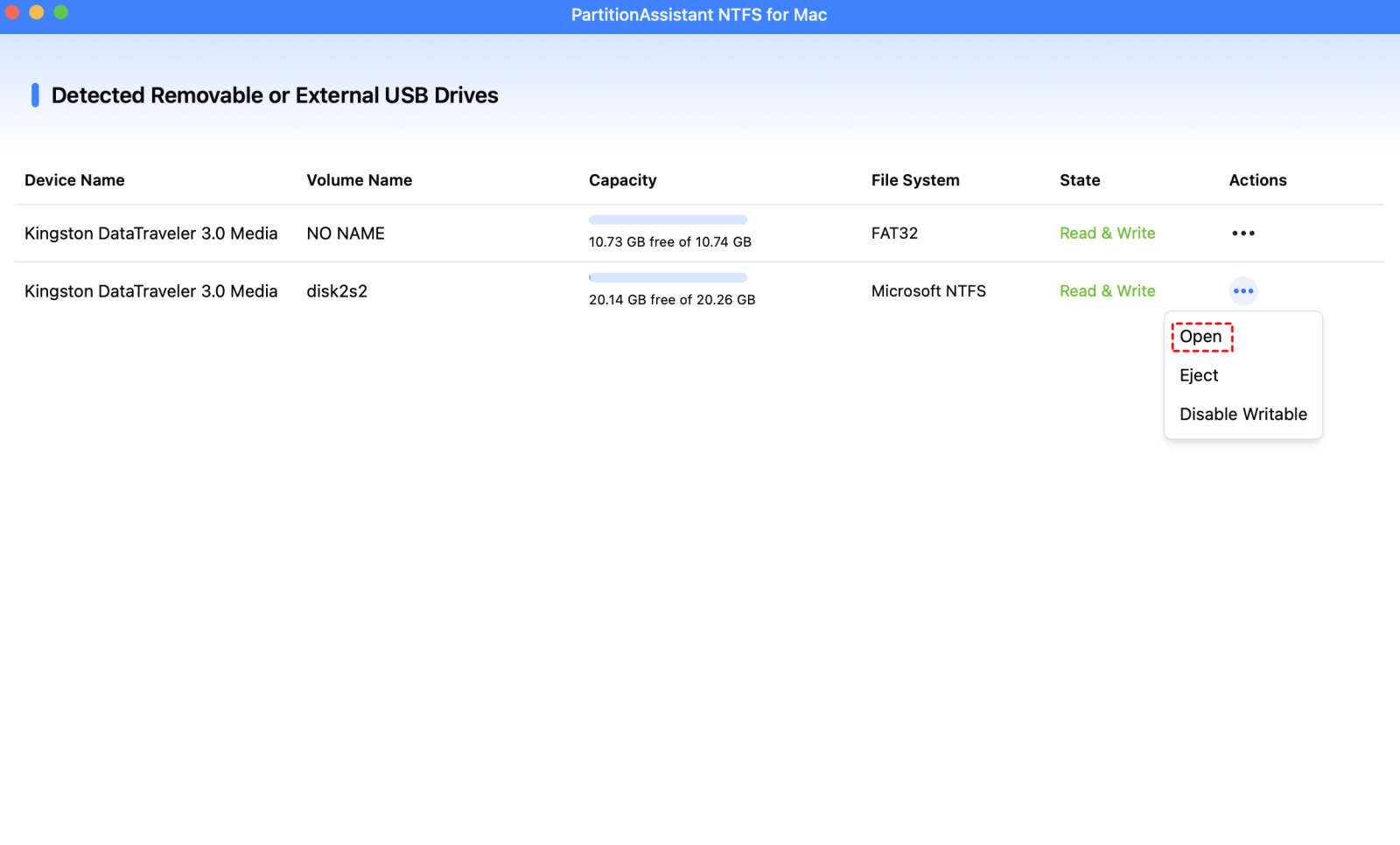
Now you can write data to the NTFS drive on Mac like copy, delete and rename files on the NTFS disk.

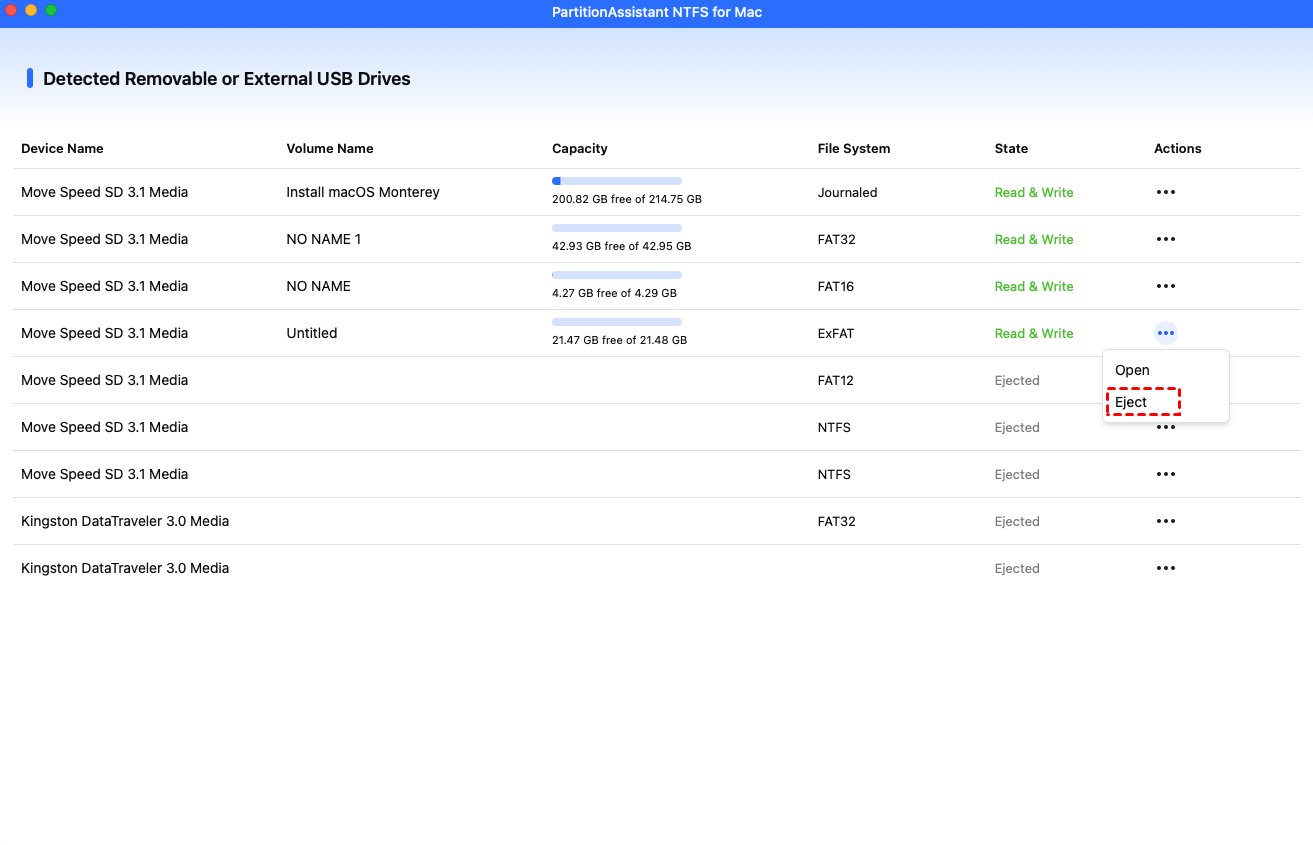
Step 3. After all operations are complete, please click "Eject" to disconnect the external hard drive from your Mac.
FAQs
✎ Can I convert FAT32 to NTFS on Mac without losing data?
No, macOS does not natively support converting FAT32 to NTFS without data loss. You would need to back up the data and format the drive to NTFS.
✎ Can macOS write to NTFS drives?
macOS can read NTFS drives but cannot natively write to them. You need third-party software like Paragon NTFS or Tuxera NTFS for full access.
✎ Is it safe to convert FAT32 to NTFS on Mac?
Converting FAT32 to NTFS on Mac is safe as long as you back up your data. The process may require reformatting, which could result in data loss without a backup.
✎ How do I change from APFS to NTFS?
To switch from APFS to NTFS, you need to back up your data, reformat the drive to NTFS using a third-party tool like Paragon or Disk Utility, then restore your data.
Conclusion
In conclusion, while FAT32 remains popular for its broad compatibility with older devices, it comes with significant limitations, such as file size restrictions and lack of security features. Converting from FAT32 to NTFS on a Mac requires reformatting the drive, which results in data loss unless backed up. Tools like PartitionAssistant NTFS for Mac allow seamless writing to FAT32 drives without formatting, providing a convenient solution for Mac users.
