
 PartitionAssistant NTFS for Mac
[Quick Guide] How To Format USB To NTFS On Mac
Learn the quickest way to format a USB drive or HDD to NTFS on Mac. Get straightforward steps to enable NTFS compatibility for your Mac external drive.

By Irene / Updated on March 2, 2026


Can you format USB to NTFS on Mac?
Some users who need to store large files or prepare a drive for a Windows PC may open Disk Utility expecting to see NTFS as an option. They can become confused and frustrated when they check the “Format” dropdown and only see Mac-compatible formats like APFS, exFAT, and FAT32. This clearly shows that macOS cannot format a drive to NTFS on its own.
NTFS, or New Technology File System, is a proprietary file system developed by Microsoft. While macOS can read NTFS drives, allowing you to view and copy files, it cannot write to them or format them as NTFS by default. This limitation exists because of licensing restrictions and the complexity of supporting Microsoft’s closed system.
When you use Disk Utility to erase a drive, NTFS will not appear as an option. If you need to format a USB drive to NTFS on a Mac, you must use third-party software such as PartitionAssistant NTFS for Mac, or use a Windows PC to perform the formatting.
How to change Mac format external hard drive to NTFS?
Fix 1. Use NTFS USB on Mac without formatting
Writing to NTFS drives on a Mac has long been a challenge. By default, macOS can only read NTFS drives, which means you can view but cannot make any changes. This limitation often frustrates users who need to edit, move, or delete files on Windows-formatted drives. In the past, the only solutions were reformatting the drive, which risks data loss, or using complicated Terminal commands, which can be confusing and unreliable.
PartitionAssistant NTFS for Mac offers a simple and reliable solution. This professional software allows full read and write access to NTFS drives directly within macOS. You can copy, edit, rename, delete, and move files without reformatting the drive. It works seamlessly with all Windows-formatted drives, giving them the same flexibility as they would have on a PC. This makes it ideal for managing large files, backing up data, or transferring documents between Mac and Windows systems.
Unlike unstable Terminal lines, PartitionAssistant NTFS for Mac is designed to feel native to macOS. Once installed, it integrates smoothly with the Mac interface, providing a stable and safe environment for all your NTFS drives. Users no longer need to worry about corrupting files or losing data, making it the most secure and efficient way to work with Windows drives on a Mac.
For Mac users who frequently deal with NTFS drives, relying on professional software is the most practical choice. PartitionAssistant NTFS for Mac saves time, reduces any failure of file system incompatibility, and ensures data safety while providing full disk access to your files. It is the ultimate tool for anyone who wants seamless compatibility between Mac and Windows storage without any limitations.
Before we start, you need to configure Security Policy in iOS Recovery Mode.
Step 1. Run PartitionAssistant NTFS for Mac and connect your USB flash drive.
Step 2. The connected, removable, and external USB drives will be mounted and listed.

Step 3. Select the drive you want to operate and click "Open".
Step 4. Now you can copy files on your Mac and click "Paste Item" to copy the files to USB drive.
Step 5. You can also copy, delete, and rename files on the USB drive.
Step 6. After all operations are complete, please click "Eject" to disconnect the USB drive from your Mac.
Fix 2. Format USB to NTFS on Windows PCs
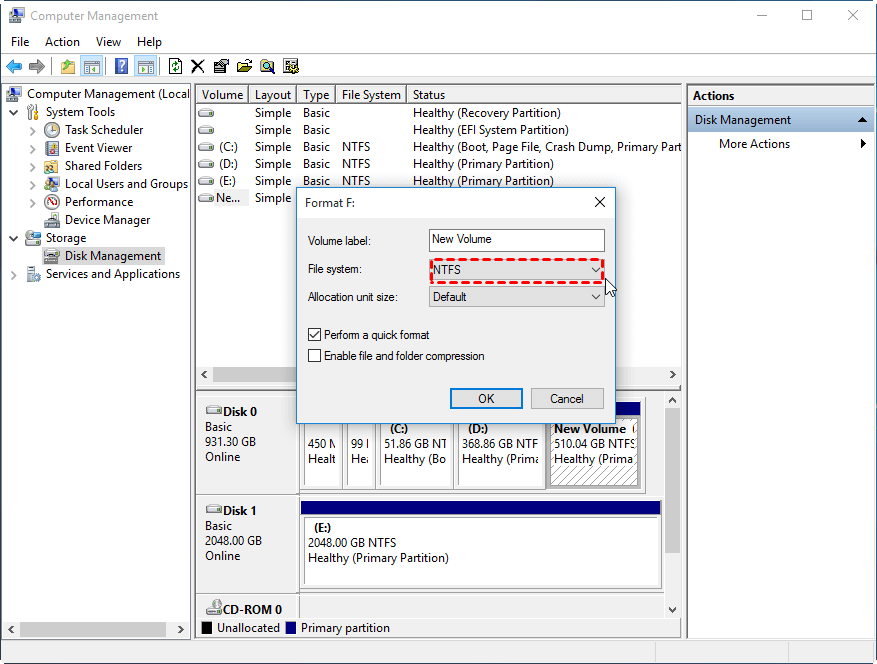
Disk Management is a Windows tool that helps users handle their hard drives and storage devices. It lets you create, delete, and format partitions, and also allows you to change drive letters and paths. You can format the USB on a Windows PC then using it on your Mac.
Step 1. Insert your USB on a Windows PC. Right-click on the window icon and click "Disk Management" to open Disk Management.
Step 2. Right-click on the USB drive, and choose "Format".
Step 3. In the new window, set the volume label, file system, and allocation unit size as you wish. Tick "Perform a quick format" and click "OK" to start formatting.
Conclusion
In summary, macOS cannot format a USB drive to NTFS on its own, and writing to NTFS drives is limited by default. For users who need full access to Windows-formatted drives, PartitionAssistant NTFS for Mac provides a safe and easy solution. It allows you to read, write, copy, delete, and manage files directly on NTFS drives without reformatting. With this software, working between Mac and Windows becomes seamless, reliable, and efficient.
FAQs
* How do I reformat my USB to NTFS?
You cannot reformat a USB to NTFS using a Mac’s Disk Utility. You need to use third-party software like PartitionAssistant NTFS for Mac or a Windows PC to format the drive to NTFS.
* Does Mac support NTFS USB?
macOS can read NTFS drives, so you can view and copy files from them, but it cannot write to or format NTFS drives by default.
* Why can't Mac write to NTFS?
NTFS is a proprietary Microsoft file system. macOS includes read support but does not include built-in write or formatting support due to licensing and technical limitations.
* Is exFAT or NTFS better for Mac?
For cross-platform use between Mac and Windows, exFAT is better because macOS can read and write to it without additional software. NTFS is more suitable if you mainly use Windows and need advanced features like file permissions.
* Do I really need NTFS for Mac?
You only need NTFS on a Mac if you frequently work with Windows-formatted drives and need full read/write access. Otherwise, exFAT or FAT32 is easier and fully supported by macOS.
