
 PartitionAssistant NTFS for Mac
How to Add Files to Toshiba External Hard Drive on Mac
How to add files to Toshiba external hard drive on Mac? In this post, you will learn the most possible reasons as well as four practical ways to address this issue.

By Hedy / Updated on March 5, 2026


Sometimes Macs can’t write to certain external drives due to permissions or file system restrictions. Here’s how to fix it and successfully add your files.
|
Way 1. Change or ignore permissions |
If your Mac can’t write to the Toshiba drive, adjusting the drive’s permissions may resolve the issue. This ensures your account has proper access rights. |
|
Way 2. Run First Aid or Basic Checks |
Disk errors can prevent file transfers. Using First Aid in Disk Utility can repair minor issues and make your Toshiba drive writable. |
|
Way 3. Format the Toshiba drive |
If the drive uses an incompatible format (like NTFS), reformatting to a Mac-compatible file system allows file writing. Warning: This erases all data on the drive. |
|
Way 4. Add NTFS driver to Mac |
Macs cannot natively write to NTFS drives. Installing a third-party NTFS driver allows full read/write access to Toshiba drives formatted with NTFS. |
“I plug in my 1.5 TB Toshiba external hard drive on a Mac, and I can view my files and copy & paste them to my desktop. But I cannot add any files to the hard drive. A "cancellation" sign appears when I try to drag and drop any type of file. I have over 1 TB of files on the drive with 500 GB of free space left. I would transfer files to another device then attempt reformatting it, but I don't have the time or money to do this. Any help or suggestions? Thanks.”
Imaginethis: you’ve just purchased a brand-new Toshiba external hard drive, eager to start transferring files on your Mac. But then, frustration strikes. A common issue many users encounter is seeing an error stating, “Toshiba External Hard Drive Won’t Allow Me to Add Files.” Why does this happen, and more importantly, how can it be fixed? Let’s dive into the underlying causes and practical solutions to get your drive working smoothly again.
Why can’t add files to Toshiba external hard drive on Mac?
Several factors can prevent a Mac from adding files to a Toshiba external hard drive, and similar problems can occur with drives from other brands. Understanding these causes is key to resolving the issue effectively.
► Improper connection: One of the most common reasons is that the drive isn’t properly connected. Ensuring a secure connection often resolves the problem quickly.
► Locked drive: If the drive is locked, macOS will prevent any file transfers. Simply unlocking the drive can restore full access.
► Permission restrictions: Incorrect permissions can block writing to the drive. Adjusting the drive’s access settings can remove this barrier.
► Corrupted drive: Damage or corruption on the drive can interfere with reading and writing files, causing errors on the Mac.
► NTFS formatting: Drives formatted in NTFS are not natively writable on macOS. To use these drives, special software or drivers are required to enable full functionality.
How to add files to Toshiba external hard drive on Mac
The solutions to the “Toshiba External Hard Drive Won’t Allow Me to Add Files” error start with identifying the underlying cause. By addressing each potential issue, you can restore full functionality. Let’s walk through the fixes step by step.
Way 1. Change or ignore permissions
If the drive appears correctly formatted but still won’t allow file transfers, the issue could be incorrect permissions.
• Open the drive’s Info panel on your Mac and review the Sharing & Permissions settings. Focus on the Read & Write permissions:
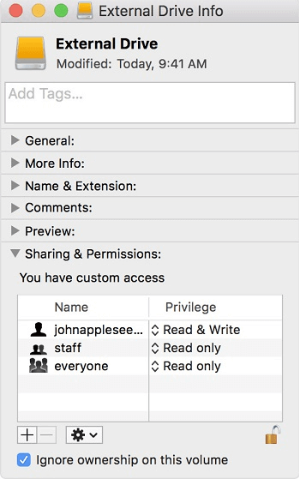
• Assign proper Read & Write access to the specific user accounts that need it.
• Alternatively, you can set the drive to allow everyone to read and write, ensuring unrestricted access for all users.
Adjusting these settings often resolves the problem and lets you transfer files without errors.
Way 2. Run First Aid or Basic Checks
First Aid is a built-in feature in Mac’s Disk Utility that helps repair drives and fix common errors. If your Toshiba drive won’t accept files, running First Aid may resolve the issue.
Step 1. Open Disk Utility and choose View > Show All Devices to display all connected drives.
Step 2. Select your Toshiba drive from the sidebar, then click First Aid.
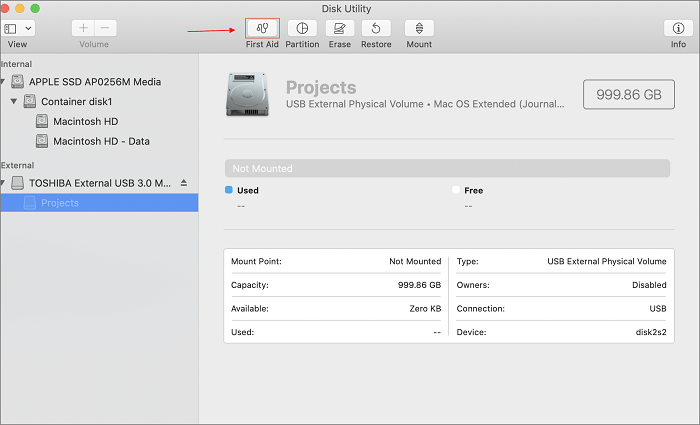
Step 3. In the First Aid dialog, click Run and follow the on-screen instructions.
Step 4. Allow the process to complete, then click Done when finished.
This tool can repair minor drive errors and restore proper file-writing functionality.
Way 3. Format the Toshiba drive
Sometimes the drive itself may be the root of the problem, and formatting can provide a fresh start. This is especially useful for new Toshiba drives that haven’t been set up for Mac yet.
Step 1. Connect the drive to your Mac.
Step 2. Open Disk Utility.
Step 3. Select the drive you wish to format from the sidebar.
Step 4. Click Erase.
Step 5. Assign a name to the drive and confirm by clicking Erase again.
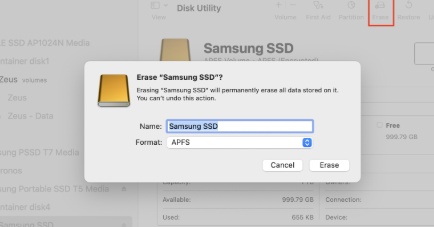
Once complete, the drive will be fully formatted and ready for file transfers.
Way 4. Add NTFS driver to Mac
If your Toshiba drive is formatted in NTFS, macOS won’t natively recognize it. This means you won’t be able to read, write, or modify files directly on the drive.
To overcome this limitation, you can use specialized software like NTFS for Mac, which enables full read and write access to NTFS drives on a Mac. One reliable option is PartitionAssistant NTFS for Mac.
This lightweight tool provides full read and write access to NTFS drives on macOS with minimal setup. After installation, you can easily copy, delete, edit, and organize files on NTFS devices just like you would on a native Mac-formatted drive.
The software integrates smoothly with the system, allowing NTFS disks to appear and function normally in Finder. It also offers convenient options to mount or unmount NTFS volumes directly from the menu bar, ensuring a safe and efficient way to manage NTFS storage on a Mac.
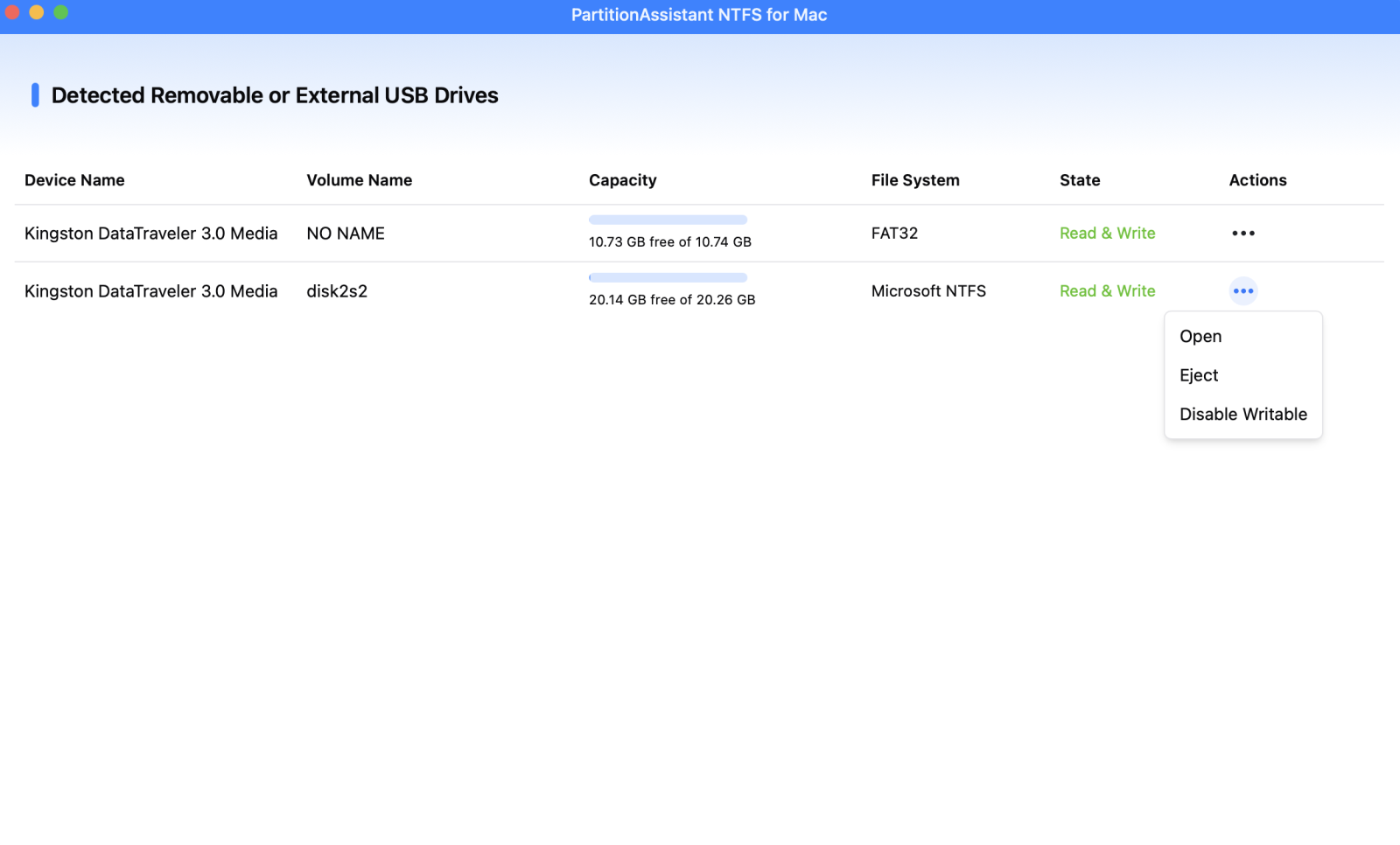
Step 1. Download and open PartitionAssistant NTFS for Mac. Insert your Toshiba external hard drive into the Mac. The software will automatically detect and mount the devices.
Step 2. The software will display all of your drives on your Mac.

Step 3. If your external hard drive shows "Read Only", you can change the state manually by clicking"Enable Writable".
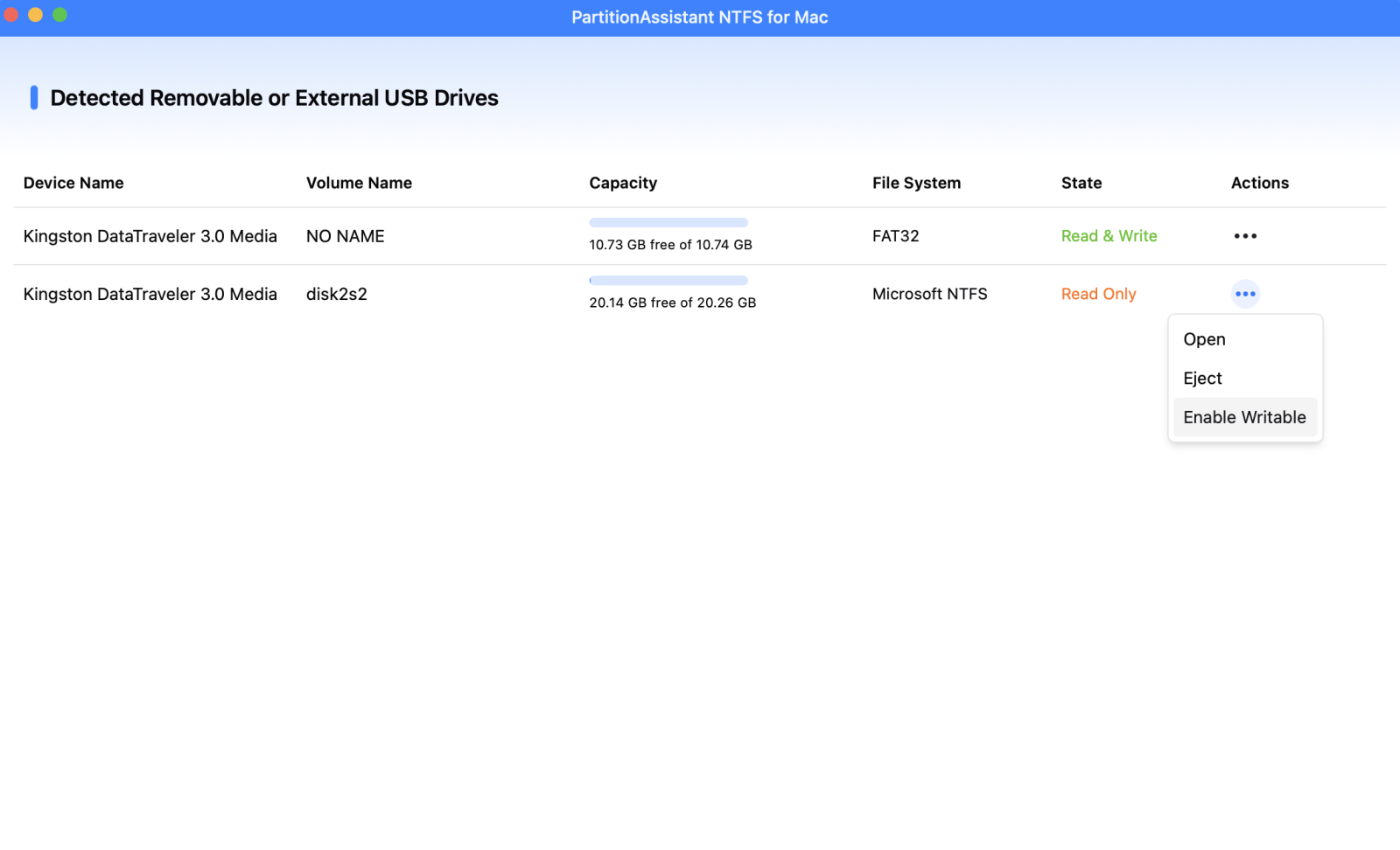
Step 4. You can now write data on your external hard drive on Mac once it is set to Read & Write.
FAQs
★ Why can’t I copy files to my Toshiba external hard drive on Mac?
This usually happens because the drive is formatted as NTFS, which macOS can read but not write to by default. Permission restrictions, disk errors, or corrupted file systems may also prevent copying files.
★ What format should I use for Toshiba external drives on Mac?
For Mac-only use, choose APFS or Mac OS Extended (Journaled). If you need compatibility with both Mac and Windows, exFAT is recommended because it supports large files and works across both systems.
★ Will formatting the drive delete my files?
Yes. Formatting completely erases all data stored on the drive and creates a new file system. Always back up important files before formatting to avoid permanent data loss.
★ Can I use Toshiba external hard drives on both Mac and Windows?
Yes. Format the drive as exFAT to ensure compatibility with both systems. This format allows both macOS and Windows to read and write files without additional software.
★ How do I safely disconnect a Toshiba external hard drive from Mac?
Right-click the drive icon on the desktop and select Eject, or drag the drive to the Trash/Eject icon. Wait until it disappears, then unplug it to prevent data corruption or file damage.
Conclusion
If you’re struggling to add files to a new Toshiba drive on your Mac, it’s usually linked to one or more underlying issues. Identifying the exact cause is the first step toward a proper fix.
When the problem stems from the drive being formatted in NTFS, using a reliable NTFS for Mac tool can make a big difference. PartitionAssistant NTFS for Mac is highly recommended, offering seamless functionality and professional-grade performance to ensure smooth file management on your Toshiba drive.
