
 PartitionAssistant NTFS for Mac
What is APFS? File System Explained with macOS Here!
What is APFS? APFS is the modern Apple File System used on recent Mac devices. This overview also shares how to use Windows file system like NTFS on Mac.

By Irene / Updated on January 22, 2026


A common situation happens in everyday work. You use your new MacBook and its fast APFS file system to create a presentation. Your project partner, however, works on a Windows laptop. You save the file to a USB drive, but when your partner plugs it in, their computer cannot read the drive. The reason is simple: your Mac uses APFS, while the Windows system relies on NTFS. You then think of using an older external hard drive formatted with Mac OS Extended, but that option does not work either. This familiar experience clearly shows why understanding file system differences is necessarywhen sharing files between macOS and Windows. In this passage, we will explain what is APFS, what differences between each file system on Mac, and how to use Windows files system on mac OS to help you avoid compatibility issues.
What is APFS?
The Apple File System (APFS) is the modern, default file system for all current Apple devices, including Mac, iPhone, iPad, and Apple Watch. Introduced with macOS High Sierra in 2017, APFS succeeded the long-standing Mac OS Extended (HFS+) file system. This transition was driven by the technological shift to solid-state drives (SSDs) and flash storage, which demand a more efficient and powerful file system than what was required for traditional mechanical hard drives. The primary objective of APFS is to deliver a fast, reliable, and secure foundation for data management on Apple hardware. As a major technological upgrade from its predecessor, APFS provides significant improvements in performance, data integrity, and security.
-
Optimized for SSDs and Flash Storage: Built for modern SSDs, APFS leverages their low-latency design to deliver maximum read/write performance and superior space efficiency.
-
Space Sharing: Enables multiple volumes to dynamically share a single storage pool, eliminating rigid partitions for more flexible and efficient disk management.
-
Crash Protection and Snapshots: A copy-on-write mechanism guarantees data integrity and crash protection, while also enabling instant, point-in-time snapshots for fast, reliable backups.
-
Strong Native Encryption: Provides robust, native encryption at the file, disk, or directory level with multi-key support to secure data without third-party software.
-
Cloning: Instantly creates file and directory clones that occupy negligible additional space, making duplication both rapid and storage-efficient.
APFS vs. Mac OS Extended (HFS+)
The move from Mac OS Extended (HFS+) to APFS was essential to support the architecture of modern storage and contemporary computing habits. While HFS+ served macOS users effectively for decades, it was designed for an earlier era of hardware and lacks many features now standard in modern computing environments.
Compared to HFS+, APFS offers:
| Feature | APFS Advantage |
|---|---|
| Performance | Superior performance on SSDs and flash storage. |
| Reliability | Improved data integrity through its copy-on-write model. |
| Flexibility | More adaptable space management via Space Sharing. |
| Modern Capabilities | Advanced features such as snapshots and native encryption. |
However, HFS+ remains supported on recent versions of macOS. It can be a practical choice for older Macs equipped with mechanical hard drives or in scenarios where compatibility with older macOS versions is necessary. APFS is the preferred and superior file system for modern Apple devices, offering clear advantages in speed, security, and storage efficiency.
How to use Windows file system on macOS with external hard drives?
APFS works seamlessly for Apple’s internal storage, but everyday workflows often involve Windows devices, especially external hard drives formatted with NTFS. This is where many Mac users run into trouble. Because macOS does not fully support Microsoft’s NTFS file system, you can usually view files but cannot edit, copy, or delete them. When you need to share drives, move large files, or collaborate with Windows users, this limitation quickly becomes a productivity blocker.
Instead of reformatting the drive and risking data loss, a more practical solution is to use an NTFS driver for Mac. Most external hard drives are pre-formatted in NTFS, and a dedicated driver allows macOS to work with them properly. Tools like PartitionAssistant NTFS for Mac enable full read and write access without altering the drive’s format or erasing existing files.
Once installed, the external drive behaves like a native Mac volume, making file transfers between Windows and macOS simple, safe, and efficient for daily use.
Step 1. You can install and launch PartitionAssistant NTFS for Mac, then connect your NTFS drive, and the software will automatically mount and display all connected removable and external drives.

Step 2. Select the NTFS drive you want to make it read and write, and click "Open".
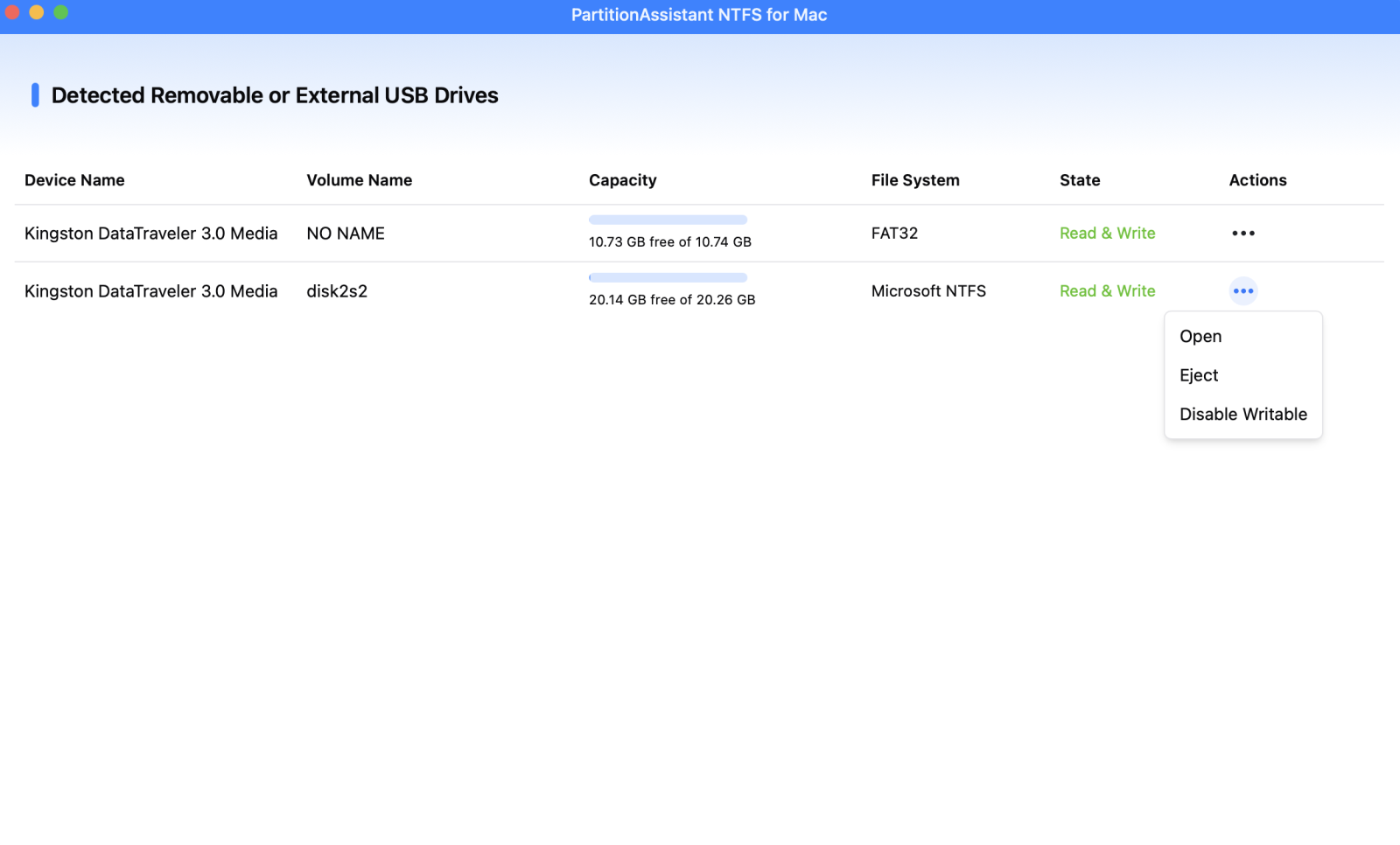
Step 3. You can use this drive for both Mac and Windows to copy, move, edit, or delete files that won't delete.

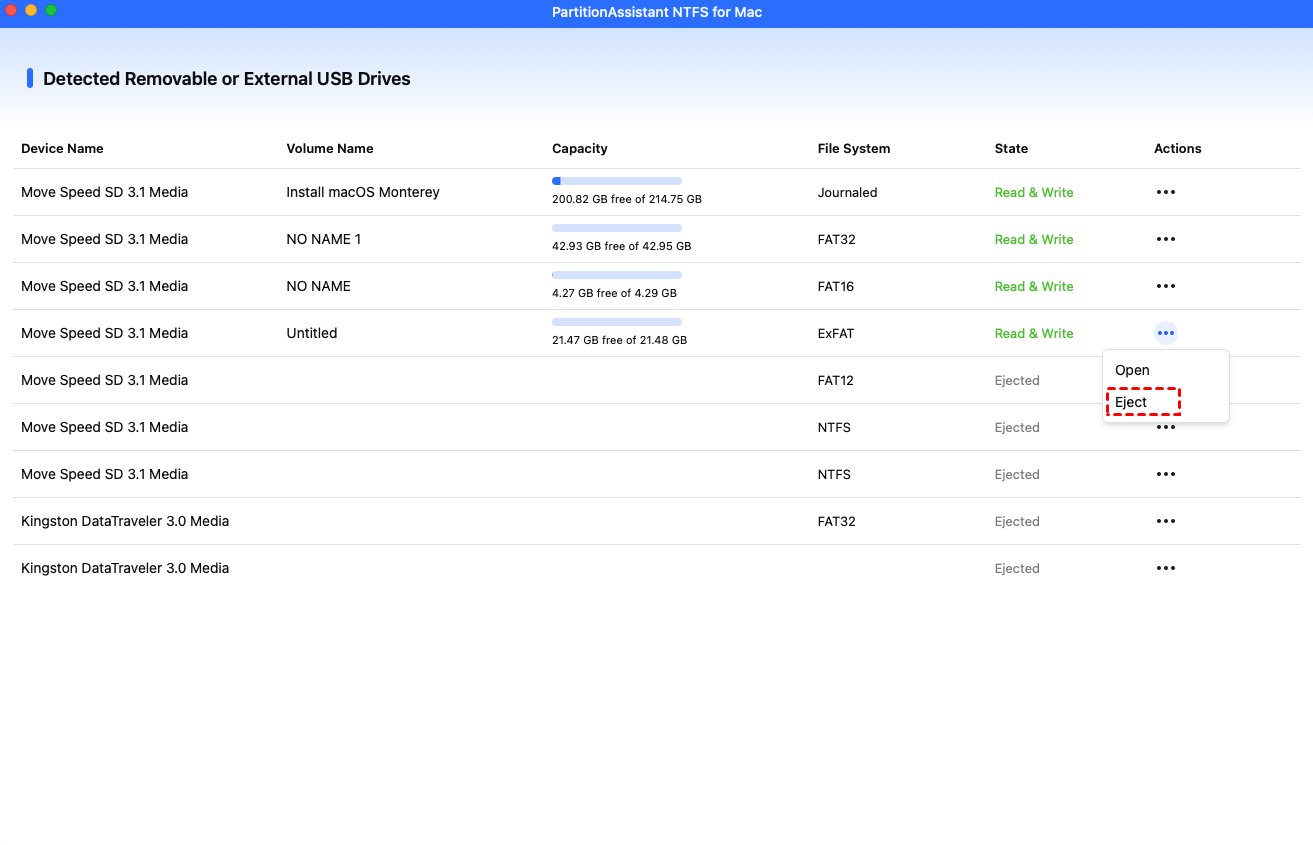
After all operations are complete, please click "Eject" to disconnect the external hard drive from your Mac.
Conclusion
Working between macOS and Windows does not have to be complicated. APFS provides excellent performance and security for Apple devices, while NTFS remains the standard file system for Windows. Understanding how these systems differ helps explain why file-sharing issues often occur when using external hard drives across platforms.
Instead of reformatting a drive and risking important data, using an NTFS driver on macOS offers a simple and reliable alternative. It allows your external hard drive to work properly on both systems, with full access to your files and no disruption to your workflow. With the right tool like PartitionAssistant NTFS for Mac, you can move files between Mac and Windows more easily, avoid unnecessary frustration, and keep your daily work running smoothly.
FAQs
Is APFS or NTFS better?
Neither is universally better. APFS is best for Apple devices and macOS systems because it is optimized for SSDs, security, and performance. NTFS is better for Windows systems and is widely used for external drives meant to work with PCs. The better choice depends on which operating system you use most.
Can a Mac use an NTFS external drive?
Yes, a Mac can use an NTFS external drive, but with limitations. macOS can read files on NTFS drives by default, but it cannot write to them. To copy, edit, or delete files, you need to install an NTFS driver for Mac.
What happens if I format my external hard drive to NTFS?
Formatting a drive to NTFS will erase all existing data on it. After formatting, the drive will work normally on Windows, but macOS will only allow read access unless you use an NTFS driver.
What happens if I delete the APFS volume on my Mac?
Deleting an APFS volume removes all data stored on that volume. If it is your system volume, macOS will no longer boot. This action should only be done if you are certain and have a full backup.
What is APFS used for?
APFS is used as the default file system for Apple devices. It manages internal storage on Macs, iPhones, and iPads, providing fast performance, strong encryption, reliable data protection, and efficient space management.
