
 AOMEI Partition Assistant
How to Remove Microsoft Account from Windows PC without Logging in
Need to remove an account without the password? Discover how to delete a user account from Windows 10, even without logging in. This article covers removing Microsoft accounts and local account passwords.

By Lucas / Updated on June 18, 2025


Managing user accounts on a Windows PC is a common task, but it can become a significant challenge when you're locked out. Whether you've purchased a second-hand computer, forgotten a password, or need to remove an old account for security reasons, figuring out how to remove a Microsoft account from a Windows PC without logging in is a critical skill. Users often face this issue and also search for solutions on "removing my user account from Windows on a PC" or how to "delete a user account from Windows 10" under these difficult circumstances.
This guide is designed to provide you with authoritative and effective methods to reclaim control of your PC. We'll explore solutions for removing a Microsoft account when you can't access it directly and also introduce a powerful tool for managing local account passwords, ensuring you have a comprehensive toolkit for Windows user account management.
Can You Directly Remove a Microsoft Account Without Login?
Before diving into the solutions, it's important to understand the security measures built into Windows. For security reasons, Windows doesn't provide a simple, one-click button to delete an account from the login screen. This prevents unauthorized users from easily deleting accounts and accessing sensitive data.
However, "without logging in" doesn't mean it's impossible. The phrase typically means you cannot log into the specific account you wish to remove. The solutions generally involve accessing the system through alternative administrative credentials or using advanced system recovery tools.
How to Remove a Microsoft Account from a Windows PC Without Logging In
If you need to remove a Microsoft account without being able to sign into it, you'll need to approach the problem with administrative privileges. Here are the most effective methods to achieve this.
This section provides proven solutions to help you successfully remove a Microsoft account from a Windows PC without logging in.
Method 1: Using Another Administrator Account
The most straightforward way to remove a user account is by using another account on the same PC that has administrative rights. If you have a second user profile set up as an administrator, you can easily remove the unwanted Microsoft account.
Step 1. Log in to another Administrator Account: Sign into the other administrator account on the PC.
Step 2. Open Settings: Press the Windows key + I to open the Settings app.
Step 3. Navigate to Accounts: Click on "Accounts" and then select the "Family & other users" tab from the left-hand pane.
Step 4. Select and Remove the Account: Under the "Other users" section, you will see the list of accounts on the PC. Click on the Microsoft account you wish to remove and then click the "Remove" button.

Step 5. Confirm Deletion: A confirmation window will appear, warning you that deleting the account will remove all its data from the PC. If you have backed up any necessary files, click "Delete account and data" to proceed.
This action will completely remove the Microsoft account and its associated files from the computer.
Method 2: Using the Advanced Startup Options (Command Prompt)
If you don't have access to another administrator account, you can try removing my user account from Windows on a PC using the Command Prompt from the Advanced Startup environment. This method is more technical but highly effective.
Step 1. Access Advanced Startup: On the Windows login screen, click the Power icon in the bottom-right corner. Hold down the Shift key and click "Restart". This will reboot your PC into the "Choose an option" screen.
Step 2. Navigate to Command Prompt: From the "Choose an option" screen, select "Troubleshoot" > "Advanced options" > "Command Prompt". Your PC will restart again and open a Command Prompt window.
Step 3. Identify the User Account: In the Command Prompt, type the following command and press Enter to delete the user account:
net user username /delete
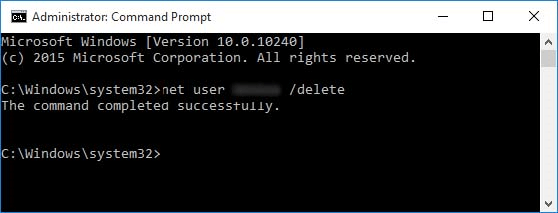
Step 5. Restart Your PC: Close the Command Prompt and restart your computer. The Microsoft account will be removed from the login screen.
How to Remove a Local Account Password from a Computer Without Logging In
While the methods above focus on removing an entire account, sometimes you might just want to regain access to a local account without its password. Forgetting a local account password can feel like a dead end since there’s no online recovery process like with a Microsoft account. Fortunately, there's a professional solution for this exact scenario.
In this situation, we highly recommend AOMEI Partition Assistant Professional. This versatile and powerful disk management software provides a robust suite of tools, including a feature specifically created to solve this problem: "Reset Windows Password".
This function is a lifesaver, allowing you to create a bootable USB drive that can remove or reset the password for any local account on your Windows PC, all without needing to log in first. The process is secure and designed to protect your data, ensuring that only the password is affected.
 100% Secure
Step 1: Create a Password Reset USB on an Accessible PC
1. Download and install AOMEI Partition Assistant Professional on any working Windows computer.
2. Launch the software. In the main interface, click on "Tools" from the top menu and select the "Reset Windows Password" option.
3. A pop-up window will guide you to create a bootable device. Click "Next" to proceed.
4. Choose a USB boot device option and select your prepared USB drive. Click "Proceed" to start creating the password reset tool.
Step 2: Boot the Locked PC from the Created USB Drive
1. Take the bootable USB you just created and insert it into the locked computer.
2. Restart the computer and press the specific key (e.g., F2, F12, DEL, ESC) to enter the BIOS/UEFI setup. The key is usually displayed on the initial boot screen.
3. In the BIOS/UEFI menu, go to the "Boot" tab and set the USB drive as the first boot device.
4. Save the changes and exit the BIOS. The PC will now boot from the AOMEI Partition Assistant bootable media.
Step 3: Remove the Local Account Password
1. Upon booting, the AOMEI Partition Assistant software interface will load. Locate and click on the "Reset Windows Password" option, then select the appropriate operating system and click "Next". Select the Windows system you are targeting and click "Next".
2. The software will display all user accounts on the system. Select the local account whose password you want to remove.
3. You will be presented with two options: "Remove Account Password" and "Reset Account Password". To remove the password entirely, select "Remove Account Password" and click "Next".
4. The software will then process the request and remove the password from the selected account. Once finished, click "Reboot Computer".
After the computer restarts, you can select the user account and log in directly without needing to enter a password.
Ending
Navigating the complexities of user account management, especially when you're locked out, can be daunting. However, knowing how to remove a Microsoft account from a Windows PC without logging in is entirely possible with the right approach, whether through a secondary admin account or the Advanced Startup environment.
For those struggling with a forgotten local account password, the challenge is easily overcome with a professional tool. AOMEI Partition Assistant Professional provides a secure and reliable method to remove or reset local account passwords, ensuring you can regain access to your system quickly and without data loss. By utilizing these methods, you can confidently manage all user accounts on your Windows PC, ensuring both security and accessibility.
