
 AOMEI Partition Assistant
How to Fix Bootmgr Image Corrupt Issue in Windows 11/10
If you encounter BOOTMGR image corrupt error and reinstalling Windows doesn’t resolve this issue, you can read this guide to get several alternative ways to fix this problem effectively.

By Hedy / Updated on January 6, 2026


What does “Bootmgr Image Is Corrupt” mean?
Bootmgr, short for Windows Boot Manager, is a tiny but powerful component responsible for starting your operating system. Think of it as the conductor of an orchestra—without it, Windows doesn’t know when or how to begin.
When your PC turns on, Bootmgr loads first. It reads startup configuration data and tells Windows where the operating system lives and how to launch it.
Main causes of Bootmgr image corruption
☛ Sudden power failure or improper shutdown: Ever pulled the plug or had a blackout during an update? That’s a prime recipe for boot file corruption.
☛ Corrupted system files: System files can degrade over time due to software conflicts, failed updates, or improper installations.
☛ Disk errors and bad sectors: Hard drives and SSDs aren’t invincible. Bad sectors can damage critical boot files without warning.
☛ Virus or malware attacks: Some malware targets boot records directly, breaking Bootmgr as collateral damage.
☛ Failed Windows updates or upgrades: Interrupted or buggy updates can overwrite or corrupt boot-related files.
How to fix the Bootmgr image corrupt issue
When Windows fails to load and shows a Bootmgr image is corrupt error, it usually means critical boot files are missing or damaged. Try the following methods one by one until the system boots normally.
Method 1. Run Windows Startup Repair
Windows Startup Repair can automatically detect and fix common boot-related problems.
Step 1. Insert a Windows installation USB/DVD and boot from it.
Step 2. Select Repair your computer.
Step 3. Go to Troubleshoot > Advanced options > Startup Repair.
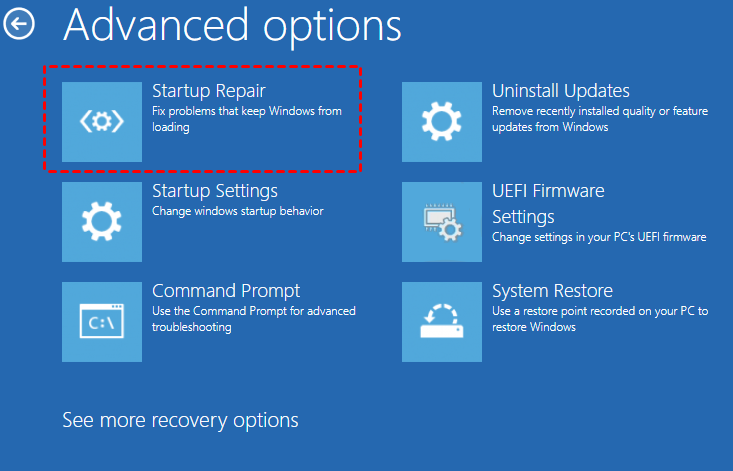
Step 4. Choose your operating system and let Windows scan and repair boot issues.
Step 5. Restart your PC after the process completes.
Method 2. Repair Bootmgr using Command Prompt
If Startup Repair fails, manually repairing boot files using Command Prompt is a reliable option.
Step 1. Boot from Windows installation media.
Step 2. Click Repair your computer > Troubleshoot > Advanced options > Command Prompt.
Step 3. Enter the following commands one by one and press Enter after each:
bootrec /fixmbr
bootrec /fixboot
bootrec /rebuildbcd
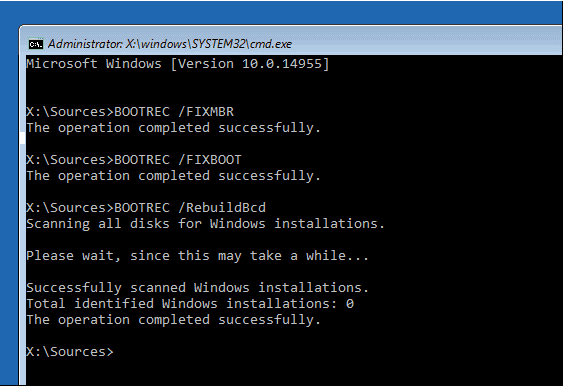
Step 4. Close Command Prompt and restart your computer.
Method 3. Rebuild BCD to fix Bootmgr image is corrupt
A damaged Boot Configuration Data (BCD) file is a common cause of this error.
Step 1. Open Command Prompt from Advanced options.
Step 2. Type the commands below:
bcdedit /export C:\BCD_Backup
attrib C:\boot\bcd -h -r -s
ren C:\boot\bcd bcd.old
bootrec /rebuildbcd
Step 3. Confirm by typing Y when prompted.
Step 4. Restart your system.
Method 4. Check disk errors to prevent Bootmgr issues
Disk errors or bad sectors can damage boot files, leading to repeated Bootmgr problems.
Step 1. Open Command Prompt from the recovery environment.
Step 2. Run the following command:
chkdsk C: /f /r
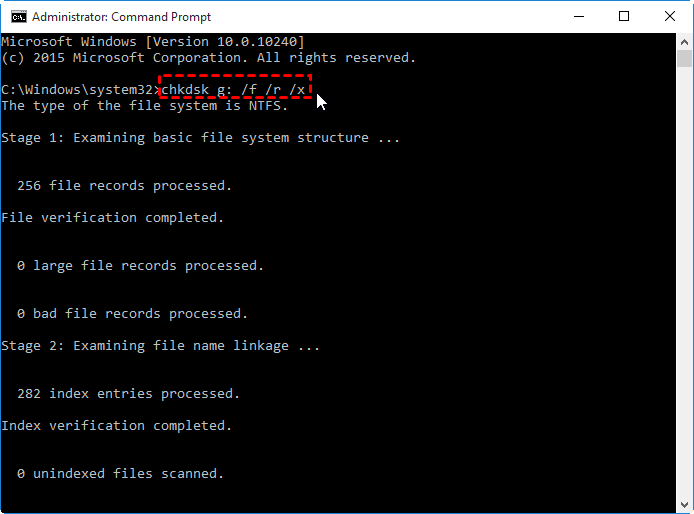
Step 3. Wait for the scan to finish (this may take some time).
Step 4. Restart your computer.
Method 5. Fix Bootmgr image is corrupt with third-party tool
When built-in Windows tools don’t work, a professional boot repair utility can simplify the process. Tools like AOMEI Partition Assistant offer a reliable alternative to fix the issue safely and efficiently.
With AOMEI Partition Assistant, you can:
★ Repair damaged boot records automatically
★ Rebuild BCD without complex commands
★ Fix MBR and EFI boot issues with a few clicks
You simply create a bootable media on another working PC, boot the affected computer from it, and run the boot repair function.
Step 1. Download and install AOMEI Partition Assistant on a working PC and connect a USB drive to it.
Step 2. Launch the software and select Recover > Boot Repair from the top bar.

Step 3. Click the create a bootable disk option to create a WinPE boot USB drive.
Step 4. Connect the newly created drive to the faulty computer and set the USB drive as the primary boot device. This will enable your computer to boot and automatically load the Boot Repair tool to detect all boot issues.
Step 5. Select the repairable boot entries you want to repair and click the Repair button.
Step 6. Once the repair is complete, remove the bootable disk and restart the computer from the original system drive.
FAQs
✍ Is bootmgr image is corrupt a hardware problem?
Not usually. It’s mainly caused by corrupted boot files, improper shutdowns, disk errors, or failed updates, though failing drives can indirectly contribute.
✍ Can I fix bootmgr image is corrupt without reinstalling Windows?
Yes. Startup Repair, Command Prompt commands, or third-party boot repair tools can fix the error without reinstalling Windows.
✍ Does this error affect SSDs and HDDs differently?
No. The error can occur on both SSDs and HDDs; causes relate to boot data corruption, not the drive type.
✍ Will resetting BIOS fix bootmgr corruption?
Sometimes. Resetting BIOS can help if boot mode or boot order is incorrect, but it won’t fix corrupted boot files.
✍ Should I back up data before fixing bootmgr errors?
Yes. Backing up data is strongly recommended to prevent accidental data loss during boot repair or disk operations.
Conclusion
In summary, the “Bootmgr Image Is Corrupt” error signals damaged or missing boot files that prevent Windows from starting. By identifying the root cause and applying the right repair method—Startup Repair, command-line fixes, disk checks, or trusted third-party tools—you can restore normal boot functionality without reinstalling Windows or losing data.
