
 AOMEI Partition Assistant
Can't Rebuild BCD Windows 10! What Should You Do Now?
Why can’t you rebuild BCD in Windows 10? Follow our guide to check your disk and boot mode, or use a reliable alternative to easily perform a boot repair.

By Irene / Updated on July 7, 2025


Why can't you rebuild BCD in Windows 10?
Sometimes, when you try to fix boot problems using the bootrec /rebuildbcd command, it may not work as expected. This can be frustrating, especially when your system won't start. Several factors can cause this issue. Understanding these reasons can help you figure out what’s wrong and how to fix it.
🔍 Common Reasons Why BCD Rebuild Fails
| Reason | Explanation |
|---|---|
| Missing or Unrecognized System Partition | The system reserved or EFI partition may be missing or not have a drive letter. |
| Corrupted BCD Store | The BCD file is too damaged to be rebuilt properly. |
| Wrong Boot Mode | Your PC boots in UEFI, but the disk uses Legacy BIOS (or the opposite). To check UEFI or BIOS on your PC, please follow the guide. |
| Drive Not Set as Active | If the system partition isn’t marked “active,” the command may fail. |
| Disk Errors or Bad Sectors | Hard drive problems can block writing new boot data. |
| Incorrect Windows Drive Letter | Windows might be listed under the wrong drive letter in recovery mode. |
| Lack of Permissions or Read-Only Filesystem | The system drive may be write-protected, stopping changes. |
What should you do if you can't rebuild BCD in Windows 10? Now that you know the possible reasons why the BCD rebuild may not work, let’s go through the steps to fix the issue. In the next section, we’ll show you simple and effective methods to repair the boot configuration in Windows 10.
How to rebuild BCD in Windows 10?
Fix 1. Use a professional tool
If the bootrec /rebuildbcd command doesn’t work or is too complicated, using a reliable third-party tool like AOMEI Partition Assistant Professional is a smart choice. It has a Boot Repair feature that makes fixing boot problems—such as a missing or damaged BCD file—simple and safe. Unlike manual methods, AOMEI offers a clear interface and doesn’t require any command-line steps, so even beginners can use it easily. You can also create a bootable USB drive with just a few clicks and repair your system quickly. Overall, it's a faster, easier, and more effective alternative when rebuilding BCD manually fails.
 AOMEI Partition Assistant
The Best Windows Disk Partition Manager and PC Optimizer
Case 1: Repair an running PC
Step 1. Install and launch AOMEI Partition Assistant. In the Main Tab, please click the "Recover" tab and select "Boot Repair".

Step 2. The Boot Repair tool will pop up. Please click "Next" to start the system’s boot entries scan process.

Step 3. After the process is completed, it will display the scan result: system paths, system versions, and boot status. And, all repairable boot entries will be available to select.

Advanced Settings: Select a location to store the repaired boot entry.
◆ Repair to the current disk: The system will boot from the current disk and ensure the boot files are complete and functioning properly. (By default)
◆ Repair to another disk: This operation will repair the boot entry or create a new system boot entry to ensure the system can boot from the disk you select.

Step 4. Select one/multiple repairable boot entries you want to repair and click the "Repair" button to start the boot repair.

Step 5. Wait for the repair process to finish. Once it is finished, you can check the repair result. If it succeeds, you will get a "Repair Successfully" result.

Case 2: Repair Boot for PC that is unable to Boot
Step 1. Install and launch AOMEI Partition Assistant on a working PC, click "Recover"-"Boot Repair" and then click the "create a bootable disk" option to create a WinPE "Boot Repair" disk.

Step 2. Plug the bootable disk you created into the target computer you wish to repair the boot issue.
Step 3. Enter BIOS in your computer, choose the bootable disk as the boot drive to access AOMEI Partition Assistant.
Step 4. The PC that cannot boot into WinPE will automatically load the Boot Repair tool and start the boot entries scan process. All boot entries will be displayed. Then you can follow the same operations as the above shows.
Fix 2. Check disk errors
How do I manually rebuild BCD file on Windows 10? If you’re trying to rebuild the BCD file manually and the process fails, one possible reason could be disk errors. To check and fix these errors, you can use the CHKDSK command in Command Prompt with administrator rights. This tool scans your drive for problems and repairs them automatically. It’s a simple and useful step before rebuilding the BCD again. Here's how to do it using easy commands.
Step 1. To use command prompt check disk, you need to open the Command Prompt as administrator. Next, follow the example of how to use the disk check cmd on Windows 10:
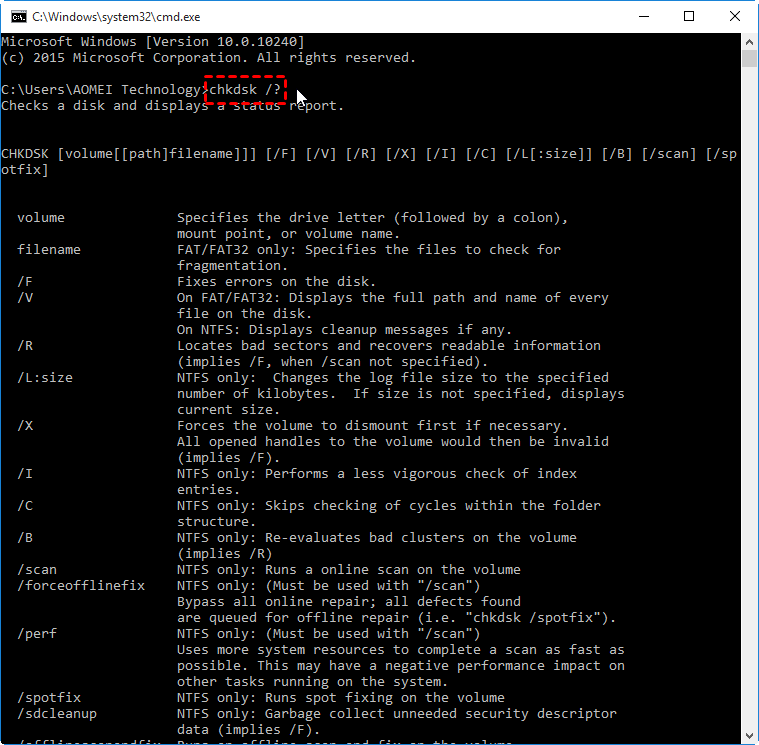
Step 2. Press Windows + R simultaneously, type cmd, and press Enter. Then, you will get into a command prompt and you can start to check disk with the command line. If you do not know how to use it, you can type chkdsk /? and hit Enter, which will give you its parameters or switches.
If you cannot boot your computer, you can run cmd for check disk either by booting the operating system into the recovery mode or by using the original installation disc to run the command prompt.
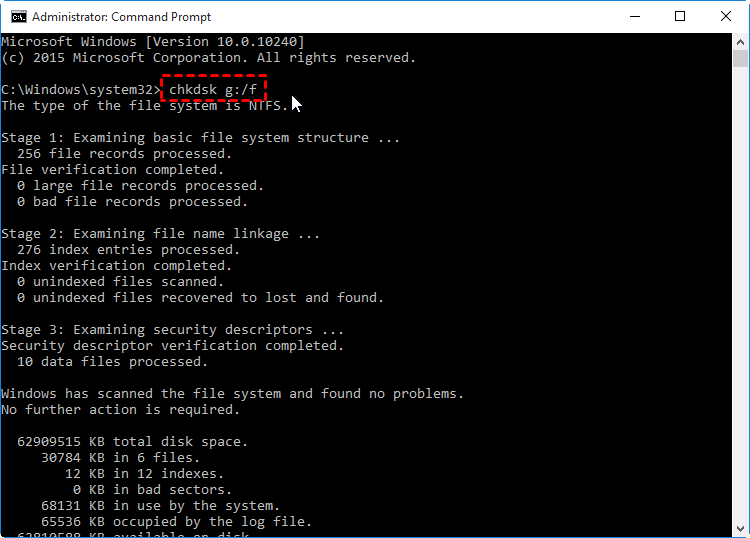
For example, if you want to test the integrity of the G: drive, you can type the command in the prompt: "chkdsk g:", To find and repair any errors that are found in G: drive, type "chkdsk g: /f" instead.
About the different CHKDSK parameters, here the simply explain what does CHKDSK /f /r /x means:
- What does CHKDSK /f /r /x mean?
- /f: Fixes disk errors. Without this, CHKDSK only reports errors without fixing them. (The /f command will lock the selected drive for checking. If it can't lock it, you'll be asked to schedule a check for the next restart. On Windows 10, scanning for errors will prompt you to do this at the next system boot.)
- /r: Finds bad sectors and recovers readable data. This is a detailed check that may take more time, especially on big or busy drives.
- /x: Dismounts the disk before scanning to ensure CHKDSK has exclusive access for repairs, closing any open files to prevent data corruption.
🌟Notice: Check Disk can't repair volumes that are in use. If the volume is in use, it will display a prompt that asks if you want to schedule the volume to be checked the next time you restart the system. Click Yes.
Fix 3. Remove write protection on the system drive
Incorrect value number of Windows Registry Key is another reason why a SSD get write-protected. Follow these steps and try to reset the value data on Registry Editor to remove write protection.
Step 1. Press “Win +R” to start Run, and type “regedit” to open Registry Editor.
Step 2. Navigate to the following path on the left window:
Computer\HKEY_LOCAL_MACHINE\SYSTEM\CurrentControlSet\Control\StorageDevicePolicies.
Step 3. Double-click the "WriteProtect" and change the Value Data from “1” to “0”.
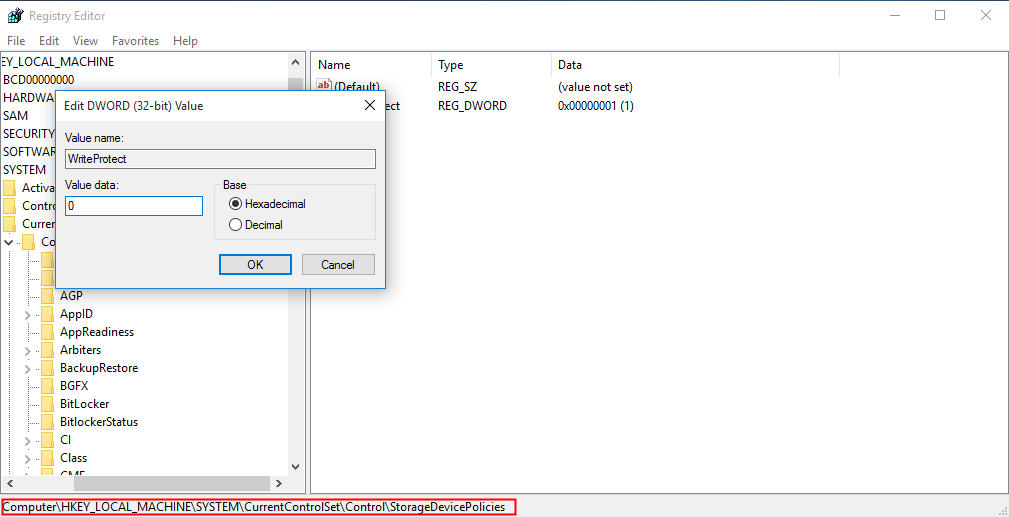
Then click “OK” to save. Reconnect your SSD to computer, your SSD should not be write protected any longer.
✍Note: If you can't find the StorageDevicePolicies under Control in step 2.
1. Right-click the “Control” and choose “New>Key” to create a new key, name it with StorageDvicePolicies.
2. Click the new key, and right-click on the blank space, choose “New”> “DWORD (32-bit) value” name it with "WriteProtect".
3. Right-click on Writeprotect, choose “Modify”, change the Value data to "0" in the prompt window.
Conclusion
When you can't build BCD in Windows 10 because the bootrec /rebuildbcd command doesn’t work, it’s usually due to system partition issues, disk errors, or wrong boot configurations. Instead of spending too much time troubleshooting complex commands, using tools like AOMEI Partition Assistant can offer a simpler and more effective solution. It helps you repair the boot configuration with just a few clicks—even if your PC can’t boot at all. Along with checking disk errors and removing write protection, these methods give you reliable ways to fix BCD rebuild problems and get your Windows 10 system running again.
AOMEI Partition AssistantThe Best Windows Disk Partition Manager and PC Optimizer
