
 AOMEI Partition Assistant
[Full Guide] How to Find Windows Blue Screen of Death Logs?
To fix BSOD errors, it is necessary to know where and how to find Windows blue screen of death logs. This tutorial will also tell you how to easily and effectively fix any boot issues.

By Irene / Updated on July 31, 2025


Is it necessary to see blue Screen Logs?
Yes, checking blue screen (BSOD) logs is important. BSODs are common Windows errors that can be caused by faulty drivers, software issues, or hardware failures. While the blue screen shows a STOP code, it doesn't give enough detail to fix the problem.
Blue screen logs (minidump or event logs) provide more useful information, such as:
🔷 The driver or file that caused the crash
🔷 A record of system activity before the error
🔷 Clues about hardware or memory issues
Without these logs, fixing a BSOD is mostly guesswork. Logs help you find the real cause, whether it's a bad driver, faulty software, or failing hardware. They also help you spot repeated errors and take steps to prevent future crashes.
In short, viewing BSOD logs gives clear direction for solving and preventing system errors.
How to find Windows blue screen of death logs?
There are 3 easy methods about how to view blue screen logs.
Way 1. See Blue Screen Logs by Event Viewer
The easiest way to check blue screen logs on Windows 10 is by using Event Viewer. Here’s how:
Step 1. Press Win + X and choose Event Viewer from the menu. At the top, click on the Action tab and select Create Custom View.
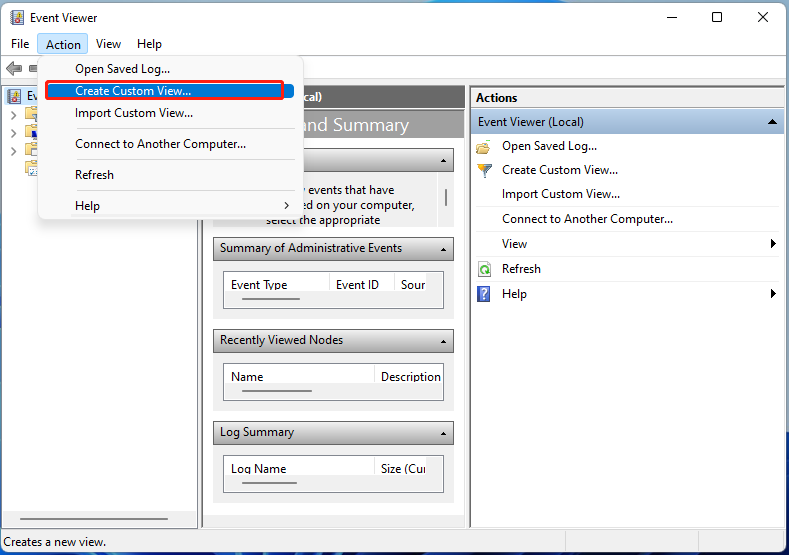
Step 2. In the new window, open the Logged dropdown and choose the time when the BSOD happened.

Step 3. Under Event Logs, check the box for Windows Logs. Then, under Event Level, select Error.
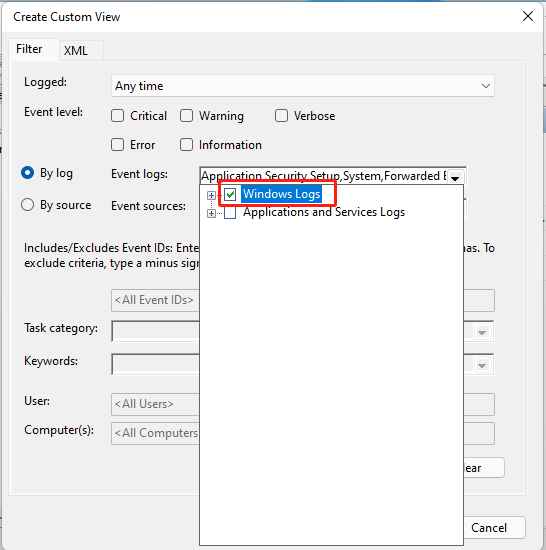
Step 4. Click OK, then enter a name and description for your custom view. Click OK again.
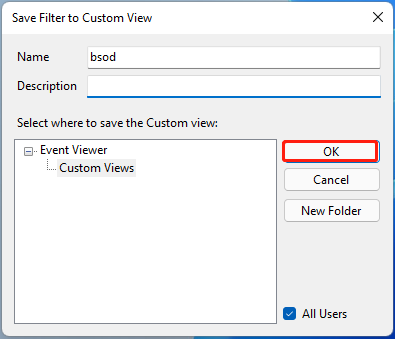
Step 5. You’ll now see a list of system errors from the time you selected. To view BSOD details, click on each log and check the General and Details tabs.

Way 2. Use Registry Editor to see Blue Screen Logs
You can also use the Registry Editor to access blue screen log settings. Here's how:
Step 1. Press Win + R, type regedit, and press Enter. Click Yes if prompted.
Step 2. In the Registry Editor, navigate to: HKEY_LOCAL_MACHINE\System\CurrentControlSet\Control\CrashControl
Step 3. With CrashControl selected, right-click on the right side and choose New > DWORD (32-bit) Value.
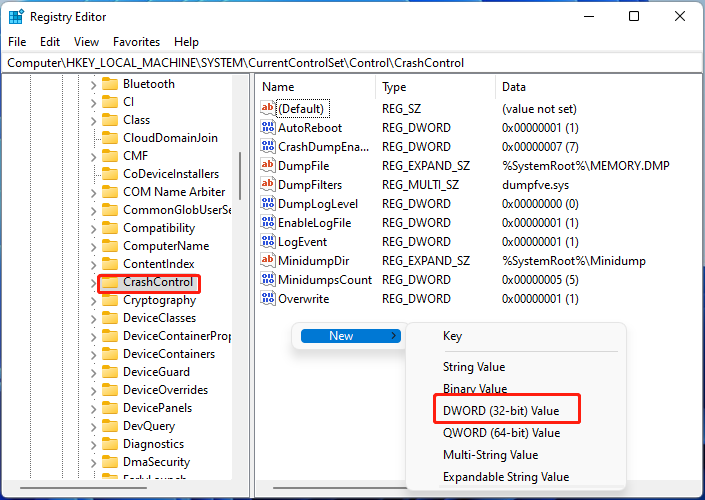
Step 4. Name it DisplayParameters, then double-click it and set the Value data to 1. Click OK to save.
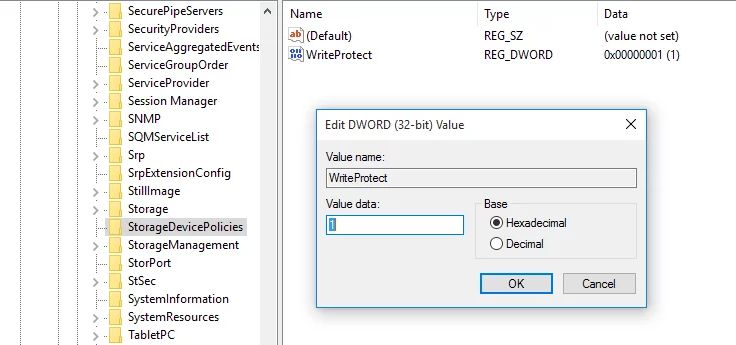
Step 5. Restart your computer. After that, you’ll be able to view BSOD logs more easily.
Way 3. View Blue Screen Logs with Reliability Monitor
Another way to check BSOD logs is by using Reliability Monitor, a built-in tool in the Control Panel. Here’s how:
Step 1. Press Win + R, type Control, and press Enter to open the Control Panel.
Step 2. Go to System and Security > System and Maintenance.
Step 3. Under the Maintenance section, click View reliability history.
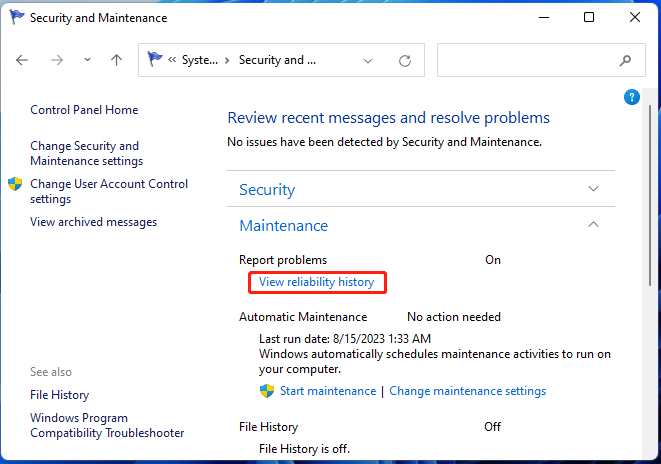
Step 4. A graph will appear showing system events. Look for red "X" marks, which indicate critical errors like BSODs.
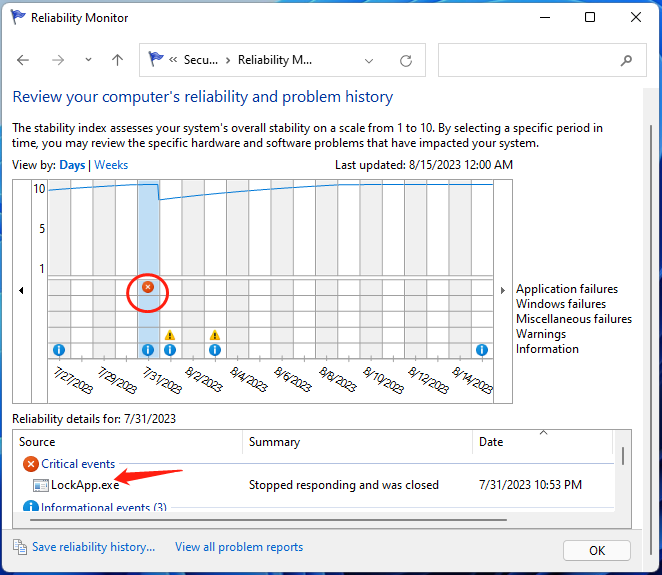
Step 5. Click on the event to see more details about the blue screen error.
How to fix BSOD errors with ease?
If your computer encounters the Blue Screen of Death (BSOD), it may be due to problems like a damaged boot sector, broken startup files, or a corrupted BCD (Boot Configuration Data). These issues can stop your system from starting normally. A simple and effective way to fix them is by using a professional tool like AOMEI Partition Assistant.
This software includes a Boot Repair feature that helps fix BSOD-related boot errors without needing complex commands or technical skills. Whether your PC won’t start, keeps restarting, or shows repeated blue screens, AOMEI can quickly repair the system.
Here’s why it’s a good choice:
Powerful Repair Tools: It can fix Windows MBR, solve BCD problems, and repair startup files.
More Efficient: It’s much faster and safer than trying to fix boot issues manually through command lines.
With AOMEI Partition Assistant, you can repair BSOD errors quickly and get your system running smoothly again.
 AOMEI Partition Assistant
The Best Windows Disk Partition Manager and PC Optimizer
Step 1. Download and install AOMEI Partition Assistant on a functional PC, then connect a USB drive to it.
Step 2. Select Recover > Boot Repair from the main interface.

Step 3. Choose the create a bootable disk option to generate the WinPE bootable media.

Step 4. Connect the drive to the malfunctioning computer, and then change the boot order by pressing F12 (or other keys) to enter the boot menu. Once you log in successfully, it will automatically load the Boot Repair tool and initiate the boot entries scanning process.

Step 5. Once the process completes, select the entries that you want to repair and click the Repair button.
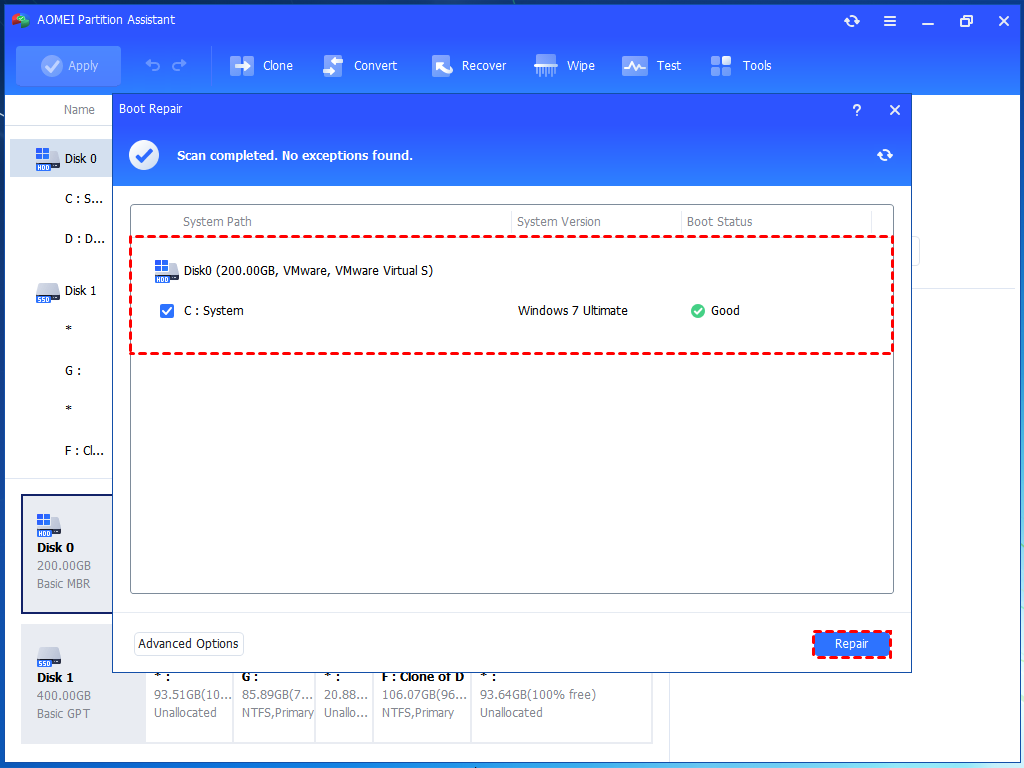
Step 6. After the repair is successful, remove the bootable USB drive and reboot the PC from the original system drive.

Conclusion
This guide introduce where and how to find blue screen of death logs. BSOD errors can be frustrating, but checking blue screen logs is a key step in finding out what’s really wrong. Tools like Event Viewer, Registry Editor, and Reliability Monitor help you view these logs and understand the cause. Once identified, using a professional tool like AOMEI Partition Assistant makes it much easier to fix boot-related issues. With the right steps, you can solve BSOD problems quickly and keep your system running smoothly.
AOMEI Partition AssistantThe Best Windows Disk Partition Manager and PC Optimizer
