
 AOMEI Partition Assistant
Fixed: Samsung Laptop Stuck on Logo Screen on Windows 11/10
In this article, you’ll discover the key reasons behind the Samsung laptopstuck on logo screenissue and explore a range of effective solutions tailored specifically for Windows 11 and Windows 10 users.

By Hedy / Updated on July 25, 2025


Why Samsung laptop stuck on logo screen?
At times, a Samsung laptop may freeze on the startup logo, preventing access to the operating system. While frustrating, this issue is often manageable once the root cause is identified. Here are some common culprits:
⚡ External device conflicts: Connected accessories—such as USB drives or external hard disks—can sometimes trigger compatibility issues that halt the boot process.
⚡ Incorrect boot sequence: If the BIOS boot order is misconfigured, your laptop might attempt to start from the wrong device, causing it to hang at the logo screen.
⚡ BIOS corruption: Errors or corruption within the BIOS can disrupt startup functions, resulting in the system getting stuck before fully booting.
⚡ Malware or virus infection: Malicious programs can damage essential system files, leading to a failed startup and a frozen screen.
⚡ Faulty updates or apps: Recently installed software or Windows updates may clash with system settings or drivers, potentially blacking out the screen or halting the boot process.
How to fix Samsung laptop stuck on logo screen
After identifying the likely cause behind your Samsung laptop freezing on the startup logo, it’s time to apply targeted solutions. Below are some of the most reliable methods, complete with step-by-step instructions:
Fix 1. Restart your Samsung laptop
A simple restart is often the quickest fix when your Samsung laptop gets stuck on the spinning wheel during startup. Follow these steps to perform a force restart:
Step 1. Press and hold the Power button until the laptop shuts down completely.
Step 2. Wait a few seconds, then press the Power button again to turn it back on.
Step 3. Check if the system boots past the spinning wheel and loads into Windows successfully.
Fix 2. Disconnect all external devices
Faulty or incompatible external devices—such as USB drives, cameras, printers, or scanners—can interfere with the startup process. To rule out this possibility, follow these steps:
Step 1. Power off your Samsung laptop completely.
Step 2. Unplug all connected peripherals (USB devices, external drives, etc.).
Step 3. If your laptop has a removable battery, take it out.
Step 4. Press and hold the Power button for 30 seconds to discharge any residual power.
Step 5. Reinsert the battery, reconnect the power adapter, and turn the laptop back on.
Step 6. This process helps eliminate potential hardware conflicts and clears temporary glitches.
Fix 3. Change boot order
An incorrect boot sequence can cause your Samsung laptop to hang on the logo screen. Ensuring that your internal system drive is set as the primary boot device may resolve the issue. Here's how:
Step 1. Restart your Samsung laptop and repeatedly press the F2 key as it powers on to enter the BIOS setup.
Step 2. Navigate to the Boot tab in the Samsung BIOS Configuration menu.
Step 3. Select Boot Device Priority and press Enter.
Step 4. Make sure your system's internal hard drive (or SSD) is listed as the first boot option.
Step 5. Press the appropriate key to Save and Exit the BIOS (usually F10).
Step 6. Confirm the changes and restart your laptop.
Step 7. This ensures the system boots from the correct drive, helping bypass the logo screen freeze.
Fix 4. Enable safe mode
In many cases, problematic Windows updates or system errors can lead to your Samsung laptop freezing on the logo screen. Booting into Safe Mode can help isolate and resolve the issue. Follow these steps:
Step 1. Force shut down your laptop by holding the Power button until it turns off.
Step 2. Repeat this process twice or more until the “Preparing Automatic Repair” screen appears.
Step 3. When the Automatic Repair screen loads, click Advanced Options.
Step 4. Select Troubleshoot, then go to Advanced Options > Startup Settings.
Step 5. Click Restart to reboot your system.
Step 6. Once it restarts, press 4, F4, F5, or F6 to enable one of the Safe Mode options.
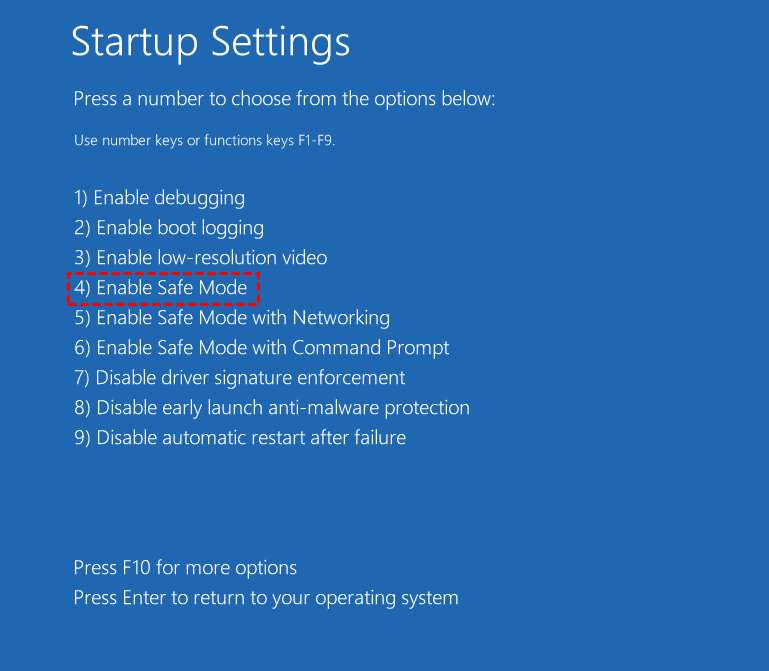
Step 7. After entering Safe Mode, you can uninstall faulty updates or drivers that may be causing the startup problem.
Fix 5. Perform startup repair
Startup Repair is a built-in Windows utility designed to automatically detect and fix problems that prevent your system from booting—such as corrupted registry entries, damaged system files, or faulty boot configuration.
Here’s how to run it:
Step 1. From the Windows Recovery Environment, select Troubleshoot.
Step 2. Click Advanced Options, then choose Startup Repair.
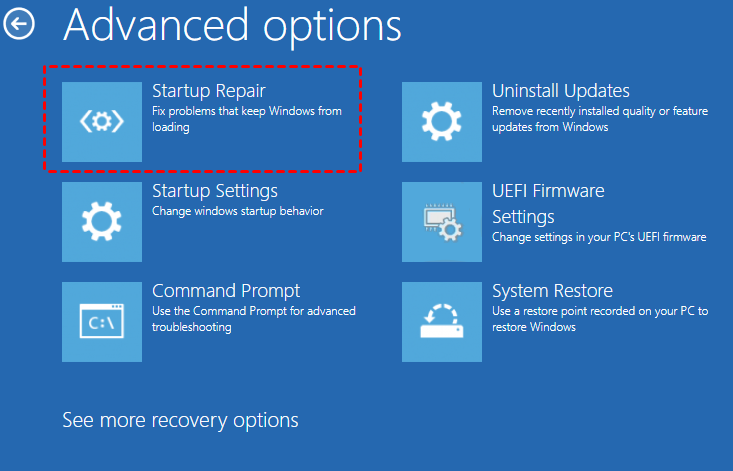
Step 3. The tool will begin scanning your system for startup-related issues and attempt to fix them.
Step 4. Once the repair is complete, restart your Samsung laptop to check if the issue is resolved.
In addition, you can also turn to a reliable third-party tool like AOMEI Partition Assistant to perform startup repair. It is a powerful disk management utility equipped with a “Make Bootable Media” and “Startup Repair” feature designed to fix various boot-related issues.
By creating a bootable USB drive using this tool, you can boot your Samsung laptop from the USB even when Windows refuses to start. Once you boot from the USB, AOMEI Partition Assistant allows you to rebuild the MBR to fix boot sector issues, check and repair system partition errors, set the correct system partition as active, and use the “Startup Repair” feature to automatically detect and fix problems preventing your OS from booting properly.
Step 1. Install and launch AOMEI Partition Assistant on a working PC, click "Recover"-"Boot Repair" and then click the "create a bootable disk" option to create a WinPE "Boot Repair" disk.

Step 2. Plug the bootable disk you created into the target computer you wish to repair the boot issue.
Step 3. Enter BIOS in your computer, choose the bootable disk as the boot drive to access AOMEI Partition Assistant. In the Main Tab, please click the "Recover" tab and select "Boot Repair".

Step 4. The Boot Repair tool will pop up. Please click "Next" to start the system’s boot entries scan process.

Step 5. After the process is completed, it will display the scan result: system paths, system versions, and boot status. And, all repairable boot entries will be available to select.

Advanced Settings: Select a location to store the repaired boot entry.
◆ Repair to the current disk: The system will boot from the current disk and ensure the boot files are complete and functioning properly. (By default)
◆ Repair to another disk: This operation will repair the boot entry or create a new system boot entry to ensure the system can boot from the disk you select.

Step 6. Select one/multiple repairable boot entries you want to repair and click the "Repair" button to start the boot repair.

Step 7. Wait for the repair process to finish. Once it is finished, you can check the repair result. If it succeeds, you will get a "Repair Successfully" result.

Fix 6. Perform system restore
If your Samsung laptop became unresponsive after a recent Windows update, driver installation, or new application, a System Restore can help undo those changes and bring your system back to a working state.
Step 1. In the Windows Recovery Environment, select Troubleshoot.
Step 2. Go to Advanced Options, then click System Restore.
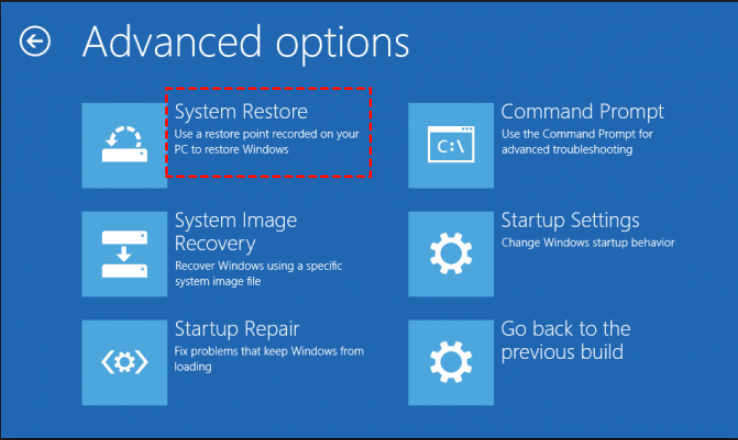
Step 3. Hit Next, then choose a restore point dated before the issue began.
Step 4. Click Next again, then select Finish to begin the restoration process.
Step 5. Once completed, your laptop will reboot. Check if it now starts without freezing at the logo screen.
Fix 7. Factory reset your Samsung laptop
If all other methods fail, a factory reset using Samsung Recovery can restore your laptop to its original state. Keep in mind, this process will erase all data, so use it only as a last resort.
Step 1. Turn off your Samsung laptop completely.
Step 2. Power it back on and immediately press the F4 key before the Samsung logo appears.
Step 3. When the Samsung Recovery screen loads, select Computer factory reset.
Step 4. Click Start factory reset, then confirm by selecting OK.
Step 5. Follow the on-screen instructions to complete the reset. This process may take some time, depending on your system.
Step 6. After the reset, your laptop will reboot as if it's brand new—free from the software issues that caused the boot problem.
Conclusion
This guide has outlined the most common reasons why your Samsung laptop may get stuck on the logo screen during startup. It also walks you through a series of proven solutions to help you resolve the issue effectively on a Windows 11 or 10 system.
