
 AOMEI Partition Assistant
Fixed: PC Boots to Windows Repair Mode Automatically in Windows 10 and 11
When the PC boots to Windows repair automatically, you can read this post to get effective solutions. You can easily fix issues like automatic repair loop or others.

By Irene / Updated on November 4, 2024


Use case: PC boots to Windows repair mode automatically
Every time I boot up my PC, it goes into repair mode. My PC is relatively old—around 4 years. I've followed all the tutorials on how to boot up my PC, but the same issue keeps happening. When I launch it, my PC won't boot and goes directly to Windows repair mode with messsage "PC didn't launch properly." I've tried numerous commands in CMD but can't get it to work. It also says "0 Windows installations found" after running certain commands. Or sometimes, it will also show Windows preparing automatic repair boot loop of death, Please help!
- Question from Microsoft Community
On Windows 11 and 10, automatic repair is a tool built to fix common issues that stop your computer from starting properly. If your device fails to boot twice in a row, Windows will activate the repair feature on the third attempt, running diagnostics to identify and resolve typical startup problems.
If your PC keeps booting into repair mode, it usually means there’s a problem with essential boot files, like the BCD files, which might be corrupted. This can also lead to repair loops , and error message like “0 Windows installations found”.
How to fix "PC boots to Windows repair mode automatically"
As explained above, if your PC automatically boots into Windows repair mode repeatedly, it indicates that essential files may be corrupted. In this section, you will learn how to rebuild the corrupted or missing BCD files. This can also help resolve errors such as the computer getting stuck on Preparing Automatic Repair, the "Automatic Repair Loop of Death," and the "0 Windows installations found" error.
Fix 1. Repair BCD files
AOMEI Partition Assistant is the best way to repair corrupted or missing BCD files. Its Boot Repair tool finds and fixes boot problems automatically and effectively. It's very easy to use, even if you're not tech-savvy. If your PC boots to Windows repair mode automatically, you can use it to rebuild the BCD files first. This software works on Windows 11, 10, 8/8.1, and 7. For Windows Server users, it offers AOMEI Partition Assistant Server edition.
 AOMEI Partition Assistant
The Best Windows Disk Partition Manager and PC Optimizer
AOMEI Partition Assistant can help you when you face:
The system fails to boot: Error warnings like "Boot Configuration Data file is missing" or "Boot Configuration Data file is corrupted" appear.
Boot failure after an update: The boot configuration becomes corrupted after a system update or upgrade.
Multiple-system boot conflict: Boot configuration files may conflict or be incorrectly configured in a multi-OS environment.
Damaged boot sector: Boot sector corruption can occur due to a malware assault or for another reason.
Step 1. Install and launch AOMEI Partition Assistant on a working PC, click "Recover"-"Boot Repair" and then click the "create a bootable disk" option to create a WinPE "Boot Repair" disk.

Step 2. Boot the PC that cannot boot into WinPE. It will automatically load the Boot Repair tool and start the boot entries scan process. All boot entries will be displayed.

- Advanced Settings (Select a location to store the repaired boot entry):
- Repair to the current disk: The system will boot from the current disk and ensure the boot files are complete and functioning properly. (By default)
- Repair to another disk: This operation will repair the boot entry or create a new system boot entry to ensure the system can boot from the disk you select.

You can either repair to the current disk or repair to another disk. Repair to the current disk is recommended for common users.
Step 3. Select one/multiple repairable boot entries you want to repair and click the "Repair" button to start the boot repair.

Step 4. Wait for the repair process to finish. Once it is finished, you can check the repair result. If it succeeds, you will get a "Repair Successfully" result.

Fix 2. Run System Restore
You can fix the Windows automatic repair boot loop or your computer stuck on preparing automatic repair interface by using System Restore, but only if you set up a restore point earlier. This will return your computer to a previous state and remove any changes made after that point.
Step 1. Enter the Windows Repair Environment screen first.
Step 2. Select Troubleshoot > Advanced options > System Restore in turn.

Step 3. Choose a restore point that you have created in advance, and then click Next to restore your computer to that state.
Step 4. Wait until the process is complete, and then restart your computer.
Fix 3. Reinstall your Windows
If none of the previous solutions work to get Windows 10 out of repair mode, you might need to reinstall the operating system.
Step 1. Download Windows 10 Media Creation Tool from the official website.
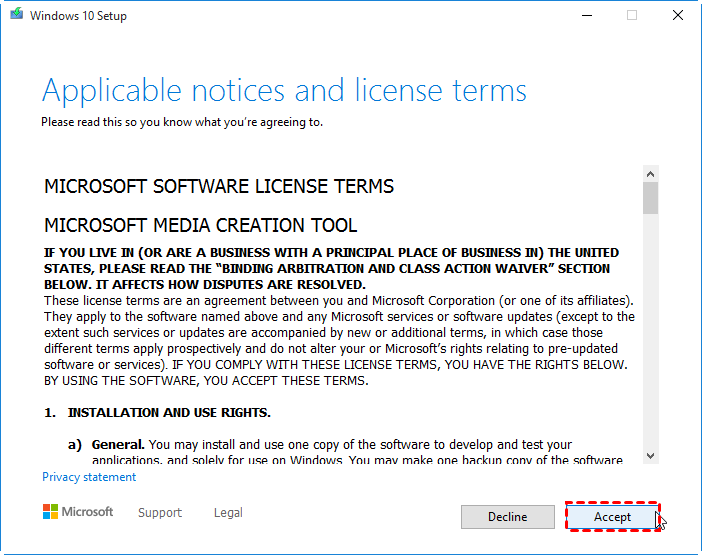
Step 2. Run the media creation tool as an administrator. Click "Accept" in the "Applicable notices and license terms" window.
Step 3. Tick "Create installation media for another PC" and hit "Next".
Step 4. Select language, architecture, and edition and click on "Next". Select "USB flash drive" in the "Choose which media to use" window and hit "Next".
Step 5. Select your prepared USB flash drive from "Removable drives" and then, press "Next".
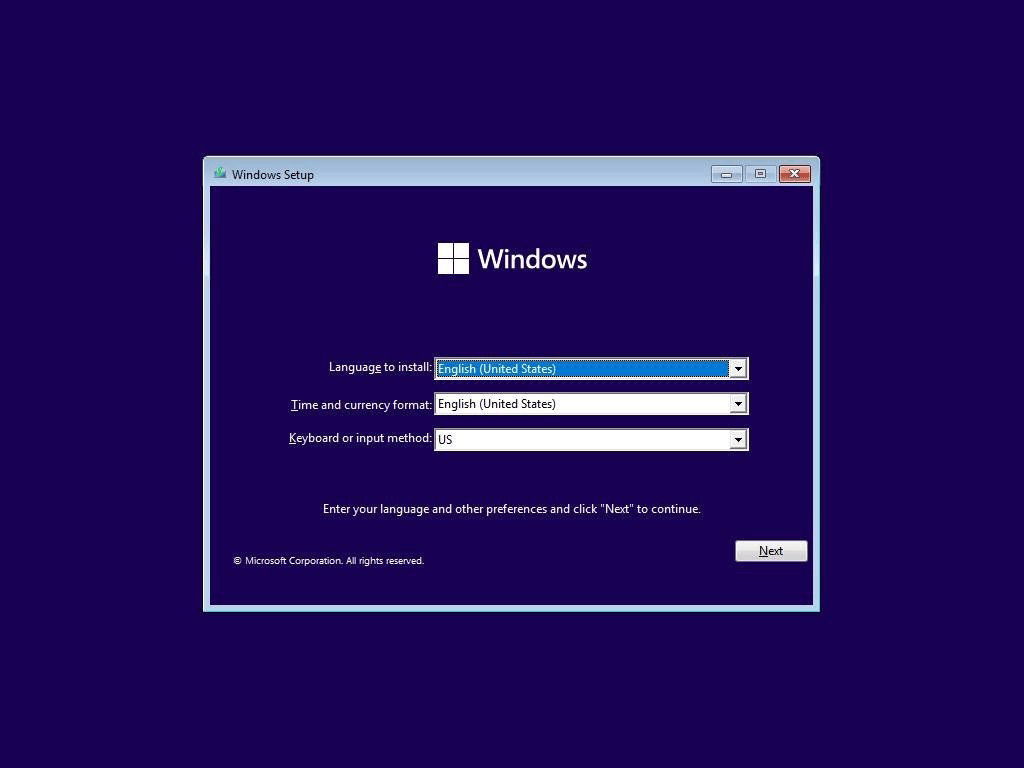
Now, open BIOS in Windows 10 to change the boot order so your computer starts from the USB drive. On the Windows setup screen, select your language and click Next. Then, click Install Now to proceed.
Then, you need to enter the license key. You can also click I don’t have a product key to skip it, but you will be required to enter the license key later. Choose the operating system you want to install and click Next. Accept the license terms and click Next.
You will choose one method to reinstall your operating system. Then, follow the guide, you can finish the installation.
To sum up
When your PC automatically boots into Windows Repair, you can repair BCD files, perform a system restore, or reinstall Windows 10 or 11. Besides, there are many possible reasons your PC won't boot and go directly to Windows Repair, such as a missing BOOTMGR, issues in the Windows Registry, hardware driver problems (like with the hard drive, motherboard, or graphics driver), or other unidentified causes. It is recommended to use AOMEI Partition Assistant to explore more effective solutions. For example, you can use it to fix corrupted MBR, clone disks to replace the hard drive without reinstalling, or check disk errors, and so on.
