
 AOMEI Partition Assistant
How to Do Windows 8 & 8.1 Repair Boot
In this article, we’ll show how to do Windows 8 repair boot and guide you through the process of using Command Prompt for boot repair, and easy-to-use tool to solve Windows boot problems.

By Lucas / Updated on October 23, 2024


Windows 8 and 8.1 are reliable operating systems, but users may sometimes face problems when trying to boot their computers. Boot failures can leave users frustrated, and unable to access files, applications, or even the system itself. There are many reasons why Windows 8 repair boot may be necessary, and knowing how to perform this task can save a lot of time and prevent data loss.
In this article, we’ll cover common causes of boot issues in Windows 8 and 8.1, guide you through the process of using Command Prompt for boot repair, and introduce a user-friendly alternative.
Why Windows 8/8.1 Failed to Boot?
Before diving into the repair process, it’s important to understand some of the most common causes for Windows 8 and Windows 8.1 failing to boot:
Corrupted Boot Files: System files may confront the problems like the damaged Master Boot Record (MBR), Boot Configuration Data (BCD) missing, or boot sector may become corrupted due to malware, sudden shutdowns, or disk errors.
Hard Drive Failure: A failing or faulty hard drive can prevent Windows from booting.
Windows Update Errors: Sometimes, updates may fail to install correctly, leading to boot issues.
Hardware Changes: Adding or removing hardware components can sometimes disrupt the boot process, particularly if the BIOS/UEFI configuration isn’t updated.
Malware and Viruses: Malicious software can corrupt system files or interfere with the boot loader, causing boot failures.
How to perform Windows 8 repair boot with Command Prompt
You can press and hold the power button for several seconds to force shutting down your computer. Repeat the process three times to enter the Windows Recovery Environment screen. Or, you may need to use installation media, such as a Windows 8.1 boot repair USB or installation DVD. Here’s how to repair boot problems using Command Prompt.
1: Rebuild BCD files
Most boot difficulties are caused by corruption or loss of boot configuration data files. Windows has a command-line utility named Bootrec.exe that checks for and resolves boot-related errors. To repair Windows 10 not booting, take following steps.
Step 1. After your enter the option window, click Troubleshoot > Advanced options.

Step 3: Select Common Prompt and enter the following commands: bootrec /fixmbr, bootrec /fixboot, and bootrec /rebuildbcd. To detect and fix boot errors, press the Enter key.
Step 4: Quit CMD and restart your computer to see if it has been corrected.
2. Use Startup Repair
Startup Repair is useful another tool designed to identify and fix frequent boot problems.
Step 1. Access Advanced options using the method.
Step 2. Select the Startup Repair tool to detect and repair boot issues automatically.
3. Uninstall Windows update
Step 1. Access Common Prompt and then click the Admin account to load it.
Step 2. Type the following commands and press Enter after each one.
- reg load HKLM\temp C:\Windows\System32\Config\Software (Load the Windows Registry)
- reg delete "HKLM\temp\Microsoft\Windows\CurrentVersion\Component Based Servicing\SessionsPending" /v Exclusive. When prompted to confirm, type Y and press Enter. (Delete the SessionsPending Registry Key)
- reg unload HKLM\temp (Unload the Windows Registry)
- MKDIR c:\temp\BadUpdates (Create a Temporary Folder)
- dism /image:C:\ /get-packages (List Installed Updates: )
Step 3. Carefully verify the package identities before executing the command below to remove any “Install Pending”, avoiding accidentally deleting essential updates.
- dism /image:c:\ /remove-package /packagename:Package-Identity /scratchdir:c:\temp\BadUpdates
Easier boot repair tool to fix Windows 8/8.1 fails to boot
While the Command Prompt method can be effective, it can be complex for less experienced users. Fortunately, AOMEI Partition Assistant Professional offers a more user-friendly solution to repair Windows 8 boot issues.
AOMEI Partition Assistant Professional is a powerful disk management tool for Windows 11/10/8/8.1/7 that includes a Boot Repair function. The "Boot Repair" feature will detect and correct any boot difficulties you may face without requiring manual intervention. When Windows does not boot normally, you may easily make a bootable drive with this application and swiftly restore your PC.
 100% Secure
Step 1. Install and launch AOMEI Partition Assistant on a working PC, and connect a USB drive to it.
Step 2. Click Recover > Boot Repair on the main interface.

Step 3. Select the create a bootable disk option to create a WinPE bootable media.

Step 4. Connect the drive to the computer that cannot function normally. And then enter BIOS settings to change the boot order to make boot computer from it. Once you log in successfully, it will automatically load the Boot Repair tool and start the boot entries scan process.

Step 5. Once the process completes, you can see all boot entries on the interface. Select the repairable boot entries you want to repair and click the Repair button.
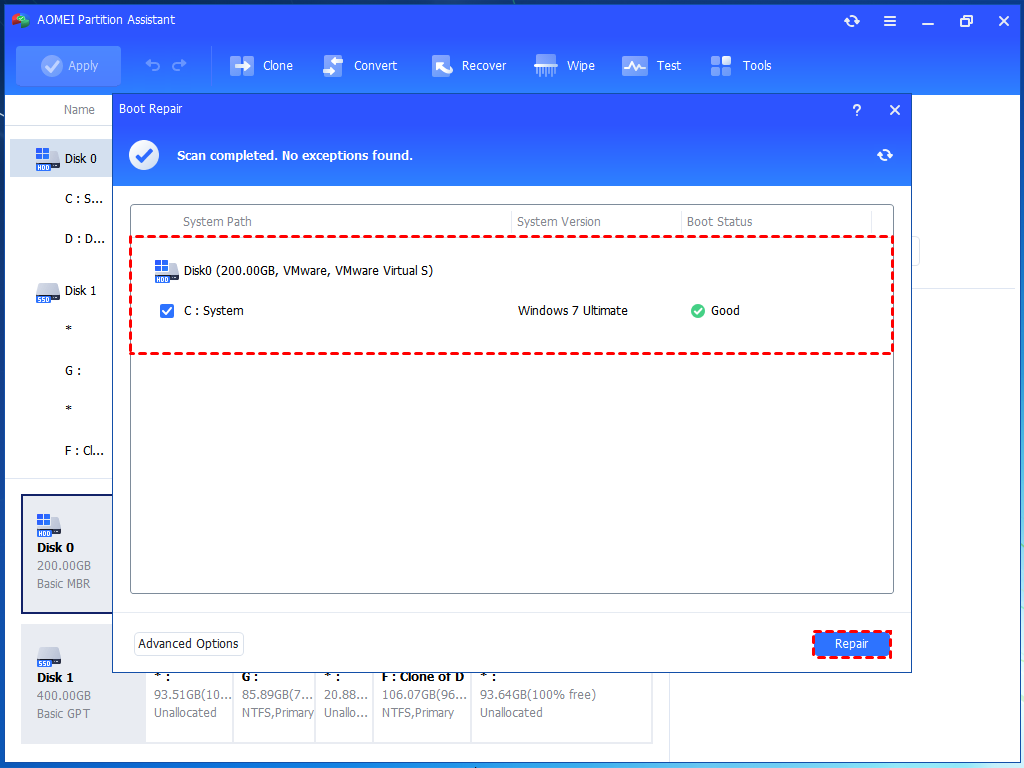
Step 6. After successful repair, remove the bootable USB drive and boot the PC from the original system drive.

To sum up
Boot issues in Windows 8 and 8.1 can be frustrating, but they are often fixable with the right tools. By using Command Prompt and the bootrec.exe utility, you can repair MBR, fix boot sectors, and rebuild BCD manually. Alternatively, AOMEI Partition Assistant offers a simpler and more user-friendly solution for fixing boot issues.
Preventing boot failures is just as important as fixing them. Keeping your system up-to-date, regularly checking your disk for errors, and creating backups using disk cloning software like AOMEI Partition Assistant can ensure that you’re well-prepared for any future boot problems.
