
 AOMEI Partition Assistant
4 Ways to Fix Windows Safe Mode When F8 Not Working
Know the reasons for why Windows safe mode when F8 not working and learn how to fix it in four easy and effective ways.

By Hedy / Updated on January 6, 2026


Overview of the Windows Safe Mode when F8 is not working
Pressing F8 is traditionally associated with opening Advanced Boot Options or the Windows Startup Menu, making it the go-to shortcut for entering Safe Mode. While the F8 key can also lead to System Recovery Options for repair purposes, that function isn’t the focus here. The priority remains accessing Safe Mode.
Safe Mode provides a stripped-down Windows environment that allows users to work with essential system tools, including:
◆ Device Manager
◆ System Restore
◆ Command Prompt
◆ Event Viewer
◆ Registry Editor
However, the behavior of the F8 key varies depending on the Windows version in use. In Windows 7, pressing F8 brings up the Advanced Boot Options screen, where System Recovery Options and Safe Mode are easily accessible.
In contrast, Windows 8 and Windows 10 no longer use the classic Advanced Boot Options menu. Instead, it has been replaced by the Startup Settings menu, changing both the appearance and the method of access.
When F8 stops working, the issue is usually obvious. You press the key, and nothing happens. This is most common on Windows 8 and Windows 10, where faster boot times prevent the system from detecting the brief F8 keystroke. In simple terms, Windows starts too quickly to register the command, making the traditional shortcut unreliable.
How to fix the Windows Safe Mode when F8 is not working
Fortunately, there are several quick and effective fixes available to address this issue. The following sections break down each solution in a clear, step-by-step format, tailored to specific Windows versions for easier application and better results.
Way 1. Check it via the Start menu
If the F8 key fails and Safe Mode access is urgently needed, the Start menu provides a reliable alternative.
Step 1. Begin by opening Start, then navigate to Settings > Update & Security > Recovery.
Step 2. Under the Advanced startup section, select Restart now. As the system reboots, the Choose an option screen will appear.
Step 3. From there, select Troubleshoot, followed by Advanced options, then Startup Settings.
Step 4. Finally, choose Safe Mode to restart the computer in a minimal, diagnostic environment.
Way 2. Fix the F8 is not working problem manually
A manual workaround is also available using Command Prompt with administrator privileges. This method restores the legacy boot behavior, allowing Windows to recognize the F8 key during startup.
Step 1. Open Command Prompt as an administrator and enter the following command:
bcdedit /set {default} bootmenupolicy legacy
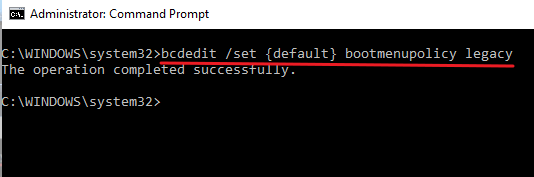
Step 2. Press Enter, then restart the computer. During reboot, repeatedly press F8 until the Advanced Boot Options menu appears. From there, select Safe Mode.
Step 3. If needed, this change can be reversed at any time. To disable the F8 startup menu and return to the default behavior, run the command below in an elevated Command Prompt:
bcdedit /set {default} bootmenupolicy standard
Way 3. Run Automatic Repair
There’s also an alternative method if Windows fails to boot normally and the F8 key isn’t responding. This approach uses Automatic Repair to access Safe Mode.
Step 1. Begin by forcing your PC to shut down repeatedly during startup until the Preparing Automatic Repair screen appears. Windows will attempt to diagnose the issue and then display a message stating:
"Automatic Repair cannot restore your computer."
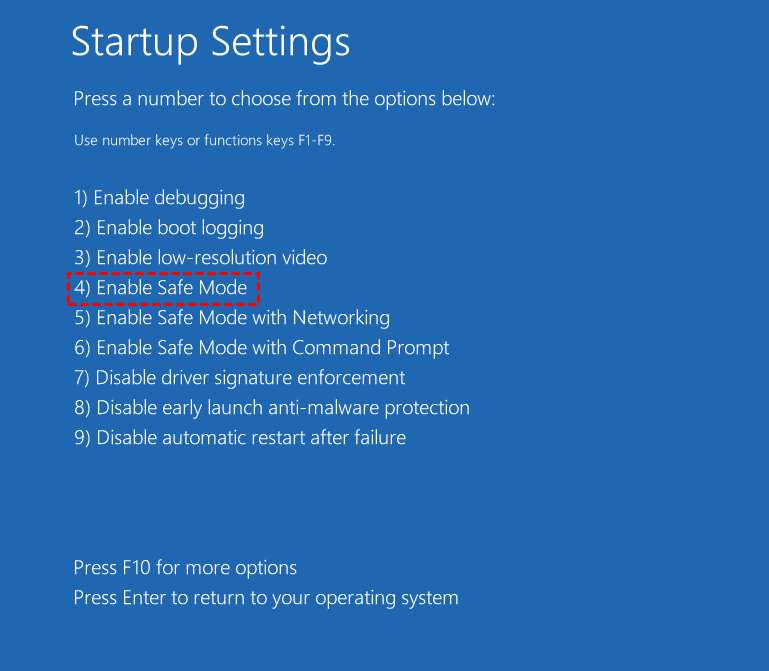
Step 2. You will be presented with two options: Advanced Options and Shutdown. Choose Advanced Options, then navigate to Troubleshoot > Startup Settings.
Step 3. Finally, press F4 to boot into Safe Mode. This method ensures access even when normal startup shortcuts fail.
Besides, you can also resort to a third-party boot repair tool like AOMEI Partition Assistant to fix it. It is a powerful disk management tool that helps fix Safe Mode access issues when F8 is not working. It allows you to repair boot problems, rebuild BCD, and adjust boot settings through its Boot Repair and MBR Rebuild features. With a WinPE bootable media, you can troubleshoot startup errors, restore normal boot behavior, and regain access to Safe Mode without reinstalling Windows.
Step 1. Install and launch AOMEI Partition Assistant on a working PC and connect a USB drive with 16GB of storage to this PC.
Step 2. Open AOMEI Partition Assistant and select the Boot Repair tool below the Recover section.

Step 3. Click the create a bootable disk option to create a WinPE Boot Repair USB drive.
Step 4. Plug the created drive into the non-booting computer and attempt to boot it by entering the BIOS/UEFI setup. It will automatically load the Boot Repair tool and perform a scan of boot entries.
If your computer can boot normally, directly click Next to start the system’s boot entry scan on the Boot Repair window.
Step 5. Once the process completes, you will see all scan results, including system paths, system versions, and boot status. Select the repairable boot entries you want to repair and click the Repair button.
Step 6. Wait for the repair process to finish, then remove the bootable USB drive and boot the PC from the original system drive.
Way 4. Use system configuration
You can also enable Safe Mode using the free Msconfig utility.
Step 1. Press Windows + R, type msconfig into the Run dialog, and press Enter.
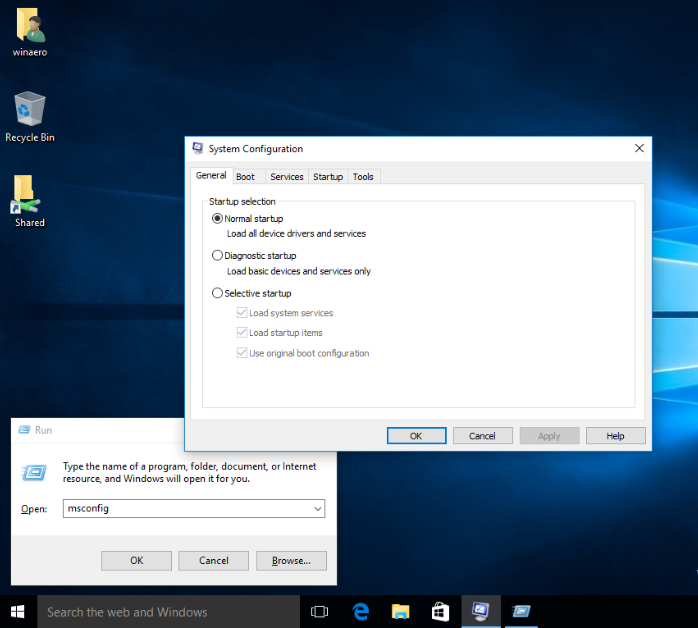
Step 2. In the System Configuration window, go to the Boot tab and check Safe boot. Then, choose one of the available Safe Mode options:
Minimal – standard Safe Mode
Alternate shell – Safe Mode with Command Prompt
Network – Safe Mode with Networking
Step 3. After making your selection, click Apply, then OK, and restart your computer. Windows will boot directly into the selected Safe Mode.
FAQs
⭐ Why did Windows remove the F8 Safe Mode option?
Windows removed F8 to speed up boot times. Modern PCs start too fast for key detection, so Microsoft replaced it with recovery-based startup options.
⭐ Can I permanently enable F8 Safe Mode?
Yes. You can permanently enable F8 by using the bcdedit command to switch Windows back to legacy boot menu mode.
⭐ Is Safe Mode available in Windows 11?
Yes. Windows 11 still includes Safe Mode, but it’s accessed through Advanced Startup, not the F8 key.
⭐ Does Safe Mode delete my files?
No. Safe Mode only loads essential system files and drivers. It does not delete personal files or installed data.
⭐ Which Safe Mode should I choose?
Choose Safe Mode for basic troubleshooting, Safe Mode with Networking for internet access, and Safe Mode with Command Prompt for advanced repairs.
Conclusion
When the F8 key no longer works, accessing Windows Safe Mode is still entirely possible. By using Startup Settings, Command Prompt, Automatic Repair, System Configuration, or reliable tools like AOMEI Partition Assistant, you can regain Safe Mode access quickly. These methods work across modern Windows versions, ensuring effective troubleshooting even when traditional shortcuts fail.
