
 AOMEI Partition Assistant
[Solved] We Couldn't Update the System Reserved Partition Windows 11 24H2
Fix the "couldn't update the system reserved partition Windows" error and install the 24H2 update. Learn why this issue occurs and discover the simplest method to increase the SRP size using professional tools.

By Lucas / Updated on September 26, 2025


The release of a new Windows 11 feature update, like the much-anticipated 24H2, is typically a moment of excitement for PC users. However, this excitement can quickly turn to frustration when you're met with a cryptic error message: "We couldn't update the system reserved partition." This error halts the installation process, leaving your system un-updated and you searching for a solution.
This guide will walk you through why this error occurs and provide clear, step-by-step solutions to fix it. We'll cover everything from built-in Windows tools to a powerful third-party utility to ensure you can complete your Windows 11 24H2 update.
Why we couldn't update the system reserved partition on Windows 11 24h2?
The System Reserved Partition (SRP) is a small, hidden partition on your drive that contains crucial Boot Manager code and Boot Configuration Data (BCD). It's also used for the Windows Recovery Environment (WinRE) and to store startup files for BitLocker Drive Encryption. The "we couldn't update the system reserved partition Windows 11 24h2" error almost always points to an issue with this specific partition.
Before diving into the fixes, it's essential to understand the root causes of this update failure. Here are the primary reasons why you might see this error message on your screen.
Insufficient Space: This is the most common culprit. The SRP is typically created with a size of around 100 MB to 500 MB. Over time, security software, previous updates, or system recovery tools can add data to this partition, leaving insufficient free space for new update files. The Windows 11 24H2 update may require more space in the recovery environment than is currently available.
Corrupted System Files: Corruption within the Boot Configuration Data (BCD) or other critical files stored on the SRP can prevent Windows Update from modifying them. This corruption can happen due to improper shutdowns, malware, or disk errors.
Outdated Font Files: In some specific past updates, it was discovered that a large number of font files were stored in the SRP, consuming valuable space. While less common now, it remains a possibility.
How to fix couldn't update the system reserved partition Windows
Now that we've identified the likely causes, let's proceed with the solutions. We'll start with some basic system checks and then move on to the most effective solution: extending the System Reserved Partition.
Method 1: Run System File Checker and DISM
These built-in Windows tools can find and repair corrupted system files, which might be the source of your update problem. This is a good first step to rule out file corruption.
Step 1. Click the Start button, type "cmd", right-click on Command Prompt, and select "Run as administrator."
Step 2. In the Command Prompt window, type the following command and press Enter:
sfc /scannow

Step 3. Wait for the scan to complete. If it finds and repairs errors, restart your PC and try the update again.
Step 4. If the issue persists, open Command Prompt as an administrator again and run the DISM command:
DISM /Online /Cleanup-Image /RestoreHealth
This command repairs the Windows image. Once it's finished, reboot and re-attempt the update.
Method 2: Manually Extend the System Reserved Partition (Difficult)
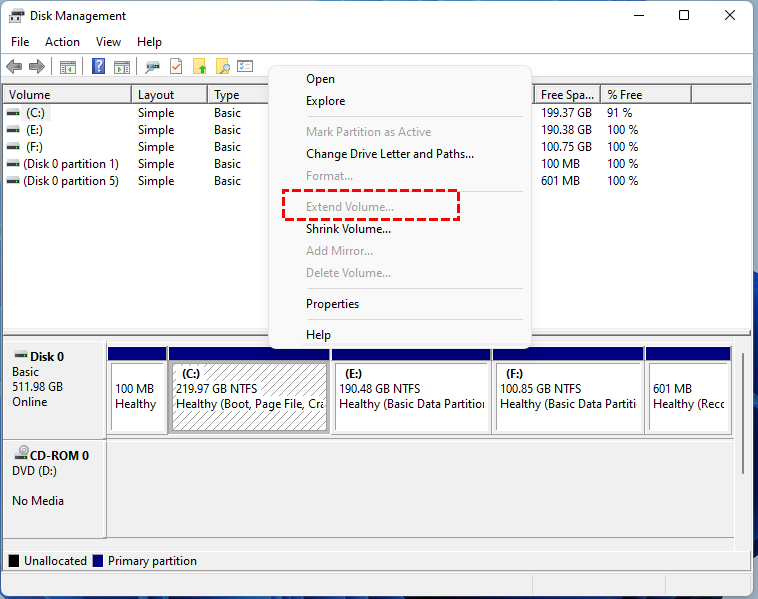
If file corruption isn't the issue, you'll need to increase the size of the SRP. You can try using Windows' built-in Disk Management tool, but be warned: it has major limitations.
Disk Management can only extend a partition if there is unallocated space located immediately to the right of it. In almost all system configurations, the SRP is followed directly by the main C: drive, meaning there's no adjacent unallocated space to merge with. You would have to shrink the C: drive, but this creates unallocated space after C:, not after the SRP, making Disk Management ineffective for this specific task. This is where most users get stuck and need a more powerful tool.
Method 3: Easily Extend the SRP with AOMEI Partition Assistant Professional
To bypass the limitations of Windows tools and provide a reliable fix, using a professional partition manager is the best course of action. This is the most recommended solution for the problem of not being able to update the system reserved partition in Windows 11.
AOMEI Partition Assistant Professional is a robust and user-friendly disk management software designed to handle complex partitioning tasks with ease and security. It allows you to resize, move, merge, and split partitions without data loss. Its "Allocate Free Space" feature is perfect for this situation, as it can take free space from any partition (like your C: drive) and add it directly to the System Reserved Partition in just a few clicks, something Disk Management cannot do.
 100% Secure
Step 1. Install and launch AOMEI Partition Assistant. The interface will show you the basic information about your disks. Right-click the drive which has free space, select “Allocated Free Space”.
Step 2. In the pop window, you can allocate free space from D drive to C drive. After setting up, click "OK".
Step 3. Click "Apply" and "Proceed" to execute the progress.
To sum up
The "we couldn't update the system reserved partition" error in Windows 11 is frustrating but fixable. It's almost always caused by a lack of free space on the small, hidden System Reserved Partition, which is critical for booting and recovery operations.
Windows' native tools are unfortunately not equipped for this task easily. The most efficient and reliable method is to use a dedicated tool like AOMEI Partition Assistant Professional. Its ability to directly allocate free space from one partition to another makes resolving this update-blocking issue a simple, straightforward process.
