
 PartitionAssistant Recovery


How to Fix A Problem Is Preventing This Folder From Being Encrypted?
Do you see the error message “A problem is preventing this folder from being encrypted” on Windows 10 or 11? This guide will explain why it happens and how to fix it in 3 ways.

Par Irene / Mis à jour le July 10, 2025


What is the A Problem Is Preventing This Folder From Being Encrypted error?
Encryption is a useful way to protect your important files, but sometimes it doesn’t work as expected on Windows. Many users find that they can’t encrypt folders, or the encryption option is greyed out in Windows 10 or 11. Some common problems include the “Encrypt with password” option not showing, encryption not working at all, or seeing an error message that says “A problem is preventing this folder from being encrypted.” "Why can't I encrpyt my folder on Windows 10?" You may want to know it. Here’s a quick look at the main reasons:
| Reason | Explanation |
|---|---|
| 1. Windows Edition Limitation | BitLocker only works on Pro or Enterprise editions. Home editions don’t support it. |
| 2. No Native Folder Encryption | Windows encrypts full drives (BitLocker) or single files (EFS), not folders directly. |
| 3. EFS Complexity | EFS works on individual files. It needs certificates and is not easy to configure. |
| 4. Drive Format Issues | Both BitLocker and EFS require NTFS. They don’t work on FAT32 or exFAT drives. |
| 5. Hardware/TPM Problems | BitLocker may not work if your PC doesn’t have a TPM chip or has outdated firmware. |
Now that you know why you might not be able to encrypt a folder, let’s look at how to fix the “A problem is preventing this folder from being encrypted” error in Windows.
How to fix can't encrypt a folder in Windows 10 and 11?
Fix 1. Use an Administrator Account to Encrypt the Folder
One common reason you can’t encrypt a folder in Windows is that your account doesn’t have the right permissions. If you’re using a standard user account, encryption may fail. To fix this, make sure you’re logged in with an administrator account and take ownership of the folder. Here's how to do it.
Step 1. Open File Explorer, find the folder you want to encrypt, right-click on it, and choose Properties. Go to the Security tab and click the Advanced button.
Step 2. At the top, next to Owner, click the Change link. In the box, type administrator, then click Check Names and OK.
Step 3. Tick Replace owner on subcontainers and objects, then click Apply and OK. When the ownership transfer finishes, click OK to close.
Step 4. Try encrypting the folder again to see if the issue is fixed.
Fix 2. Ensure enough disk space
Folder encryption in Windows 10 or 11 may fail if your drive doesn’t have enough free space. During encryption, Windows creates a temporary copy of the data, so you need at least twice the file size in free space. How to effectively free up space?
Try AOMEI Partition Assistant. Its 1-Click Adjust Space feature lets you easily expand a partition by reallocating unused space from other volumes. It works on NTFS and FAT32 drives across Windows 11/10/8/7 (32- and 64-bit).
This tool is especially useful when:
🔥 You need to resize or merge partitions without data loss
🔥 You want to shrink partitions with unmovable files
With its user-friendly design, AOMEI offers a faster, safer way to manage space and fix encryption issues.
 AOMEI Partition Assistant
The Best Windows Disk Partition Manager and PC Optimizer
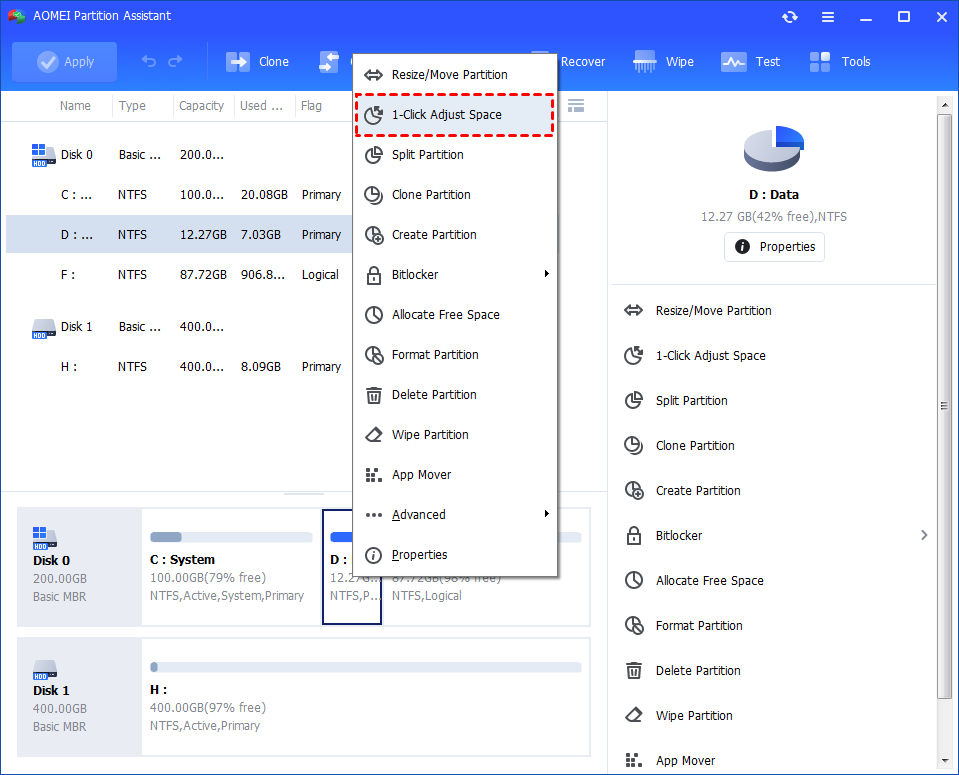
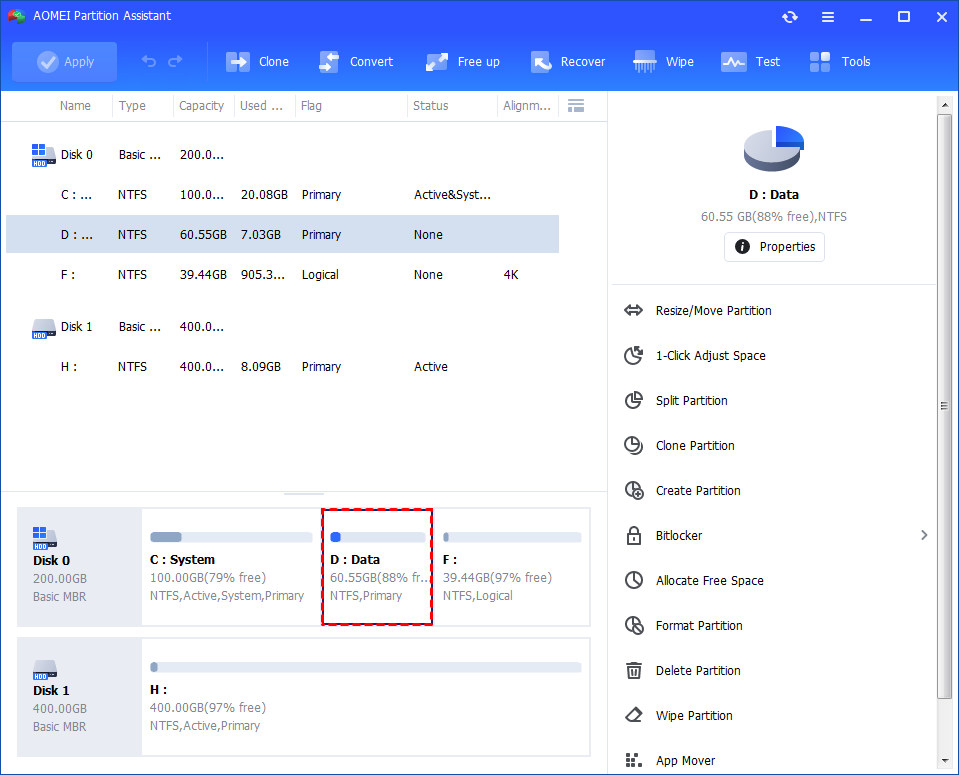
Step 1. Install and launch AOMEI Partition Assistant. Right-click a partition (here is D: partition) you want to adjust space and select "1-Click Adjust Space".
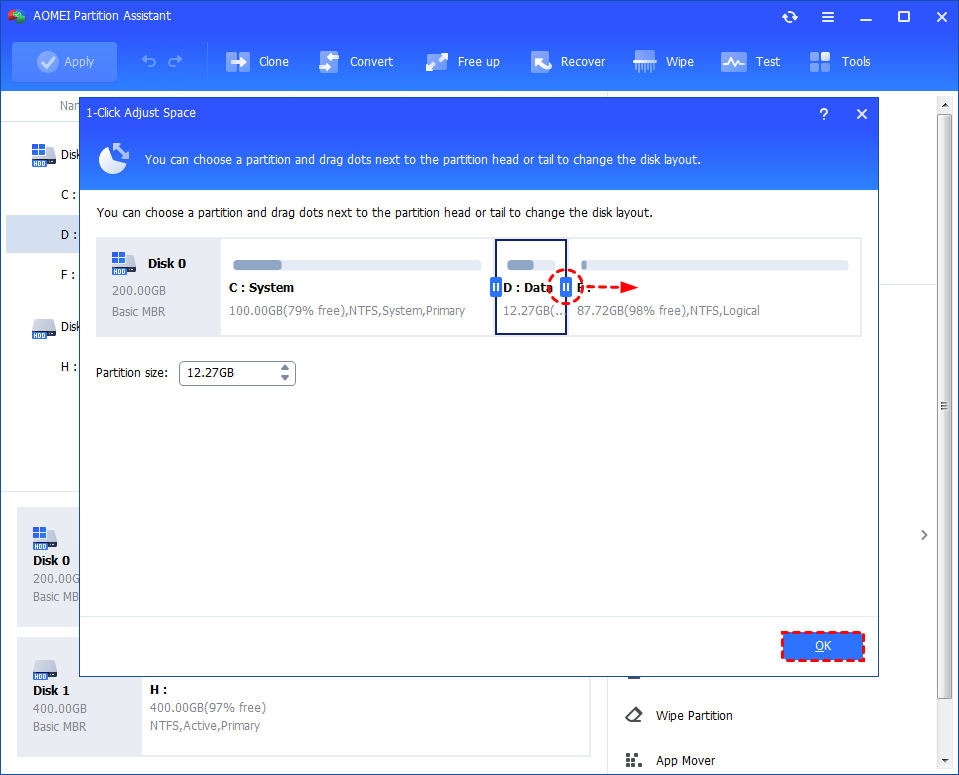
Step 2. If you want to use the space on F: to expand D:, you can simply drag the dot near the partition F: head backward to shrink the partition F: and enlarge the partition D: at the same time. Then click "OK".
Tips: You can simultaneously drag the dot near the partition C: tail forward to shrink the partition C: so the D: will also be enlarged with the space of C: at the same time. In this case, you can adjust all partition space (C:, D:, and F:) on the disk.
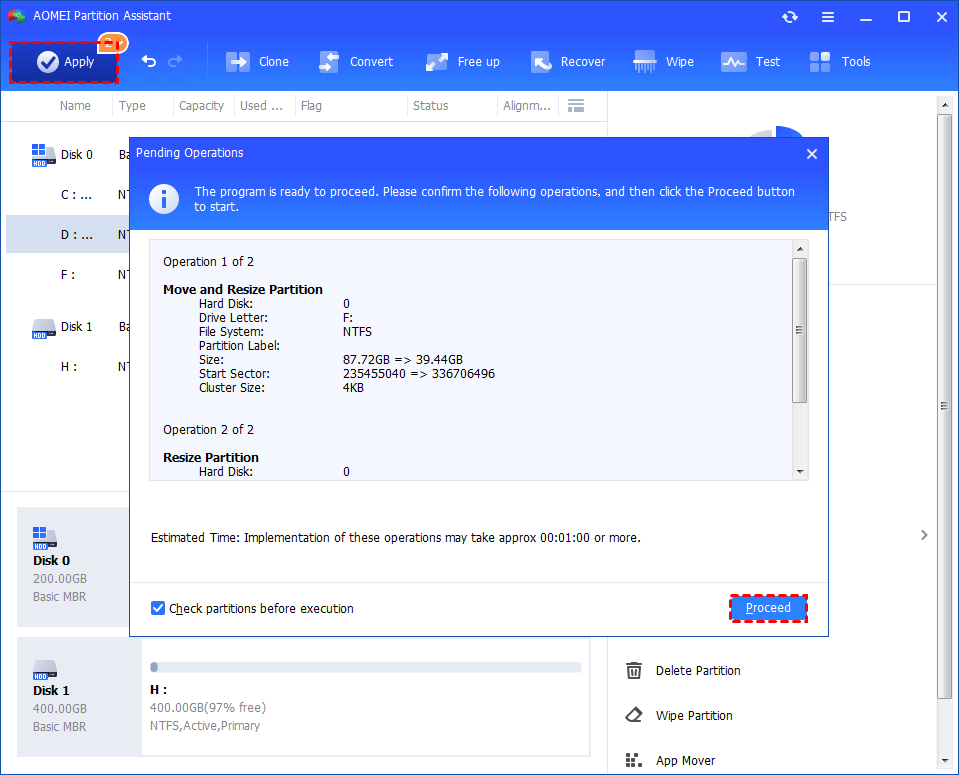
Step 3. You can preview the operation by viewing the "Pending Operations". To commit the "Pending Operations", please click "Apply" and "Proceed".
Step 4. The process will start and you can check the progress. It might take time to finish the operation.
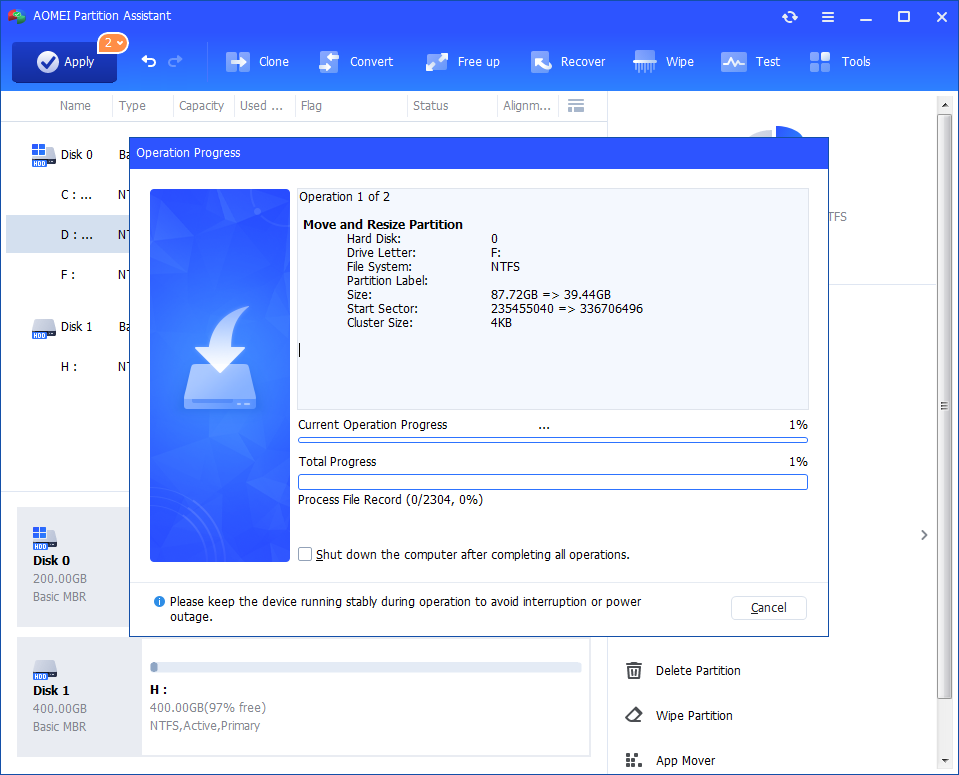
Step 5. Wait for the operation to be finished. After it is completed successfully, you will find D: is enlarged and both D: and F: are adjusted.
Fix 3. Unlock the drive
If you're seeing the error “A problem is preventing this folder from being encrypted” while moving files from an unencrypted drive to an encrypted one, the issue might be that the target drive is locked. To fix it, unlock the drive first by following these steps:
Step 1. Press Windows + E to open File Explorer.
Step 2. Locate the locked drive, right-click on it, and select Unlock Drive.
Step 3. Enter your BitLocker password, then click Unlock.
Tip: If you forgot the BitLocker password, you can follow the guide to get BitLocker recovery key.
Step 4. Right-click the folder showing the error and choose Properties.
Step 5. Under the General tab, click the Advanced button.
Step 6. In the Advanced window, uncheck Encrypt contents to secure data, then click OK.

Step 7. Click Apply. A prompt may appear asking if you want to back up the encryption key—choose as needed.
Step 8. Restart your computer and try encrypting the folder again to see if the issue is fixed.
🌟Bonus tip: Open BitLocker in Windows Home with AOMEI software
The built-in BitLocker tool is not the only way to encrypt folders or drives on a Windows 10 or 11 Home PC. Since BitLocker is not natively supported in the Home edition, using reliable third-party software is a better choice in this case.
A great option is AOMEI Partition Assistant. It's built-in BitLocker feature allows Windows Home users to easily encrypt internal drives, external disks, and USB devices. Even older systems like Windows 7 are supported. To help prevent losing your recovery key, the program also lets you save it to another drive or print a copy for safekeeping.
AOMEI Partition AssistantThe Best Windows Disk Partition Manager and PC Optimizer
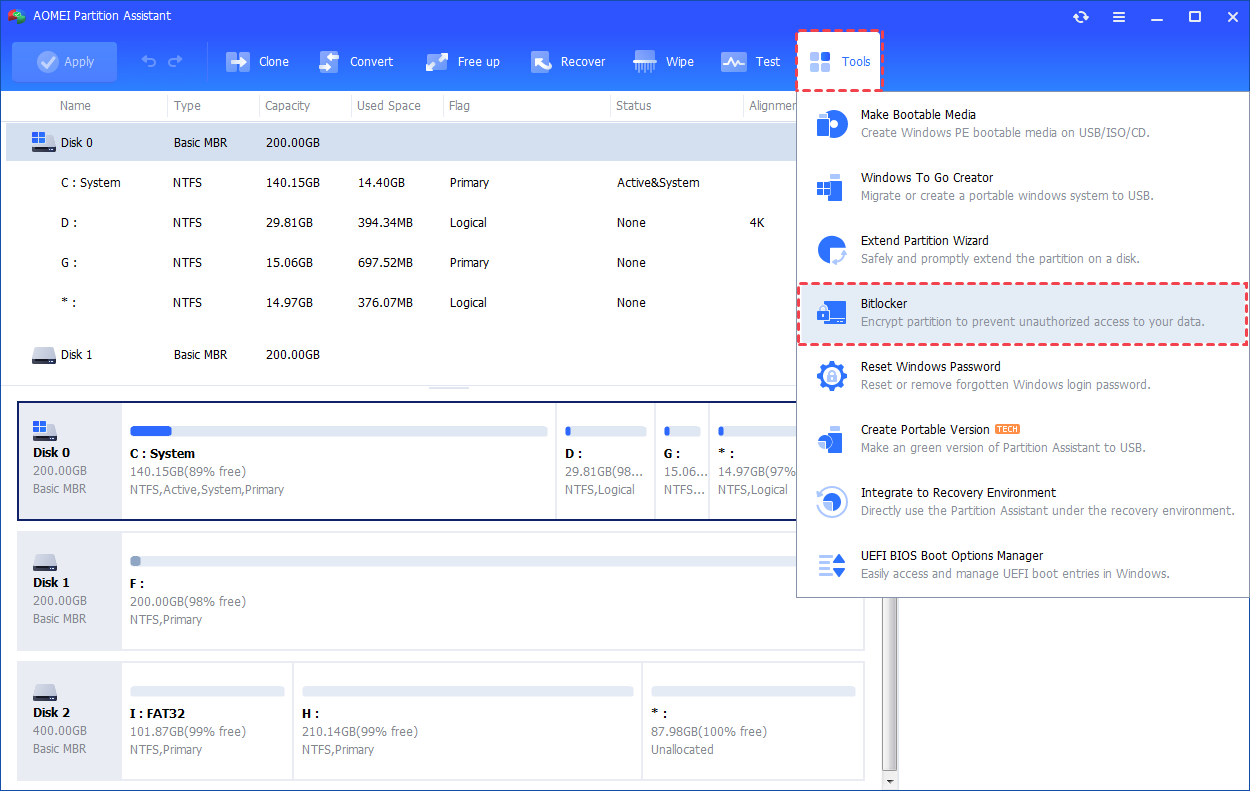
Step 1. Install and launch AOMEI Partition Assistant. Click the "Tools" main tab and select "BitLocker". Or, right-click the partition you want to encrypt and click the "BitLocker"->"Turn on BitLocker" option in the Context Menu.
Step 2. All drives on the system will be displayed, including operating system drives, fixed data drives, and removable drives. Please find the partition you would like to encrypt BitLocker and click the "Turn on BitLocker" option. (Here, we take the drive D: as an example.)
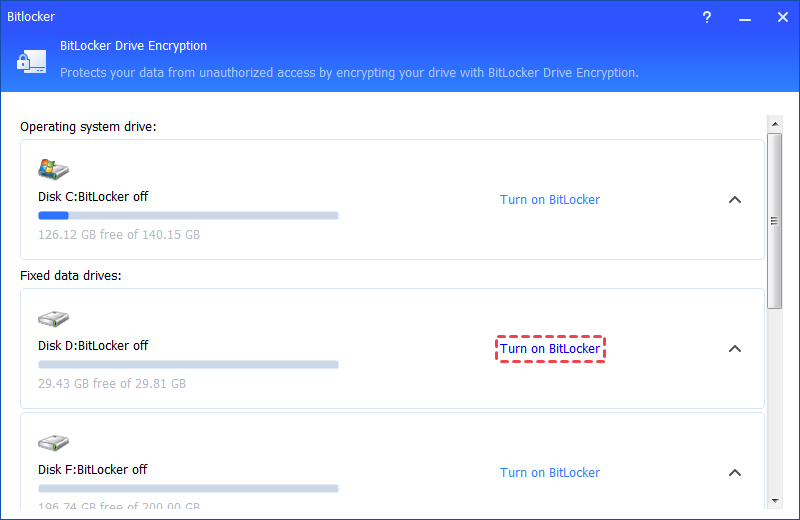
Tip: Currently, it only supports encrypting NTFS partitions. Other partition file systems, for example, FAT or FAT32 cannot be encrypted.
Step 3. Please set and confirm a password to encrypt the drive and click "Next".
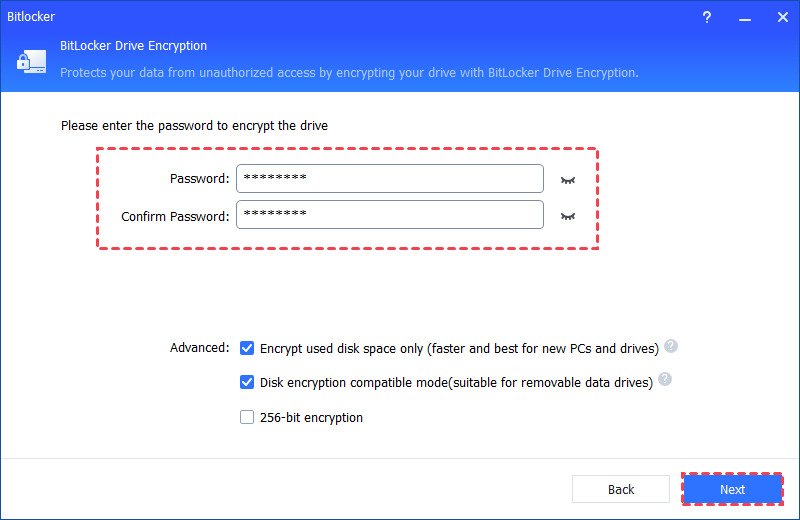
1. Encrypt used disk space only (faster and best for new PCs and Drives): If you are setting up BitLocker on a new PC or a new drive, you only need to encrypt the part of the drive that is currently being used. And, BitLocker will automatically encrypt the newly-added data.
2. Disk encryption compatible mode (suitable for removable data drives): Windows 10 (version 1511) introduces a new disk encryption mode (XTS-AES). This mode provides heavy integrity support but is not compatible with earlier versions of Windows.
If this is a removable drive to be used on an earlier version of Windows, you should select Compatible mode.
If this is a fixed drive, or if this drive will only be used on devices running at least Windows 10 (version 1511) or later, select the new encryption mode.
Step 4. Select a way to back up your recovery key. You can either select "Save to a file" or "Print the recovery key".
If you select "Save to a file", please choose a location on your PC to save the recovery key.
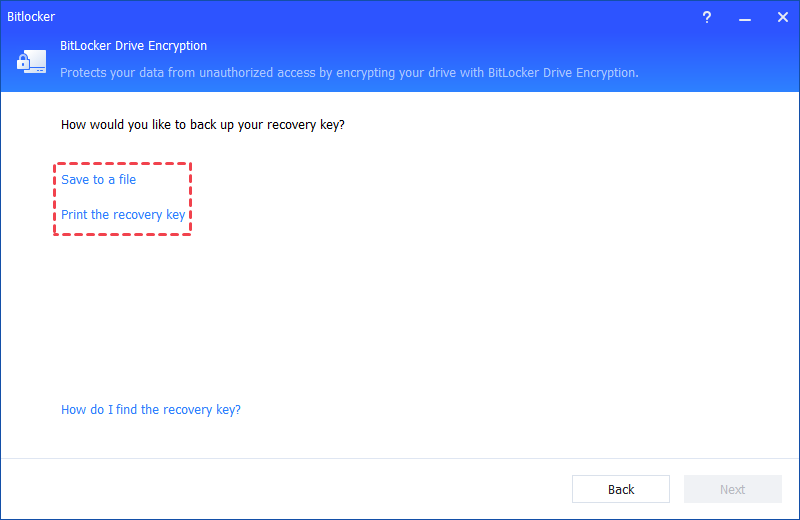
Tip: Please do not save the recovery key in the encrypted drive path. For example, it is unable to encrypt D: and save the recovery key on the same D: drive.
It will generate a TXT file with the name: Bitlocker Recovery Key + 45-bit Key. The recovery file will be saved in the TXT file. You can open the file to view the recovery key. Please keep the file. Then, please click the "Next" button to start the encryption process.
If you would like to encrypt your current system drive, you will be asked to restart your PC into Windows PE mode to execute the operation because it is the current system drive. The program will first create Windows PE and then boot the PC into Windows PE mode to encrypt the drive. After the encryption is finished, you can restart your PC.
Step 5. The encryption process might take time to encrypt the drive. Before the process is finished, please do not terminate the program, remove the drive, or turn off the power.
Once the encryption process is finished, please click "Completed". Finally, the drive is BitLocker encrypted.
Conclusion
If you're seeing the “A problem is preventing this folder from being encrypted” error in Windows 10 or 11, it’s usually due to system limitations, incorrect settings, or drive issues. By using an administrator account, ensuring enough disk space, and unlocking the target drive, you can often fix the problem. With tools like AOMEI Partition Assistant, managing space and solving encryption errors becomes much easier. You can even enable BitLocker on Windows Home edition. Try these fixes one by one to successfully encrypt your folder.
AOMEI Partition AssistantThe Best Windows Disk Partition Manager and PC Optimizer
