
 AOMEI Partition Assistant
Step-by-Step Guide: Understanding the Attach VHD Meaning
Unlock the power of virtual disks. Learn the 'attach vhd meaning,' see how to use the 'diskpart attach vhd' command, and discover the best tools for managing your VHD files once they are attached to your system.

By Lucas / Updated on November 12, 2025


In the world of Windows computing, the term "Virtual Hard Disk" (VHD) has become increasingly common, yet many users are still unfamiliar with its full potential. A VHD is a single file that acts as a complete virtual hard drive, offering a streamlined way to handle data storage, system backups, and multi-boot environments. However, to use a VHD, you must first perform a crucial action: attaching it. But what exactly does "attach VHD" mean?
This guide will provide a clear and detailed explanation of the attach VHD meaning. We will explore what happens behind the scenes when you mount a virtual disk and walk you through the precise steps on how to perform this action using both the built-in Windows tools and a powerful third-party software solution.
What Does "Attach VHD" Mean?
So, what does attach VHD mean? In the simplest terms, "attaching a VHD" is the process of mounting a VHD or VHDX file so that the Windows operating system recognizes it as a physical hard disk. When you attach a VHD, it appears in File Explorer with its own drive letter and in Disk Management as a separate disk, just like a USB flash drive or an internal SSD.
Think of it like plugging a physical external hard drive into your computer. The VHD file itself is dormant and inaccessible on your host drive until you "attach" it. This action tells Windows to read the file, interpret its contents (which are structured just like a physical disk with partitions and a file system), and present it to you as a usable volume.
Once attached, you can perform almost any action on the VHD that you could on a physical disk:
- Access Files: Open, create, edit, and delete files and folders stored within it.
- Install Programs: Use it as an installation target for software.
- Partition and Format: Create new partitions, format existing ones, and assign drive letters.
- Run an Operating System: If the VHD contains a bootable OS, you can even configure your system to boot from it (a process known as Native VHD Boot).
In essence, the attached VHD means all about making a virtual disk file active and accessible within your live operating system. When you are finished, you can "detach" the VHD, which is like safely ejecting a physical drive. The VHD reverts to being just a single, inactive file on your host disk.
How to Attach VHD?
Windows provides several reliable methods for attaching a VHD. You can use the intuitive graphical interface of Disk Management or the powerful command-line utility, DiskPart. For more advanced management after attachment, a professional third-party tool can offer a more streamlined experience.
Method 1: Using Disk Management
These native utilities are readily available in every modern Windows installation and are perfect for quickly mounting a VHD. Disk Management offers a user-friendly, wizard-based approach to attaching a VHD file.
Step 1. Press the Windows key + X and select "Disk Management" from the power user menu. It's best to run this with administrative privileges.
Step 2. Once the Disk Management console is open, click on the "Action" menu at the top.
Step 3. Select "Attach VHD" from the dropdown menu.
Step 4. In the dialog box that appears, click the "Browse" button and navigate to the location of your VHD or VHDX file.
Step 5. Select the file and click "Open."
Step 6. You have the option to make the VHD "Read-only." Check this box if you want to prevent any changes from being written to the virtual disk.
Step 7. Click "OK." The VHD will be mounted and will appear in the Disk Management list as a new disk. If it contains partitions with drive letters, they will now be visible in File Explorer.
Method 2. Run DiskPart
Step 1. Open Command Prompt as an administrator. To do this, click Start, type cmd, right-click "Command Prompt," and select "Run as administrator."
Step 2. Type diskpart and press Enter to launch the utility. Use the select vdisk command to specify the VHD you want to attach. You must provide the full path. For example:
select vdisk file="E:\MyBackups\System.vhdx"
Step 3. After the virtual disk has been selected, type the following command and press Enter:
attach vdisk
DiskPart will mount the VHD. To make it read-only, you would use the command attach vdisk readonly instead. You can now type exit to close DiskPart and the Command Prompt.

Method 3. Enhanced VHD Management with AOMEI Partition Assistant Professional
While attaching a VHD is a function of the OS, what you do with it afterward is where management software truly shines. AOMEI Partition Assistant Professional is a robust computer management tool that provides a far more intuitive and feature-rich environment for managing your disks—both physical and virtual—than the native Windows utilities.
 100% Secure
If you have a .vhd or .vhdx file but the virtual disk is not displayed, you can attach the VHD to make it behave like a real physical disk.
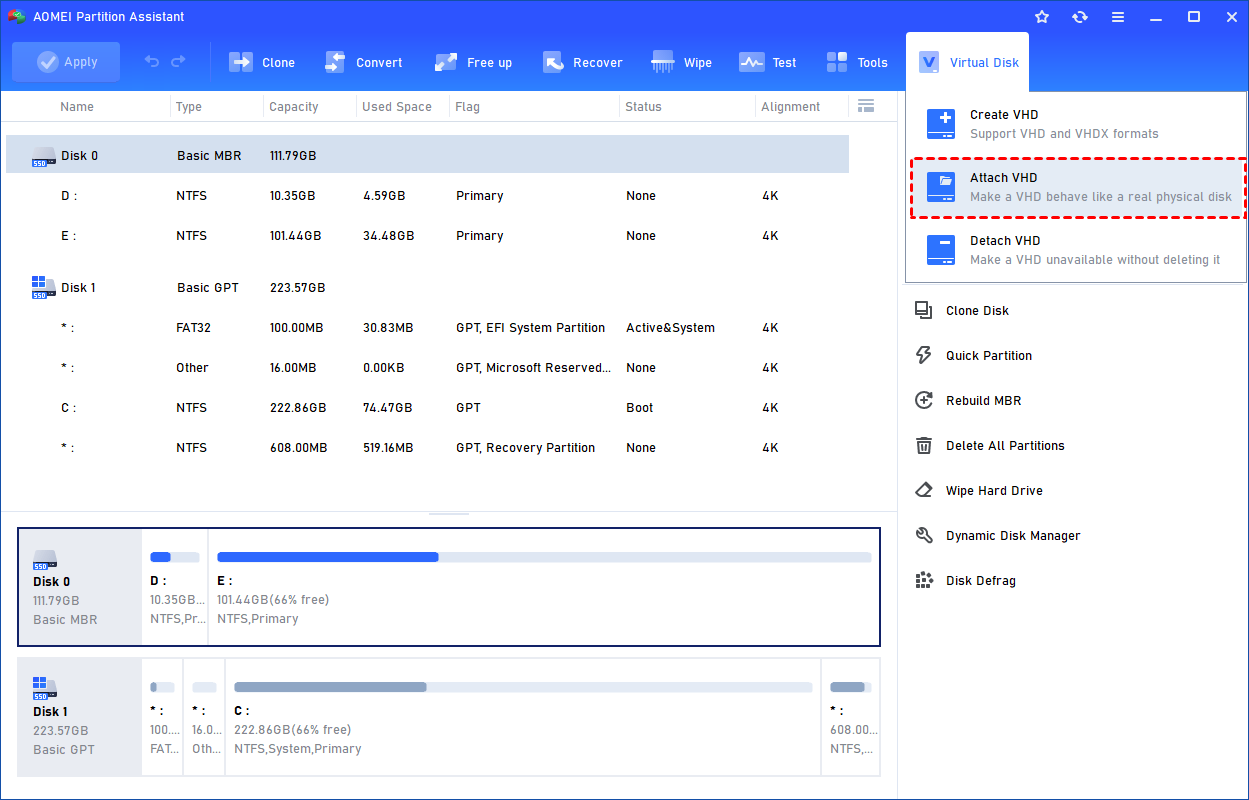
Step 1. Select the "Attach VHD" option after clicking the"Virtual Disk" tab.
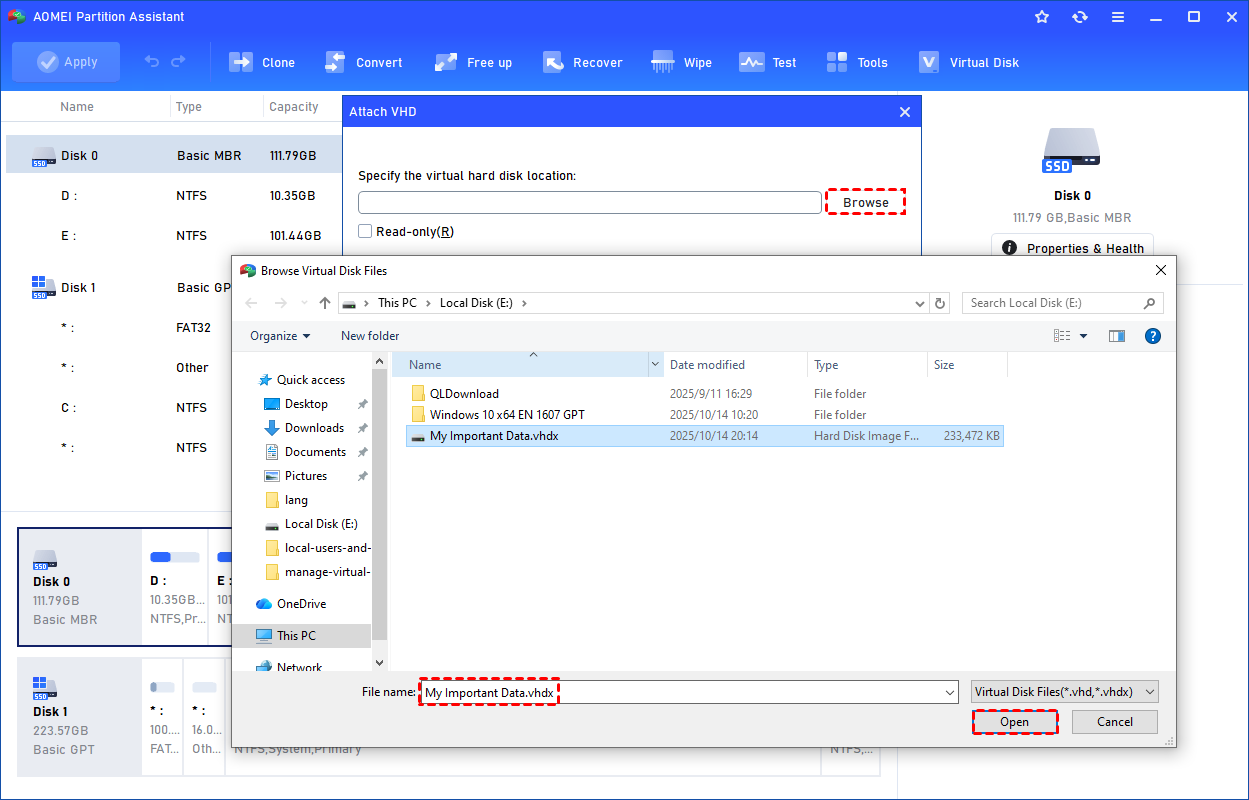
Step 2. Click "Browse" to locate the location where the .vhd or .vhdx file is saved. Select the .vhd or .vhdx file you want to attach and click "Open" to attach it.
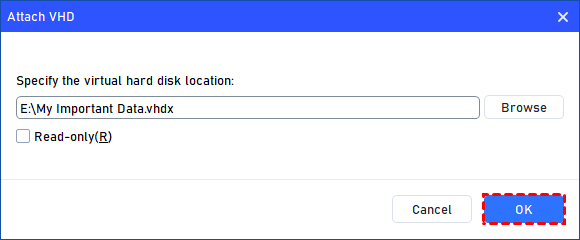
Step 3. Once the virtual file is selected, you can click "OK" to start attaching the VHD.
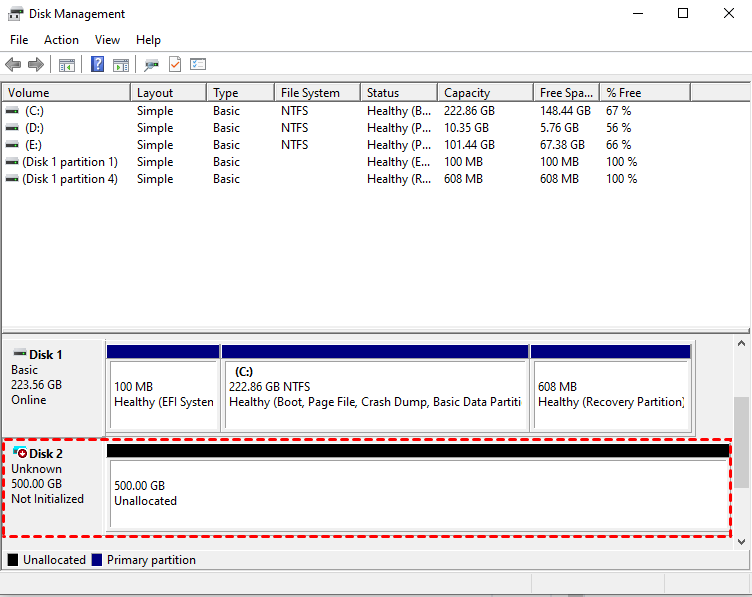
AOMEI Partition Assistant Professional is not just for initialization. It offers many other handy functions for managing attached VHDs, such as resizing or merging partitions without data loss, cloning the VHD to another drive, and converting file systems. Its clear graphical interface makes it the perfect tool for users who want power without the complexity of command-line tools.
To sum up
The attach VHD meaning is straightforward: it is the essential process of making a VHD file active and usable within the Windows operating system, effectively turning a single file into a fully functional virtual disk. This can be easily accomplished using the graphical Disk Management tool or the efficient diskpart attach VHD command.
For users seeking a more powerful and user-friendly way to manage the partitions and data on their virtual disks after attachment, AOMEI Partition Assistant Professional provides a superior toolkit, simplifying everything from initialization to advanced partition management.
