
 AOMEI Partition Assistant
Encounter Calculating the Time Required to Copy the Files? Easy Fixes Here!
This guide explains why Windows 10 shows “calculating the time required to copy the files” and gets stuck. Find simple fixes for copying files stuck at calculating and restore smooth file transfers.

By Irene / Updated on September 11, 2025


Why does calculating the time required to copy the files happen?
When you copy files in Windows, you might sometimes see the message “Calculating the time required to copy the files” stuck on the screen. This usually happens when Windows is checking the size, number, and type of files before starting the transfer. Normally, this step is quick, but if something goes wrong, the process can freeze and prevent your files from copying.
The problem can come from different reasons. A common one is a damaged or corrupted storage device: when your USB drive or hard disk has issues, Windows struggles to read the data, which makes the calculation take forever. Another reason is wrong mode, often used when transferring files from PCs or external devices. Choosing wrong mode for transferring is much slower than normal transfer modes, so the process can get stuck. In some cases, third-party antivirus software may also block file access, stopping Windows from finishing the copy.
Instead of just copying and pasting files, you can use disk cloning software to make a complete copy of your entire drive. Cloning ensures that all your data, settings, and even hidden files are backed up properly. This not only helps avoid the “calculating time” problem but also protects you if your storage device fails later.
How to quickly copy files without calculating the time?
If you use the usual copy-and-paste method to back up files to a USB or external drive, you may get stuck on the message “calculating the time required to copy the files.” A faster and more reliable way is to clone the entire disk instead of copying files one by one. With tools like AOMEI Partition Assistant, you can use the Clone Disk feature to copy everything on your drive, including system files, apps, personal data, and settings to a new disk. This way, you don’t need to reinstall programs, and even drives with bad sectors can be backed up safely. Just connect both drives to your computer, follow the simple steps, and the process will finish smoothly. The tool works with popular SSD brands such as Samsung, SanDisk, Intel, Kingston, and Crucial, and it even lets you resize partitions during cloning for a more flexible upgrade.
 AOMEI Partition Assistant
The Best Windows Disk Partition Manager and PC Optimizer
Step 1. Install and launch AOMEI Partition Assistant, click "Clone" in the main interface, and select "Clone Disk".

Step 2. Choose the hard disk that you need to clone as the source disk and click "Next".

Step 3. Select another drive as the destination disk, and then click "Next".

Step 4. Then, you can check the source and destination disk in the next window or change to "Sector to Sector clone" if there are bad sectors on your disk, and click the "Confirm" button to continue if there is no problem.

Here, you can also click the "Settings" button to adjust the partition size on the destination disk or tick "4k alignment" to improve the reading and writing speed of the SSD.

Step 6. You can preview the disk cloning operation by viewing the "Pending Operations". To commit the "Pending Operations", please click "Apply" and "Proceed".

After cloning Windows disk to SSD or HDD, you need to change boot order in BIOS setup to boot computer from destination disk.
Step 1. Start the computer and press ESC, F1, F2, F8 or F10 during the initial startup screen. Depending on the BIOS manufacturer, a menu may appear.
Step 2. Choose to enter BIOS setup. Use the arrow keys to select the BOOT tab. System devices appear in order of priority. To give the destination hard drive boot sequence priority over other disks, move it to the first position in the list.
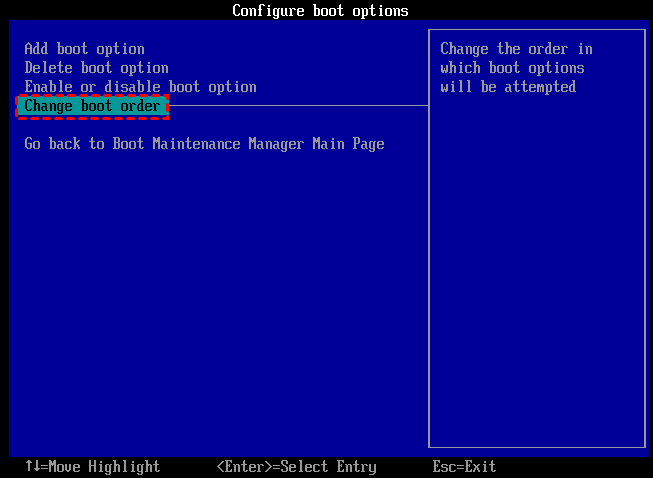
Step 3. Save and exit the BIOS setup utility. The computer will restart with the changed settings.
How to fix Windows 10 file transfer stuck issue?
There are several ways to solve the Windows 10 file transfer stuck problem. Let’s go through them one by one, starting with checking your disk for bad sectors.
Fix 1. Check bad sectors on your disk
If file copying in Windows 10 file transfer gets stuck at 0%, bad sectors on your disk might be the cause. Bad sectors are damaged parts of the drive that can't store data properly. When Windows tries to copy files and hits one of these areas, the process can freeze. To check for this, you can use the built-in chkdsk tool. It scans the drive, finds any bad sectors, and tries to fix them. After the scan, try copying the files again to see if the problem is solved.
Step 1. Click the Start button, enter "cmd" in the search field, right-click the Command Prompt icon and select "Run as administrator".
Step 2. In the command prompt window, enter "chkdsk g: /f" and press Enter to check and repair bad sectors found on the flash drive(g is the USB drive number.)
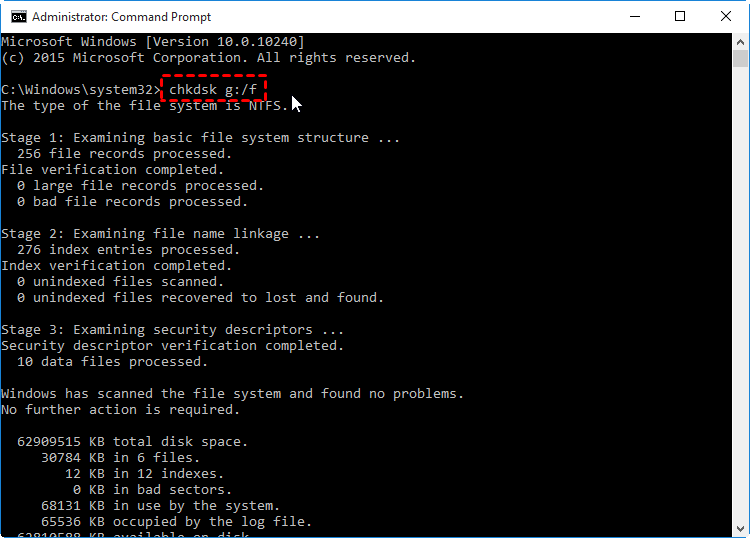
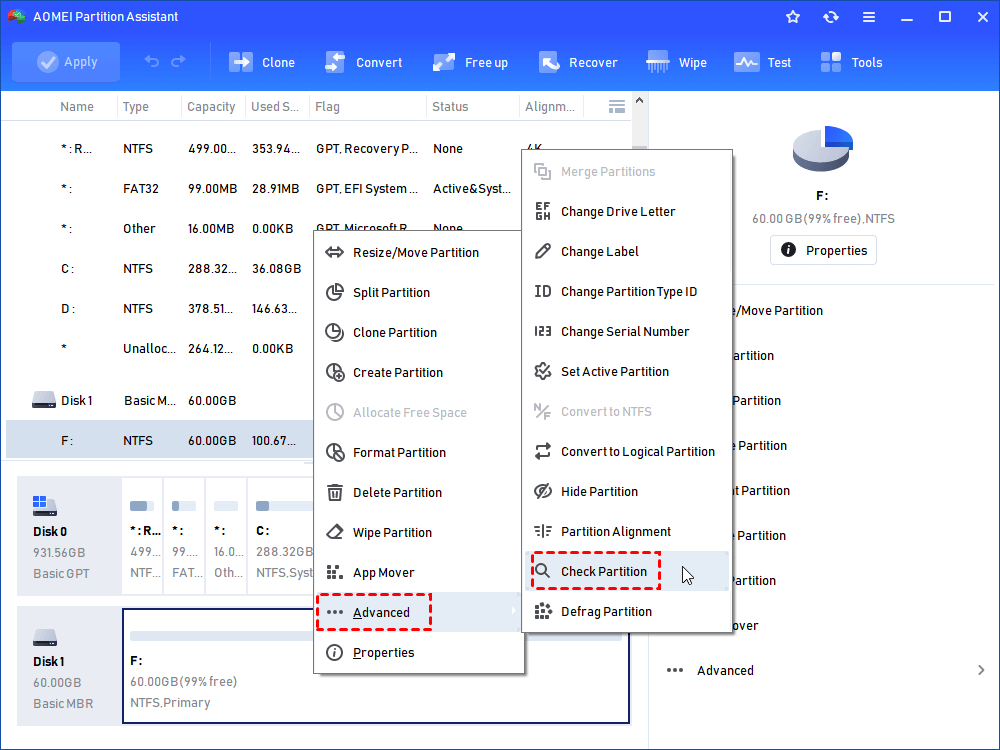
If you find it difficult to enter the command prompt, then you can use the simple bad sector repair tool named AOMEI Partition Assistant to remove bad sectors from hard disk permanently.
AOMEI Partition AssistantThe Best Windows Disk Partition Manager and PC Optimizer
Fix 2. Run virus scan
Malicious software can block the copy process or damage files, stopping Windows from working properly. To fix this, run a full virus scan on the disk using reliable antivirus software. After the scan finishes and any threats are removed, try copying the files again to see if the problem is fixed.
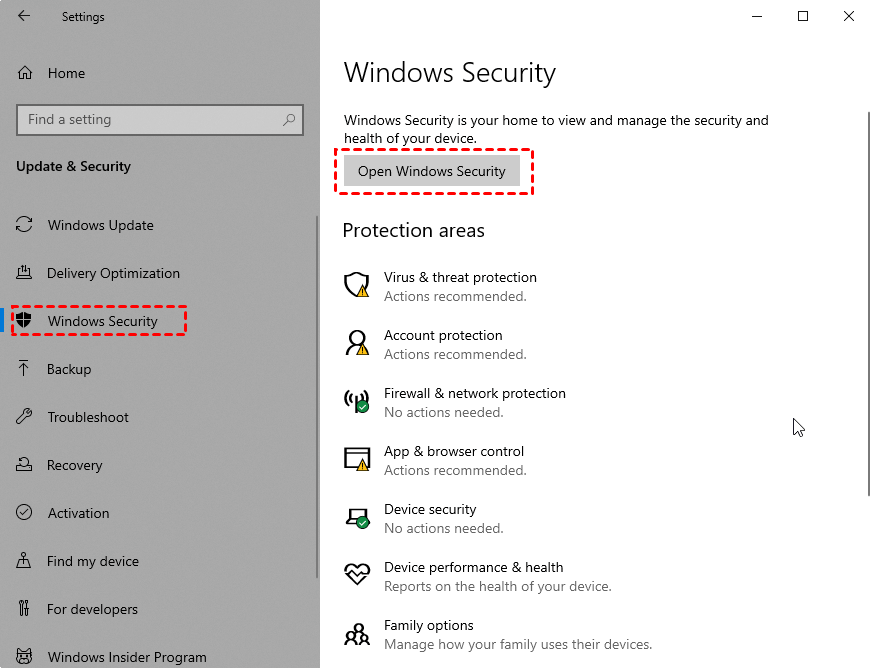
Step 1. Press "Windows + I" at the same time to open Settings window and click "Update & Security".
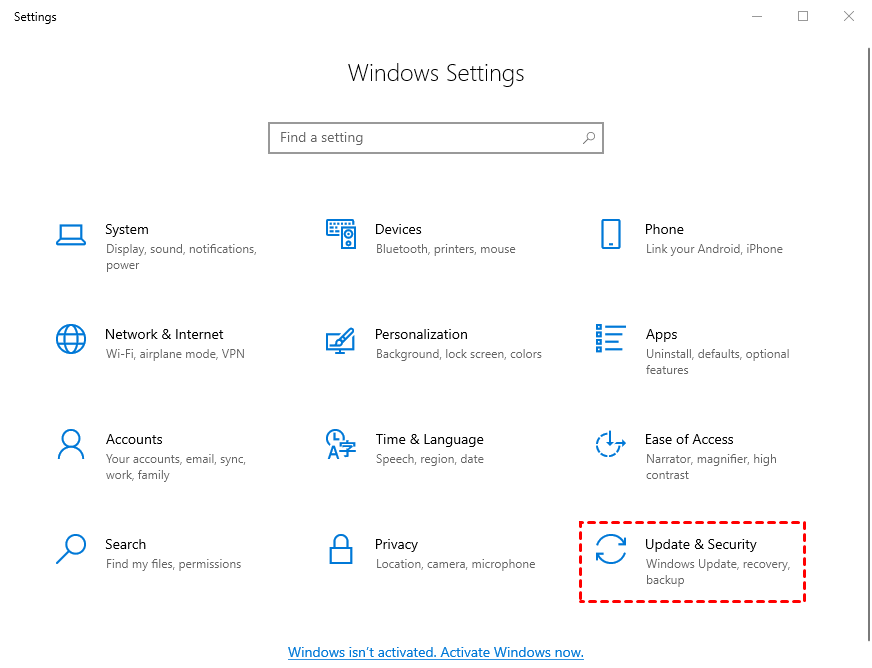
Step 2. Select "Windows Security" on the left panel and choose "Open Windows Security".
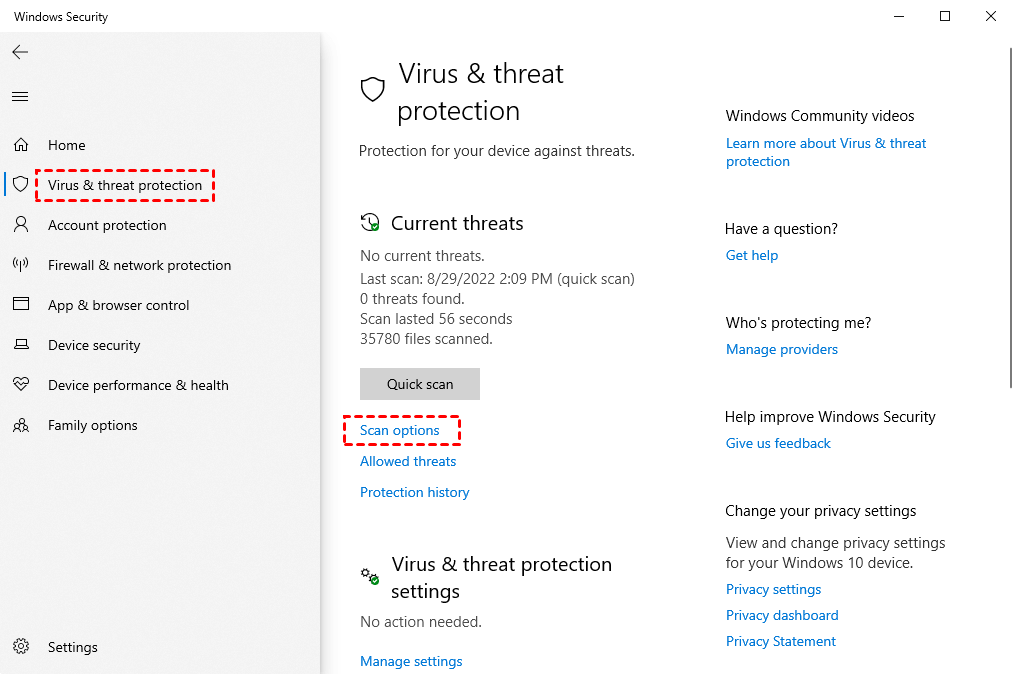
Step 3. In Windows Security window, go to "Virus & threat protection" > "Scan options".
Step 4. Select "Microsoft Defender Offline scan", and then click "Scan now".
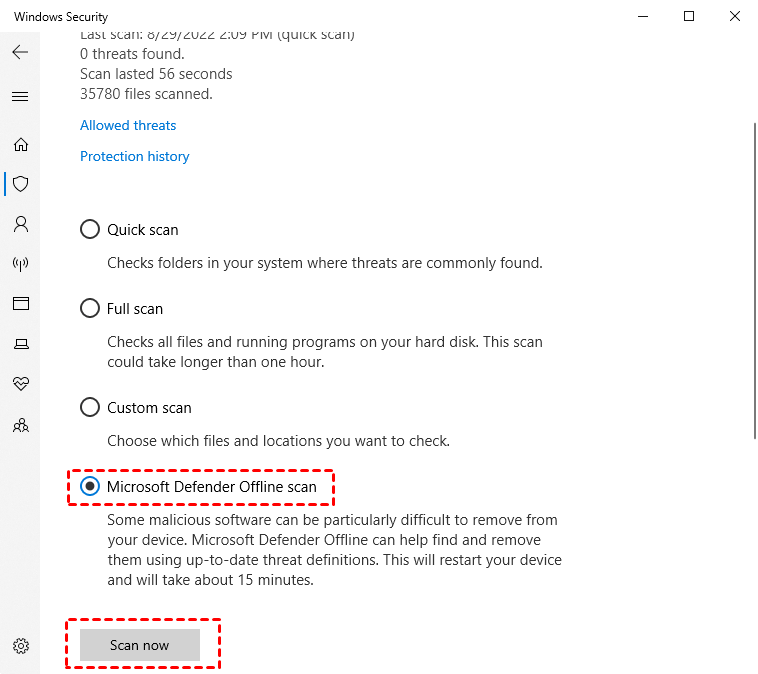
The Microsoft Defender Offline scan takes about 15 minutes to run, and then your PC will restart.
Conclusion
The “calculating the time required to copy the files” message usually appears when Windows is checking file sizes and types before copying. This can be caused by bad sectors, slow transfer modes, or antivirus interference. Using disk cloning software or repairing your drive can help avoid this issue and make file transfers faster and more reliable. Use AOMEI Partition Assitant can make the process easy and effecitve. For Windows Server users, it offers the Server edition.
