
 AOMEI Partition Assistant
Fixed: Can't Move Apps to SD Card Not Enough Storage Space
Why can't move apps to SD card not enough storage space? This article covers the most possible reasons and effective solutions to it.

By Hedy / Updated on July 16, 2025


Why can't move apps to SDcard not enough storage space?
There are several reasons why you might encounter the "not enough storage space" error when trying to move apps to an SD card:
◆ Insufficient space on the SD card: Even though the SD card may have some free space, the app you're trying to move might be too large for the available space. The system could be calculating that the app cannot fit.
◆ SD card format: If your SD card is not formatted correctly, it may not be recognized as suitable for app storage. Sometimes, SD cards formatted in a specific way (e.g., FAT32) may not support app storage as effectively as others (e.g., exFAT or NTFS).
◆ Operating system restrictions: Depending on the version of Android or your device’s manufacturer, the OS might impose restrictions on moving certain apps to an SD card. Some devices may block this feature to preserve system stability or performance.
◆ SD card's performance: If the SD card has a slow read/write speed, it could prevent certain apps from being moved. The app might require faster access speeds than what the SD card is capable of offering.
◆ Corrupted SD card: If the SD card has bad sectors or is corrupted, it may not function properly for storing apps, causing errors during the transfer process.
◆ System storage settings: Sometimes, even if there’s enough space on both the internal storage and SD card, the system may not allow the transfer due to its storage management settings or a lack of flexibility in managing space allocation.
These factors contribute to why you may receive the error message when attempting to move apps to your SD card.
How to fix the “can't move apps to SD card not enough storage space”issue
If you're struggling to move apps to your SD card due to the "not enough storage space" error, don't worry. Below are several effective solutions to help resolve this problem:
Fix 1. Check SD card space
Before diving into any technical fixes, the first thing you should do is check how much space is available on your SD card. This is a simple step that can save you time. If your SD card is nearly full, it will be impossible to move apps onto it. Here’s how you can do it:
Step 1. Open the Settings menu on your device.
Step 2. Navigate to Storage and look for your SD card.
Step 3. Check the available space. If it’s full or almost full, you'll need to free up some space by deleting unnecessary files or apps.
Fix 2. Format the SD card
If clearing up space didn’t work or if the SD card is still showing insufficient storage despite having free space, formatting the SD card might be necessary. Formatting your SD card will erase all its content, but it can help resolve issues like corrupted files or partition problems. Here’s how to do it:
Step 1. Press “Windows +R” to open the Run box, type “diskmgmt.msc” and hit the “Enter” key to run Disk Management.
Step 2. Locate the SD card and right-click it. Then choose “Format”.
Step 3. In the pop-up window, set the SD card file system as needed.
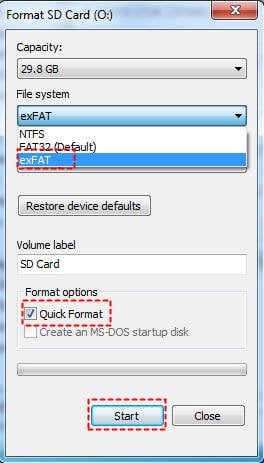
Step 4. Then, click “OK”. The SD card file system will be formatted within a few seconds.
Fix 3. Check for SD card errors
Sometimes, errors within the SD card itself can prevent you from moving apps to it. These errors could be due to corrupt files or faulty sectors. AOMEI Partition Assistant is a powerful disk management tool that can help you check for SD card errors easily and efficiently. Whether your SD card is showing signs of corruption, files disappearing, or frequent errors when transferring data, this tool can assist in diagnosing and resolving the issues.
Here’s how you can use AOMEI Partition Assistant to check your SD card for errors:
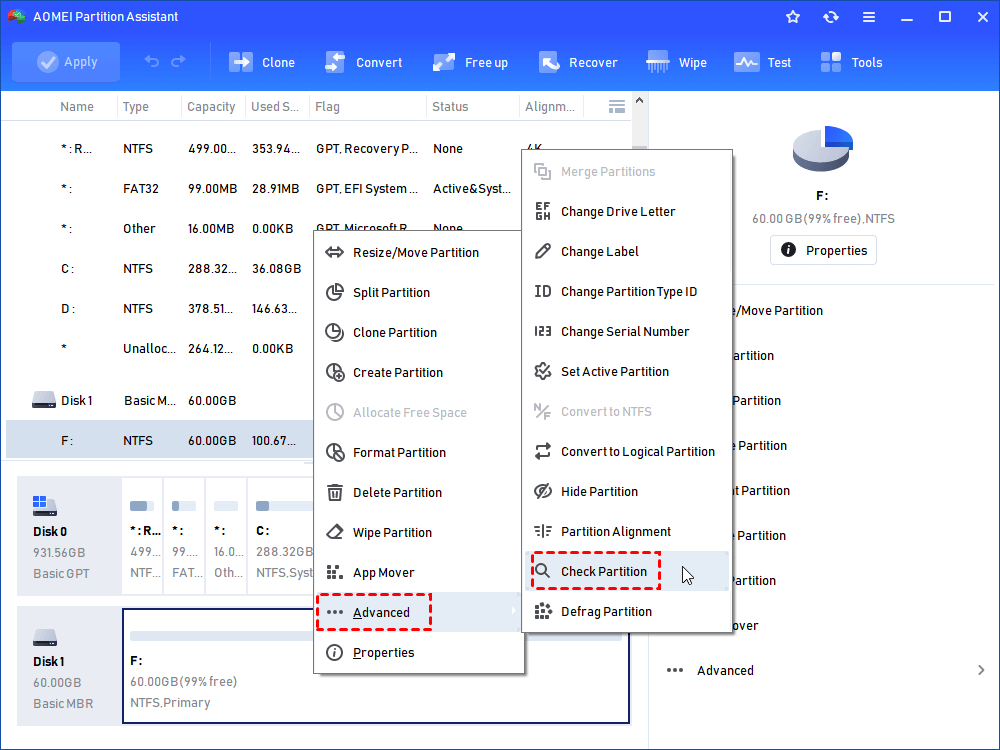
Step 1. In the main interface, right-click the target drive and then click "Check Partition".
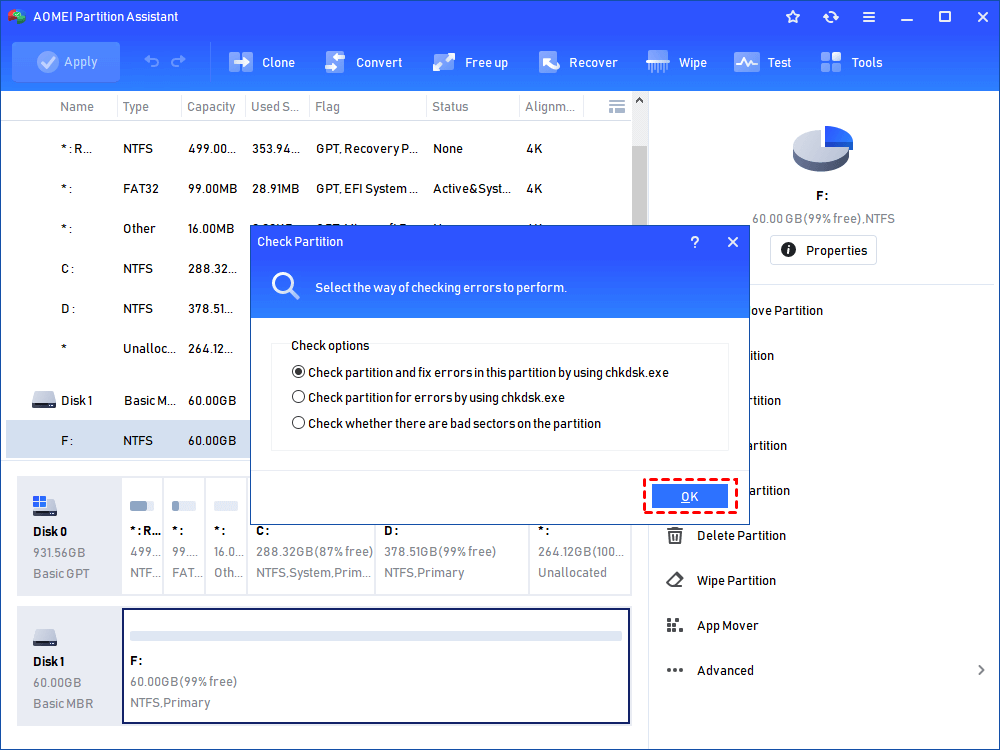
Step 2. Choose the "Check partition and fix errors in this partition by using chkdsk.exe" option, then click "OK".
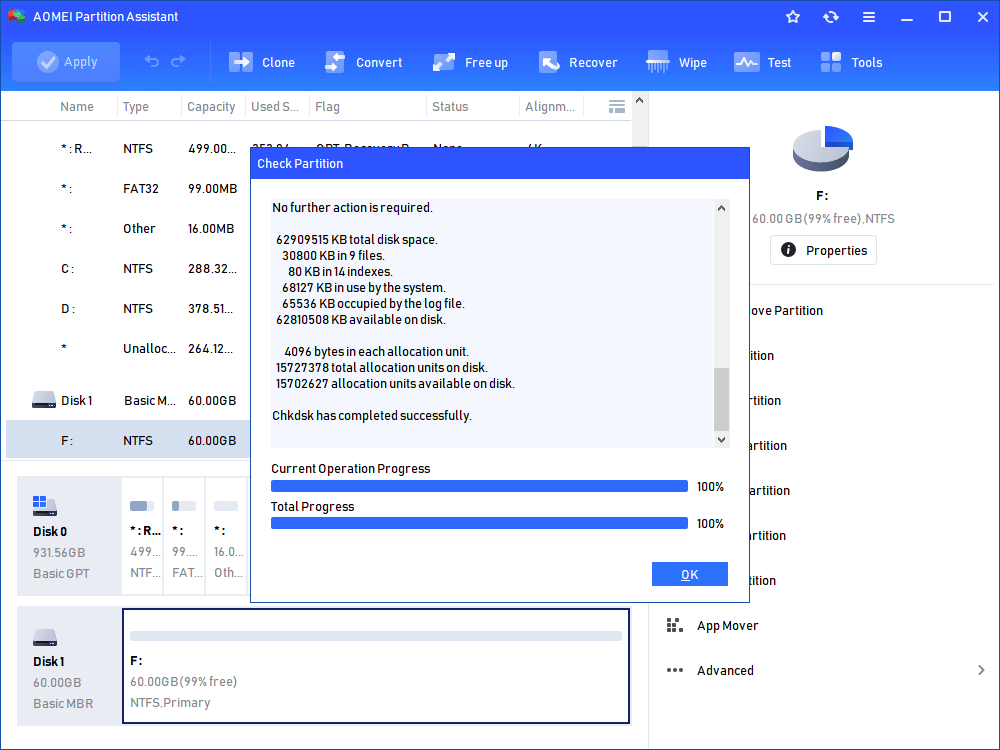
Step 3. Wait for a while and click "OK" when it's finished.
Fix 4. Move Apps via a professional app mover
If the above methods haven’t resolved the issue, a professional app mover tool can be your next solution. These tools are designed to help move apps from internal storage to your SD card effortlessly, even when there’s limited space. Here we recommend AOMEI Partition Assistant. It is a professional disk management tool designed to help users manage their storage devices efficiently.
One of its standout features is the App Mover tool, which allows you to move installed applications from internal storage to an SD card without needing to uninstall and reinstall them. This can help free up valuable internal space, especially if your device shows a "not enough storage space" error when trying to move apps manually.
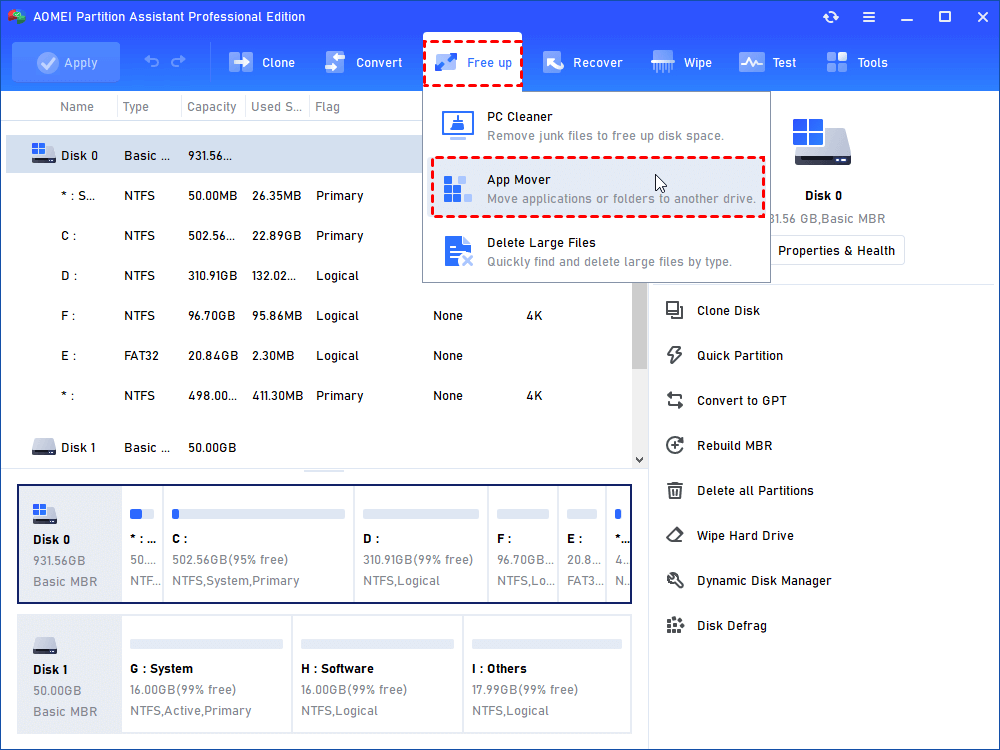
Step 1. Download and open AOMEI Partition Assistant. Click “Free up” on the top panel, then select “App Mover”.
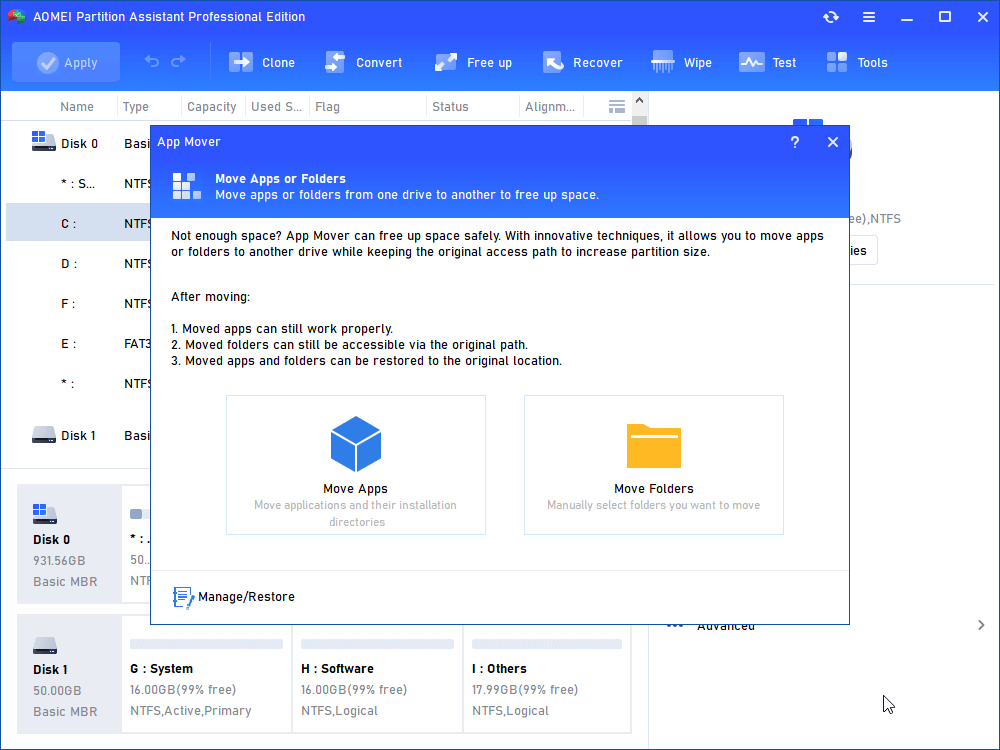
Step 2. Here, click “App Mover” to move applications. Or, you can also move folders to a different drive if you need.
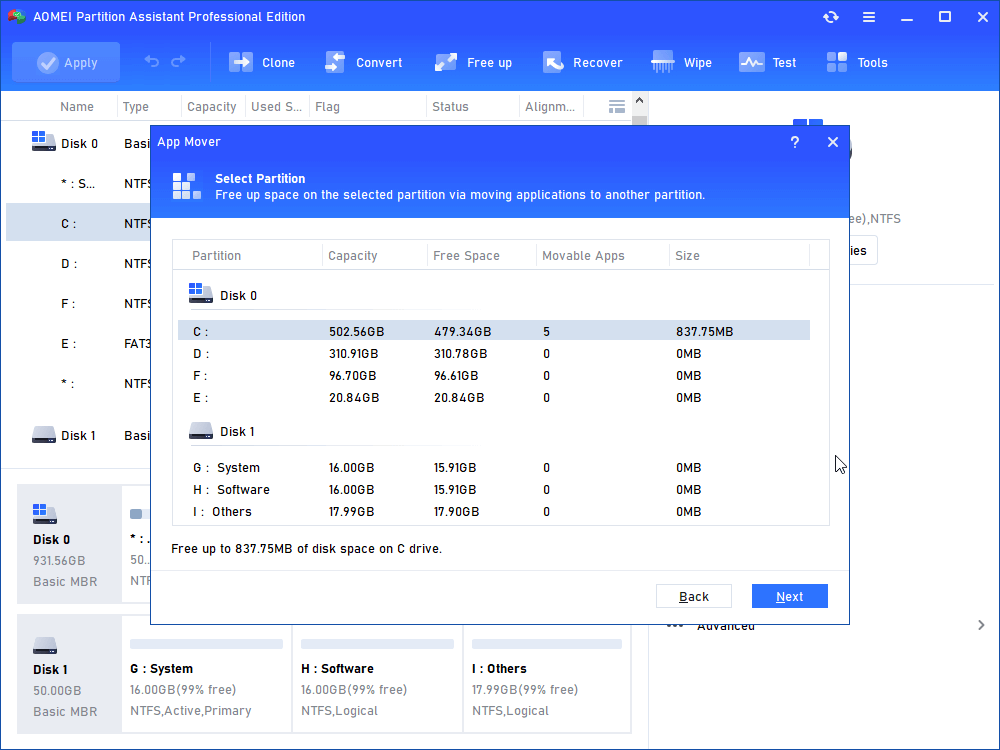
Step 3. Then, select the drive where the applications you want to move are located and click "Next".
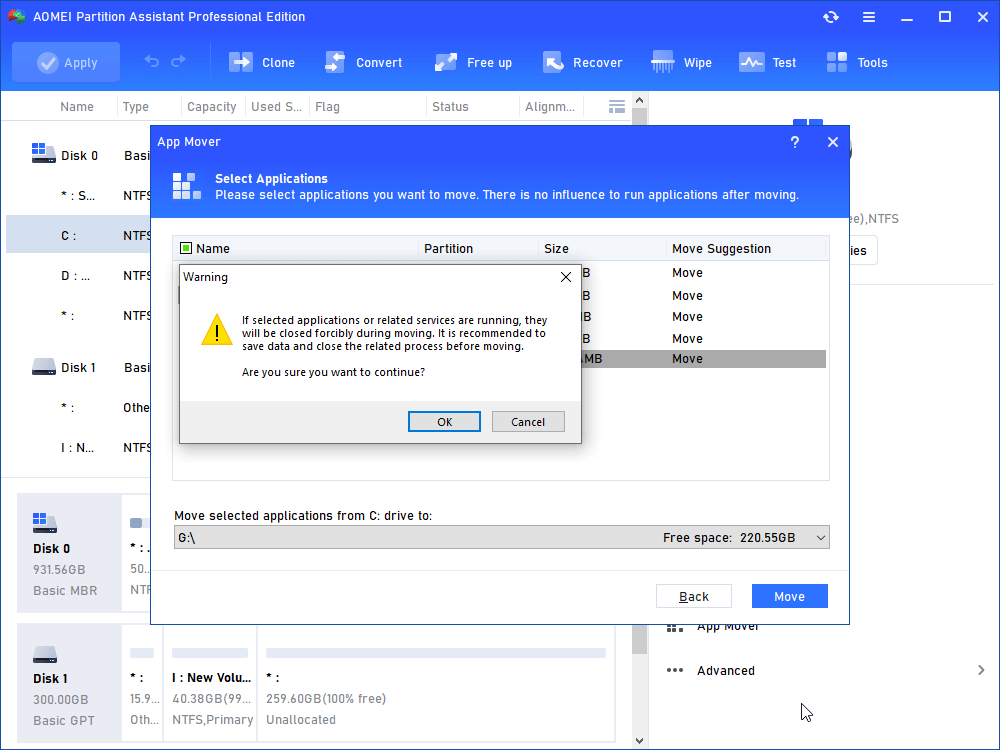
Step 4. Choose apps and select the destination drive, then click "Move".
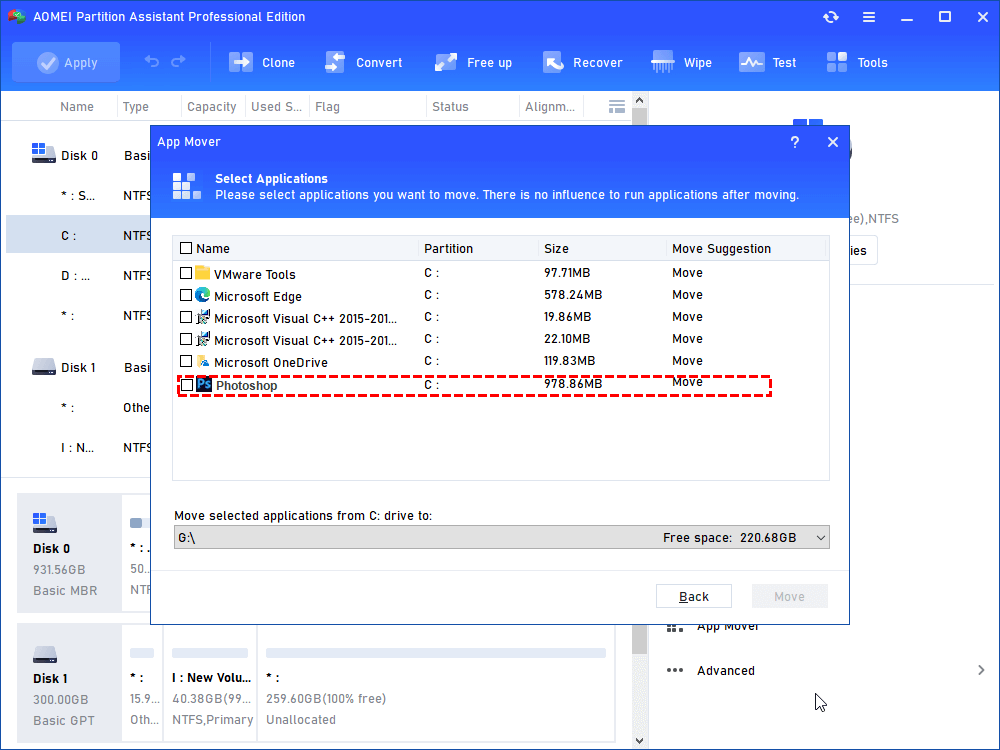
Step 5. Finally, click "OK" to begin the process.
Conclusion
The “can’t move apps to SD card not enough storage space” issue usually results from insufficient SD card space, improper format, operating system restrictions, or card errors. To resolve it, you can get four effective methods from this page. If problems persist, using a professional App Mover like AOMEI Partition Assistant can help efficiently transfer apps to your SD card, freeing up space on your devices.
