
 AOMEI Partition Assistant
Fixed: Clean Fail DiskPart SSD Samsung I/O Error in Windows 11/10
If you have encountered clean fail DiskPart SSD Samsung I/O error, don’t worry. In this guide, you will learn five easy and quick fixes to resolve this problem.

By Hedy / Updated on September 3, 2025


An I/O device error, short for Input/Output device error, occurs when Windows is unable to complete an input/output task, such as reading or copying data, while accessing a drive or disk. This issue typically arises from physical damage, like a faulty disk head, logical errors in sectors, or a corrupted partition table.
When faced with an I/O device error, using the DiskPart utility for partitioning may result in failure to access, format, or partition hard drives. Often, users encounter a message stating that DiskPart has encountered an error and cannot perform the requested operation due to the I/O device error.
If you're experiencing this issue, don’t worry—there are several solutions to consider. While most disk I/O errors stem from physical damage, it's worth trying these methods to determine if the problem can be resolved.
How to fix clean fail DiskPart SSD Samsung I/O error
If the hardware connection and transfer mode are in order, yet you're still encountering the "DiskPart has encountered an error: I/O device error" message when running commands, try the following methods to resolve the issue.
Fix 1. Use a partition manager tool to fix error
AOMEI Partition Assistant offers a simple, user-friendly alternative to Command Prompt for checking the file system and repairing bad sectors. If you're unfamiliar with command-line operations or worried about making mistakes that could cause further damage, this tool is highly recommended. It enables you to automatically repair your hard drive with just a few clicks.
As one of the top alternatives to DiskPart, AOMEI Partition Assistant handles all the same tasks, including creating, deleting, cleaning, and fixing partitions. Additionally, it offers several advanced features:
✅ Resize and move partitions, allowing you to allocate space from the D drive to the C drive directly.
✅ Copy and clone an entire disk to another, even if the target partition is smaller than the source.
✅ Convert logical partitions to primary, primary partitions to logical, FAT32 to NTFS, MBR to GPT, and vice versa.
✅ Migrate your OS to an SSD for a faster and smoother Windows experience, upgrading both your hard drive and system performance.
You can download the software for free and follow easy, step-by-step guides to check and repair your partitions.
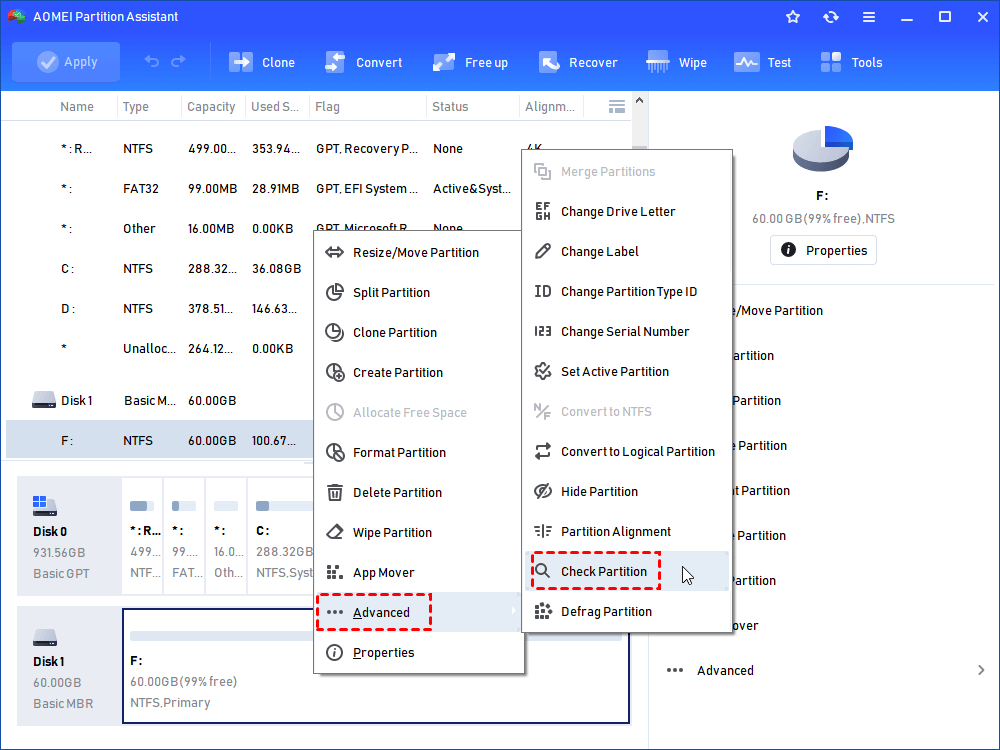
Step 1. Install and open AOMEI Partition Assistant. In the main interface, right-click the target drive and then click "Check Partition".
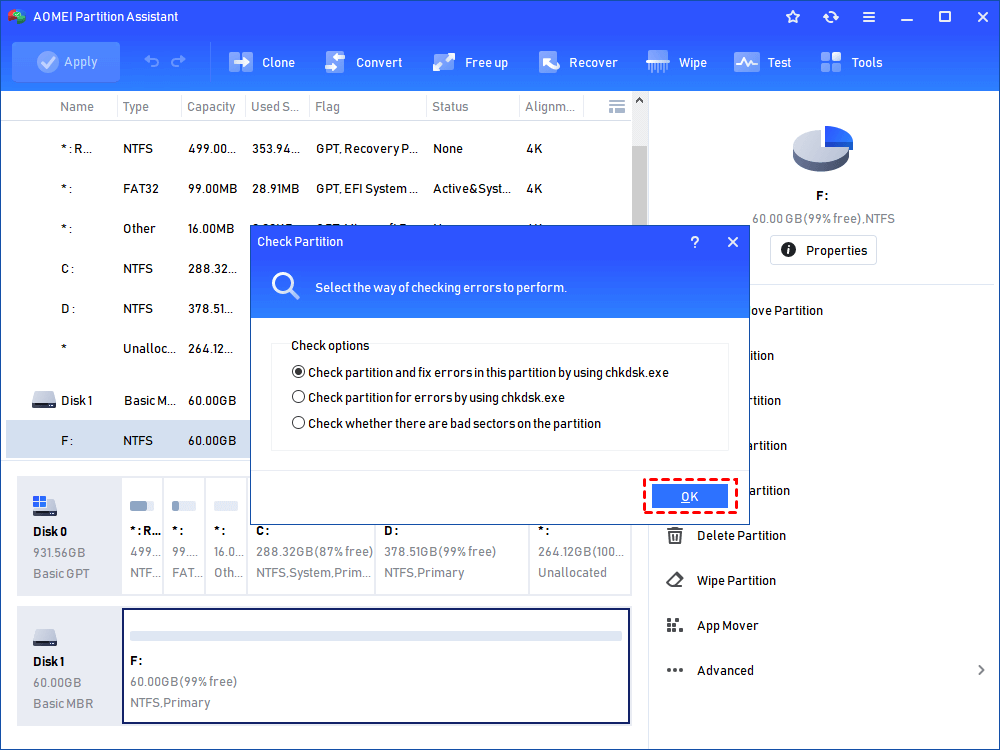
Step 2. Choose the "Check partition and fix errors in this partition by using chkdsk.exe" option, then click "OK".
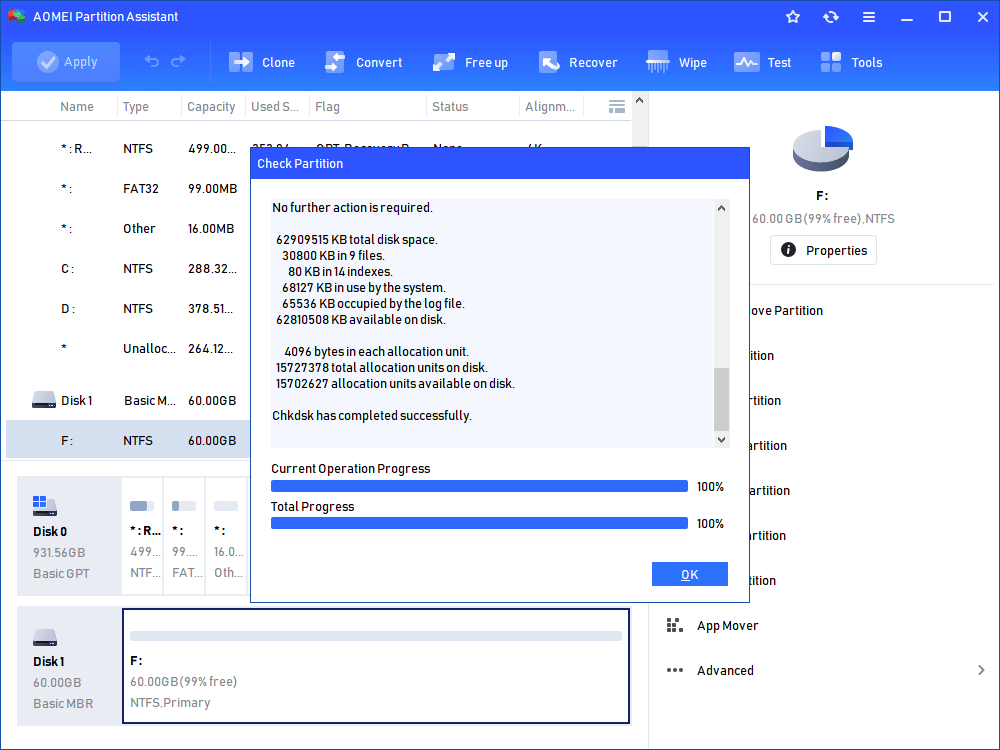
Step 3. Wait for a while and click "OK" when it's finished.
Fix 2. Update or reinstall the device driver
Outdated or incompatible device drivers can disrupt the input/output functionality of your hard disk, leading to an I/O error. To resolve this, try updating or reinstalling the disk driver.
1. Update Disk Driver
Step 1. Right-click This PC and select Manage. On the left side, choose Device Manager.
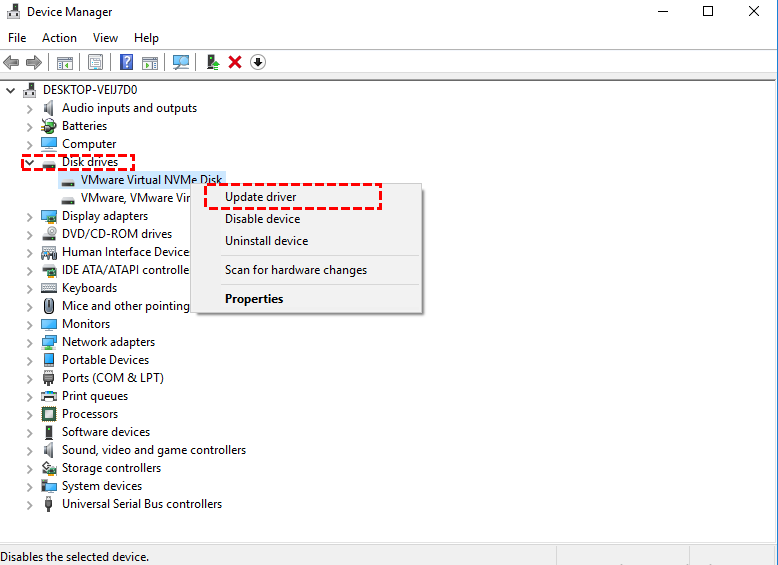
Step 2. Expand the Disk Drives section. Right-click your disk driver and select Update Driver Software.
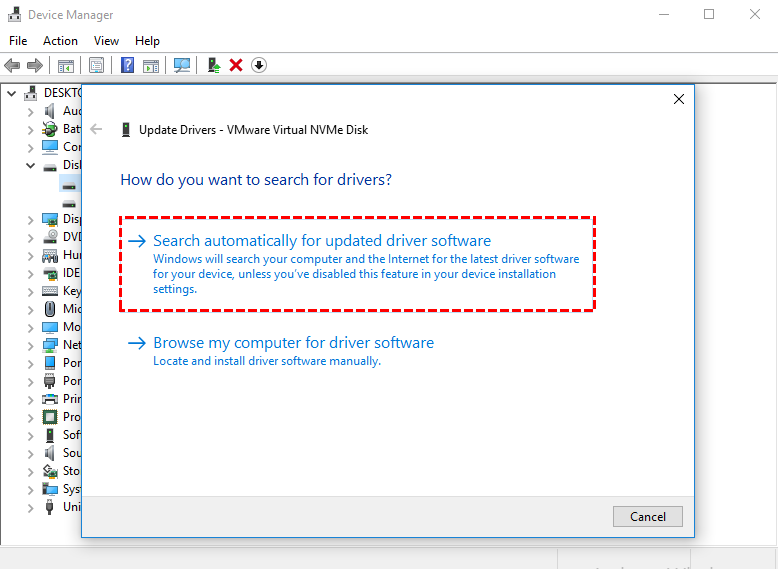
Step 3. In the pop-up window, choose Search automatically for updated driver software. Wait for your system to locate and install the latest driver.
2. Reinstall Disk Driver
If updating the driver doesn't resolve the issue, reinstalling the driver might help:
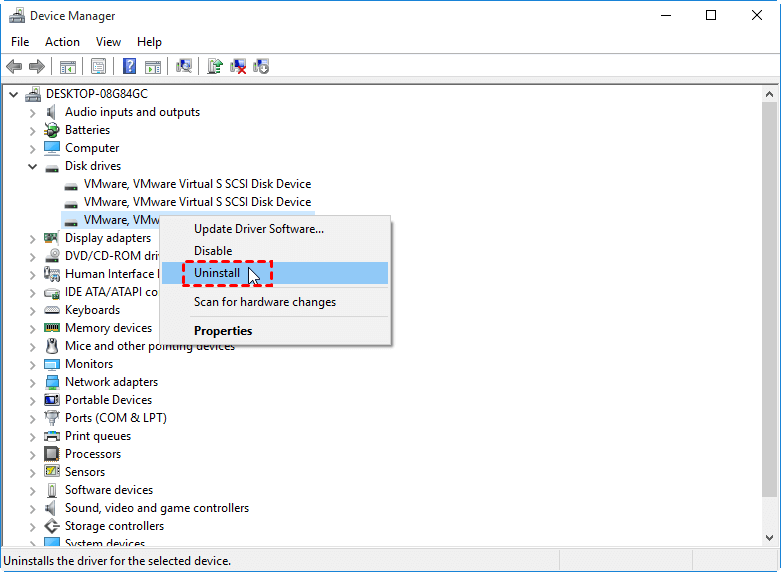
Step 1. Right-click the disk driver and select Uninstall. Confirm by clicking OK. Restart your PC, and Windows will attempt to reinstall the driver automatically.
Step 2. Alternatively, visit the manufacturer's website to download and install the latest driver updates for your device.
Fix 3. Run CHKDSK to fix bad sectors on the hard drive
The CHKDSK command can repair logical bad sectors that cause DiskPart I/O errors on your hard drive, external storage devices, or other partitions. You can run CHKDSK on Windows 10, 8.1, 8, or 7 to fix drive errors.
Step 1. Right-click Command Prompt and select Run as administrator.
Step 2. In the Command Prompt window, enter the following command:
chkdsk C: /f /x

Note: "C" represents the drive letter of the partition you wish to repair.
Fix 4. Rebuild MBR to fix DiskPart I/O device error
If you encounter the error "DiskPart has encountered an error: the request could not be performed because of an I/O device error. See the system event log for more information," and it is caused by a corrupted MBR (Master Boot Record), you can use AOMEI Partition Assistant to rebuild the MBR and resolve the issue.
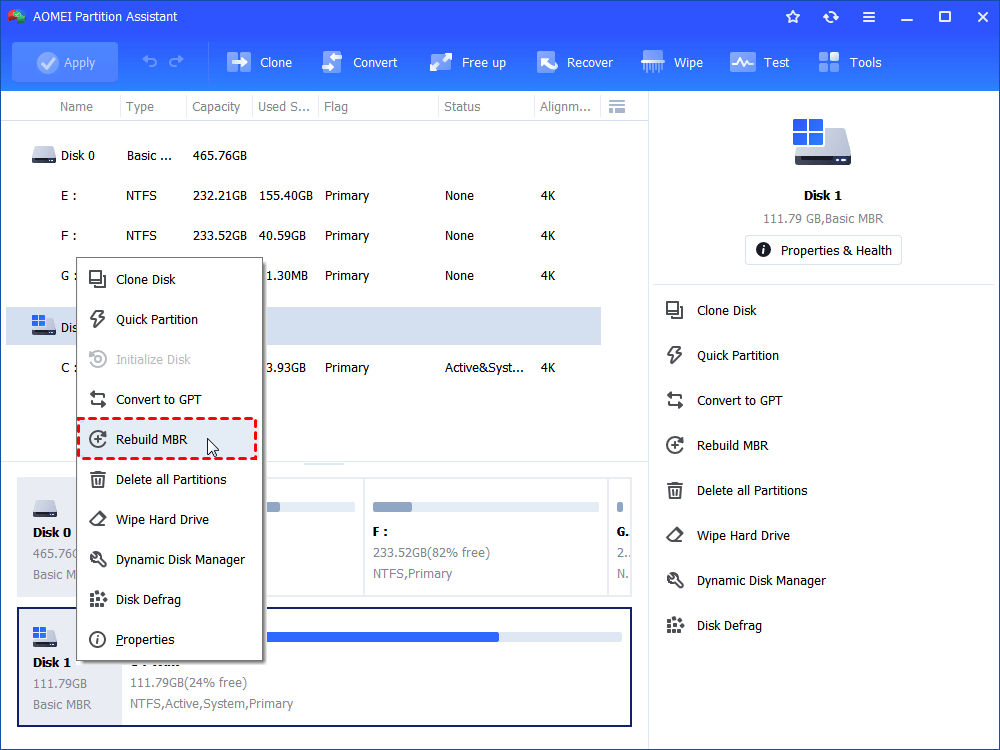
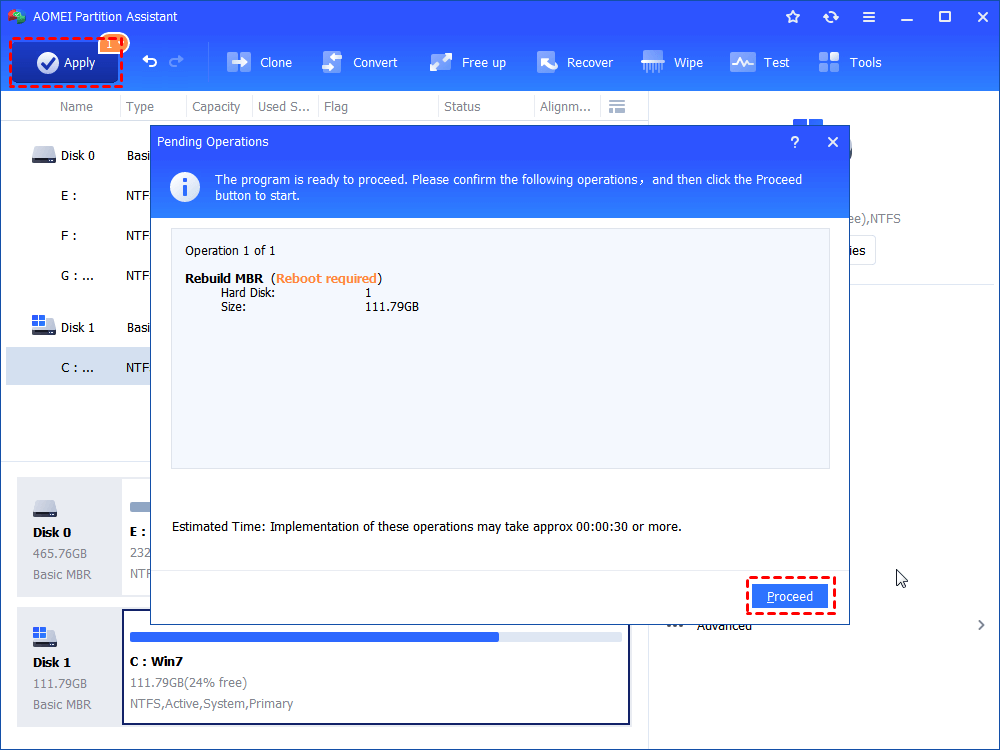
Step 1. Install and launch AOMEI Partition Assistant. Select the target drive and right-click it to choose “Rebuild MBR”.
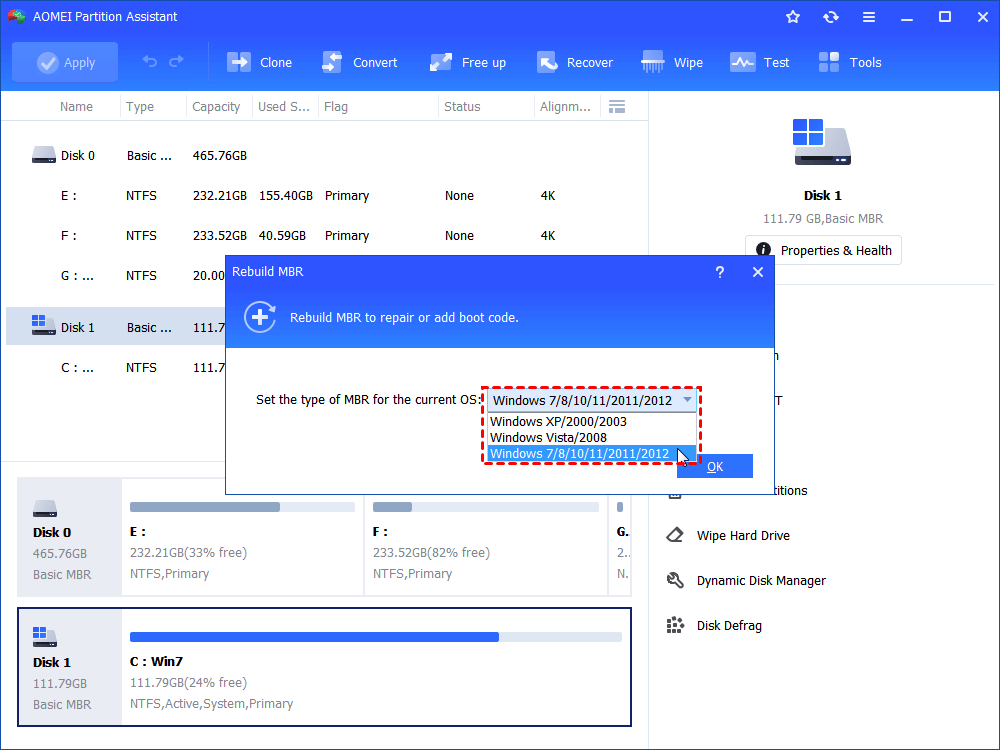
Step 2. Set the type of MBR in the pop-up window. (Choose a proper MBR type according to your operating system.)
Step 3. Click “Apply” on the toolbar to commit the Rebuild MBR operation.
Conclusion
The "DiskPart has encountered an error: the request could not be performed because of an I/O device error" issue is not a new one for many users. On this page, we've outlined the potential causes of this error and provided corresponding solutions to help you resolve it. We hope these fixes will assist you in addressing the DiskPart I/O device error effectively.
