
 AOMEI Partition Assistant
Disk Partition Loss Recovery: Recover Lost Partition Quickly
Have you ever encountered partition loss on the hard drive? Don’t worry, this article covers two easy and effective methods to perform disk partition loss recovery.

By Hedy / Updated on March 25, 2026


Common causes of disk partition loss
Losing a disk partition can be frustrating and potentially devastating if valuable data is involved. Understanding the common causes can help you prevent partition loss or take quick action when it occurs. Here are the most frequent reasons:
➢ Accidental deletion: One of the most common reasons for partition loss is human error. Users might unintentionally delete a partition while managing disks using tools like Disk Management or third-party software.
➢ Partition table corruption: The partition table is crucial for your system to recognize disk partitions. If this table becomes corrupted—due to malware, failed writes, or bad sectors—your operating system may no longer see or access the partitions.
➢ Virus or malware attacks: Malicious software can corrupt partition tables, delete partitions, or render them inaccessible. Some ransomware or trojans are specifically designed to target and destroy disk structures.
➢ File system errors: When the file system gets damaged (e.g., NTFS, FAT32, exFAT), it can make a partition appear as RAW or unallocated. This might happen due to improper shutdowns, software crashes, or disk write interruptions.
➢ Bad sectors on the hard drive: If your disk develops bad sectors where the partition information is stored, it can prevent the OS from accessing that partition. Over time, bad sectors can spread and worsen the problem.
➢ Faulty or failing hard drive: Hardware issues like mechanical failure, overheating, or aging disks can cause partitions to disappear or become unreadable.
Understanding these causes can help you adopt better disk management practices, use reliable tools, and create regular backups to safeguard your important data.
Top 2 ways for disk partition loss recovery
Losing a disk partition can be a stressful experience, especially when valuable data is at stake. Fortunately, there are effective methods to recover lost or deleted partitions without losing your files. Here are the top two ways to recover a lost partition:
Way 1. Recover lost partition using built-in Windows tools
If your partition is lost or deleted but not yet overwritten, you can try recovering it using Windows' built-in tools. These include Disk Management and Command Prompt.
1. Check Disk Management
Step 1. Press Win + X and select Disk Management.
Step 2. Look for any unallocated space or partitions without a drive letter.
Step 3. If found, right-click on it.
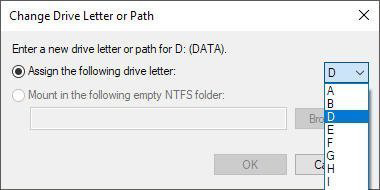
Step 4. Choose Change Drive Letter and Paths > Add > assign a letter. Click OK.
2. Use Command Prompt (CMD)
Step 1. Type cmd in the Windows search box, right-click it, and select Run as administrator.
Step 2. Type diskpart and press Enter.
Step 3. Type the following commands one by one:
list disk
select disk 2 (replace 2 with your drive number)
list volume
select volume 4 (replace 4 with the volume number)
assign letter=g (replace g with a new drive letter)
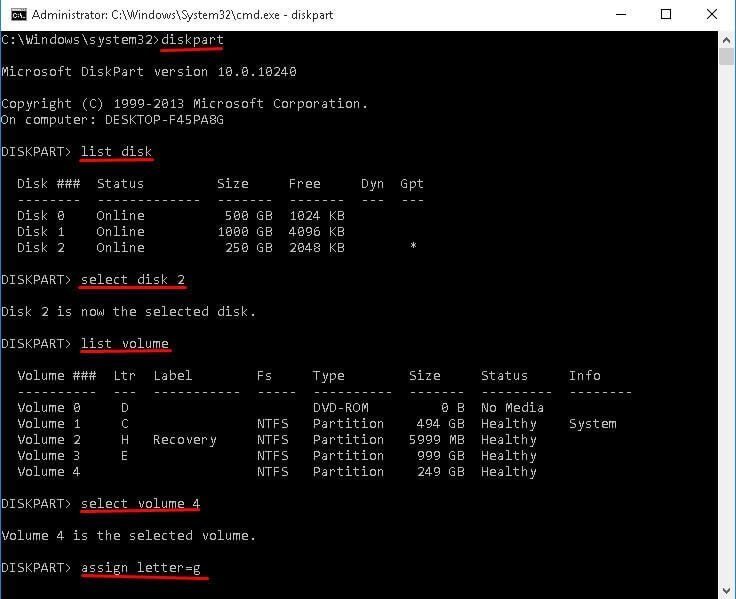
These steps can sometimes bring the lost partition back if it’s still intact but just not properly mounted.
Way 2. Recover lost partition using AOMEI Partition Assistant
If built-in tools don't work, a more powerful solution is to use AOMEI Partition Assistant. It is a full-featured disk partition management software for Windows users. It includes a wide range of tools to create, resize, merge, split, format, and move partitions. More importantly, it comes with a Partition Recovery Wizard, specially designed to help users recover lost or deleted partitions without losing data.
Why use AOMEI Partition Assistant for partition recovery?
✅ Beginner-friendly interface: No need for advanced technical skills—just follow the step-by-step wizard.
✅ Fast & safe recovery: It scans your hard drive for lost or deleted partitions and recovers them without data loss.
✅ Supports various file systems & devices: Compatible with NTFS, FAT32, EXT2/3, and works with HDDs, SSDs, USB drives, SD cards, etc.
✅ Preview before recovery: You can preview the lost partition details before proceeding, minimizing risk.
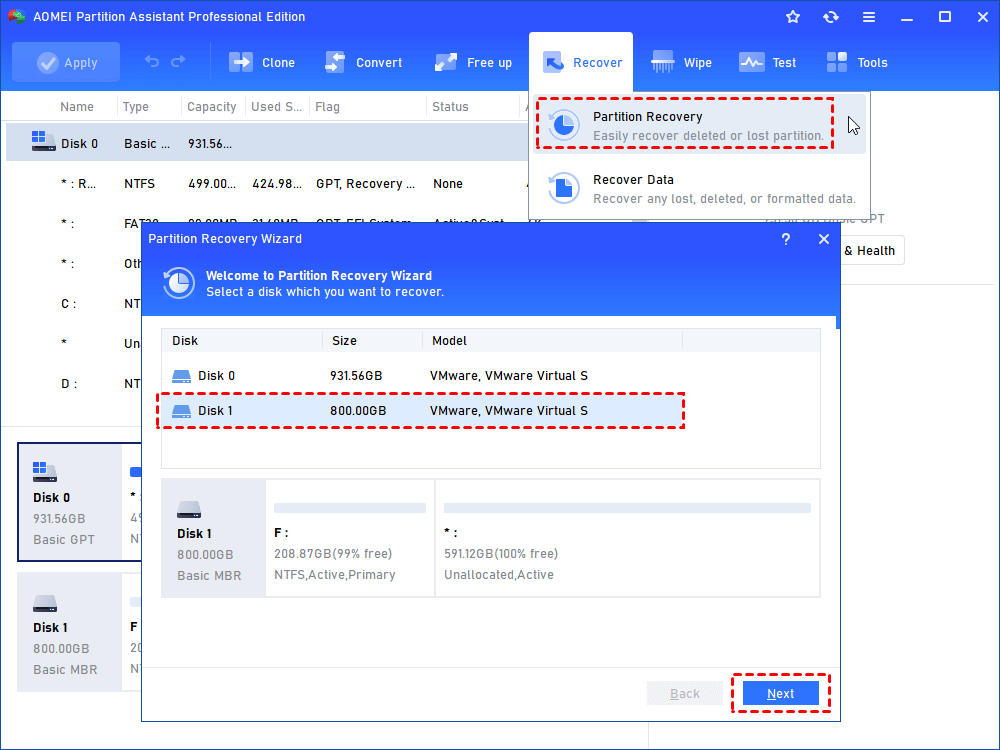
Step 1. Install and open AOMEI Partition Assistant. Click “Recover” in the top toolbar and select “Partition Recovery”. Select the SSD drive that contains the deleted partition and click "Next".
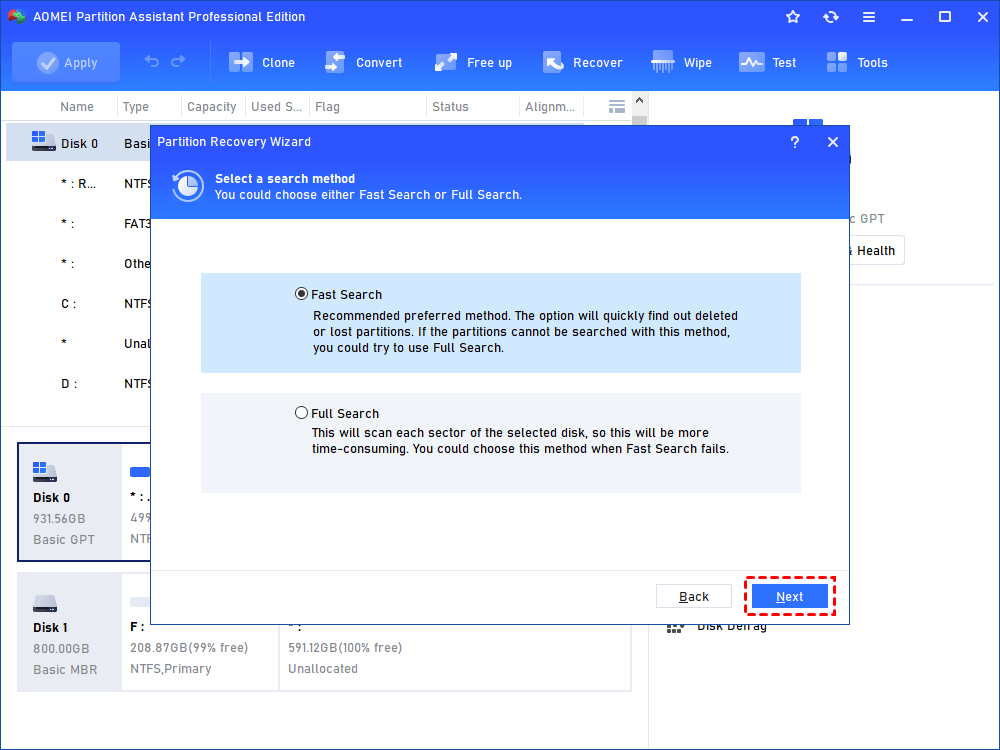
Step 2. Select a search method and click Next. Here we select the "Fast Search".
Step 3. Select the deleted or lost partition you wish to recover from the list and click "Proceed".

Step 4. Wait for the process to be completed. The "Congratulations" means your partition has been recovered successfully. Then click "Finish" to exit the window.

Conclusion
If you've accidentally lost a disk partition, don't panic. Start with Windows’ built-in tools to see if the partition is simply hidden or unmounted. If that doesn't work, turn to AOMEI Partition Assistant for a more comprehensive recovery option. Both methods are safe and efficient—just make sure to act quickly to prevent data from being overwritten.
