
 AOMEI Partition Assistant
How to Fix Error Occurred While PowerPoint Was Saving File
It’s common to see error occurred while PowerPoint was saving file. In this post, you will learn how to fix it using five effective methods as well as how to recover unsaved PowerPoint files.

By Hedy / Updated on September 3, 2025


Why error occurred while PowerPoint was saving file?
When PowerPoint shows “An error occurred while PowerPoint was saving the file”, it usually means something went wrong during the saving process. This can happen for several reasons, including file corruption, permission issues, or conflicts with add-ins. Here are the most common causes:
⭐ File corruption: The presentation file may already be partially corrupted, causing saving errors.
⭐ Unsupported location: Trying to save to a restricted folder, external drive, or network location that PowerPoint can’t access properly.
⭐ Insufficient permission: Lack of write permissions on the destination folder.
⭐ Large media content: Presentations with heavy images, videos, or audio can fail to save if memory runs low.
⭐ File name/path issues: Special characters in the file name, very long paths, or unsupported extensions may block saving.
⭐ Add-ins or background processes: Conflicting add-ins or antivirus software may interfere with the saving process.
⭐ Temporary glitch: If PowerPoint hasn’t been updated or has a temporary bug, it can throw saving errors.
How to fix error occurred while PowerPoint was saving file
Given the possible causes, there are multiple ways to fix the “An error occurred while PowerPoint was saving the file as PDF” problem.
Fix 1. Check if the file is opened elsewhere
This approach can also fix the issue where a file fails to save. Follow these steps:
Step 1. Press Win + E to open File Explorer.
Step 2. Click the View tab at the top, then uncheck the Preview pane option.
Fix 2. Sign out of your account in PowerPoint
Signing out of your PowerPoint account may also help resolve the error. Here’s how to do it:
Step 1. Open PowerPoint, go to the File menu, and select Account at the bottom left.
Step 2. Click Sign Out to disconnect from your Microsoft account.
Fix 3. Check and fix file system errors
If PowerPoint shows an error while saving a file, file system issues may be the cause. You can scan and repair these errors using either File Explorer or AOMEI Partition Assistant. Here’s the guide:
Option 1. File Explorer
File Explorer, a built-in Windows tool, can be used to scan and repair file system errors on your drive.
Step 1. Right-click the Windows icon on the desktop and choose File Explorer.
Step 2. In the left pane, select This PC, then locate the drive that stores the problematic PowerPoint files.
Step 3. Right-click the drive and choose Properties.
Step 4. Go to the Tools tab and click the Check button.
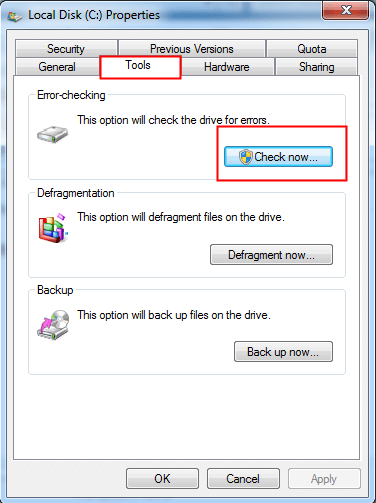
Step 5. Allow the scan to complete. If errors are detected, Windows will repair them automatically.
Option 2. AOMEI Partition Assistant
Alternatively, you can use AOMEI Partition Assistant to scan and repair file system errors with just a few clicks. This powerful and versatile tool not only fixes detected issues but also offers features for partition recovery, disk management, and much more.
Step 1. In the main interface, right-click the target drive and then click "Check Partition".
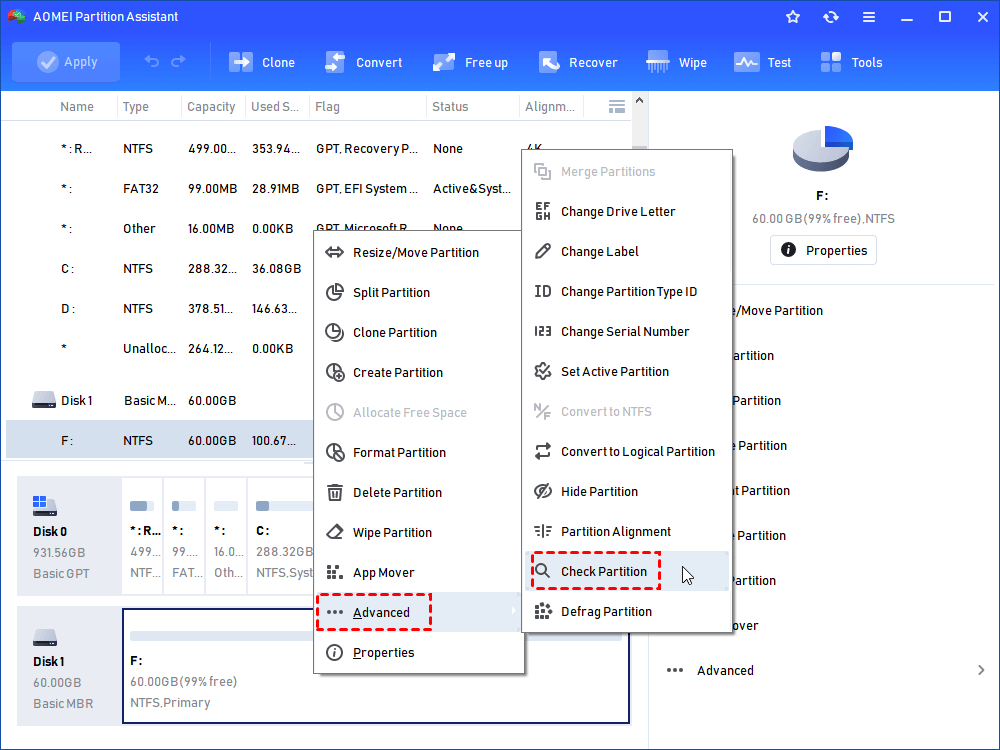
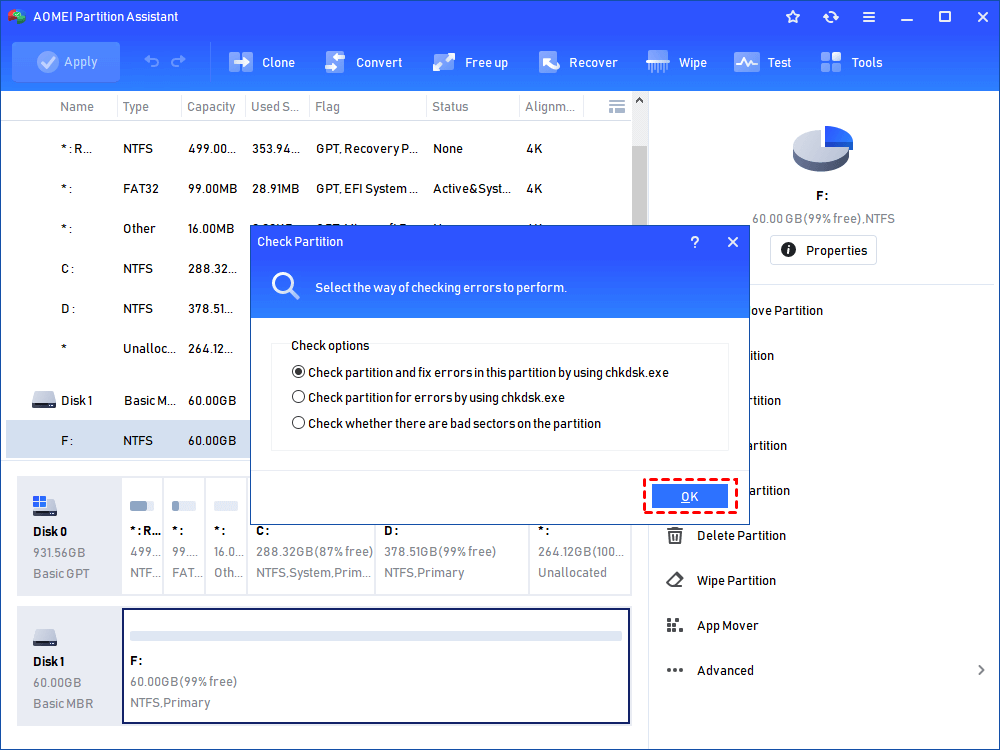
Step 2. Choose the "Check partition and fix errors in this partition by using chkdsk.exe" option, then click "OK".
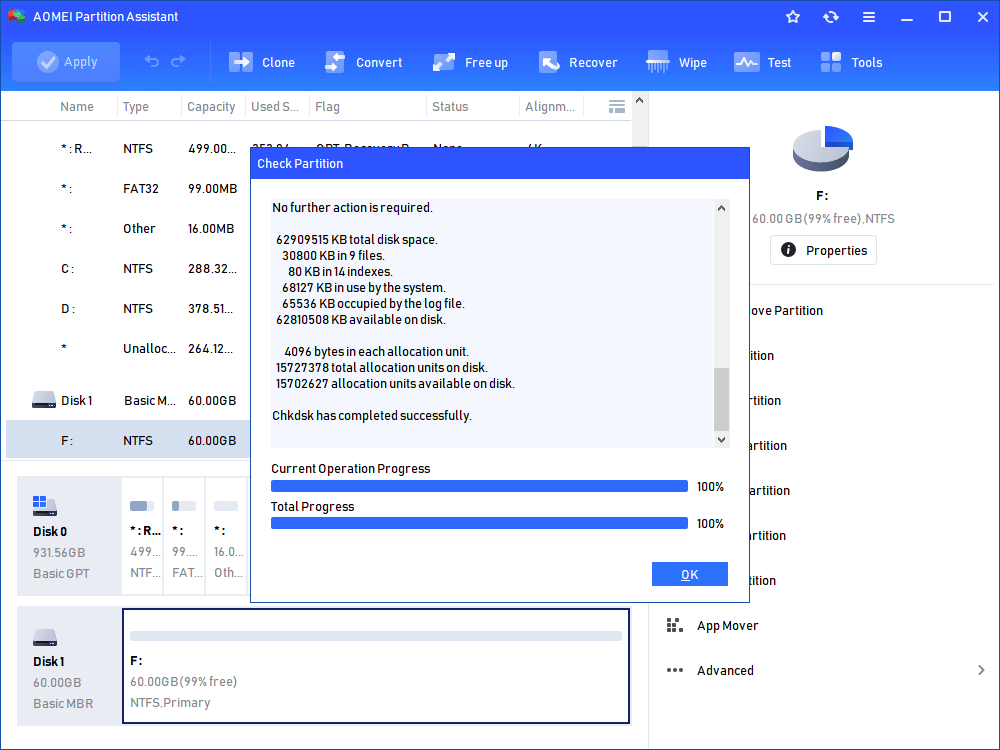
Step 3. Wait for a while and click "OK" when it's finished.
Fix 4. Remove ActiveMovie Control from Microsoft Visual Basic Userform
If your presentation contains Visual Basic UserForms with ActiveMovie controls, they must be removed to fix the saving error. Here’s how:
Step 1. When the error appears while saving, click Cancel.
Step 2. Go to Tools > Macro > Visual Basic Editor.
Step 3. Locate and select the UserForm containing the ActiveMovie control.
Step 4. Open the File menu, choose Remove UserForm…, and click Yes when prompted to export before removal. Save the file to a chosen location.
Step 5. Return to the File menu and select Close and Return to Microsoft PowerPoint.
Step 6. Now try saving the presentation again to check if the issue has been resolved.
Fix 5. Repair Microsoft PowerPoint
If application bugs are causing the issue, repairing Microsoft PowerPoint may resolve it. Follow these steps:
Step 1. Press Win + R to open the Run dialog, type appwiz.cpl, and press Enter to access Programs and Features.

Step 2. Locate Microsoft Office or Microsoft 365 in the list, select it, and click Change at the top.
Step 3. If prompted by UAC, choose Yes to proceed.
Step 4. Select Quick Repair and click Repair to begin the process.
Step 5. Wait until the repair is complete, then restart your computer and check if the issue is fixed.
Bonus: How to recover an unsaved PowerPoint in Windows 10
If you face the issue of a lost PowerPoint file, you can rely on PartitionAssistant Recovery to restore it. This powerful tool not only recovers missing PowerPoint files but also provides a wide range of features to help you manage and maintain your hard drive effectively.
Step 1. Install and launch PartitionAssistant Recovery. Choose the exact partition or disk where your data is lost and click Scan.

Step 2. Then, the recovery tool starts to scan and search. lt will execute the “Quickly Scan" first to find your deleted data fast, and then execute the “Deep Scan" for searching other lost data.

Step 3. Once the scan is completed, all deleted files, recycle bins and other missing files will be displayed. Please select the file you would like to recover and then click "Recover".

Step 4. Then, select a folder path to save your recovered files.

Step 5. Wait patiently for this process of recovery to end.
Conclusion
This guide presents nine solutions to resolve the “An error occurred while PowerPoint was saving the file” issue. You can apply each method step by step. After following these approaches, the problem should be resolved, and you will also know how to recover any unsaved PowerPoint files.
