
 PartitionAssistant Recovery


How Big is Valorant? | System Requirements for Valorant Running on Your PC
Read to know how big is Valorant and what are the recommended system specs. These can ensure Valorant run smoothly on your PC.

Par Irene / Mis à jour le July 14, 2025


How big is Valorant?
Valorant is a fast-growing first-person shooter made by Riot Games. If you’re planning to install it, you might be wondering how much space it takes up. So, how many gigabytes is Valorant? The installer file (download size) is small—only about 100 MB. But once you run it and download the full game, Valorant uses around 50 to 55 GB of space on your drive.
As of 2025, the latest version of the game I downloaded took up 49.4 GB. Since the game gets regular updates and new content, the file size can increase over time. That’s why it’s a good idea to keep at least 60 GB of free space to make sure the game runs smoothly and has room for updates. While an SSD is not indispensable, using one is still recommended for faster performance.
How to free up space for Valorant to run smoothly?
Valorant starts at around 50–55 GB, but frequent updates increase its size. Without enough space, updates may fail or the game may crash. Extra space also improves loading speed, system performance, and prevents errors. For smooth gameplay and future updates, keep at least 60 GB free, especially on an SSD. To free up space, AOMEI Partition Assistant provides several effective approaches.
Option 1. Move Valorant to another drive
If you move Valorant to a faster SSD that has enough space, the game will load even quicker and feel more responsive during matches. To move Valorant safely without losing any data, it's best to use AOMEI Partition Assistant. This tool is designed to help you transfer installed programs or folders to another drive with just a few clicks. Its user-friendly interface and step-by-step instructions make it easy to use—even if you have no technical background.
Besides moving apps like Valorant, AOMEI also offers advanced features for managing disks and partitions. For instance, if you're planning to switch to a faster SSD to boost your gaming performance, you can use it to clone your entire game disk. The software is free to download, and you can follow the on-screen guide to move Valorant to a new drive quickly and easily.
 AOMEI Partition Assistant
The Best Windows Disk Partition Manager and PC Optimizer
Step 1. Open AOMEI Partition Assistant Pro and click App Mover from Free up.
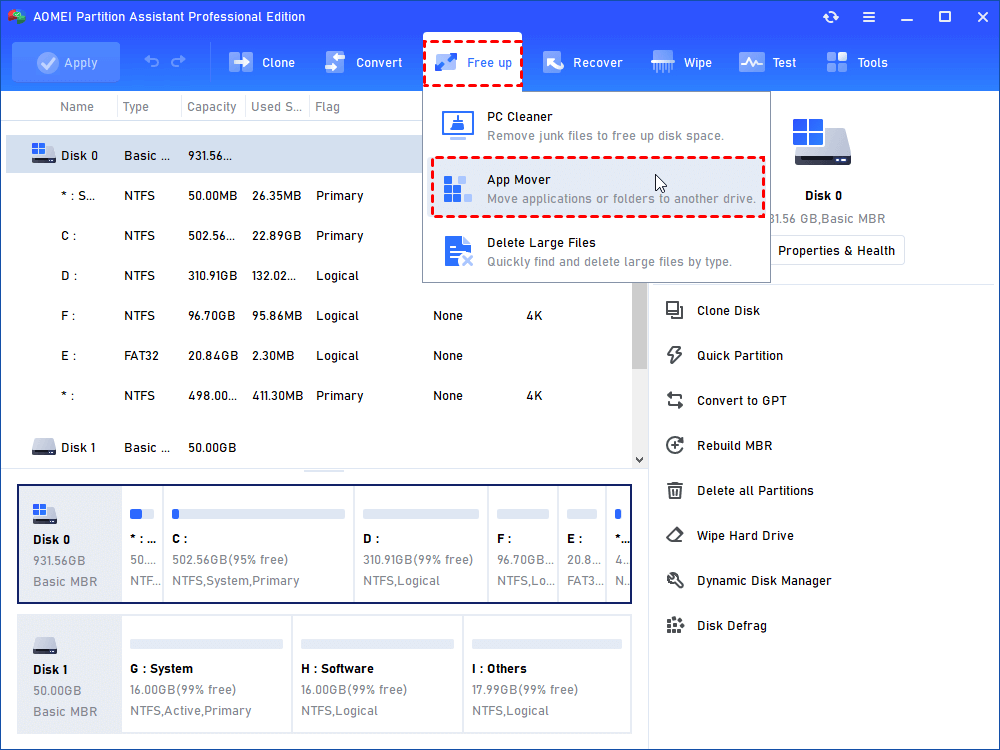
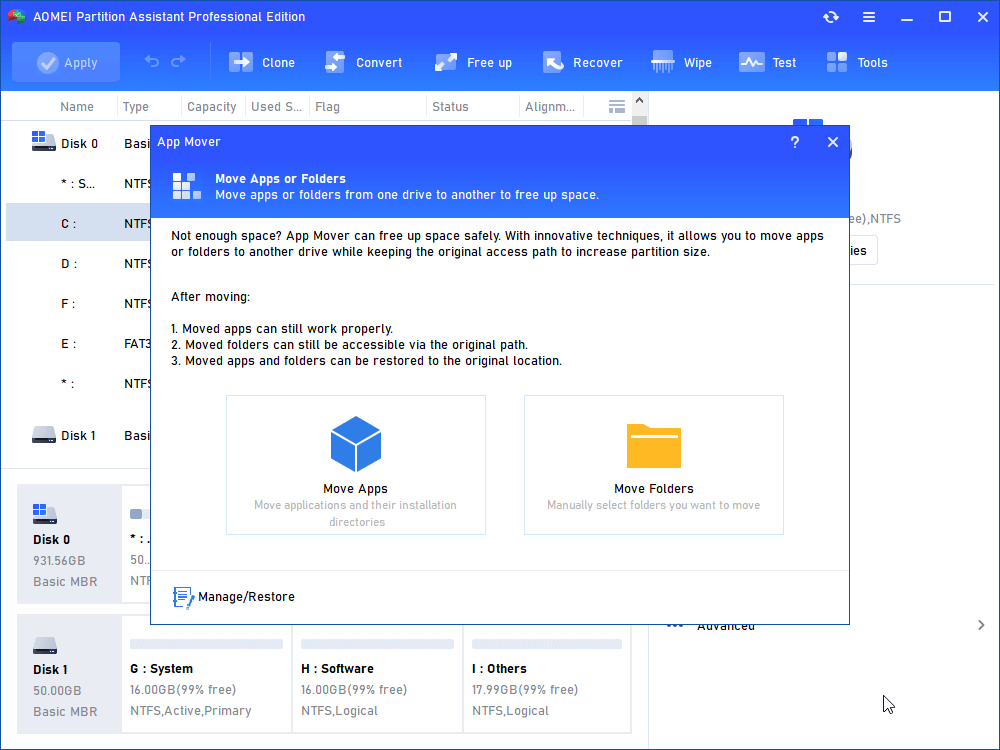
Step 2. Here, click “App Mover”.
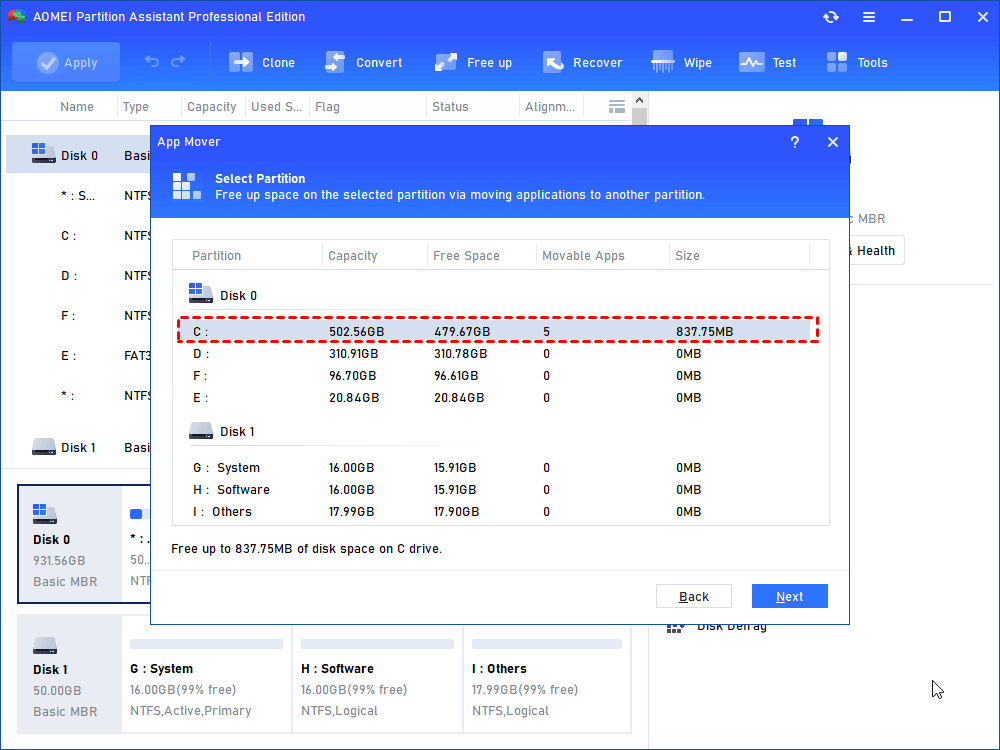
Step 3. In this window, select the disk where the Valorant is located, and then click "Next".
Step 4. Select the Valorant. Then, select the drive where you want to move to, and click "Move".
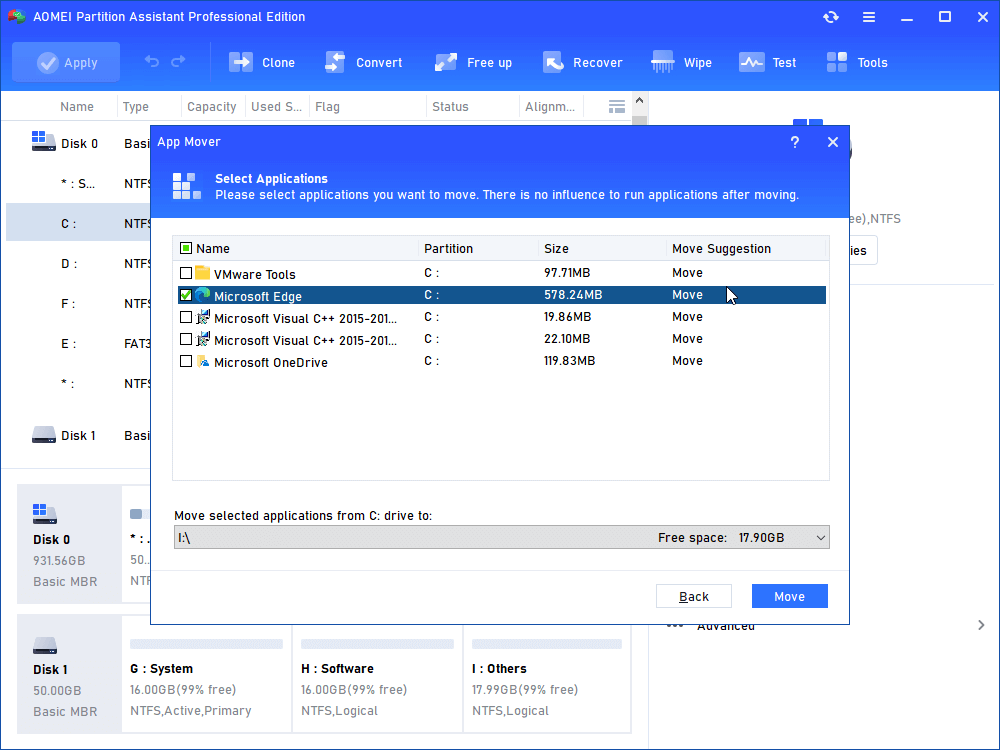
Step 5. Wait a moment, Valorant will be moved to target drive.
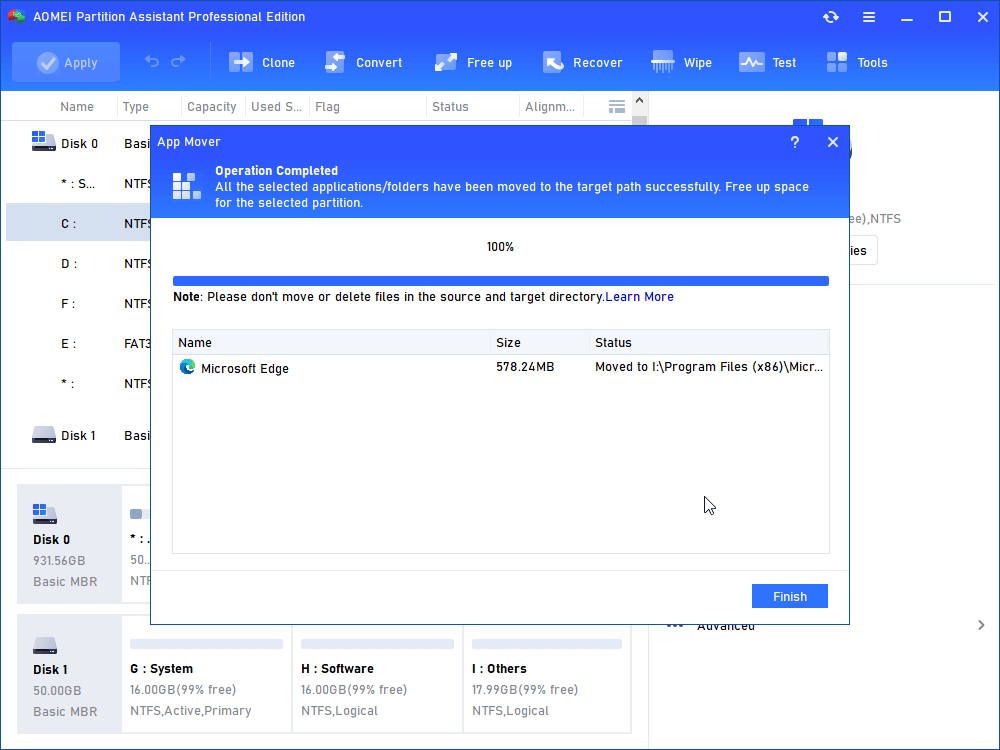
This is the whole process of how to move Valorant from one drive to another.
Option 2. Upgrade your disk
If Valorant runs slowly or takes a long time to load, upgrading from an HDD to an SSD can make a big difference. An SSD helps games start faster, reduces lag, and shortens loading screens—especially useful for large or competitive games like Valorant.
To move everything from your old hard drive to a new SSD without reinstalling Valorant or other programs, you can use a trusted disk cloning tool like AOMEI Partition Assistant. It works on Windows 11, 10, 8, and 7, and lets you clone your entire system—including games, files, and settings—with just a few clicks. After cloning, your PC and games will boot normally from the SSD.
Whether you're moving all data or just a few apps, this tool gives you a simple and safe way to upgrade your storage. You can download the free demo version and follow the steps to improve Valorant's performance by switching to an SSD.
AOMEI Partition AssistantThe Best Windows Disk Partition Manager and PC Optimizer
Step 1. Open the installed AOMEI Partition Assistant, click "Clone" in the main interface, and select "Clone Disk".

Step 2. Choose the hard disk that you need to clone as the source disk like SSD and click "Next".

Step 3. Select the destination disk to store the data on the source disk, and then click "Next".

Step 4. Then, you can check the source and destination disk in the next window or change to "Sector to Sector clone", and click the "Confirm" button to continue if there is no problem.

Here, you can also click the "Settings" button to adjust the partition size on the destination disk or tick "4k alignment" to Optimize the performance of SSD if the target disk is an SSD drive.

Tip: If you want to clone Windows to a smaller drive, the "Clone without resizing partitions" button will be greyed out. Then, a Note about how to boot OS from the destination disk will pop up. Read and keep it in mind.
Step 5. After returning to the main interface, check the pending operation and click "Apply" and "Proceed" to commit the operation.

Futher reading: What are the Valorant recommended specs?
Valorant is well-known for being lightweight and accessible, meaning you don’t need a powerful PC to run it. Whether you’re using an older laptop or a gaming setup, there’s a system requirement tier that fits your needs. What are the Valorant PC requirements? Below are three different spec levels: Minimum, Recommended, and High-End—each designed for a specific level of performance.
✅ Minimum Specs (30 FPS)
| Component | Minimum Requirement |
|---|---|
| CPU | Intel Core 2 Duo E8400 / AMD Athlon 200GE |
| GPU | Intel HD 4000 / AMD Radeon R5 200 |
| RAM | 4 GB |
| VRAM | 1 GB |
| Operating System | Windows 10 (Build 19041+) or Windows 11 (64-bit) |
✔️ Recommended Specs (60 FPS)
| Component | Recommended Specs (60 FPS) |
|---|---|
| CPU | Intel i3-4150 / AMD Ryzen 3 1200 |
| GPU | Nvidia GeForce GT 730 / AMD Radeon R7 240 |
| RAM | 4 GB |
| VRAM | 1 GB |
| Operating System | Windows 10 (Build 19041+) or Windows 11 (64-bit) |
🔥 High-End Specs (144+ FPS)
| Component | High-End Requirement |
|---|---|
| CPU | Intel i5-9400F 2.90GHz / AMD Ryzen 5 2600X |
| GPU | Nvidia GTX 1050 Ti / AMD Radeon R7 370 |
| RAM | 4 GB |
| VRAM | 1 GB |
| Operating System | Windows 10 (Build 19041+) or Windows 11 (64-bit) |
Conclusion
How big is Valorant? Generally, it is less than 50GB. Valorant doesn’t take up a huge amount of space at first, but with regular updates, it can grow to over 50 GB. To ensure smooth gameplay and future updates, keeping at least 60 GB of free space is recommended. If you're short on space or want better performance, consider moving the game to another drive or upgrading to an SSD. Tools like AOMEI Partition Assistant can help you do both safely and easily—no need to reinstall anything. With the right setup, Valorant will run faster and more smoothly, giving you a better overall gaming experience.
AOMEI Partition AssistantThe Best Windows Disk Partition Manager and PC Optimizer
