
 AOMEI Partition Assistant
[Ultimate Guide] How To Detach VHD From Disk Management in Windows PCs?
Want to learn how to detach VHD from Disk Management on Windows? This guide shows simple and safe steps to unmount or remove VHD and VHDX files quickly for all Windows users.

By Irene / Updated on October 27, 2025


What is a Virtual Hard Disk (VHD)?
A virtual hard disk (VHD) is a file that stores the complete contents of a computer’s hard drive. It acts like a physical hard drive, holding all files, folders, and system data. A VHD can be saved anywhere on the host computer or moved using a USB drive, making it portable and easy to share.
-
Fixed hard disk image
-
Dynamic hard disk image
-
Differencing hard disk image
-
Pass-through hard disk image
VHDs make it easy to set up preconfigured VMs, back up and restore data, and isolate multiple users or OS instances. Microsoft Hyper-V uses VHDs and its newer VHDX format, which supports up to 64TB, offers better performance, and protects against power failures. VHDs function like physical hard drives, with files, folders, partitions, and a file system. However, they exist as virtual files on a host drive and are mainly used by virtual machines, such as VMware or Hyper-V.
A virtual hard disk (VHD) acts like a real hard drive, letting you store files, run an operating system, and use programs just as you would on a physical disk. In virtualization, VHDs are crucial for creating virtual machines (VMs), giving each VM its own OS, applications, and data storage. They can have a fixed or expandable size, which is controlled by the operating system or virtualization software. VHDs are also flexible for other uses, such as adding extra storage, running multiple OS installations, or even setting up a dual-boot system without altering existing partitions. If you only need the VHD temporarily, it can be safely detached without being deleted. You can follow our guide to do this easily.
How to detach VHD from Disk Management?
When you detach a VHD, you make the disk unavailable. You don't delete the VHD or any data stored on the disk.
Detach a VHD by following these steps:
Step 1. From the Windows Start menu, search for and open Disk Management with Administrator permissions.
Step 2. Locate the VHD that you want to attach in the list of disks.
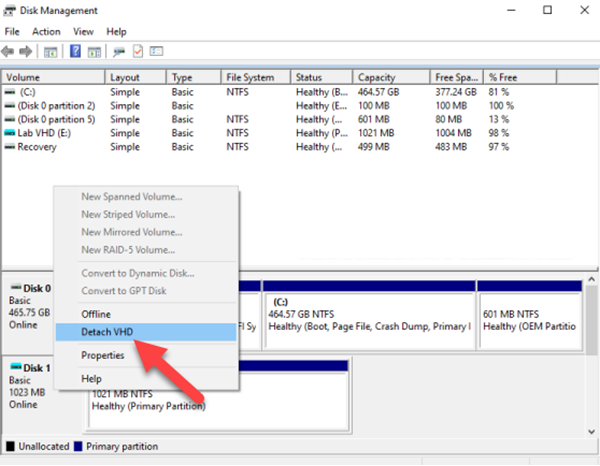
Step 3. Right-click the VHD, select Detach VHD, and then select OK.
What to do if you can't detach VHD from Disk Management?
Sometimes, you may encounter the "can't detach VHD from Disk Management" issue, like this user from learn.microsoft.com
Someone please help. I can’t delete it or detach it from Disk Management.
I opened the Windows 10x vhdx and now I can't detach it. And now I have more than 10 disks. This happened when I opened the Windows 10x vhdx. How can I delete the vhdx file? It's showing it's being used by system.
- Question from learn.microsoft.com
At this time, you can try to reassign a drive letter or use its best alternative, AOMEI Partition Assistant. This is a multifunctional disk manager, which can help you to easily create, attach, and detach your virtual disks on your computer. If you no longer need the VHD or you can't detach VHD from Disk Management, you can simply detach it to remove it. You can also use the powerful software to extend C drive space or effectively manage Windows partitions.
 AOMEI Partition Assistant
The Best Windows Disk Partition Manager and PC Optimizer
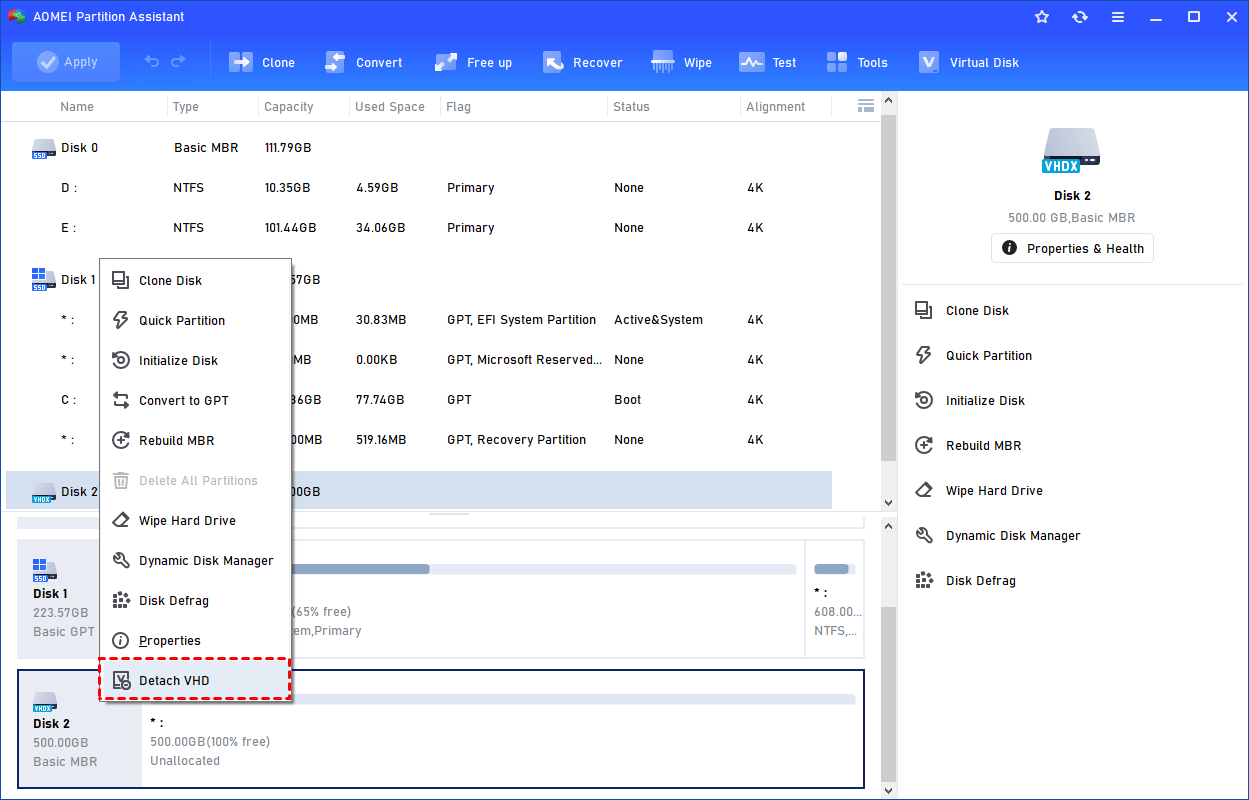
Step 1. Click Detach VHD
You can right-click the attached VHD in Partition Assistant and select the "Detach VHD" option to detach it.
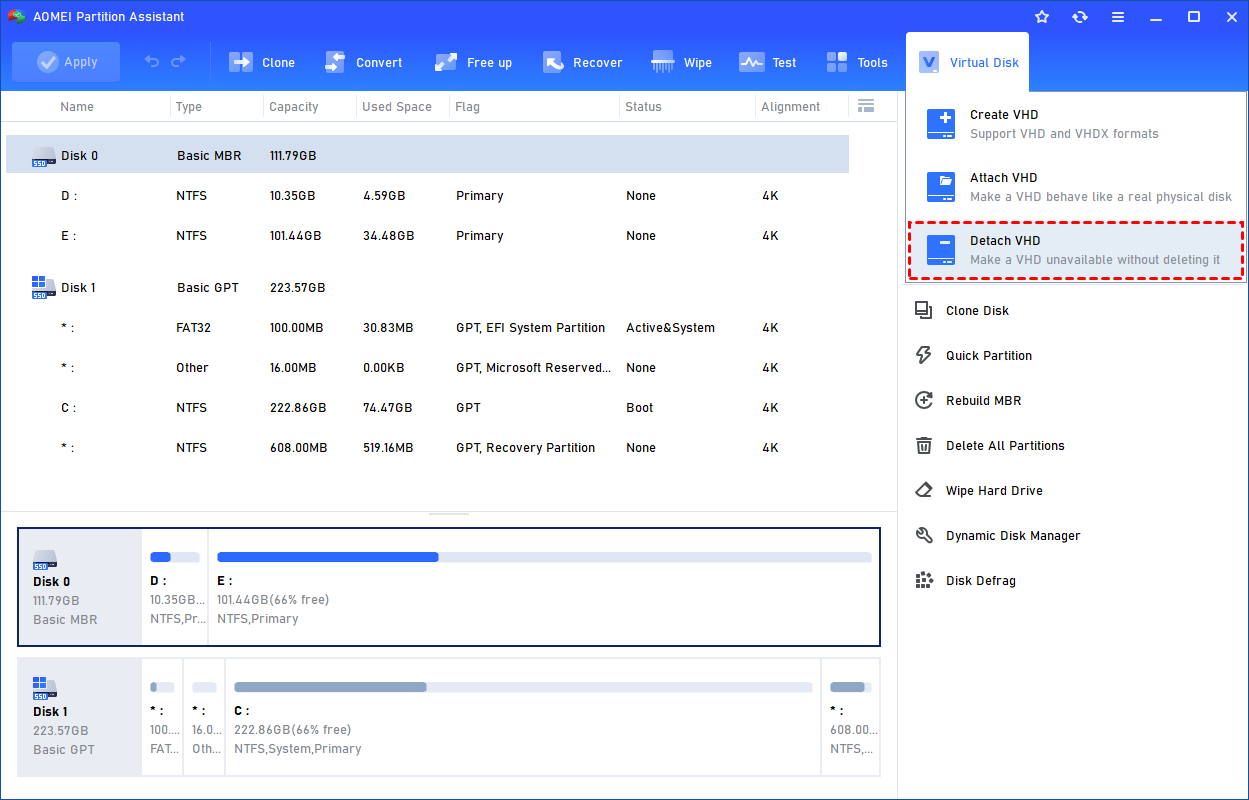
Or, you can select the "Detach VHD" option after clicking the"Virtual Disk" tab.
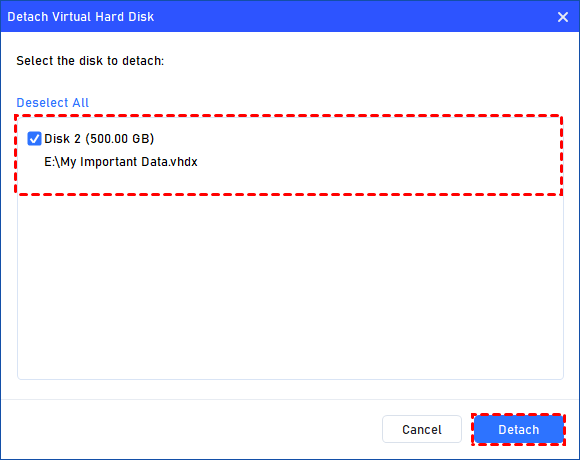
Step 2. Select the Virtual Disk to Detach
You can select and deselect the virtual disk(s) and click the "Detach" button to start detaching the VHD(s).
Step 3. Detach VHD Successfully
Once the process is finished, you will see that the VHD(s) has been removed successfully.
Conclusion
In conclusion, a Virtual Hard Disk (VHD) is a flexible and convenient way to manage data, run virtual machines, and test multiple operating systems without affecting your main system. If you ever need to remove or manage VHDs, tools like Disk Management or AOMEI Partition Assistant make the process simple and safe. Learning how to attach and detach VHDs helps keep your virtual environments organized and running smoothly. For Windows Server users, please turn to the AOMEI Partition Assistant Server edition.
AOMEI Partition AssistantThe Best Windows Disk Partition Manager and PC Optimizer
