
 AOMEI Partition Assistant
How to Make Photoshop Run Faster | 5 Ways
How to make Photoshop run faster? This article outlines five proven and dependable methods, complete with step-by-step instructions, to help the software run more smoothly and efficiently.

By Hedy / Updated on March 3, 2026


If you’ve ever found Adobe Photoshop dragging, freezing, or just feeling sluggish when you’re on a creative roll, you’re not alone — and you definitely don’t need to upgrade your entire PC right away to fix it. Whether you’re editing multi-gigapixel images, moving layers around, or applying filters that take forever to render, there are proven ways to speed up Photoshop, improve responsiveness, and boost productivity. Below, I’ll walk you through everything that actually works — from preference tweaks to hardware upgrades.
How to make Photoshop run faster
If Photoshop feels slow, laggy, or takes forever to open files, you're not alone. Even powerful PCs can struggle if Photoshop isn’t properly optimized. The good news? You usually don’t need a new computer. A few smart tweaks can make Photoshop run significantly faster. Here are 5 effective ways to speed it up.
Way 1. Upgrade your RAM
Photoshop heavily relies on RAM, especially when working with large files or multiple layers. More RAM means smoother performance and fewer lags.
Step 1. Check your current RAM in your system settings.
Step 2. Determine your motherboard’s maximum supported RAM.
Step 3. Purchase compatible RAM sticks.
Step 4. Install the new RAM or have a professional upgrade it.
Step 5. Restart your computer and verify the system recognizes the upgrade.
Way 2. Raise the memory usage
Photoshop allows you to allocate more RAM for better performance. Giving it more memory lets it process files faster.
Step 1. Open Photoshop.
Step 2. Go to Edit > Preferences > Performance (Windows).
Step 3. Under Memory Usage, increase the slider to allow more RAM (but leave some for your OS).
Step 4. Click OK and restart Photoshop.
Way 3. Upgrade to an SSD
Running Photoshop from an SSD instead of an HDD dramatically speeds up file loading, saving, and scratch disk performance.
Step 1. Choose a compatible SSD (NVMe or SATA).
Step 2. Clone your existing OS and files to the SSD or perform a clean install.
Step 3. Set the SSD as the primary drive for Photoshop scratch disks (Preferences > Scratch Disks).
Step 4. Restart Photoshop for the changes to take effect.
When upgrading from an HDD to an SSD, many users worry about reinstalling Windows, losing data, or dealing with complex technical steps. To make the transition smooth and hassle-free, AOMEI Partition Assistant is a powerful and user-friendly solution designed specifically for disk management and OS migration.
AOMEI Partition Assistant comes with the key features:
🔺 Migrate OS to SSD: Move only the operating system to the SSD without cloning the entire disk.
🔺 Disk Clone: Clone the entire HDD to SSD, including Windows, applications, and personal files.
🔺 SSD Alignment: Optimize SSD performance and extend its lifespan.
🔺 Bootable Media Creation: Upgrade even if your current system cannot boot.
Step 1. Install and open AOMEI Partition Assistant. Navigate to the “Clone” tab on the main interface and choose “Clone Disk”.

Step 2. Choose the hard drive you want to copy as the source disk, then click “Next”.

Note: If the goal is to create a bootable clone, be sure to select the current system drive where Partition Assistant is installed.
Step 3. Pick the target drive that will receive the copied data. After confirming your selection, click “Next”.

Step 4. You will now enter the confirmation page. Carefully verify both the source and destination disks. Once everything looks correct, click “Confirm” to move forward.

At the bottom-left corner, select “Settings” to customize how partitions are handled on the destination disk. Three configuration options are available:
📢 Clone without resizing partitions: Copies all partitions exactly as they are. This option is only available if the destination disk is larger than the source. If the target drive is smaller, it will be unavailable.
📢 Fit partitions to entire disk: Automatically adjusts partitions so they expand proportionally and use the full capacity of the new disk.
📢 Edit partitions on this disk: Allows manual resizing of each partition according to specific requirements.
After making the desired adjustments, click “Save”.

Step 5. Before execution, review the task under “Pending Operations”.If everything is correct, click “Apply”,then select “Proceed” to confirm and initiate the process.

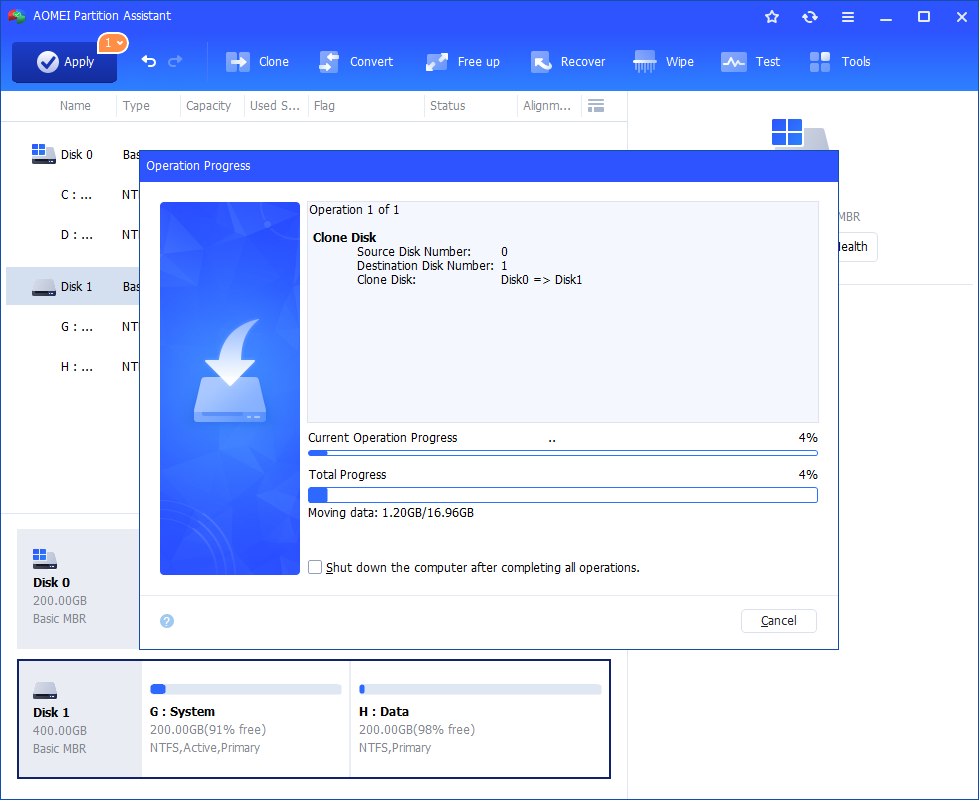
Step 6. The disk cloning procedure will begin immediately. Progress can be tracked in real time until completion.
Way 4. Close other programmes
Running multiple programs simultaneously consumes system resources, slowing Photoshop. Closing unnecessary applications frees up CPU, RAM, and GPU.
Step 1. Press Ctrl + Shift + Esc to open the Task Manager window.
Step 2. In the Processes tab, you can view all running programs. Right-click the ones you don’t need and select End task.

Step 3. Repeat this for all unnecessary programs to reduce memory usage on your device. Keep only essential software open while using Photoshop.
Way 5. Clean temporary files and cache
Photoshop creates temporary files and cache that can slow down performance over time. Regular cleaning keeps the program snappy.
Step 1. In Photoshop, go to Edit > Purge > All to clear cache.
Step 2. Delete leftover temp files in your system’s temp folder.
Step 3. Restart Photoshop for optimal performance.
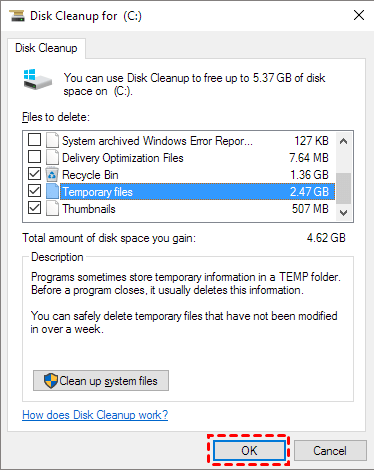
Or you can clear temporary files and caches with a Windows disk cleaning tool, here are the step-by-step guide:
Step 1. Type disk in the Windows search box, and select Disk Cleanup.
Step 2. Choose your main drive (usually C:) and click OK.
Step 3. Disk Cleanup will calculate how much space can be freed on the selected drive.
Step 4. Check Temporary Files and any other file categories you want to delete, then click OK to start the cleanup.
Why is Photoshop running slowly?
Photoshop can run slowly for a variety of reasons. Here are the most common ones:
🔹 Insufficient RAM: Photoshop is memory-intensive. If your system has low RAM (e.g., 8GB or less for large projects), it can struggle, especially with multiple layers or high-res files.
🔹 Large files or complex projects: High-resolution images, many layers, or heavy effects/filters increase processing demands, slowing down performance.
🔹 Scratch disk issues: Photoshop uses a scratch disk (usually your main drive) when RAM is full. A nearly full or slow hard drive/SSD can drastically slow performance.
🔹 Outdated graphics drivers: Photoshop relies on GPU acceleration. Old or incompatible drivers can cause lag in rendering and tool response.
🔹 Background processes: Running other memory-heavy programs alongside Photoshop reduces available resources, causing slowdowns.
🔹 Incorrect performance settings: Photoshop allows you to allocate RAM, manage GPU settings, and control history/cache levels. Poorly configured settings can throttle speed.
🔹 Operating system issues: Fragmented files, system updates pending, or malware can indirectly reduce Photoshop’s responsiveness.
FAQs
1. Does more RAM really make Photoshop faster?
Yes, because Photoshop stores more data in fast memory instead of relying on slower scratch disk usage.
2. Should I avoid large file sizes in Photoshop?
Working with very large files always slows things down; consider resizing or optimizing images to the actual size you need.
3. Can cleaning up Photoshop preferences help?
Resetting Preferences and disabling unnecessary visual features can noticeably speed up performance.
4. Is a better GPU worth it?
For UI responsiveness and GPU-accelerated tools, yes — but RAM and SSD upgrades usually have a bigger impact overall.
5. Do Photoshop updates improve speed?
Regular updates often include performance improvements and bug fixes, so keeping Photoshop current helps.
Conclusion
In short, making Photoshop run faster doesn’t always mean buying a new PC. By upgrading RAM, allocating more memory, switching to an SSD, closing unnecessary programs, and regularly cleaning temporary files or caches—especially with tools like PartitionAssistant Cleanup—you can dramatically improve performance. Combined with proper settings and updated drivers, these steps help Photoshop run smoothly, letting you focus on creativity instead of waiting for files and filters to load.
