
 AOMEI Partition Assistant
Safely Move Installed Programs to Another Drive in Windows 10 & 11
This article shows how to move installed programs to another drive in Windows 11/10/8/7 and ensure them run successfully.

By Lucas / Updated on April 29, 2026


🧐 This article was fully reviewed and updated for Windows OS in April 2026.
⏱️ Quick Answer: How to Move Installed Programs Safely?
- The "Copy & Paste" Myth: Never manually copy and paste program folders (like C:\Program Files) to another drive. It will break registry paths and crash the apps.
- Built-in Windows Tool: You can use Windows "Apps & Features" settings, but it only works for apps downloaded from the Microsoft Store. For most software, the "Move" button will be greyed out.
- The Ultimate Solution: To safely transfer any third-party software, Adobe suites, or PC games, you need a professional tool like the App Mover feature in AOMEI Partition Software. It automatically updates registry paths, ensuring your apps run perfectly on the new drive without reinstalling.
Can you move installed programs to another drive in Windows 11/10?
When you download and install a program from a website or platform, the Downloads folder is the default storage location that is used to store the files or programs. That's why when you download programs, those you downloaded will be automatically saved on the C drive. Therefore the free space on your C drive will decrease little by little, which may cause slow performance of your PC and your games may often get stuck.
Some users will change the default store path while downloading. But what about those programs that have already been installed? Unloading and reinstalling are not nice choices. Thus, if users have a large number of apps and programs installed, then some users wonder if they can move apps in Windows 11 to another drive.
The answer is Yes, and there is more than one way to do this job. Only some of these ways are not convenient and unsafe. So, to help you securely move installed programs, you can read this guide.
🤓 Tips: Why can't you just "Copy and Paste" Programs?
When your C drive is full, the most tempting idea is to simply open C:\Program Files, select a heavy folder, right-click "Copy," and paste it into your D drive. Do not do this.
When you install a piece of software, it doesn't just drop files into one folder. It writes hundreds of hidden rules into the Windows Registry, creates shortcut pathways, and scatters support files in hidden AppData folders. If you manually move the main folder, the registry is still pointing to the old C drive location. The next time you click the app icon, Windows will say "Shortcut Missing," and the program will crash.
If you want to move programs without reinstalling safely, you must use methods that simultaneously update the root directories and registry keys.
Common Scenarios: What Apps Are Users Trying to Move?
Different users have different needs when it comes to freeing up disk space. Typically, the heavy lifters taking up your C drive fall into two categories:
- Massive PC Games: Modern games easily take up 50GB to 150GB of space each. If you are a gamer, your primary goal is often to transfer games from C drive to D drive, especially moving them from a smaller boot SSD to a larger secondary storage drive, so you can keep installing new titles on Steam or Epic Games.
- Professional Software Suites: Video editing software (like Premiere Pro), 3D rendering tools, and coding environments generate massive cache files. Moving these to a secondary SSD can instantly revive your system's speed.
How to move installed programs to another drive in Windows 10 & 11
Many users may have encountered a difficult position where the installed program was moved, but it couldn’t run successfully. And some methods are complex for laymen.
Therefore, in this part, we’ll introduce 3 pragmatic methods to quickly transfer your installed programs from one drive to another or from one disk to another disk. Please read the following details carefully.
Method 1. Move programs to another drive with a handy tool
How can we transfer installed programs to another hard drive or partition safely and easily? Instead of manually uninstalling and reinstalling applications to a new drive, any smart Windows user would prefer to apply handy tools to perform this work.
As a practical Windows PC disk management software, AOMEI Partition Assistant Professional is the best answer to meet your needs. This powerful and convenient software offers a range of functions to solve many kinds of problems with hard drives and partitions.
One of those efficient features is “App Mover”. With this function, you can move your installed programs without any fear of unfamiliar operations. After the move, you can also use "Duplicate File Finder" to free up more space.
✨ 1. User-friendly interface for seamless program transfer with just a few clicks.
🤗 2. A reliable solution for transferring apps & files between the C drive and the D drive, or to another disk.
⚡ 3. Efficient migration calculations to streamline the process of transferring programs to another drive.
👍 4. It facilitates the seamless transfer of applications, data, and settings across different computers and drives.
Now, let’s see how to transfer installed programs to another drive via this application.
After you install and launch Partition assistant, let's see details of how to move programs from one drive to another.
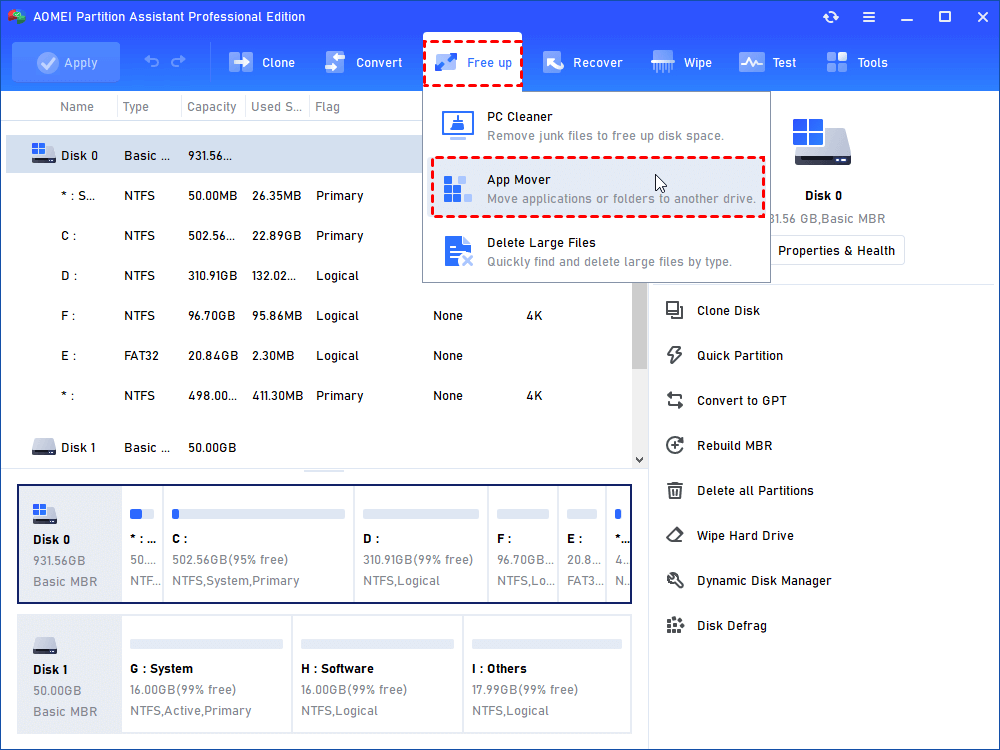
Step 1. Enter "App Mover" function.
Click “Free up”, then select the “App Mover” feature.
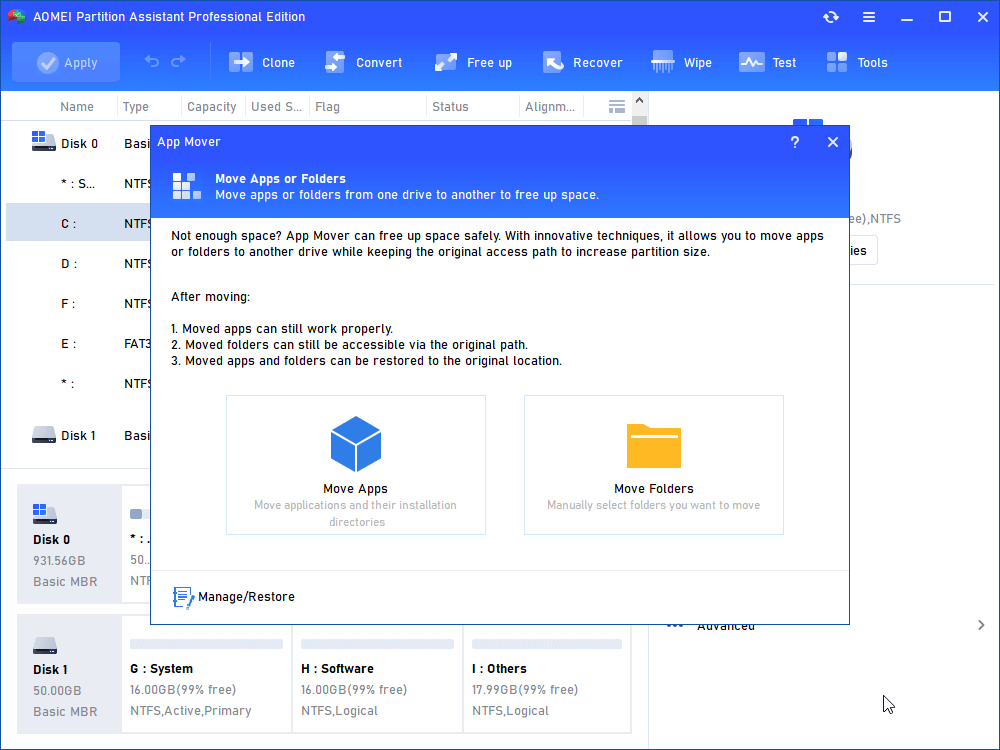
Step 2. Confirm move subject.
In the new window, click “App Mover”. If you want to move folders, you can choose "Move Folders".
Step 3. Select one partition that you want to move applications.
In the new window, you will see all partitions, and the number and size of installed programs on every partition will also be displayed. Select one partition where the target programs are stored and click "Next".

Step 4. Tick Apps you want to move.
Choose the applications you want to move and select the target location, then click "Move".
Step 5. Confirm the moving task.
In the pop-up window, you need to confirm forcibly closing running applications when moving starts. Click "OK" to begin the process.
To ensure the apps run properly during the moving, please don't move or delete files by yourself in the source and target directories. Just leave it all to the software.
If you also want to know how to move installed programs to another drive in Windows 7/8/10/11 or an external hard drive, now you know the answer.
Method 2. Move installed programs to another drive via Settings
Of course, Windows also offers an app-transferring service. But this way only avails programs that download from Microsoft Store, if you need to move programs to another drive in Windows 11 that were downloaded from the internet (like Chrome, Photoshop, or Steam), the system will not allow you to do it through this menu.
You can use Setting to transfer your programs to Windows. Please follow the steps to move your programs.
Step 1. Press “Win” and “I” at the same time to open Settings.
Step 2. Click “Apps”, you can see all installed programs in the “Apps & features” list.
Step 3. Choose the program you wish to move, click “Move”, select another drive to place that program, and click “Move” to confirm.
Warning: This method is not suitable for all programs; if the "Move" button under the selected programs is grayed out, we suggest you use the first method.
Method 3. Transfer installed programs to another drive by modifying Registry
This method is offered by a user from Microsoft Community, we sort out it for you. The registry includes information that’s used by programs and Windows itself, thus it assists the OS to manage your computer. You can move your installed programs by editing the registry.
Step 1. Create a new folder named "Program Files (86)" in the C drive or another drive.
Step 2. Copy "Program Files" and "Program Files (x86)" directories to the new folder.
Step 3. Insert “CMD” in the search bar, right-click it, select “Run as administrator”.
Step 4. Insert the following commands and press “Enter”.
• Robocopy" C:\ Program Files" " X:\ Program Files" / mir
• Robocopy" C:\ Program Files(x86)" " X:\ Program Files(x86)" / mir
Tip: “X” is the drive letter of the created file.
Step 5. Press “Win + R”, then type “Regedit.exe”.
Step 6. Find the folder path and change the C to another drive.
▶ For Windows 10: HKEY_LOCAL_MACHINE \ SOFTWARE \ Wow6432Node \ Microsoft \ Windows \ CurrentVersion
▶ For Windows 7/8/8.1: HKEY_LOCAL_MACHINE \ SOFTWARE \ Microsoft \ Windows \ CurrentVersion
Warning: If you misapply the registry, your system may crash.
Further reading: Change the default installation location of programs on Windows 10&11
If all you want to do is alter the default installation location on Windows 10 or Windows 11, it's straightforward.
Press the Windows Key + I to open Settings. Click System > Storage.
- On Windows 10, underneath the More storage settings heading, click Change where new content is saved.
- On Windows 11, click Advanced storage settings > Where new content is saved.
Final lines for app mover alternative
In this article, all three approaches are available. However, the operation of AOMEI Partition Assistant is an application mover alternative for you to safely and quickly move your installed programs, and all programs you see in the list are movable, so you don’t need to worry about boot failure.
AOMEI Partition Assistant also has other helpful functions such as disk clone, OS migration, allocating free space to extend partition, converting disk to GPT/MBR, etc, and if you need, you can go to the Server Edition to manage your Server computer efficiently.
FAQs
♦ Q1: Can I move installed programs to another drive without reinstalling them?
Yes, it is possible to move installed programs to another drive without having to reinstall them. However, not all programs support this feature, and it primarily depends on the software itself. Some applications offer built-in options to change the installation directory, while others may require additional steps or third-party tools.
♦ Q2: How do I check if a program can be moved to another drive?
To determine if a program can be moved to another drive, you can start by checking the program's settings or options within the application itself. And you can refer to the program's documentation or contact the software developer for guidance on moving the program.
♦Q3: Are there any risks involved in moving installed programs to another drive?
Moving installed programs to another drive involves some risks, especially if not done correctly. It's crucial to follow the proper steps and ensure the program is compatible with the new location.
