
 AOMEI Partition Assistant
[Full Guide] How To Reinstall Windows After Hard Drive Failure?
Learn the complete steps on how to reinstall Windows after hard drive failure.This full guide will help to restore your PC easily and smoothly.

By Irene / Updated on September 2, 2025


What Are Signs of Hard Drive Failure?
A hard drive can fail when it stops working the way it should. This may happen because of mechanical problems (physical damage inside the drive) or logical problems (errors in the software or file system). No matter the cause, the risk is the same. You could lose your files for good.
The good news is that most hard drives give warning signs before they completely stop working. If you notice any of the symptoms below, it’s a signal to back up your data right away.
| Symptom | What It Usually Means |
|---|---|
| Unusual noises | Clicking, grinding, or whirring sounds often point to mechanical trouble. |
| Slow performance | Programs and files take much longer to open because the drive struggles to read or write data. |
| Frequent freezing or crashing | Your computer may freeze, crash, or show errors like “disk boot failure” when the drive can’t read important files. |
| Missing files or copying errors | Files or folders may disappear, or errors pop up when moving or copying data. |
| More bad sectors | Damaged storage areas cause parts of your data to be lost for good. |
| SMART errors | The drive’s built-in health check warns you about problems such as bad sectors or possible failure. |
When you spot these signs, can you still reinstall Windows after the drive stops working? Let’s go over what’s possible and how to solve it.
How to replace failed hard drive?
If your hard drive is still working but already showing signs of trouble, the safest move is to clone it to another drive before replacing it. Cloning lets you transfer everything like your system, apps, and personal files. So you can keep using Windows without reinstalling it from scratch. Even when the disk has bad sectors, advanced cloning tools can often work around them by skipping the damaged areas and copying the rest. This way, you still save most of your data and avoid sudden system crashes.
Since Windows doesn’t have built-in cloning features, you’ll need third-party software. A trusted choice is AOMEI Partition Assistant, which makes cloning simple and reliable. With this tool, you can:
🌟 Migrate Windows, applications, and files to a new drive.
🌟 Create a bootable WinPE USB if your PC can’t start, so you can still rescue data.
🌟 Clone a large disk to a smaller SSD by copying only used space.
🌟 Choose between sector-by-sector cloning or cloning only data while ignoring bad sectors.
Thanks to its easy-to-use design, you can complete the cloning process in just a few steps. Many people rely on it when upgrading drives or dealing with failing ones.
 AOMEI Partition Assistant
The Best Windows Disk Partition Manager and PC Optimizer
-
If the drive can boot up your PC, go to the step 2.
-
This software canclone boot disk from MBR to MBR/GPT, or GPT to MBR/GPT.
-
Please make sure the size of the target drive is equal to or larger than the source disk or the used space on it.
Part 1. Create a bootable Windows PE USB
Preparation:
-
Another PC running with Windows 11, 10, 8, 7
-
Attach a blank USB drive, or CD/DVD to the computer
-
Back up the USB drive, CD/DVD if there are some data on it.
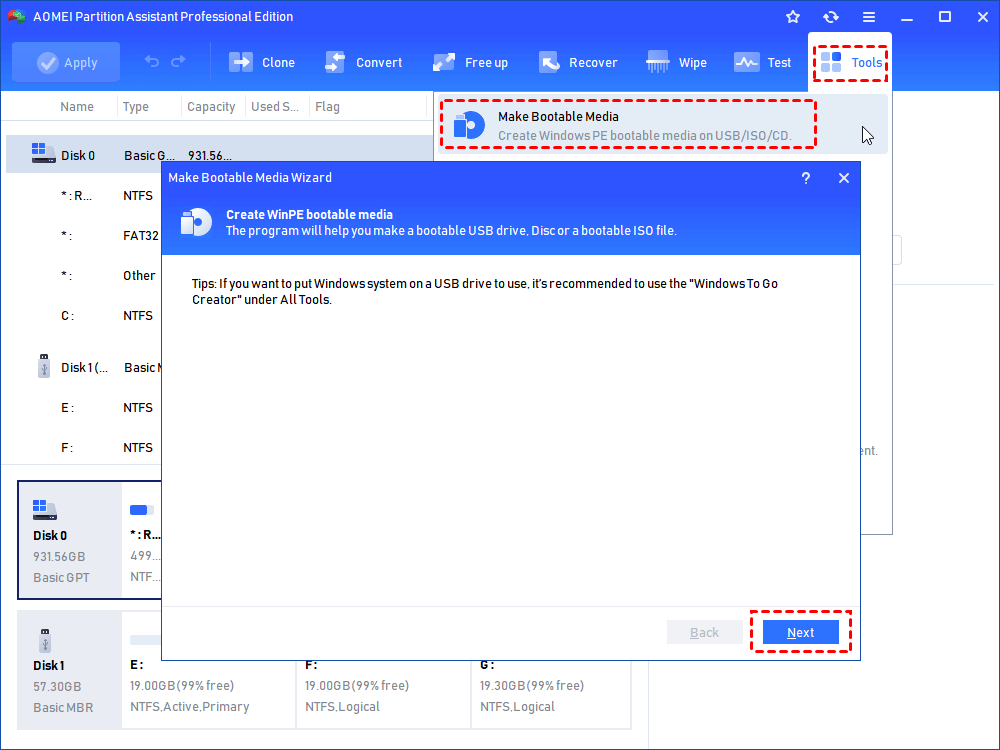
Step 1. Install and launch AOMEI Partition Assistant, and click "Tools"> “Make Bootable Media” on the main interface.
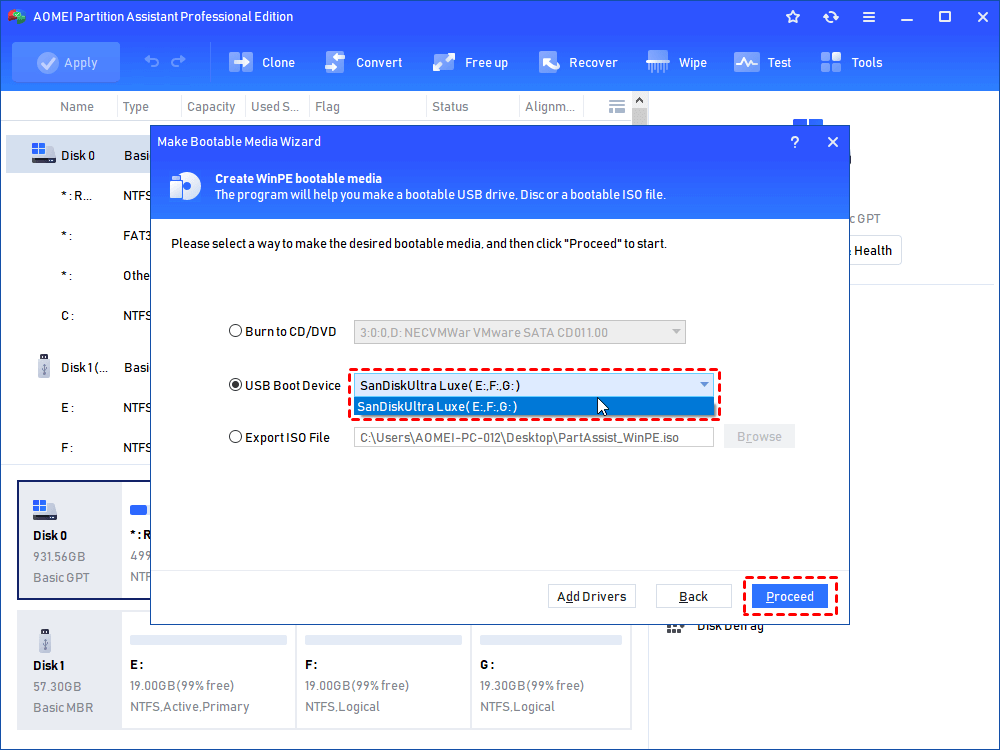
Step 2. Choose “USB Boot Device”, and select the prepared USB drive. If you inserted a CD/DVD, choose “Burn to CD/DVD”. And click “Proceed”.
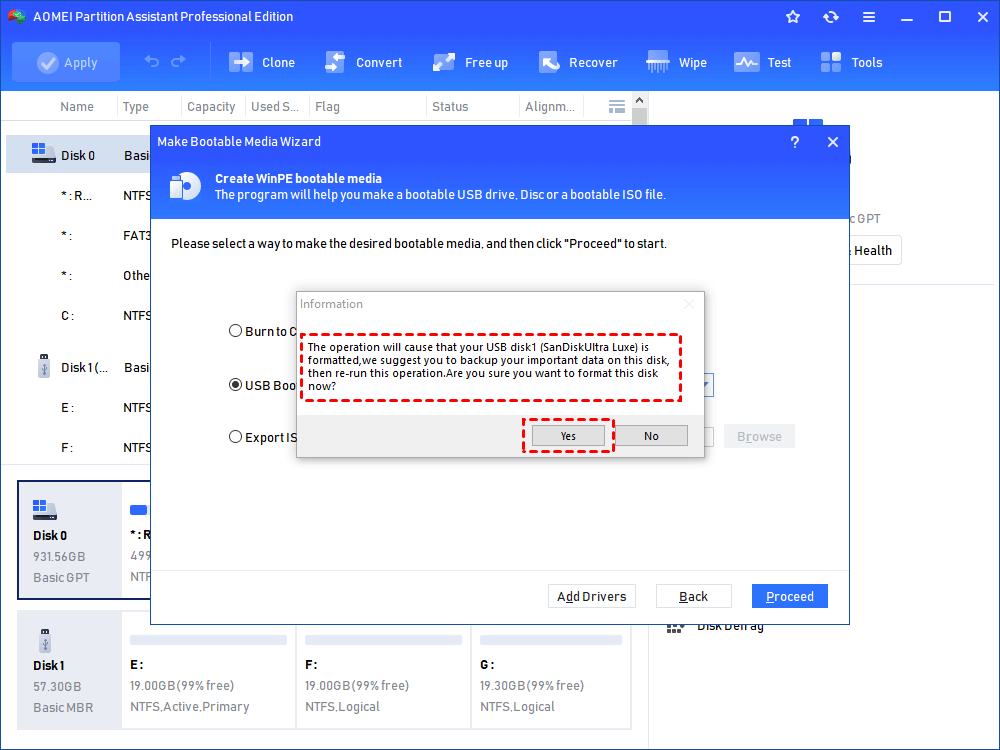
Step 3. Then the program will send a message that the drive will be formatted, click “Yes” to confirm the operation.
When the Windows PE USB is created, you can plug it into your computer and boot from it.
Part 2. Steps to clone failing hard drive in Windows 10, 8, 7
If the failing hard drive can boot up your computer, you can directly install and launch AOMEI Partition Assistant to transfer data from the drive.
Step 1. Connect the new drive with your PC and then, run AOMEI Partition Assistant Professional.
Step 2. When you see the main interface of AOMEI Partition Assistant, select “Clone > Clone Disk”.
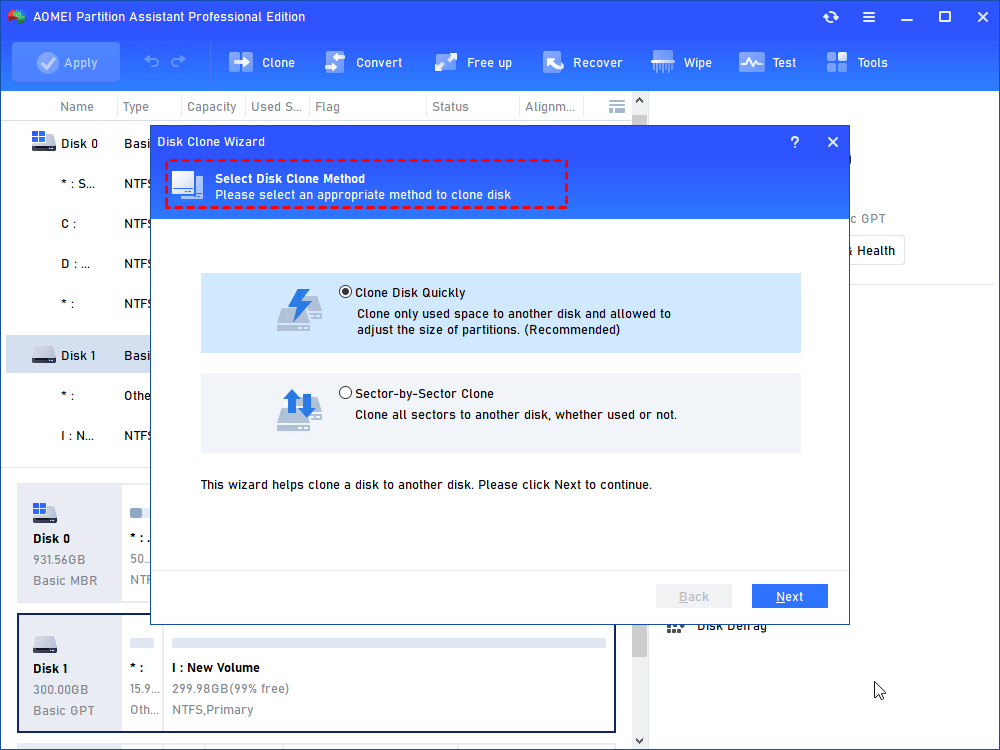
Step 3. Choose “Sector-by-Sector Clone” to clone the whole sectors on the drive, including bad sectors. Or you can just choose “Clone Disk Quickly” to only clone used space.
Step 4. Choose the failing hard drive as the source disk.
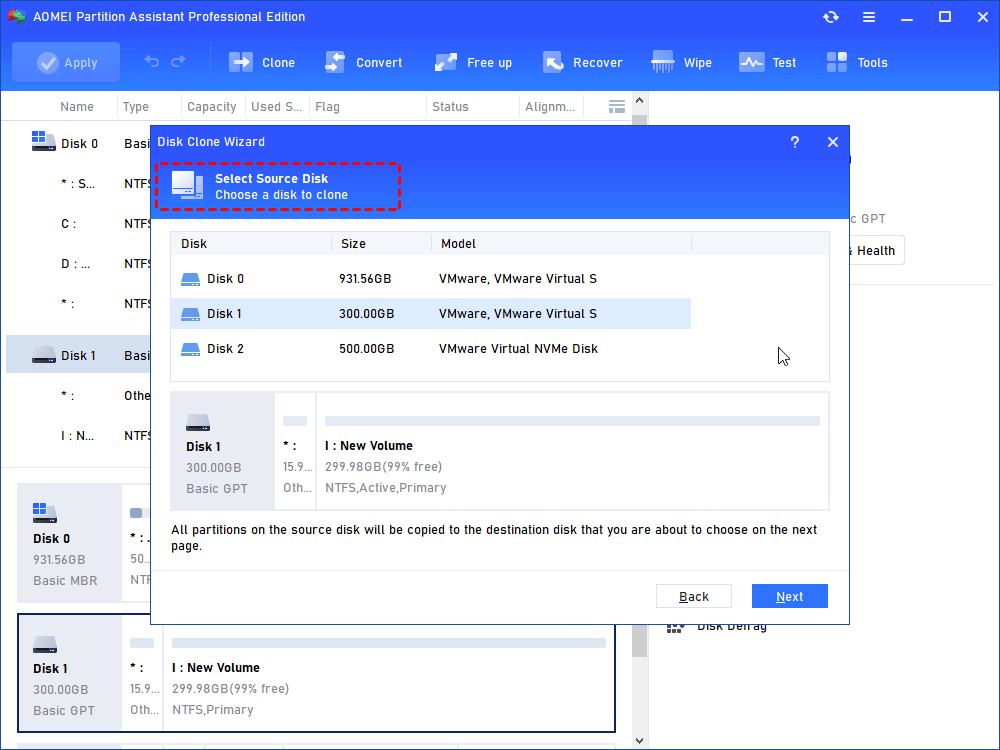
Step 5. Choose the new hard drive as the destination disk. If the destination disk is an SSD, please check "Optimize the performance of SSD" to make it perform better.
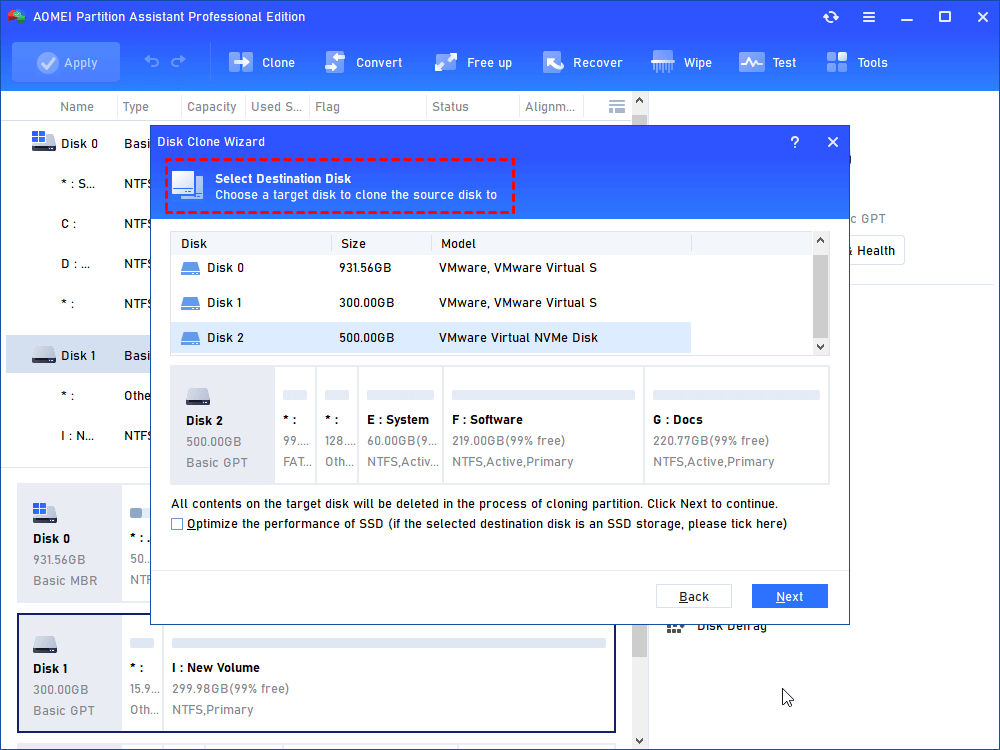
Step 6. And you can edit the destination disk in this window. When you finish it, click “Next”.
1) Clone without resizing partitions: You’ll keep the size of source partitions.
2) Fit partitions to entire disk: The software will automatically adjust the size of partition to fit the entire disk
3) Edit partitions on this disk: You can resize the partitions on the disk on your own.
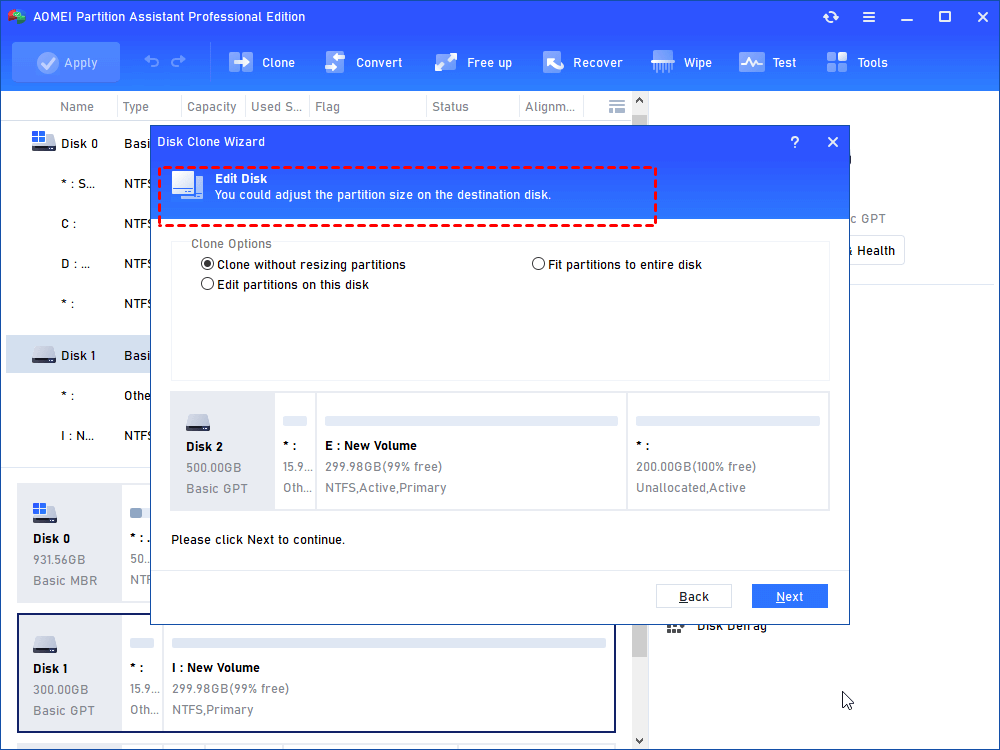
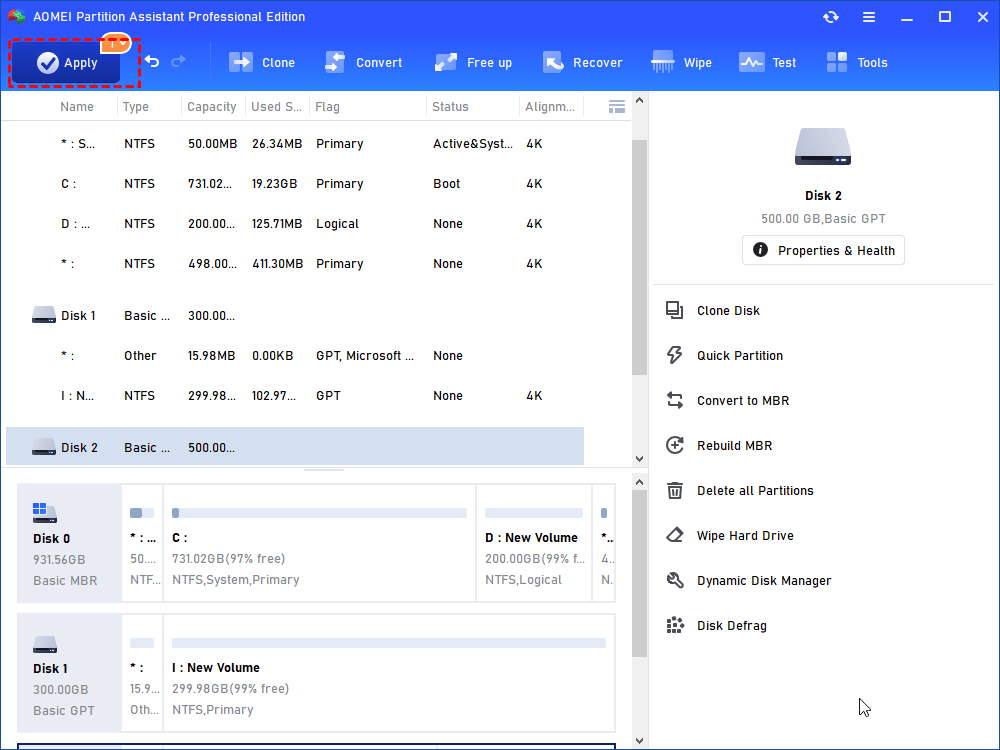
Step 7. Then click “Apply” > “Proceed” on the main interface to commit the cloning process.
After cloning the failing disk, you can try to fix the disk via AOMEI Partition Assistant. It can check bad sector on a disk. Just right -click on the hard drive, and click “Advanced” > “Check Partition”.
How to reinstall Windows after hard drive failure fixed?
The most traditional way is to perform a clean Windows installation on SSD with the Windows installation disc. Below are the detailed steps.
▸Prepare an empty DVD, CD or USB flash drive to make an installation media.
Step 1. Download and use Microsoft Media Creation Tool to make the installation media.
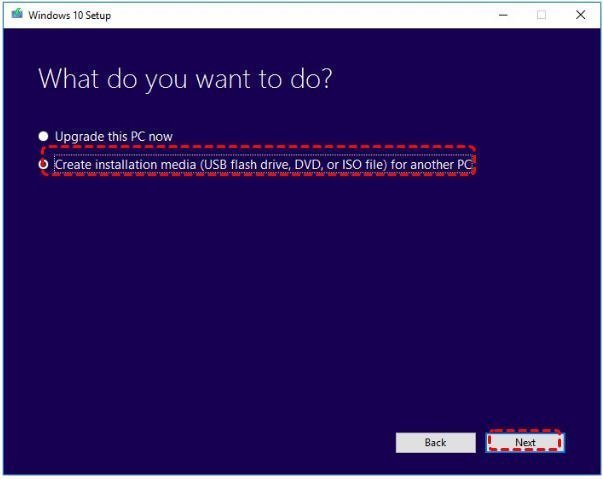
Step 2. When asked during the installation media, accept Microsoft software license terms and then select "Create installation media (USB flash drive, DVD, or ISO file) for another PC" before you click “Next” and follow the guides to finish creating Windows 10 installation media.
Step 3. Plug the installation disk into your computer. Shut down your computer, open its case, remove the old hard disk, and insert the SSD into the drive bay.
Step 4. Turn on your computer and press a specific key to boot into BIOS and modify the boot order to make your computer boot from the installation disk.
Step 5. When loaded, you need to verify “language to install”, “time and currency format”, and “keyboard or input method”. Then click “Next”> “Install now”.
Step 6. In this window, you will be asked to input the license key, type one, or skip it by clicking "I don't have a product key" and activate it after Windows install completes.
Step 7. When asked “Which type of installation do you want?”, choose “Custom: Install Windows only (advanced).”
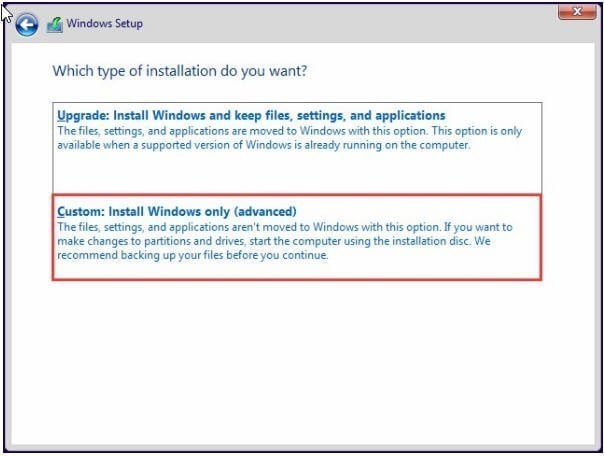
Step 8. In this screen. select your SSD which you plan to reinstall Windows 10 onto and click “Next”. Then Windows will start the installation process automatically.
Conclusion
This article shares how to reinstall Windows after hard drive failure. Hard drive failure can happen for many reasons, but the key is to act quickly once you notice the warning signs. Whether your drive is still working but unstable, or it has already failed, there are ways to protect your data and keep your system running. Cloning software like AOMEI Partition Assistant can help you transfer files and even Windows itself to a new disk, while a clean installation ensures a fresh start if the old drive can no longer be used. By preparing early and choosing the right method, you can reduce the risk of losing important files and get your computer back in working order.
AOMEI Partition AssistantThe Best Windows Disk Partition Manager and PC Optimizer
