
 AOMEI Partition Assistant
How to Run SD Card Speed Test on Windows 11/10
How to run SD card speed test on Windows 10/11? In this article, you will learn two easy and effective ways to get it done. After that, you can determine whether to improve your SD card performance.

By Hedy / Updated on January 22, 2026


If you’re someone who records 4K videos, snaps hundreds of photos, or stores huge game files, your SD card isn’t just a storage device—it’s the speed engine behind all of that. But how do you know if your SD card is really performing as it should? That’s where an SD card speed test comes in. It measures how fast your card can read and write data, helping you avoid slow transfers, laggy videos, or frustrating app freezes.
Why run SD card speed test?
Running an SD card speed test is important because it helps you determine how fast your SD card can read and write data. This information is crucial for several reasons:
🟠 Device compatibility: Some devices, like cameras, drones, or smartphones, require SD cards with minimum read/write speeds for smooth performance. A slow card may cause lag, buffering, or errors.
🟠 Data transfer efficiency: Knowing your card’s speed helps you estimate how quickly files can be copied to or from your SD card, saving time when transferring large files like videos or RAW photos.
🟠 Performance validation: SD cards often claim certain speeds on their labels. Testing ensures the card meets its advertised performance, especially if it’s a high-end UHS or V90 card.
🟠 Prevent data loss: Slow write speeds can cause failed recordings in cameras or interruptions during file transfers, which could lead to corrupted files.
🟠 Optimizing usage: Understanding your card’s speed helps you decide what type of data to store on it—faster cards for HD video recording, slower cards for documents or photos.
In short, an SD card speed test ensures reliability, performance, and compatibility with your devices.
How to run SD card speed test on Windows 10/11- 2 safe ways
Running an SD card speed test on Windows 10/11 can help you evaluate its read and write performance. Here are two safe ways to run the test:
Way 1. Run SD card speed test via AOMEI Partition Assistant
AOMEI Partition Assistant is a professional Windows disk management tool that also includes a reliable Disk Speed Test feature, making it an excellent choice for testing SD card speed on Windows 10 and Windows 11.
With AOMEI Partition Assistant, you can quickly measure both read speed and write speed of an SD card to evaluate its real performance. This is especially useful when you want to check whether an SD card meets the speed requirements for tasks like 4K video recording, gaming, or file transfers, or to verify if a card is fake or deteriorating.
The software offers a simple and user-friendly interface. After inserting the SD card into your computer via a card reader, you can select the SD card directly from the disk list and run the speed test with just a few clicks—no command lines or complex settings required. The results are displayed in real time with clear charts and detailed data, making them easy to understand even for beginners.
In addition, the tool supports various storage devices, including SD cards, microSD cards, USB flash drives, HDDs, and SSDs, providing consistent testing results across different devices.
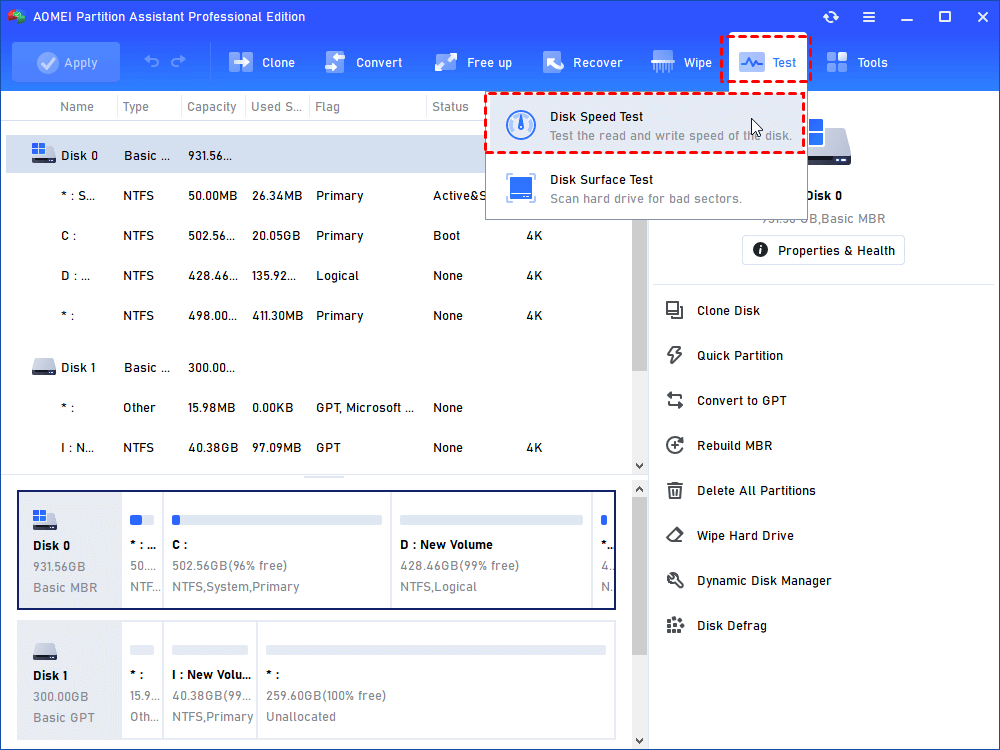
Step 1. Install and run AOMEI Partition Assistant. Click "Test" and select "Disk Speed Test".
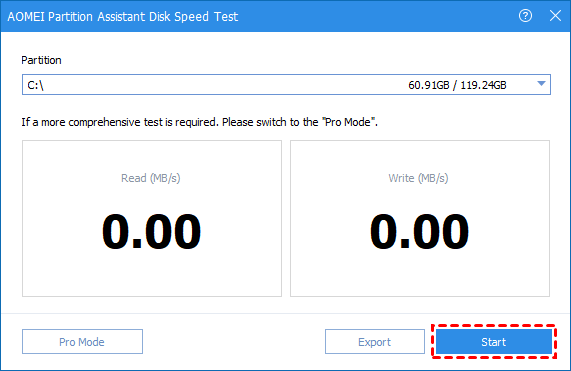
Step 2. The Simple Mode is selected by default, you can click "Start" to begin testing.
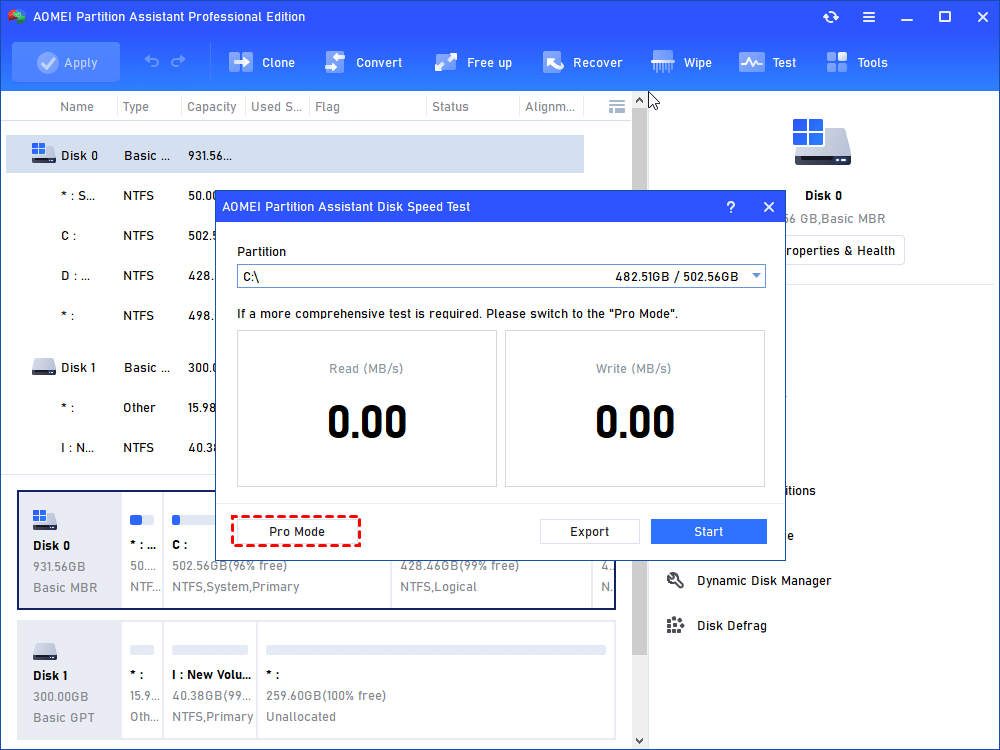
Step 3. Or you can click "Pro Mode" to test hard drive in a comprehensive way.
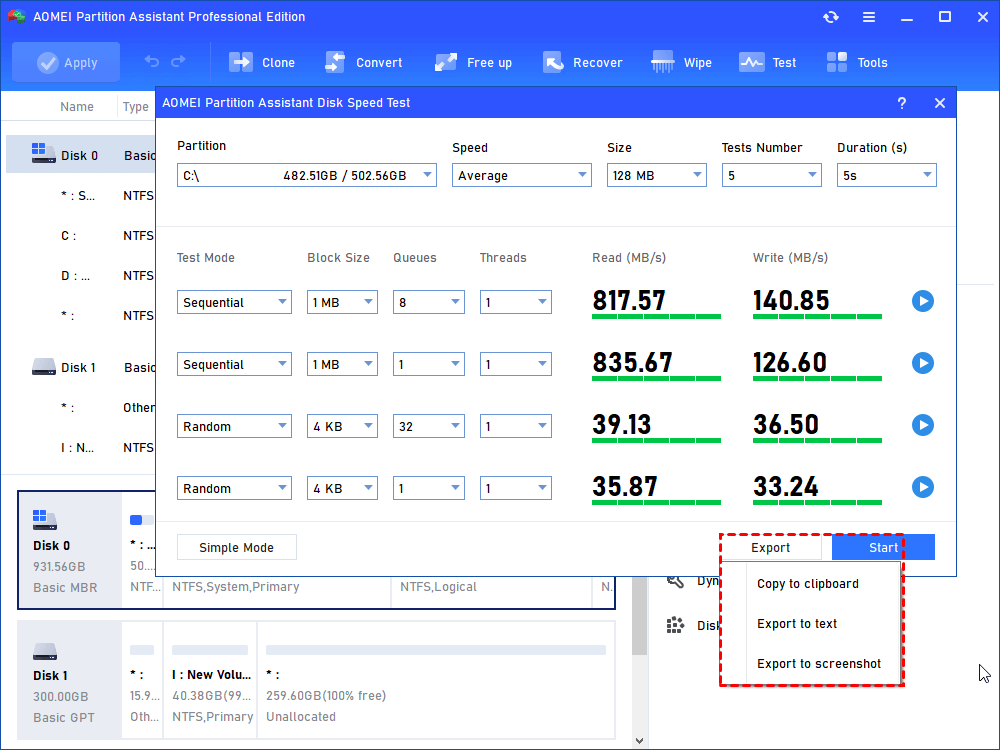
Step 4. In the new window, you can change the default settings as your wish: to-be-tested Partition, Average/Maximum speed, Size, Test Number, and Duration. After everything is set, click "Start" to begin to test the hard drive read and write speed.
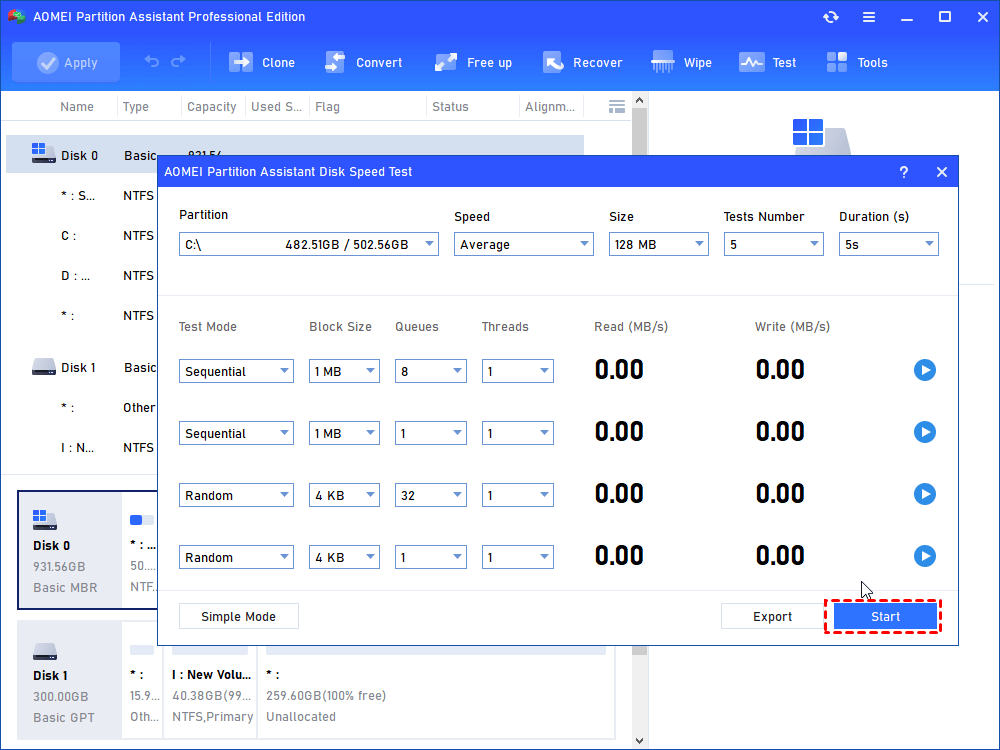
Step 5. When the test is done, you can see the result directly on the interface, and also you can choose to export the result to analyze later.
Way 2. Run SD card speed test via Task Manager
While Task Manager is mainly used for monitoring system performance, it can indirectly help check SD card performance by monitoring disk activity during large file transfers.
Step 1. Connect the SD card to your computer using a built-in slot or external card reader.
Step 2. Press Ctrl + Shift + Esc to open Task Manager.
Step 3. Go to the Performance tab, then click Disk corresponding to your SD card (it may be labeled as Disk 1, Disk 2, etc.Here we take C drive as an example).
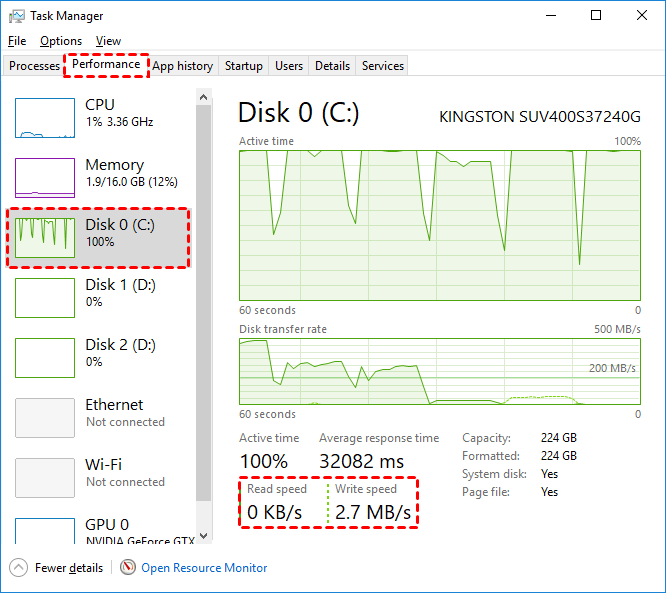
Step 4. Copy a large file (1–2 GB) to the SD card. Observe the Active Time and Read/Write Speeds in Task Manager in real-time.
Step 5. Task Manager will show the approximate transfer speed in MB/s.
This gives you a practical insight into the SD card’s real-world performance.
FAQs
✍ Can a slow SD card damage my device?
A slow SD card won't directly damage your device but may cause performance issues, slow data transfer, and affect app functionality.
✍ How often should I test my SD card speed?
Test your SD card speed every few months or after any major system changes to ensure optimal performance.
✍ Can formatting improve SD card speed?
Formatting can improve an SD card’s speed by clearing errors and fragmented data, though it's not a guaranteed fix for persistent slowness.
✍ Are microSD cards slower than standard SD cards?
MicroSD cards are generally slower due to their smaller size and lower performance standards, though high-performance variants (e.g., UHS-I, UHS-II) can offer competitive speeds.
Conclusion
In conclusion, running an SD card speed test is crucial for ensuring your card’s performance meets the requirements for tasks like video recording, gaming, and file transfers. Using tools like AOMEI Partition Assistant or Task Manager, you can easily evaluate your SD card’s read and write speeds. This helps optimize device compatibility, prevent data loss, and validate the card’s performance, ensuring smooth and efficient usage.
