
 AOMEI Partition Assistant
How to Fix SSD Transfer Speed Drops To 0 in Windows 11 and 10?
This guide shows how to fix SSD transfer speed drops to zero. Understand common causes and follow simple steps to improve file transfer speed on Windows 11 and 10.

By Irene / Updated on October 10, 2025


Why does my SSD transfer speed keep dropping to 0?
Some users experience serious slowdowns during file transfers. A common issue is when the SSD transfer speed drops to 0 or the file transfer speed drops to zero while copying data. Sometimes, the SSD copy speed shows 0 bytes, or the USB SSD transfer speed drops to zero after starting normally. Many also find that the large file copy speed falls to zero on SSD, especially when moving big files like videos or games.
These problems can be frustrating, but they don’t always mean your SSD is damaged. In most cases, they are caused by system or hardware factors. Here are the main reasons why this issue happens:
Thermal Throttling – Overheating can cause the SSD to slow down to protect itself.
Outdated or Faulty Drivers – Old or incompatible drivers can interrupt file transfers.
Power Settings – Energy-saving options like USB selective suspend may pause transfers.
Bad Cable or Port Connection – Poor-quality or damaged cables can cause unstable speeds.
System Resource Conflicts – Too many background tasks may slow down data copying.
Windows Optimization Behavior – The system might temporarily reduce speed to balance performance.
This guide will show simple, effective ways to fix them, so your SSD and USB transfers can stay fast and stable.
How to fix the SSD file transfer speed drops to zero?
Before fixing: Perform a SSD speed test
As SSD technology continues to advance, storage capacities are increasing while prices steadily decline. This makes high-capacity SSDs a common choice for both desktops and laptops. When set up correctly, an SSD delivers fast data access, stable performance, and a long service life. However, in daily use, users often find that the real transfer speed is much lower than the speed promised by manufacturers. It’s not unusual to see problems where the SSD transfer speed drops to 0 or the file transfer speed drops to zero, especially during large file transfers. Sometimes, the SSD copy speed shows 0 bytes, or the USB SSD transfer speed drops to zero suddenly. Many also report that the large file copy speed falls to zero on SSD, even though the drive appears to work normally.
To get an accurate picture of your SSD’s true performance, it’s important to test its speed and condition. With tools like AOMEI Partition Assistant, you can easily check your SSD’s average and maximum speeds, adjust test settings, and export detailed results to find and fix performance problems quickly.
 AOMEI Partition Assistant
The Best Windows Disk Partition Manager and PC Optimizer
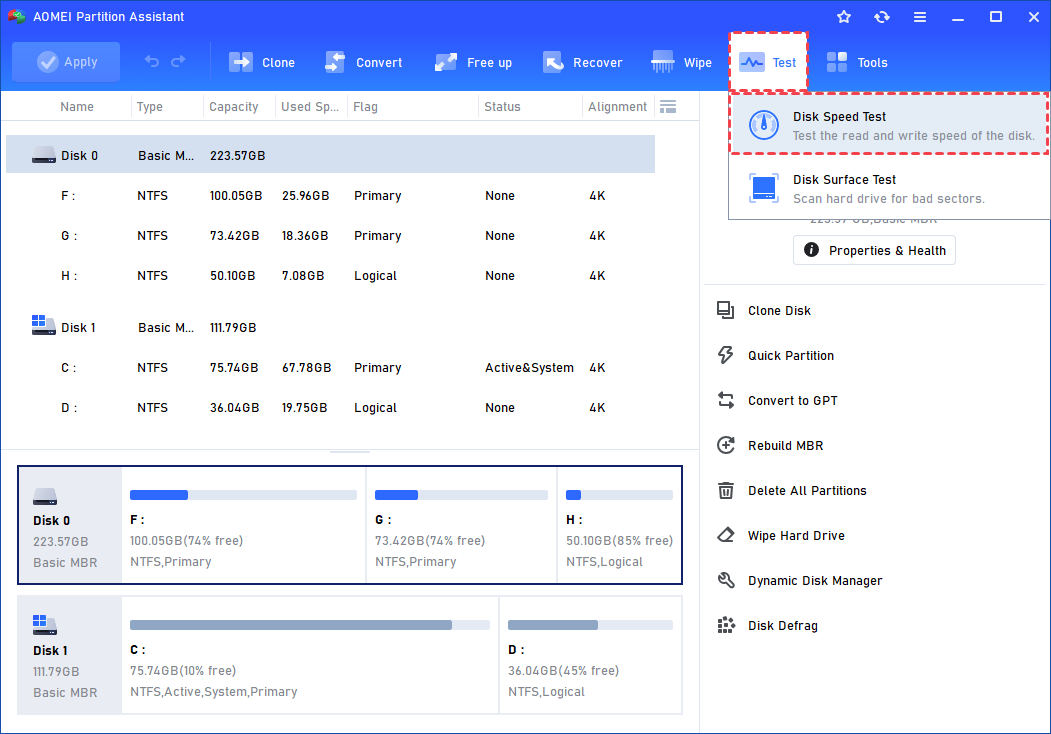
Step 1. Install and launch AOMEI Partition Assistant. Click the "Test" main tab and select the "Disk Speed Test" tool.
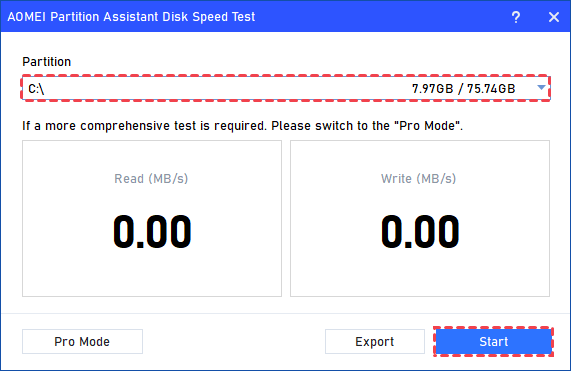
Step 2. All partitions will be listed here, and you can choose the one you want to test and click "Start" to start the process.
Step 3. After the speed test is complete, you can export the results.
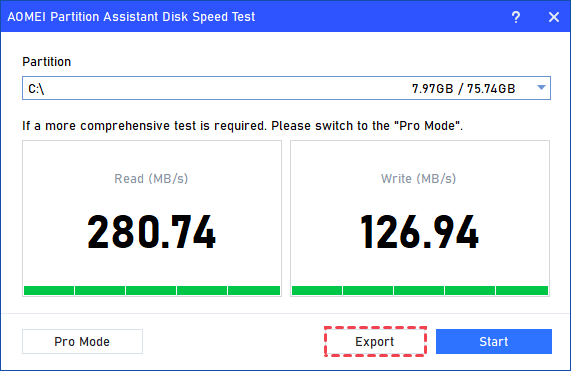
Copy to clipboard: Copy the test results to the clipboard.
Export to text: Export the test results as a text file.
Export to screenshot: Export the test results as a PNG image.
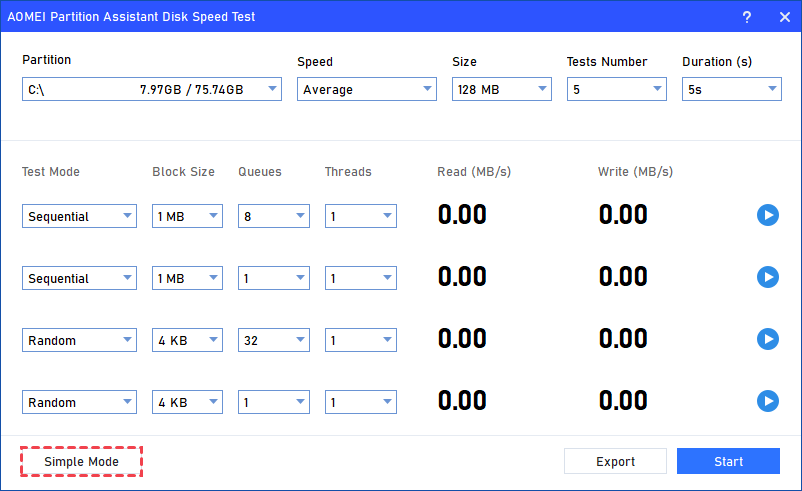
If you need a more comprehensive test, please click the "Pro Mode" button to check more info.
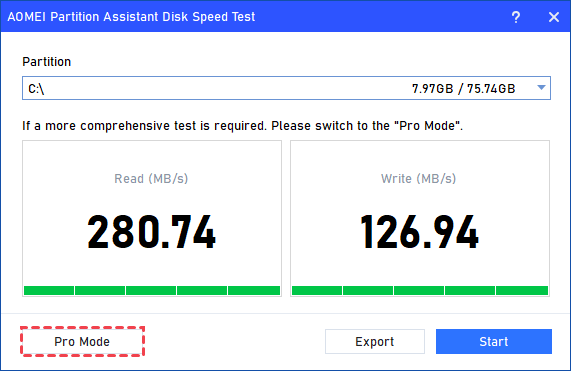
In the Pro Mode detail interface, more information will be displayed and you can click "Simple Mode" to return to the simple mode interface.
Fix 1. Optimize SSD with the Windows tool
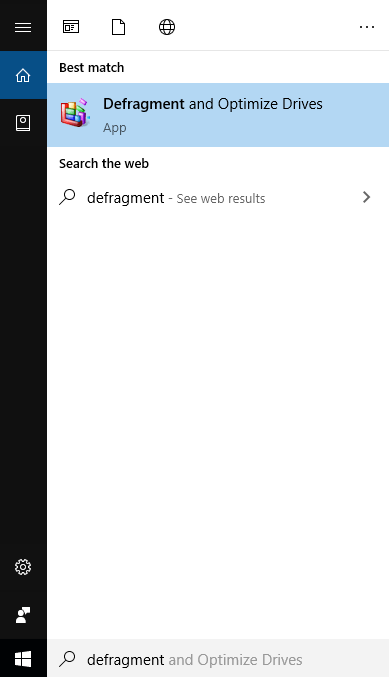
Step 1. Search “Defragment and Optimize Drives” in the search box next to the “Start”.
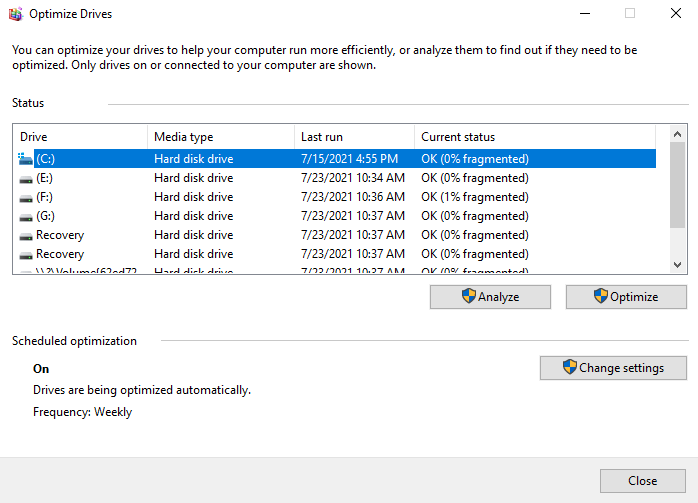
Step 2. Choose a drive and click “Optimize”.
Fix 2. Make sure TRIM is running
It is well known that an SSD drive has to clean the data that is marked for deletion before you can add new data onto it, and the cleaning process will cost much time. Thus, the SSD speed will drop down when it is writing. The TRIM technology is introduced aiming to enable the OS to tell the SSD that data blocks are unnecessary and can be deleted, and then automatically wipe them so as to speed up data writing. To put it simply, an SSD drive will run rather slow if the Trim is not running. On the contrary, a great speed boost is possible. Follow the steps to make sure the TRIM is enabled.
Step 1. Type cmd in Windows search. Once the cmd program appears, right-click it and select Run as administrator.
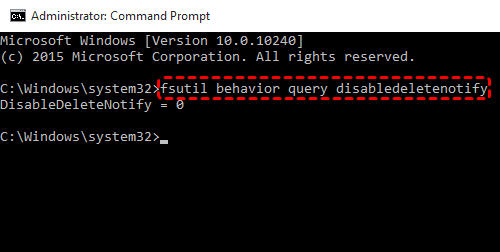
Step 2. Then, in the Command Prompt window, type this command: fsutil behavior query disabledeletenotify.
Step 3. Press Enter, after a short while, Command Prompt will display one of the following two messages:
-
“NTFS DisableDeleteNotify = 0”: means the TRIM is enabled on your SSD.
-
“NTFS DisableDeleteNotify = 1”: means the TRIM is disabled on your SSD.
If you get the second message, you can input the command: fsutil behavior set disabledeletenotify 0, and press Enter on your keyboard to enable it.
Fix 3. Enable AHCI mode
Enabling AHCI (Advanced Host Controller Interface) is essential for maximizing SSD performance, as it allows for faster data transfer compared to IDE mode. Follow these steps to enable AHCI using Command Prompt:
Step 1. Open Command Prompt as an administrator.
Step 2. Enter the following command and press Enter:
bcdedit /set {current} safeboot minimal
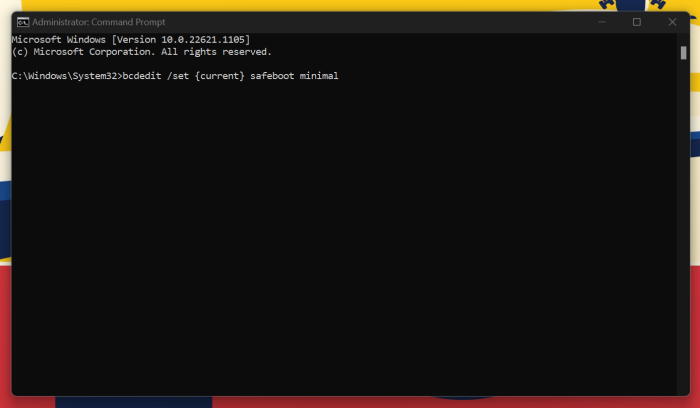
Step 3. Restart your PC and enter the BIOS. Locate and enable AHCI mode in the storage settings.
Step 4. Save changes and exit BIOS.
Step 5. Boot into Safe Mode and open Command Prompt again. Then, enter:
bcdedit /deletevalue {current} safeboot
Step 6. Restart your system, and Windows will automatically install AHCI drivers, enhancing SSD write speeds.
Conclusion
If your SSD transfer speed drops to 0, it does not always mean the drive is damaged. Most of the time the file transfer speed drops to zero because of system settings, outdated drivers, overheating, or a full cache. By testing your SSD performance and applying simple fixes such as enabling TRIM, optimizing the drive, and switching to AHCI mode, you can restore smooth and stable transfer speeds.
Using tools like AOMEI Partition Assistant also helps you monitor your SSD and check its health. Following these steps can prevent problems like SSD copy speed showing 0 bytes, USB SSD transfer speed dropping to zero, or large file copy speed falling to zero on SSD. With proper maintenance, your SSD can continue to perform quickly and reliably.
AOMEI Partition AssistantThe Best Windows Disk Partition Manager and PC Optimizer
