
 AOMEI Partition Assistant
[Windows Guide] How to Fix Constant FPS Drops In All Games?
This guide shows easy ways to fix constant FPS drops in all games on Windows PCs, helping you get stable performance and smoother gaming.

By Irene / Updated on August 12, 2025


Why is my FPS so low?
FPS, or Frames Per Second, is a key factor for smooth and enjoyable gameplay. Many popular PC games require high FPS to run properly, and gamers often try to boost FPS for better gaming performance.
When FPS drops, games may stutter or lag, causing a delay between your actions and what you see on screen. This is especially frustrating in fast-paced or multiplayer games where quick reactions matter.
Low FPS in all games can be caused by several issues. Common reasons include outdated graphics card drivers, weak or old hardware, game settings that are too high, overheating, background programs using too many resources, malware infections, or a slow internet connection in online games.
If you are wondering how to fix constant FPS drops in all games, there are proven methods you can try. In the next section, we’ll walk through simple steps to increase FPS and make your games run smoother.
How to fix constant FPS drops in all games?
Here are 4 fixes to fix FPS drops in games. You can follow the steps to enhance the game performance easily and quickly.
Fix 1. Release overworked GPU
When your graphics card is working too hard, it may not produce enough frames per second (FPS), leading to graphics lag. This happens when your computer struggles to keep up with the game’s visual demands. To reduce GPU lag, you can try the following tips:
1. Lower graphics settings: Very high-quality graphics can slow down performance. Adjust the frame rate limit or reduce the graphics resolution in your game’s settings to ease the load on your GPU.
2. Clean your computer regularly: Dust buildup can cause overheating and lower performance. Use a microfiber cloth for wiping surfaces and a gentle cleaner, but never spray liquid directly onto the computer. Cleaning once or twice a year helps keep your system in good condition. In addition to dust, it is also necessary to clean useless files regularly to keep the system clean.
3. Upgrade your graphics card if needed: Choose a card that matches the requirements of the games you play. Look at key details like VRAM size, available ports, and power connectors. Compare different models from brands like Nvidia and AMD, and check reviews to find the best balance between cost and performance.
Fix 2. Improve CPU performance and fix insufficient RAM
An overheated, inadequately fast CPU can lead to elevated CPU usage, which in turn can trigger lag or even sudden lag spikes on your computer. To simplify, a high-performance CPU results in a faster-running PC.
To ensure your computer's CPU is operating at full capacity, it's recommended to conduct a CPU stress test (freely available for Intel CPUs) and use AMD's System Monitor to observe the performance of your AMD CPU. If it demonstrates subpar performance, consider replacing it with a newer model.
Conversely, a corrupted or insufficient amount of RAM can detrimentally impact computer performance, causing random restarts, blue screens, and other issues. When RAM is damaged or inadequate, the system memory struggles to manage processes and services effectively, resulting in computer lag.
In such situations, consider replacing the malfunctioning RAM module or adding more memory to your computer. This will help eliminate lag on your PC.

Fix 3. Disable Fullscreen Optimizations
Windows 10 has a built-in feature called fullscreen optimizations, which is turned on by default. It is designed to improve the performance of games and apps in fullscreen mode. However, in some cases, this feature can actually cause FPS drops during gameplay.
To fix major FPS drops, you can try disabling fullscreen optimizations for your games:
Step 1. Go to your game’s installation folder, right-click its .exe file, and select Properties.
Step 2. Open the Compatibility tab and tick the Disable fullscreen optimizations box.
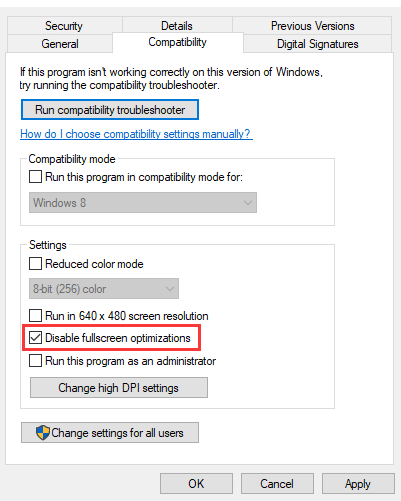
Step 3. Click Apply, then OK to save the changes.
Repeat these steps for all your games and then check if the FPS issues are resolved.
Fix 4. Upgrade your disk
One effective solution is to upgrade your storage drive. You can replace an HDD with an SSD or upgrade an older SSD to a newer, faster model. A faster drive means shorter loading times, smoother gameplay, and fewer freezes in demanding games.
The process is straightforward: choose a reliable gaming SSD, clone your current disk to the new one, and then replace the old drive. To make this easier, you can use AOMEI Partition Assistant, which allows you to upgrade without reinstalling Windows or losing your files.
With AOMEI Partition Assistant, you can:
-
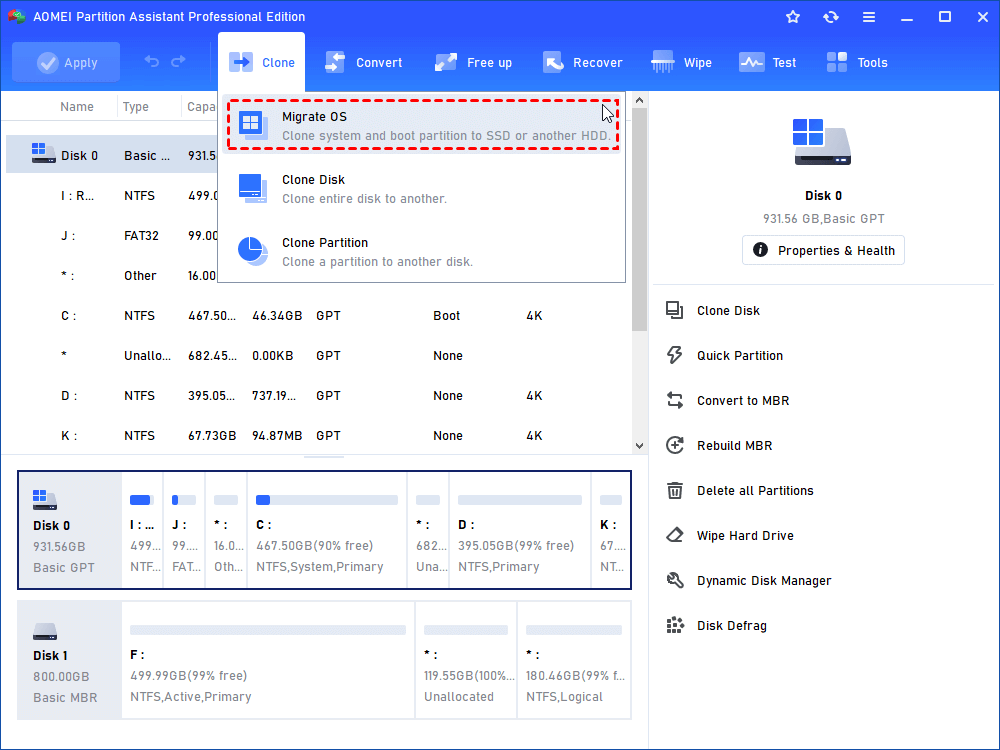
Use Migrate OS to transfer only your operating system to the SSD.
-
Use Clone Disk to copy your entire system or data drive to another disk.
By upgrading to a well-configured SSD, you can significantly boost game performance, reduce lag, and prevent freezes.
 AOMEI Partition Assistant
The Best Windows Disk Partition Manager and PC Optimizer
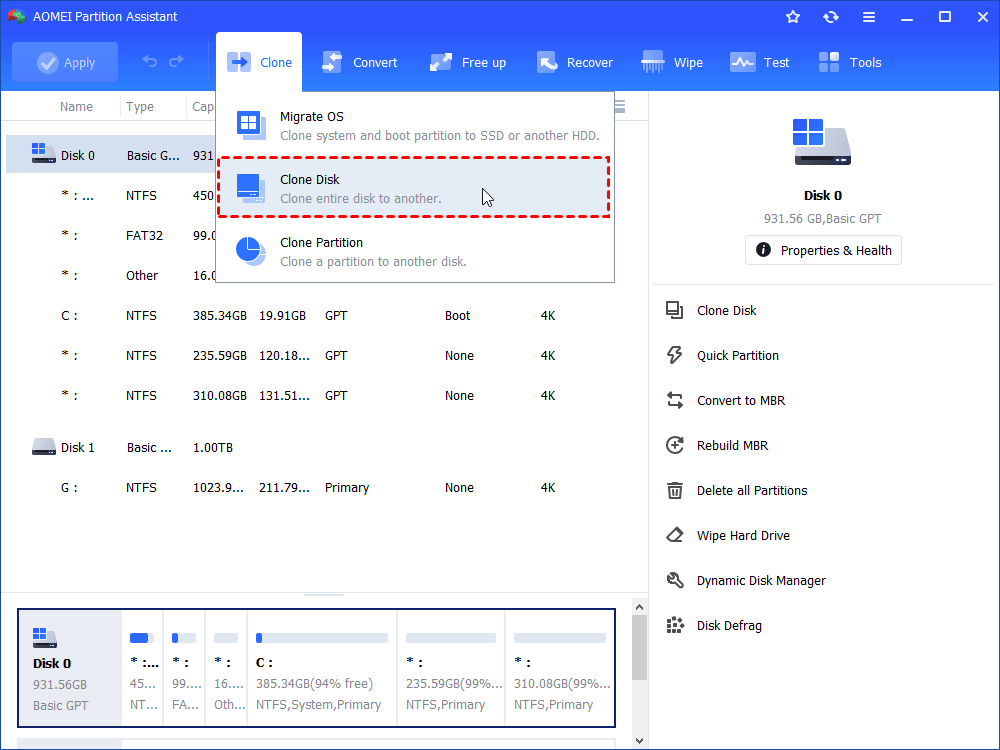
Step 1. Install and launch AOMEI Partition Assistant, click "Clone" in the main interface and select "Clone Disk".
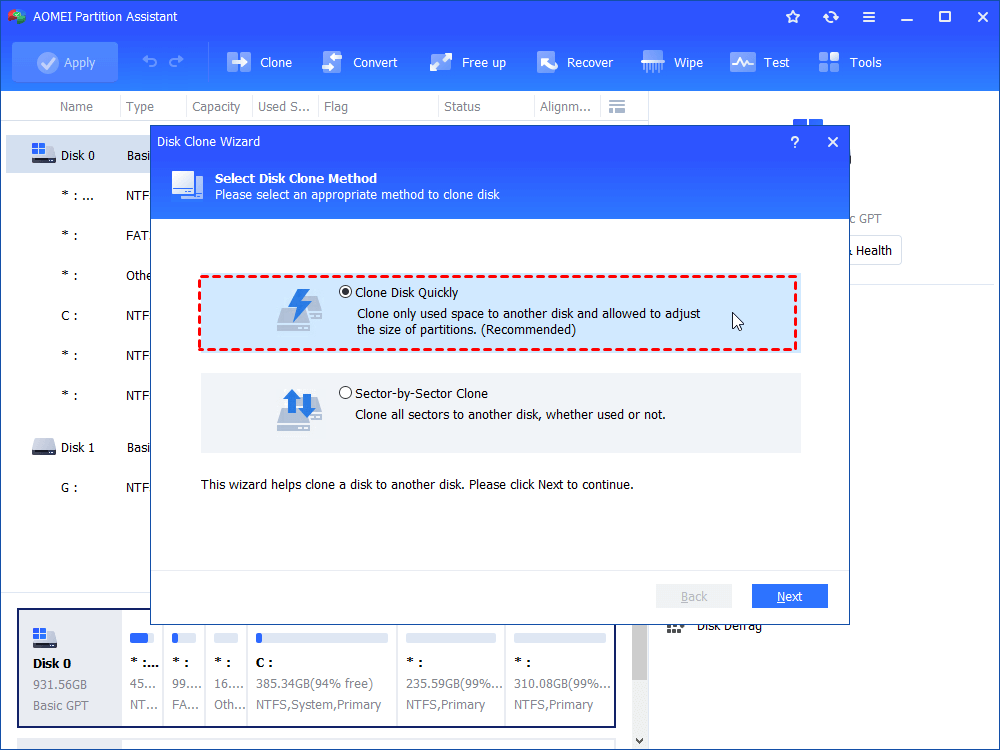
Step 2. Choose the hard disk that you need to clone as the source disk and click "Next".
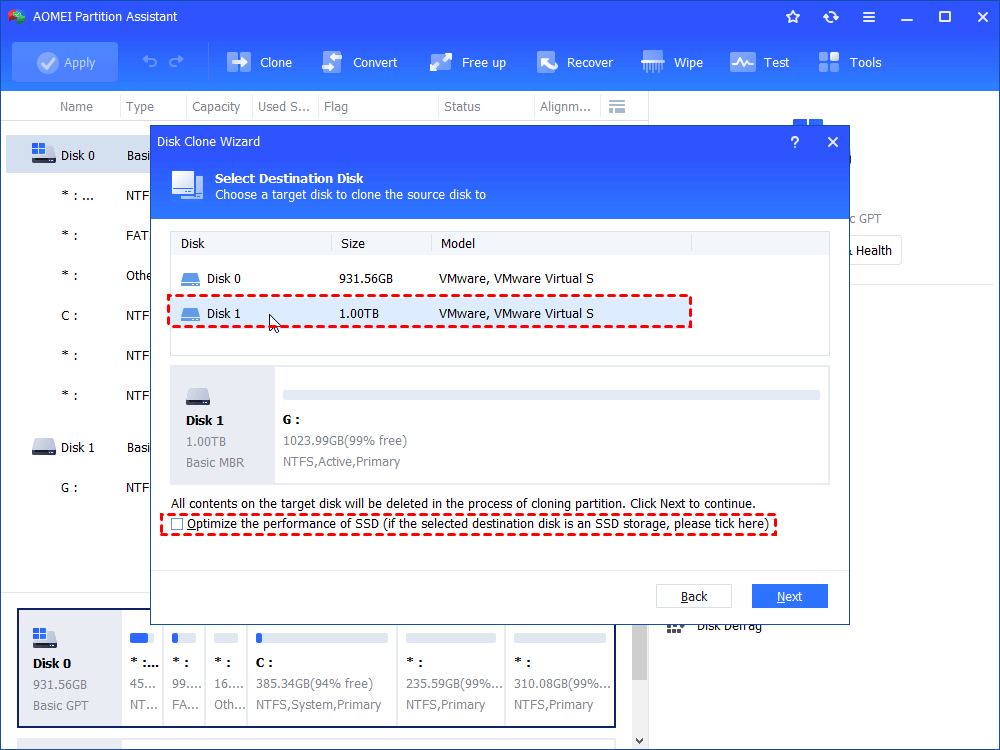
Step 3. Select the destination disk to store the data on the source disk, and then click "Next".
Step 4. Then, you can check the source and destination disk in the next window or change to “Sector to Sector clone”, and click the "Confirm" button to continue if there is no problem.
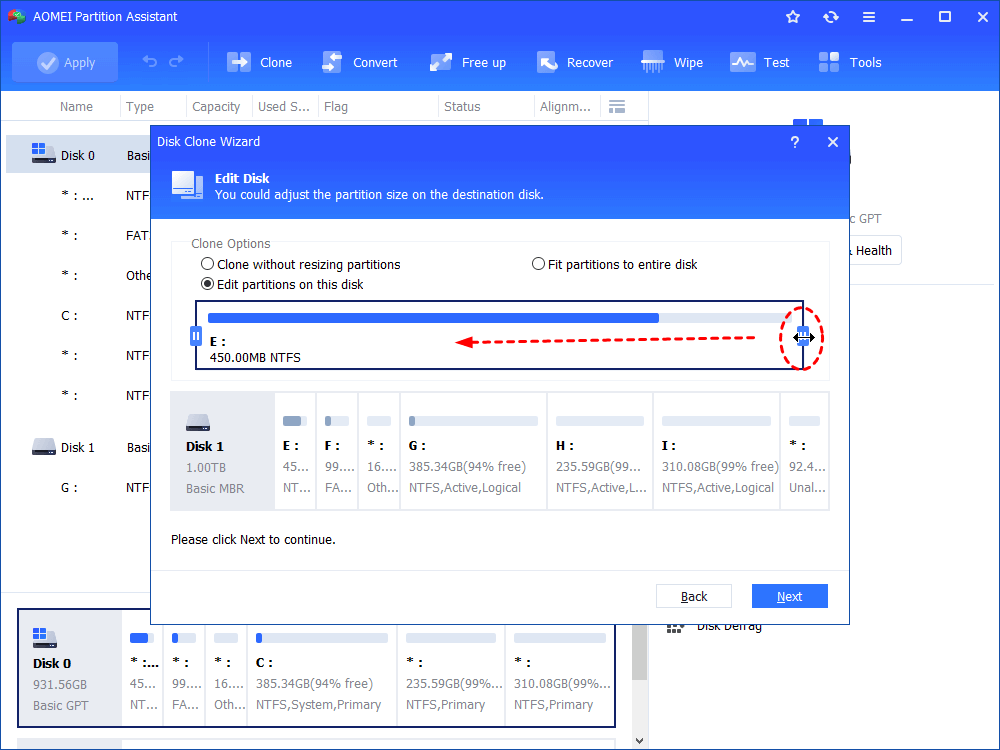
Here, you can also click the "Settings" button to adjust the partition size on the destination disk or tick "4k alignment" to improve the reading and writing speed of SSD if the target disk is an SSD drive.
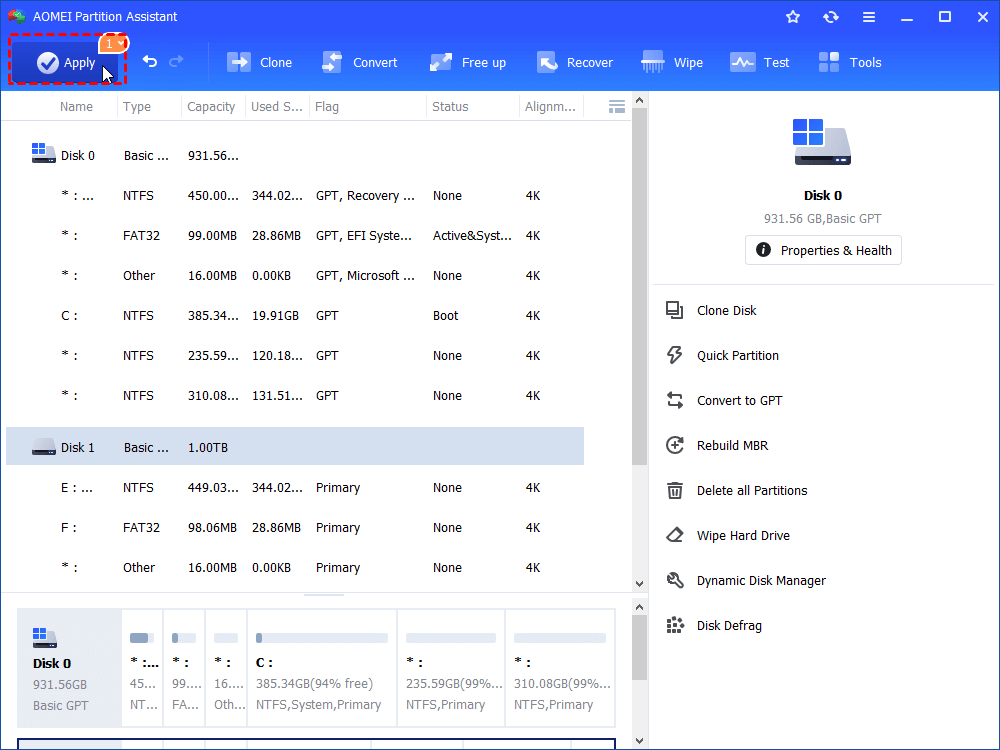
Step 5. At last, click "Apply" and "Proceed" in the main interface to start cloning the hard drive.
If you want to separate your OS and games, you can use the Migrate OS function to only move system on your new disk.
Or, if your disk has other partitions, you can also only move your games to another drive without reinstalling and make your C drive a system partition only.
Conclusion
In conclusion, low FPS can seriously affect your gaming experience, but learning how to fix constant FPS drops in all gamess is often straightforward. Common reasons include outdated graphics drivers, underpowered hardware, overly high game settings, overheating, or slow storage drives. By following proven methods to increase FPS such as lowering graphics settings, keeping your PC clean, upgrading your GPU, CPU or RAM, and upgrading to a faster SSD with AOMEI Partition Assistant, you can greatly improve gaming performance. These steps not only make your games run smoother but also extend the life of your hardware. Whether you are playing competitive shooters or massive open-world games, optimizing your system will help you fix FPS drops, increase FPS and enjoy lag free immersive gameplay.
