
 AOMEI Partition Assistant
How to Fix the Device DeviceHarddisk0DR0 has a Bad Block?
This guide explains the causes and fixes for the “DeviceHarddisk0DR0 has a bad block” error. Follow easy solutions to check, repair, and prevent hard disk block errors in Windows.

By Irene / Updated on October 10, 2025


What is the device DeviceHarddisk0DR0 has a bad block error?
The error message “The device DeviceHarddisk0DR0 has a bad block” means that part of your hard drive cannot be read or written properly. A bad block is a damaged section of storage that can no longer hold data correctly. Once a block becomes bad, it cannot be repaired, but your system can be set to avoid using it to prevent further data loss.
If you see this message, it’s important to back up your files immediately, as this error often signals that your hard drive is starting to fail.
-
The hard drive contains bad or damaged sectors.
-
The file system is corrupted in certain areas.
-
Physical damage to the disk surface has caused bad tracks or sectors.
Many users wonder whether they should format the hard drive or delete all partitions to fix this issue. Before taking such steps, it’s better to try several safe troubleshooting methods.
Note: The first few repair methods only work if your hard drive still has some healthy sectors that can replace the damaged ones.
To effectively fix the “DeviceHarddisk0DR0 has a bad block” error and protect your data, follow each recommended solution step by step.
How to fix the device has a bad block issue?
Fix 1. Check bad sectors
When you see the message “The device DeviceHarddisk0DR0 has a bad block,” it means part of your hard drive is damaged and cannot read or store data properly. Such bad sectors can slow down your computer and even damage your files. To fix the device has a bad block issue, you should check the disk condition first.
You can use AOMEI Partition Assistant to scan your drive and locate damaged sectors that cause the bad hard disk block error. This tool only detects problems but cannot repair them. If it finds bad areas, you can isolate them as unallocated space or use professional repair tools to handle them.
Checking and managing bad sectors regularly helps prevent errors like device harddisk0 dr0 bad block error Windows and keeps your computer working smoothly. It is also a good step before trying other repair methods.
 AOMEI Partition Assistant
The Best Windows Disk Partition Manager and PC Optimizer
▶ Perform surface test
When you don’t know whether there are bad sectors on the hard drive, you can use "Surface test" to quickly test the target drive.
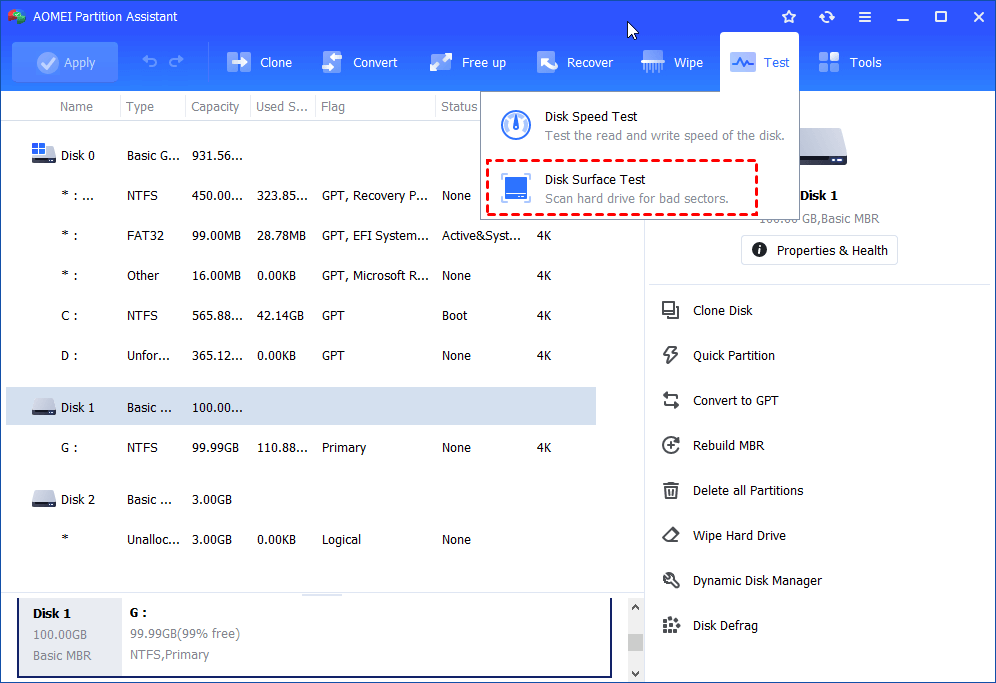
Step 1. Click the "Test" menu, and select "Disk Surface Test".
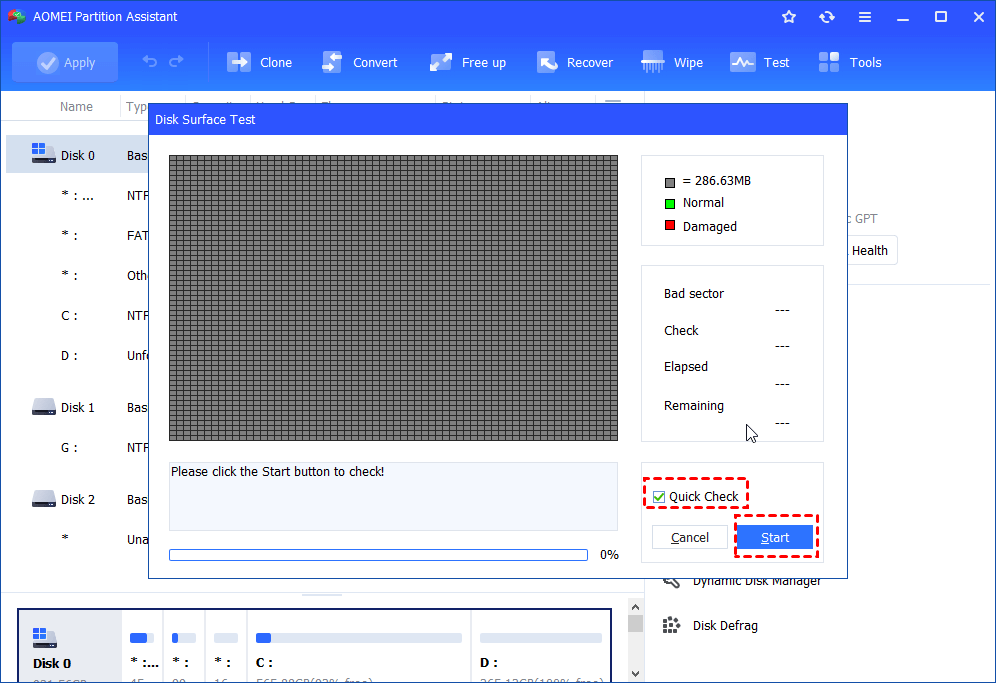
Step 2. Tick the "Quick Check" option and click "Start". When the test is finished, you will visually see the errors on the hard drive, as the damaged part will be marked red.
▶ Check and remove bad sector
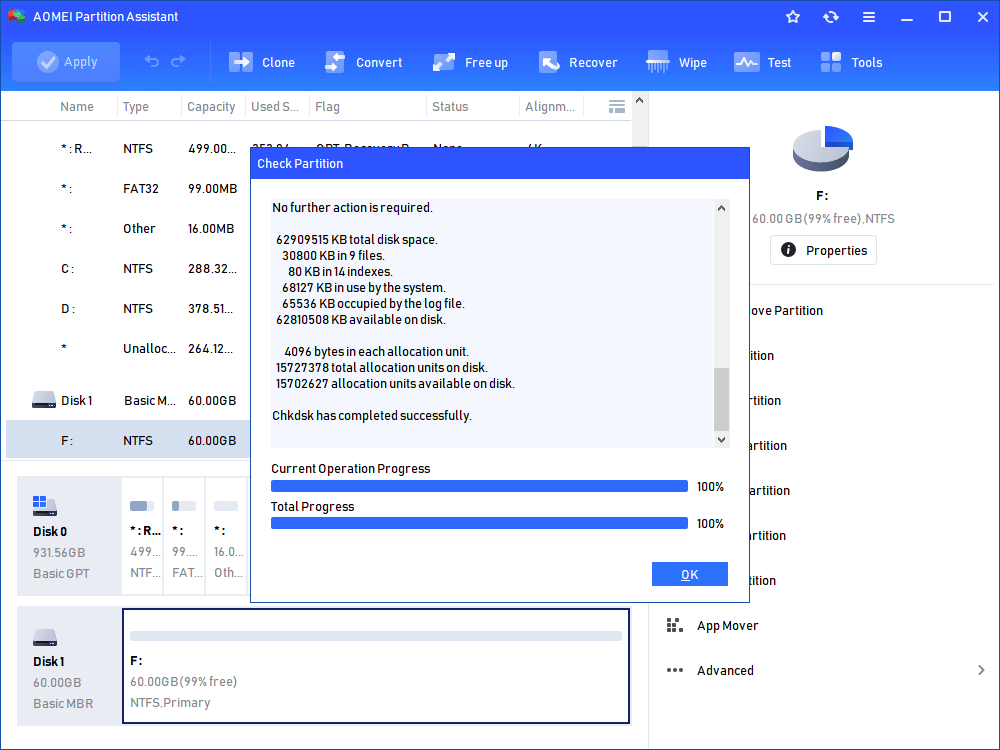
When the result of Surface Test shows that there are errors on the hard disk, the "Check partition" function can test and fix the bad sectors on it.
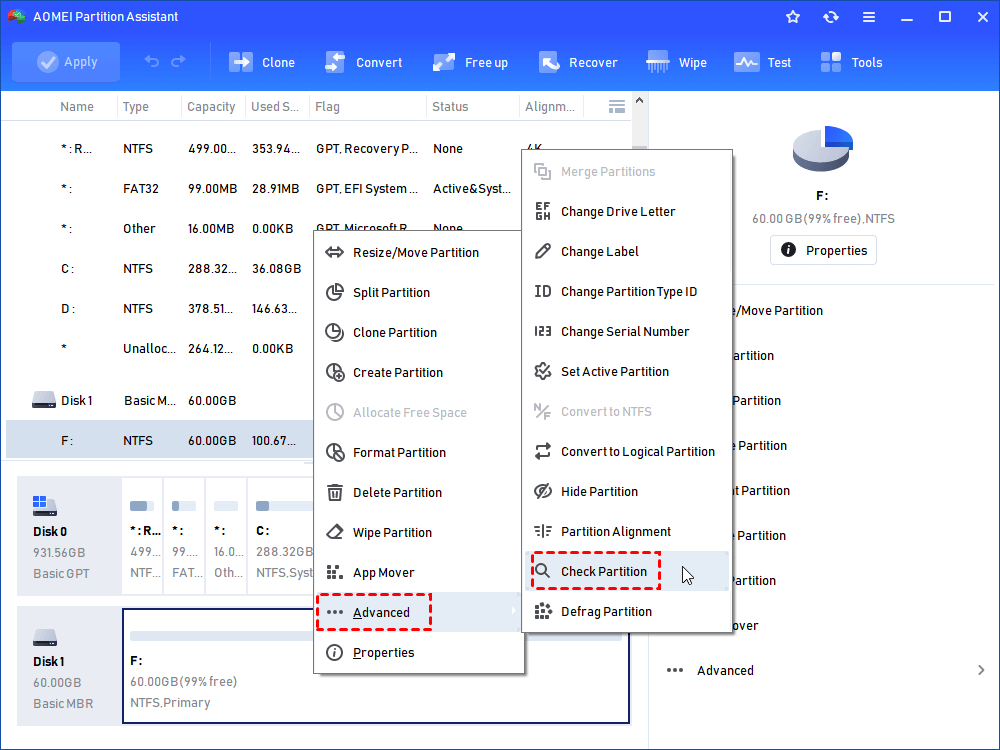
Step 1. In the main interface, right-click the target drive and then click "Check Partition".
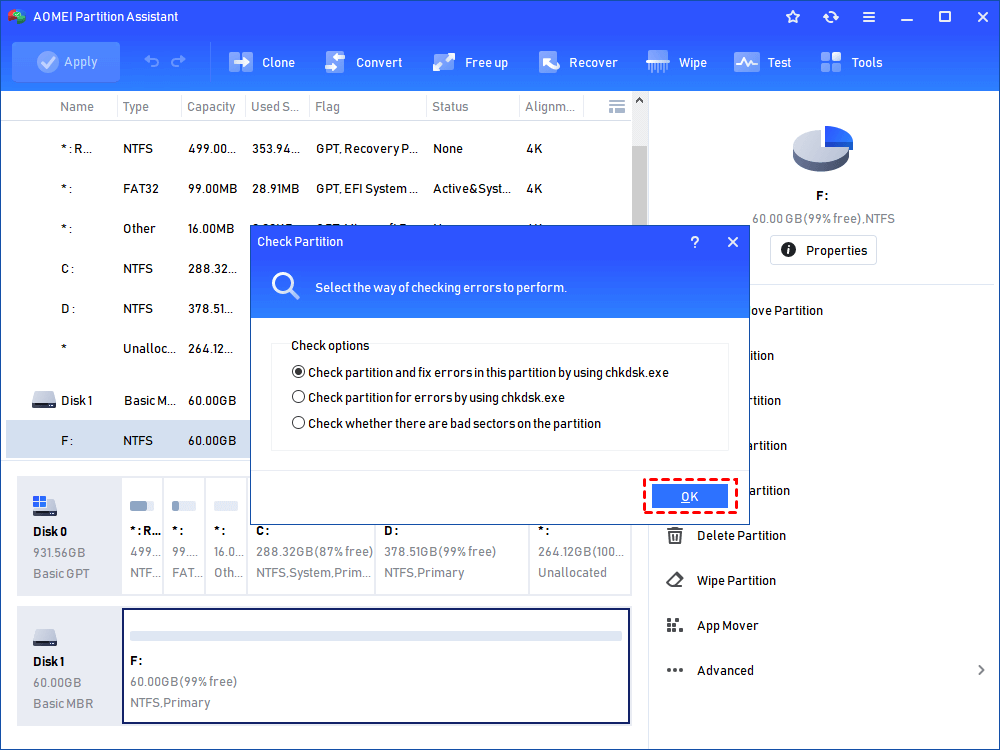
Step 2. Choose the "Check partition and fix errors in this partition by using chkdsk.exe" option, then click "OK".
Step 3. Wait for a while and click "OK" when it's finished.
Fix 2. Clone your disk
When you encounter this error, it’s a sign that your hard drive may fail soon. The first thing you should do is back up all important data and consider getting a new hard drive.
A reliable way to protect your data is to clone your current disk to another one. You can use AOMEI Partition Assistant, which offers a “sector-by-sector clone” feature. This tool can clone HDDs or SSDs with bad sectors to a new disk safely, even if the source disk already has some damage.
-
Compatibility: Works with Windows 11, 10, 8, and 7.
-
Clone Options: Supports disk clone, computer system clone, and partition clone.
-
Performance Boost: Offers 4K alignment after cloning to improve read and write speed.
-
Ease of Use: Simple interface that even beginners can follow easily.
AOMEI Partition AssistantThe Best Windows Disk Partition Manager and PC Optimizer
Step 1. Open the installed AOMEI Partition Assistant Professional, click "Clone" in the main interface, and select "Clone Disk".

Step 2. Choose the hard disk that you need to clone as the source disk like SSD and click "Next".

Step 3. Select the destination disk to store the data on the source disk, and then click "Next".

Step 4. Then, you can check the source and destination disk in the next window choose "Sector to Sector clone", and click the "Confirm" button to continue if there is no problem.

Here, you can also click the "Settings" button to adjust the partition size on the destination disk or tick "4k alignment" to Optimize the performance of SSD if the target disk is an SSD drive.

Tip: If you want to clone Windows to a smaller drive, the "Clone without resizing partitions" button will be greyed out. Then, a Note about how to boot OS from the destination disk will pop up. Read and keep it in mind.
Step 5. After returning to the main interface, check the pending operation and click "Apply" and "Proceed" to commit the operation.

When the process is over, you can use the new hard drive to replace the old hard drive. If you keep both drives on your computer, you probably need to enter BIOS Settings to change boot drive.
Your computer can be booted from the destination disk after cloning the system disk. You just need to enter BIOS to set it as the prior boot device.
◇ Set the new drive as the first boot drive
Step 1. Restart the computer, when you see the first screen, press the functional key (F2, F3, F4, F5, ESC) to enter "BIOS Setup".
Step 2. Select "Change boot order", and change the cloned hard drive to the top of the listed drives.
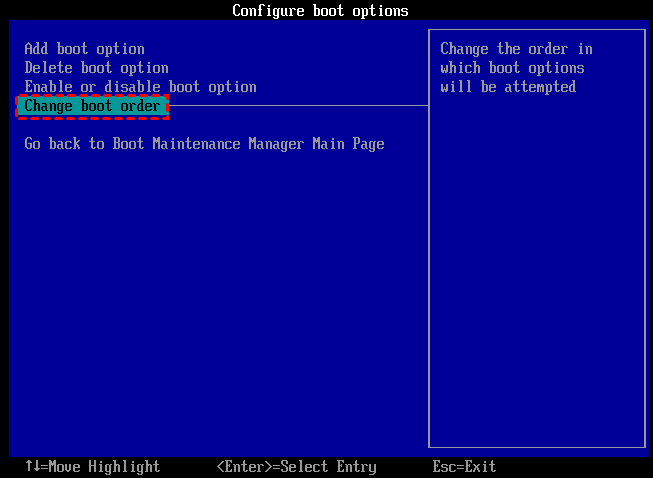
Step 3. Press “F10” to save and leave.
✍ Note: If the cloned hard drive won't boot, you can check if the boot mode (BIOS and UEFI) and the connection boot are correct.
Conclusion
The error message “The device DeviceHarddisk0DR0 has a bad block” usually means your hard drive is starting to fail. Ignoring it can lead to serious data loss and system crashes. The best way to fix the device has a bad block issue is to check and repair bad sectors or clone your disk before it completely fails. Tools like AOMEI Partition Assistant make this process easier by letting you scan, fix, or clone your hard drive safely. By following the methods above and backing up your files regularly, you can prevent bad hard disk block errors and keep your Windows computer running smoothly and securely.
