
 AOMEI Partition Assistant
How to Fix Unarc.dll Error Code 11? Try the 4 Fixes!
Facing unarc.dll error code 11 Windows 11? Don’t worry. This article shows the main causes of the error and gives step-by-step solutions to fix it quickly and safely.

By Irene / Updated on September 19, 2025


What is Unarc.dll and why does error code 11 happen?
The unarc.dll file is an important system file in Windows. Its main job is to unpack and extract compressed files during the installation of software, especially games, repacks, and other large programs. Usually, this file is found in the same folder as the program that uses it.
If something goes wrong with the unarc.dll file, the installation process can be interrupted, leading to errors such as unarc.dll error code 11. Many gamers face this issue when trying to install or run a game.
-
The unarc.dll file is missing or corrupted
-
There isn’t enough disk space
-
The installer files are broken or damaged
-
Compatibility problems between your system and processor
In the next section, we’ll show you the common methods to fix unarc.dll error code 11 step by step.
How to fix the unarc.dll returned an error code 11 error?
Fix 1. Get enough space
One common reason for the unarc.dll returned an error code 11 error is that there isn’t enough free disk space. Without enough space, the installation process may fail. To solve this, the most direct and effective way is to use AOMEI Partition Assistant which provides Allocate Free Space feature.
This tool allows you to take unused space from one partition (for example, the D drive) and directly add it to the C drive, where system and program files are stored. Compared with Windows built-in utilities, AOMEI Partition Assistant offers more flexible and safer options for resizing, moving, or extending C drive without the risk of losing data.
By allocating extra free space to your C drive, you can ensure smooth installation and effectively fix the unarc.dll error code 11 issue.
 AOMEI Partition Assistant
The Best Windows Disk Partition Manager and PC Optimizer
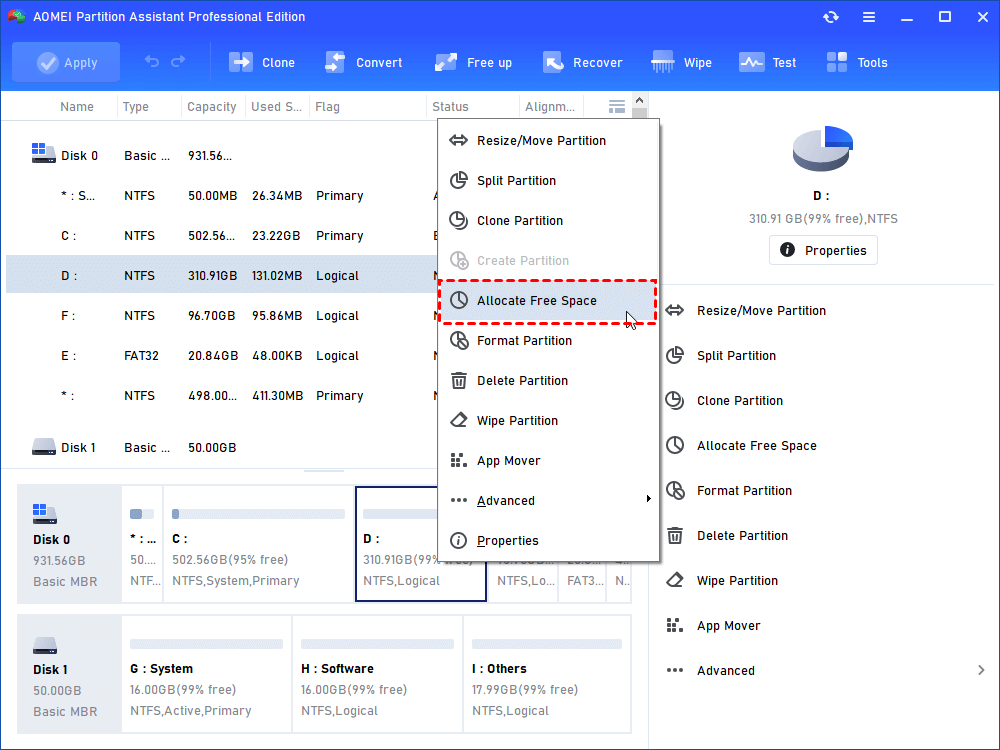
Step 1. In the main interface of AOMEI Partition Assistant Pro, select “Allocate Free Space”.
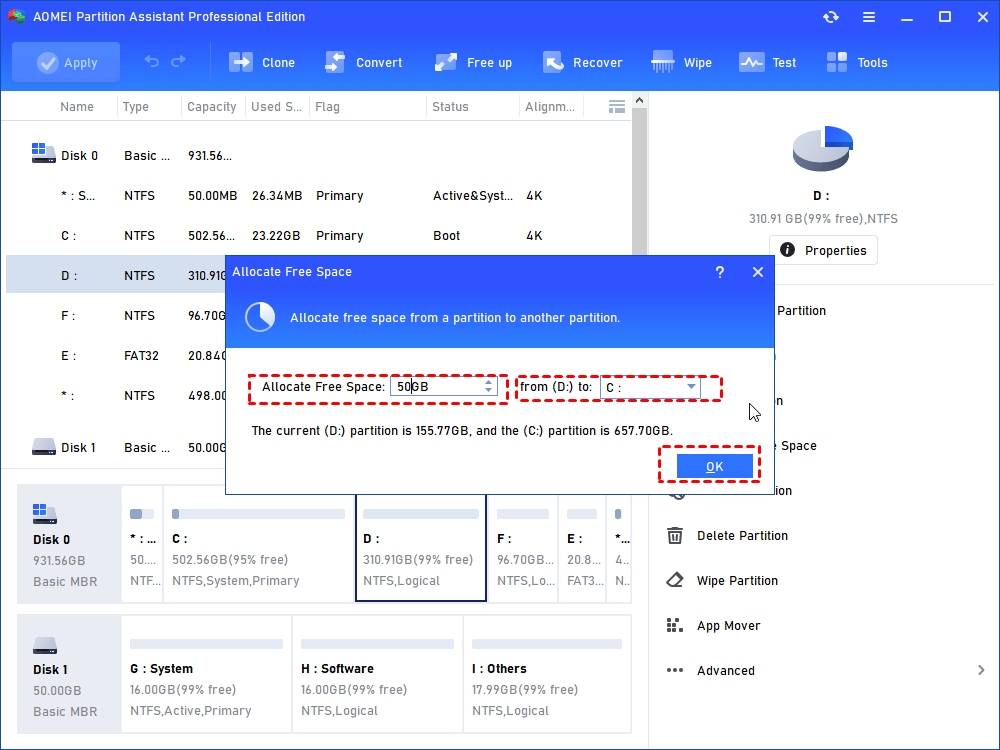
Step 2. Then type in the size of the free space which you want to cut from D drive and this free space will be directly added into the C drive.
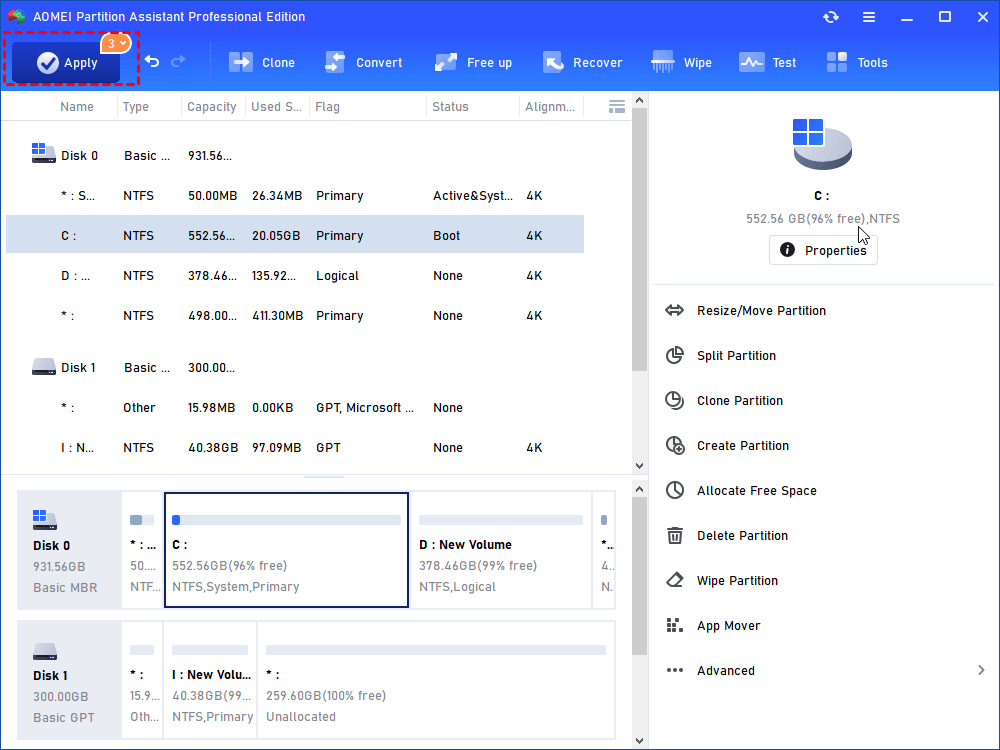
Step 3. You can take a preview of the operation result before confirming start. Click “Apply” to execute this operation.
Fix 2. Adjust the Number of Processors
Sometimes the unarc.dll error code 11 is linked to compatibility issues when too many processors are enabled. If your system has more than 16 processors, reducing the number of active cores can help fix the problem. This method works on most Windows systems. Here’s how you can do it:
Step 1. Press Windows + R to open the Run dialog.
Step 2. Type msconfig and press Enter.
Step 3. In the System Configuration window, go to the Boot tab and click Advanced options.
Step 4. In the BOOT Advanced Options window, check Number of processors. Then click the drop-down menu and set it to 6–8 cores (depending on your system). Click OK.
Step 5. Hit Apply and OK to save the settings. Step 6. Restart your computer and try installing the software again.
Fix 3. Add Windows Defender Folder Exclusions
Sometimes, Windows Defender can block game installations because it mistakenly sees installation files as a threat. To prevent this from causing unarc.dll error code 11, you can add the installation folder to Defender’s exclusions list. Follow these steps:
Step 1. Press Windows Search, type Windows Security, and open it.
Step 2. Go to Virus & threat protection and click Manage settings.
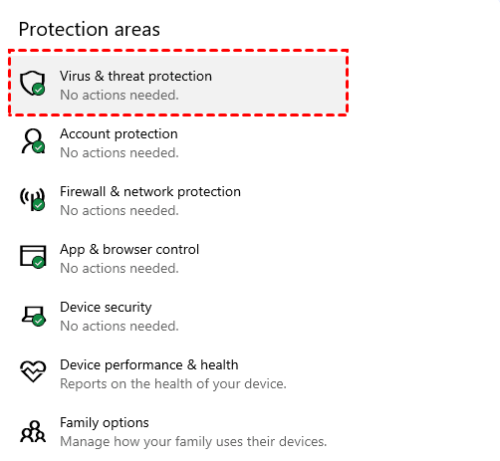
Step 3. Scroll down to Exclusions and click Add or remove exclusions.
Step 4. Click Add an exclusion, choose File or Folder, then select your game’s installation folder and click Open.
After this, Windows Defender will no longer block the folder, allowing the installation to complete without triggering the unarc.dll error.
Fix 4. Avoid Using Invalid Symbols in the Installation Folder
Unarc.dll error code 11 can occur if the game’s installation folder path contains invalid characters or symbols. Many game installers fail when the folder path includes unusual or non-English characters.
Common Symbols to Avoid: ' # @ & ! and non-English letters like ç, ä, ß.
Why This Helps: Some file systems and game engines cannot read certain symbols, which can make the installer fail or misread the directory.
Steps to Fix:
Step 1. Check the installation folder for invalid symbols or non-English characters.
Step 2. Rename the folder or move it to a new location with a simple path.
Example:
-
Correct Path: C:\Games\MyGame
-
Incorrect Path: C:\Games\My'Game
Step 3. Right-click the folder and select Rename. Remove any invalid symbols.
Step 4. Retry the installation using the corrected folder path.
Conclusion
Unarc.dll error code 11 is a common issue that occurs when the system cannot properly extract or install game files. It often happens due to a missing or corrupted unarc.dll file, insufficient disk space, broken installer files, or processor compatibility problems. By following the methods above, including allocating free disk space with AOMEI Partition Assistant, adjusting the number of processors, adding Windows Defender folder exclusions, and avoiding invalid symbols in the installation path, you can effectively fix this error. These solutions ensure smoother installations and prevent interruptions caused by unarc.dll errors in Windows.
AOMEI Partition AssistantThe Best Windows Disk Partition Manager and PC Optimizer
