
 AOMEI Partition Assistant
[4 Ways] How to Fix VirtualBox VERR_DISK_FULL Error
Facing VirtualBox VERR_DISK_FULL error? This guide explains why it happens and shows easy solutions to fix the problem. Follow these steps to clear space and get your virtual machine running smoothly again.

By Irene / Updated on August 22, 2025


Why does the VERR_DISK_FULL error happen?
Oracle VM VirtualBox is a free and open-source tool that allows you to run multiple operating systems on a single device. It works across Windows, Linux, macOS, and other platforms. With a quick download and installation, you can easily create and manage virtual machines.
But sometimes, problems may occur during use. One of the most common issues is the VERR_DISK_FULL error. This error often appears when you try to create or clone a virtual machine and can be very frustrating. To understand it better, let’s look at the main reasons behind this error.
| Cause | Explanation |
|---|---|
| Insufficient disk space on the host partition | The drive does not have enough free space to save the virtual machine files. |
| FAT32 file system limitation | If the drive is formatted with FAT32, it cannot handle large files, which may cause the error. |
| Incorrect VirtualBox settings | Wrong or incomplete configuration in VirtualBox may prevent it from allocating disk space properly. |
Shortly speaking, the VERR_DISK_FULL error usually happens because of storage or configuration issues. Understanding these causes makes it easier to apply the right solution. In the next section, we’ll introduce the best methods to fix the VirtualBox VERR_DISK_FULL error and get your virtual machine running smoothly again.
How to fix VirtualBox VERR_DISK_FULL error?
Fix 1. Ensure enough space
The VMDK VERR_DISK_FULL error usually means that VirtualBox cannot create or clone a virtual machine because the host drive does not have enough free space. To keep things running smoothly, the drive should have at least 10GB of available storage.
If your disk is nearly full, you will need to free up space to continue using VirtualBox properly. One of the most effective methods is to expand the C drive, as it provides extra room for system files and virtual machines. A reliable tool to achieve this is AOMEI Partition Assistant, a professional disk management program for Windows.
Unlike the built-in Windows utilities, this software gives you more flexible options. You can resize or move partitions easily, and even merge both adjacent and non-adjacent unallocated space into the C drive. Best of all, it performs these operations safely without the risk of losing your data.
 AOMEI Partition Assistant
The Best Windows Disk Partition Manager and PC Optimizer
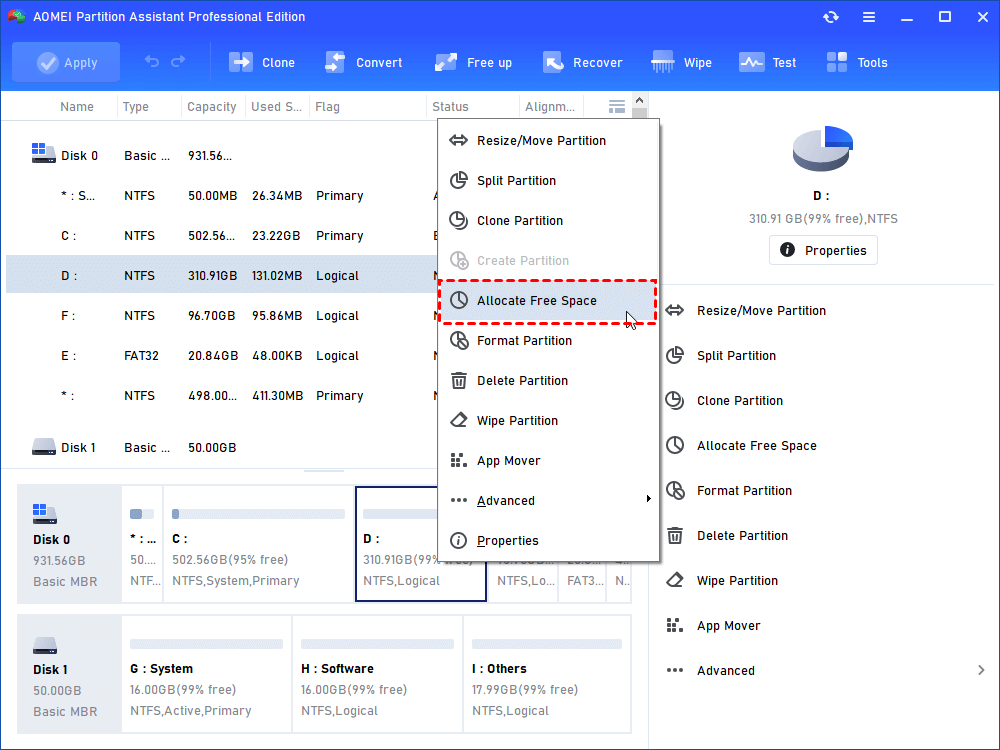
Step 1. Install and open AOMEI Partition Assistant. Right-click the D drive or other drive with extra space and choose "Allocate Free Space".
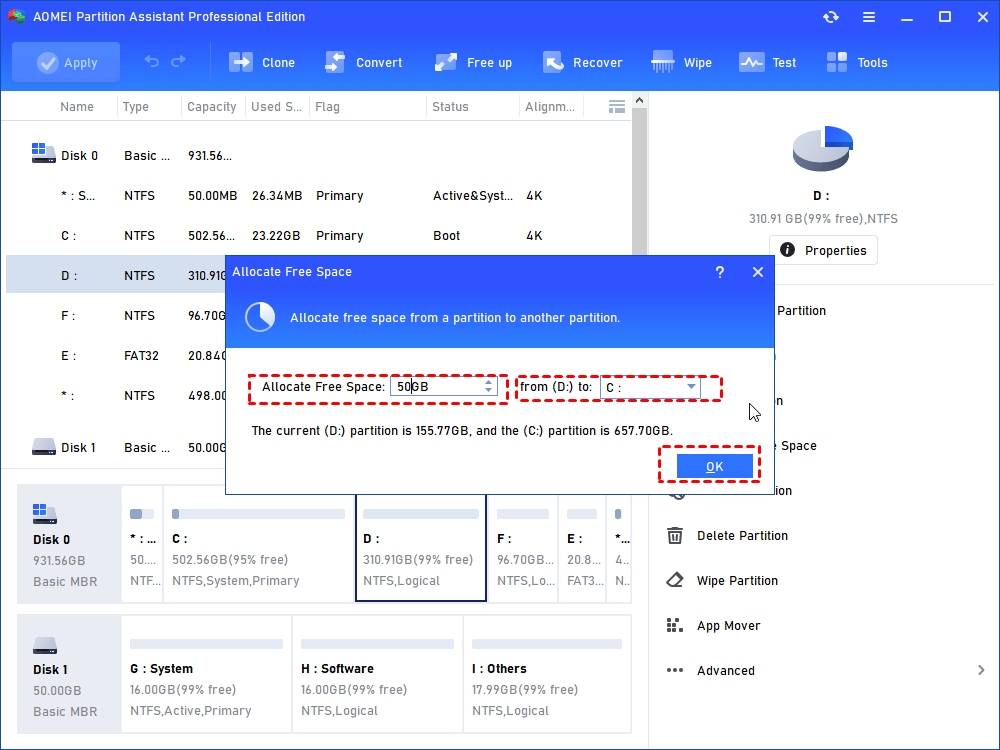
Step 2. In the new window, you can specify the space size and target partition. If it’s C drive, you need to select C drive from the given list, and click “OK”.
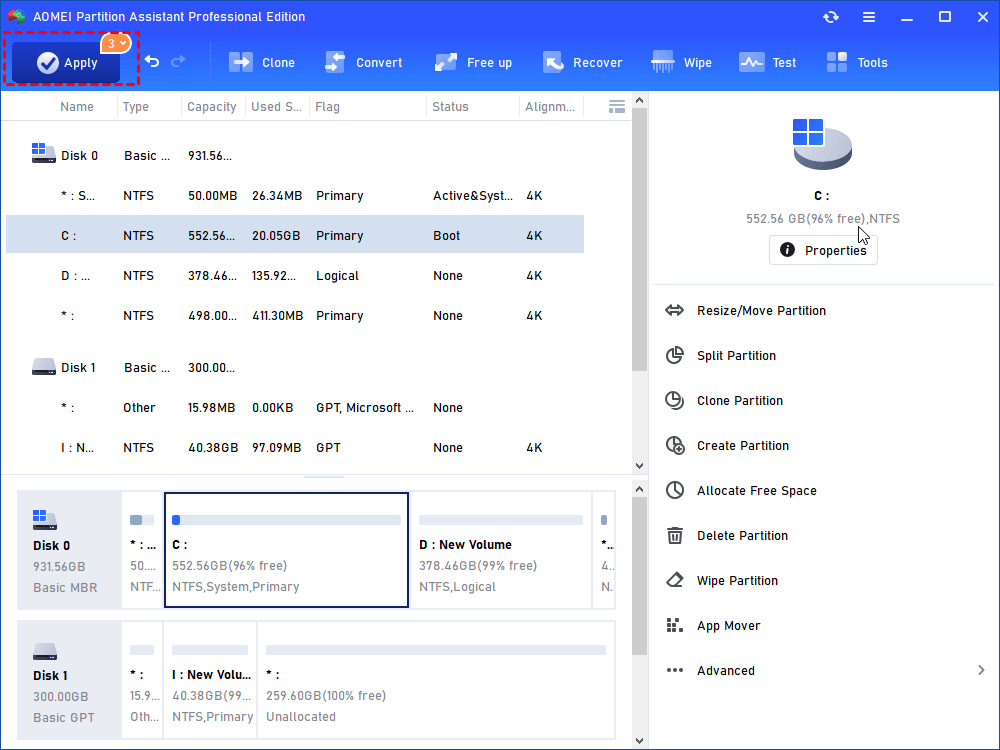
Step 3. Now, you can preview that the C drive has been extended. Then, click Apply to save the changes.
Fix 2. Convert FAT32 to NTFS
Another common reason for the VERR_DISK_FULL error is that the partition storing your virtual machine is formatted with FAT32. Since FAT32 cannot handle files larger than 4GB, VirtualBox may fail when saving or creating large VM files. The solution is to convert the file system to NTFS, which supports much larger files.
There are two main ways to perform this conversion. The first method is using the Command Prompt to format FAT32. While this process is relatively simple, it has a major drawback: the entire partition will be formatted, which means all existing data will be erased unless you back it up in advance. This makes the CMD method less ideal, especially for beginners or anyone looking to save time.
A safer and more convenient option is still to use AOMEI Partition Assistant. This tool allows you to convert FAT32 to NTFS directly without formatting or losing data. It works on Windows 7, 8, 10, and 11, and provides a much easier process for both advanced users and computer novices.
AOMEI Partition AssistantThe Best Windows Disk Partition Manager and PC Optimizer
Step 1. Install and run AOMEI Partition Assistant. Right-click the drive you need to convert. Select “Advanced”> “Convert to NTFS”.
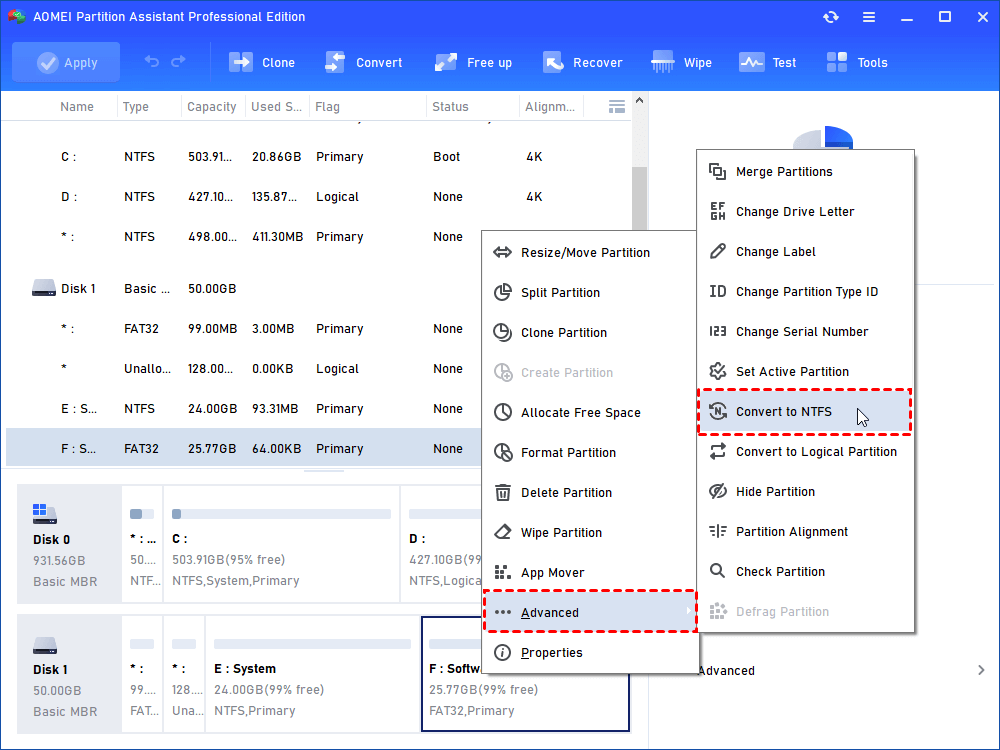
Step 2. In the pop-up window, NTFS is selected by default. Click “OK”.
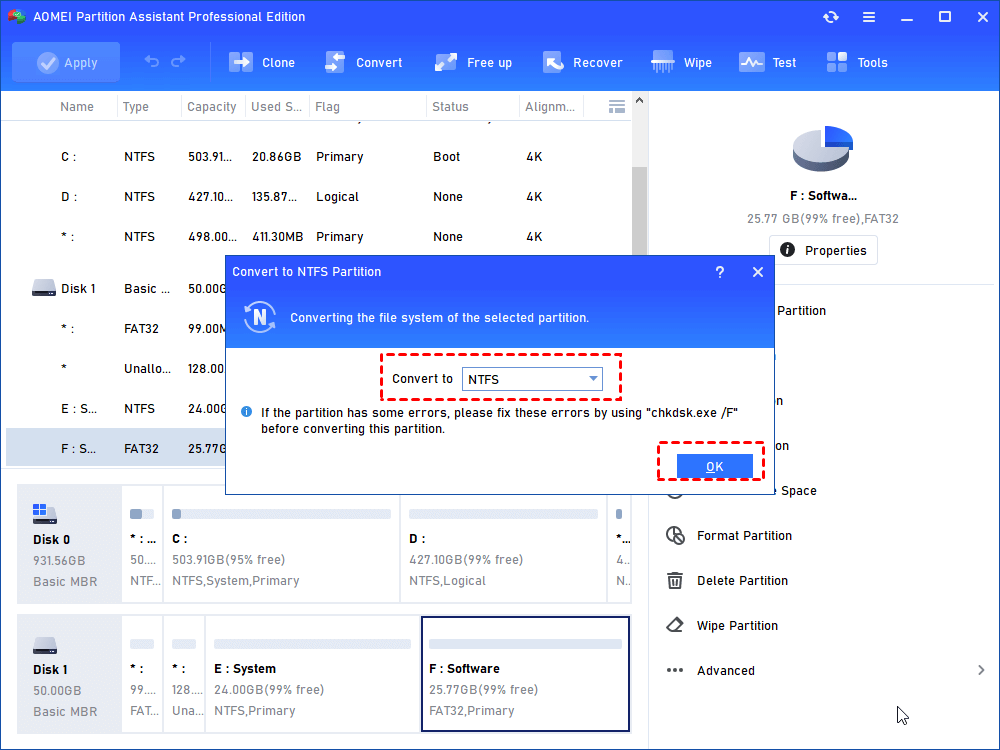
Step 3. Now the USB drive is with NTFS file system. Click “Apply” to execute it.
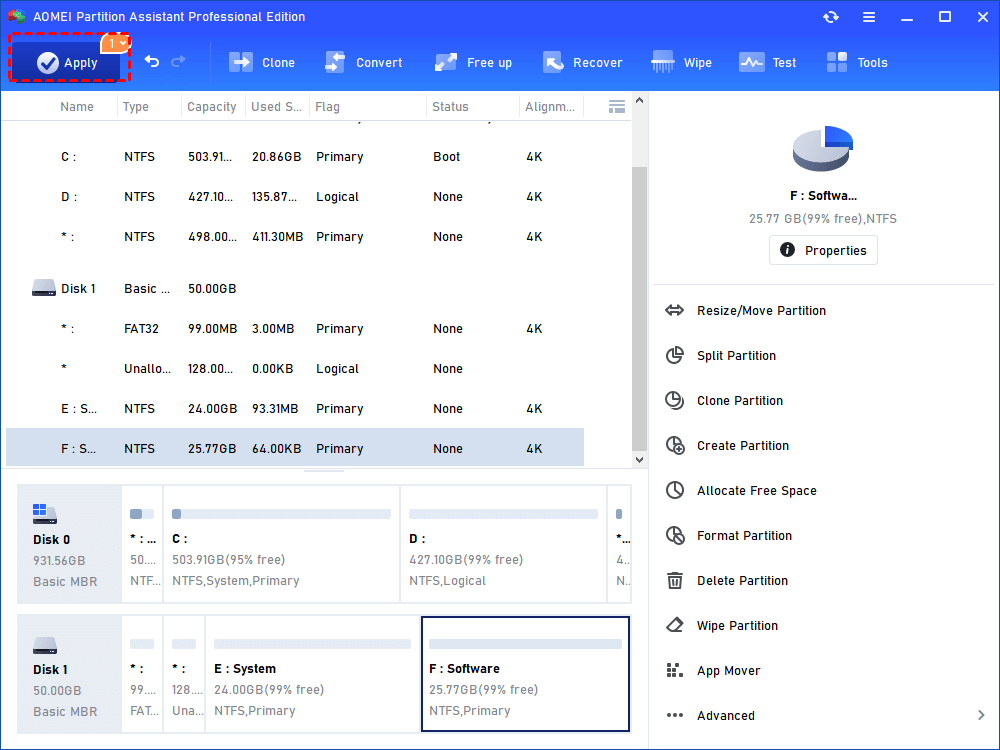
Having done all of the procedures above, the conversion is OK. You needn't to reboot the computer. How convenient it is! Above methods can be used to convert FAT32 to NTFS on USB drive or external hard drive as long as they can be recognized by Windows.
In fact, AOMEI Partition Assistant is also a great Gptgen alternative that you can use to convert a disk between MBR and GPT without losing data. Now, download it to experience all of its features!
Fix 3. Change to a different drive
If cloning a virtual machine fails with the VERR_DISK_FULL error, don’t worry. One simple solution is to change the destination drive for the cloned files. Follow these steps:
Step 1. Open VirtualBox, right-click the virtual machine you want to clone, and select Clone.
Step 2. On the Clone Virtual Machine screen, expand the Path drop-down menu and choose Other to change the copy location.

Step 3. Navigate to your preferred folder, click Select Folder, and then check if the virtual machine clones successfully.
Fix 4. Take Snapshots
You can often resolve the VMDK VERR_DISK_FULL error by cloning all snapshots of the virtual machine, not just its current state. Follow these steps:
Step 1. In VirtualBox, right-click the virtual machine that fails to clone and select Clone.
Step 2. Click Expert Mode at the bottom to access advanced clone settings.
Step 3. In the Path field, pick a folder where the cloned machine will be saved.
Step 4. Under Clone type, select Full clone, and in the Snapshots section, choose Everything.
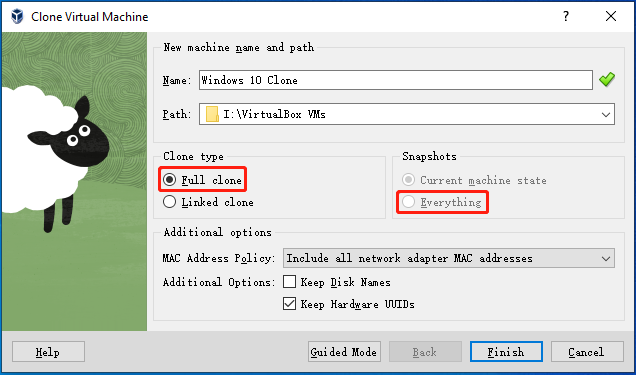
Step 5. Click Finish to start the cloning process.
Concluison
The VERR_DISK_FULL error in VirtualBox usually happens due to low disk space, FAT32 file limitations, or incorrect settings. By ensuring enough free space, converting FAT32 to NTFS, changing the clone destination, or including all snapshots when cloning, you can quickly fix the problem and keep your virtual machines running smoothly. AOMEI Partition Assistant is a reliable Windows disk manager that can solve may computer issues. It also supports working on Windows Server PCs with the AOMEI Partition Assistant Server edition.
