
 PartitionAssistant Recovery


How to Fix Chrome STATUS_ACCESS_VIOLATION in Windows PCs?
Fixing Error Code: STATUS_ACCESS_VIOLATION in Chrome and Edge can be easy. Follow this guide to easily remove this message and save your lost data.

By Irene / Updated on July 21, 2025


What is STATUS_ACCESS_VIOLATION in Windows?
The STATUS_ACCESS_VIOLATION error often appears in web browsers like Google Chrome or Microsoft Edge. It usually shows up with a message like “Aw, Snap! Something went wrong while displaying this webpage.” This error happens when a program tries to access memory it doesn’t have permission to use. It’s a common issue caused by incorrect code behavior or a program bug.
In most cases, you can fix it by simply refreshing the webpage a few times. If that doesn’t work, there are other methods you can try to solve the problem.
Before fixing: Recover your data first
Before trying to fix the STATUS_ACCESS_VIOLATION error, it’s a good idea to recover any important data you might have lost. If the error happens in a browser like Chrome or Edge, it can cause the tab or browser to crash, and you may lose any unsaved text or form data. If a program was saving or transferring files when the error occurred, the files could become damaged or incomplete.
To avoid data loss, you can use PartitionAssistant Recovery. This tool helps you recover lost, deleted, or corrupted files from various storage devices. It works even after disk formatting, system crashes, or virus attacks. It supports file systems like NTFS recovery, FAT32, exFAT, and ReFS on Windows 11/10/8/7 and Windows Server systems.
Step 1. Install and launch PartitionAssistant Recovery. Choose the exact partition or disk where your data lost and click Scan.

Step 2. Then, the recovery tool start to scan and search. lt will execute the “Quickly Scan" first for finding your deleted data fast, and then execute the “Deep Scan" for searching other lost data.

Step 3. Once the scan is completed, all deleted files, recycle bins and other missing files will be displayed. Please select the file you would like to recover and then click "Recover".

Step 4. Then, select a folder path to save your recovered files.

Step 5. Wait patiently for this process of recovering ends.
How to fix Error Code STATUS_ACCESS_VIOLATION?
Now, you can try to use the 3 fixes to remove the Error Code: STATUS_ACCESS_VIOLATION in Chrome and Edge on Windows PCs.
Fix 1. Update Google Chrome
If you see the STATUS_ACCESS_VIOLATION error in Chrome, the first thing you should do is check whether your browser is up to date. Click the three dots in the upper right corner of the Chrome window, then select Help and click on About Google Chrome. Chrome will automatically check for updates and install the latest version if one is available. By the way, if your default folder is missing in Chrome, you can also use PartitionAssistant Recovery to get data back.
Step 1. Once the update finishes, you’ll see a message confirming that Chrome is up to date. This means the update was successful.
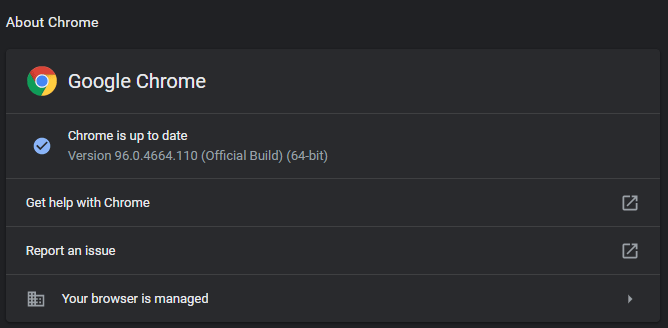
Step 2. Now, go back to the webpage that showed the error earlier and try loading it again. If the issue is resolved, you can continue using Chrome as normal. If the error still appears, move on to the next method.
Fix 2. Rename the Chrome.exe
If updating Chrome didn’t fix the STATUS_ACCESS_VIOLATION error, another simple method you can try is renaming the chrome.exe file. Many users have found this helpful because it can refresh how the system handles the browser. Follow the steps below to try this fix:
Step 1. Find the Google Chrome icon on your desktop.
Step 2. Right-click the Chrome icon and choose Open file location from the menu. This will take you to the folder where Chrome is installed.
Step 3. In the folder, find the file named chrome.exe. Right-click on it, select Rename, and change the name to something else like chromeedited.exe.
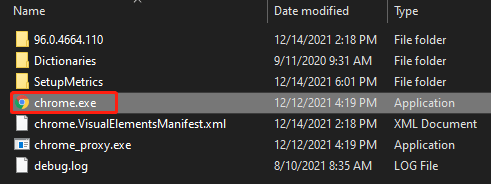
Step 4. Double-click the renamed file to open Chrome and check if the STATUS_ACCESS_VIOLATION error is gone. If it still appears, try the next solution.
Fix 3. Reinstall Google Chrome
Sometimes, the STATUS_ACCESS_VIOLATION error happens because the version of Chrome you’re using is unstable or corrupted. In this case, reinstalling Chrome can help fix the issue by replacing it with a clean and stable version.
To do this, first uninstall Google Chrome from your computer. Once the uninstallation is complete, go to the official Chrome website and download the latest version. Then, install it again. After reinstalling, open Chrome and check if the error still appears.
Conclusion
The STATUS_ACCESS_VIOLATION error in Windows is usually caused by a browser or program trying to access restricted memory. While it may seem frustrating, it can often be fixed with simple solutions like refreshing the page, updating Chrome, renaming the executable file, or reinstalling the browser. Before attempting any fixes, it’s important to recover your data with PartitionAssistant Recovery to avoid loss. With the right steps, you can resolve the issue and continue browsing or working without interruption.
