
 AOMEI Partition Assistant
How to Fix Parser Returned Error 0xC00CE508 in Windows PCs?
The Parser Returned Error 0xC00CE508 usually appears when you open, install, or update desktop applications. Read to know what cause it and how to fix it with this tutorial!

By Irene / Updated on June 12, 2025


What causes Parser Returned Error 0xC00CE508 in Windows PCs?
When using Windows 10 or 11, you might encounter an error message that says “Parser Returned Error 0xC00CE508.” This error usually pops up when you try to open, install, or update a desktop application, especially after restarting your system or installing a Windows update. It is a .NET Framework configuration error, meaning the system is having trouble reading certain important files needed for some programs to run.
This error often appears because something went wrong while the system was trying to process a configuration file used by .NET applications. The file might be missing, broken, or unreadable. There are several possible reasons for this issue, most of them related to damaged files or settings. Here are some common causes:
| Cause | Explanation |
|---|---|
| Corrupted .NET Framework | The main cause. If .NET is damaged or incomplete, configuration files can't be processed. |
| Broken machine.config File | This important file stores settings for .NET applications. If it’s corrupted, the error can occur. |
| System File Corruption | Missing or damaged Windows system files can prevent programs from working normally. |
| Startup Program Conflicts | Too many or faulty apps that run when the system starts may cause conflicts. |
| Hard Drive Errors | Bad sectors or disk problems can lead to failed reads of essential files. |
| Limited disk space | Not enough space for Windows to load or write configuration files. |
This error may look serious, but the good news is that it can often be fixed with a few simple steps. In the next section, we’ll list practical and proven solutions to help you fix the Parser Returned Error 0xC00CE508 and get your system running smoothly again.
How to fix Parser Returned Error 0xC00CE508
To fix Parser Returned Error 0xC00CE508 in Windows 10 and 11, you can follow the 4 methods.
Fix 1. Replace the Damaged machine.config File
One of the main reasons for the "Parser Returned Error 0xC00CE508" is a corrupted machine.config file. To fix this, you can replace the damaged file with the backup version named machine.config.default. Follow these steps:
Step 1. Press Win + E to open File Explorer. Go to the following location: C:\Windows\Microsoft.NET\Framework64\v4.0.30319\Config
Step 2. Find the machine.config file, right-click it, and choose Delete.
Step 3. Locate the machine.config.default file in the same folder.
Step 4. Right-click it, select Rename, and change the name to machine.config. Confirm the change when prompted. Close the window and restart your computer.

This process restores a clean version of the file, which often resolves the error.
Fix 2. Install and Enable the Missing .NET Framework
If you're getting the "Parser Returned Error 0xC00CE508" when trying to launch or update a desktop application, it might be because the required .NET Framework is missing on your system. To fix this, you’ll need to install it and make sure it’s enabled. Here’s what to do:
Step 1. Download the latest version of Microsoft .NET Framework from the official website. Once the download is complete, run the installer and follow the on-screen instructions to finish the installation.
Step 2. After that, type “Windows Features” into the search bar and select “Turn Windows features on or off.”
Step 3. In the list that appears, check the boxes next to .NET Framework 3.5 and .NET Framework 4.8 (or the latest available versions). Click OK, then restart your computer.
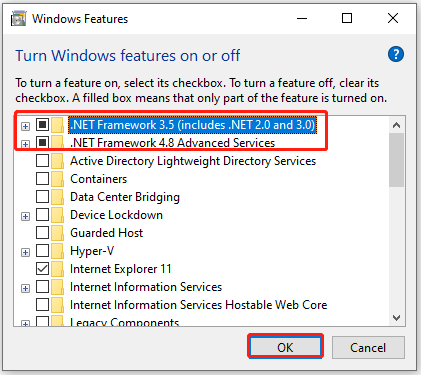
After restarting, try running the application again. If the error was due to a missing or disabled .NET Framework, it should now be resolved.
Fix 3. Free up disk space
The Parser Returned Error 0xC00CE508 may also stem from insufficient space in the System Reserved Partition, especially during or after Windows updates. Expanding this partition to 300–450 MB by reallocating space from a nearby drive (e.g., D:) can resolve related issues like “Cannot update system reserved partition.”
Tools like AOMEI Partition Assistant simplify this process without data loss. It supports both NTFS and FAT32 on all Windows versions (11/10/8/7, 32- or 64-bit) and offers a Server Edition for Windows Server.
Its 1-Click Adjust Space feature allows you to drag and resize multiple partitions easily, including system and recovery ones. Unlike Windows Disk Management, AOMEI handles unallocated space automatically and supports resizing with unmovable files, offering greater flexibility and efficiency.
 AOMEI Partition Assistant
The Best Windows Disk Partition Manager and PC Optimizer
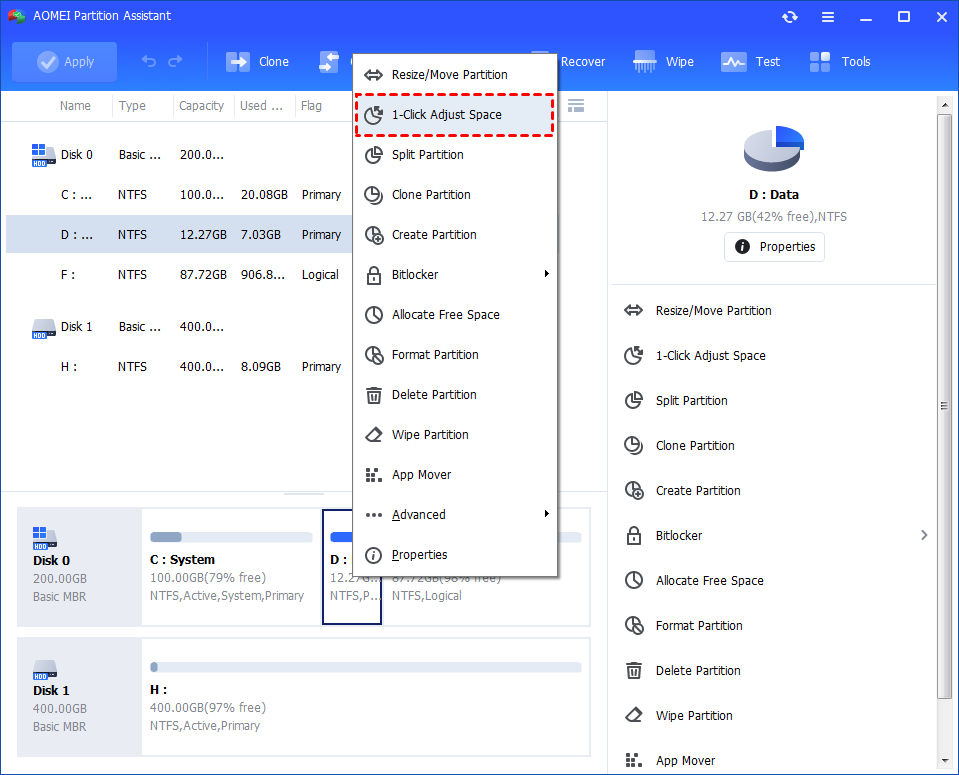
Step 1. Install and launch AOMEI Partition Assistant. Right-click a partition (here is D: partition) you want to adjust space and select "1-Click Adjust Space".
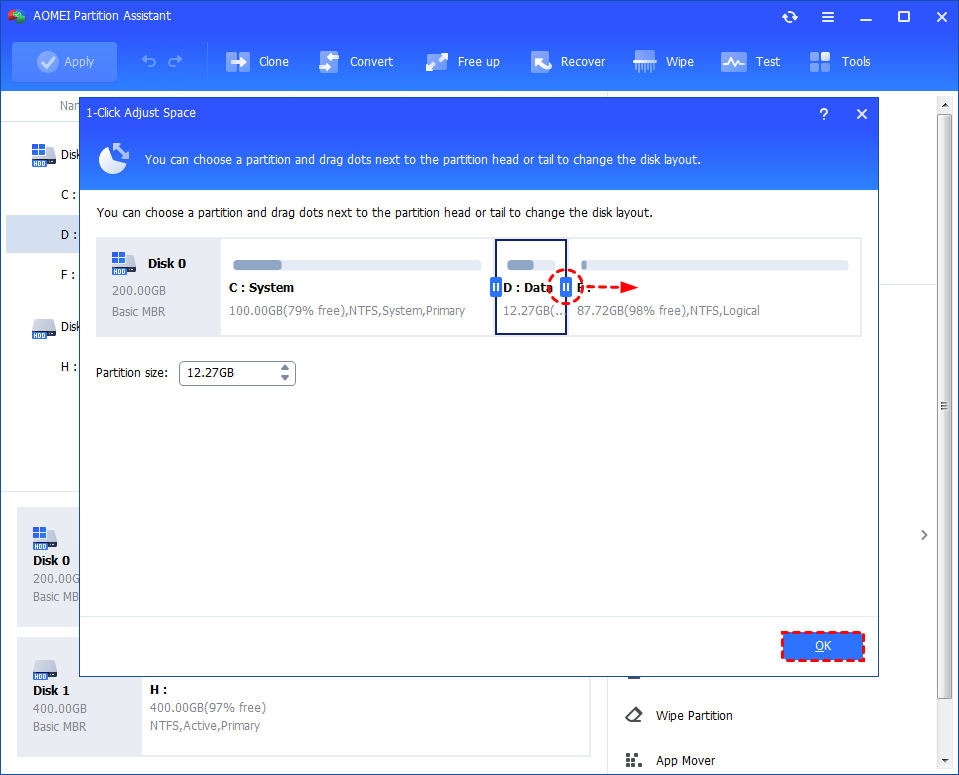
Step 2. If you want to use the space on F: to expand D:, you can simply drag the dot near the partition F: head backward to shrink the partition F: and enlarge the partition D: at the same time. Then click "OK".
Tips: You can simultaneously drag the dot near the partition C: tail forward to shrink the partition C: so the D: will also be enlarged with the space of C: at the same time. In this case, you can adjust all partition space (C:, D:, and F:) on the disk.
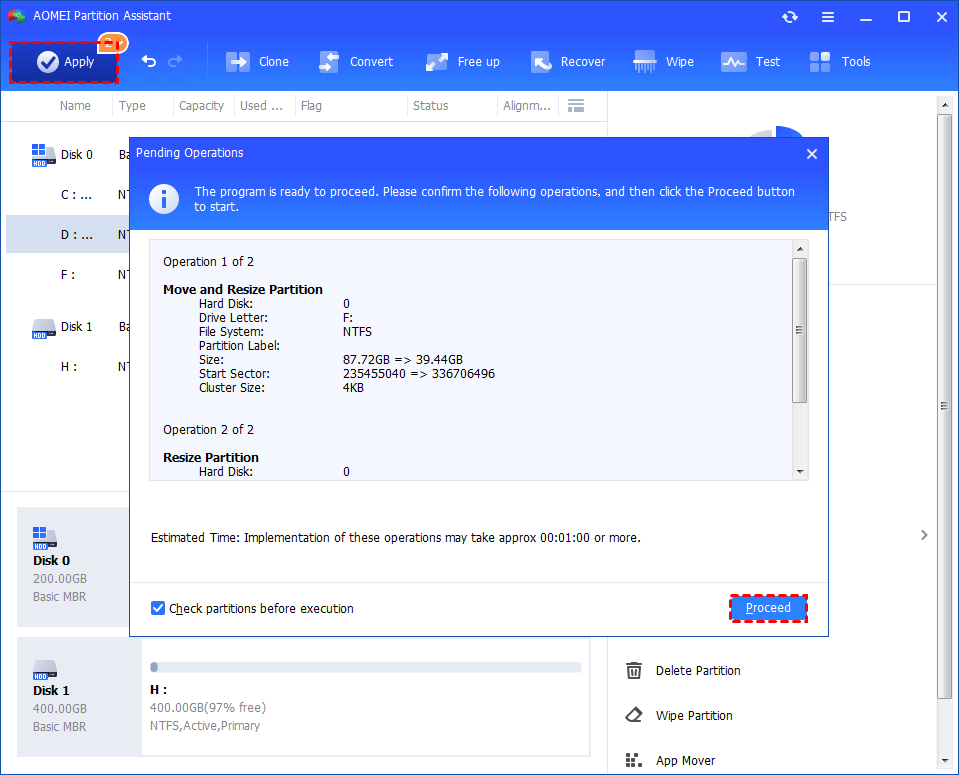
Step 3. You can preview the operation by viewing the "Pending Operations". To commit the "Pending Operations", please click "Apply" and "Proceed".
Step 4. The process will start and you can check the progress. It might take time to finish the operation.
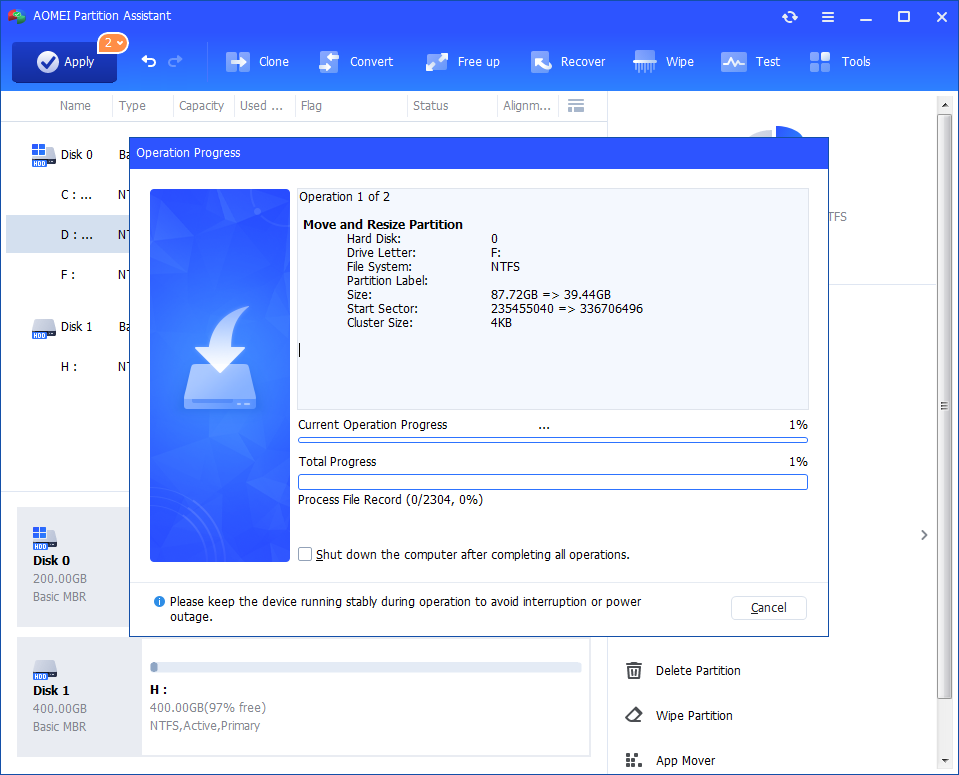
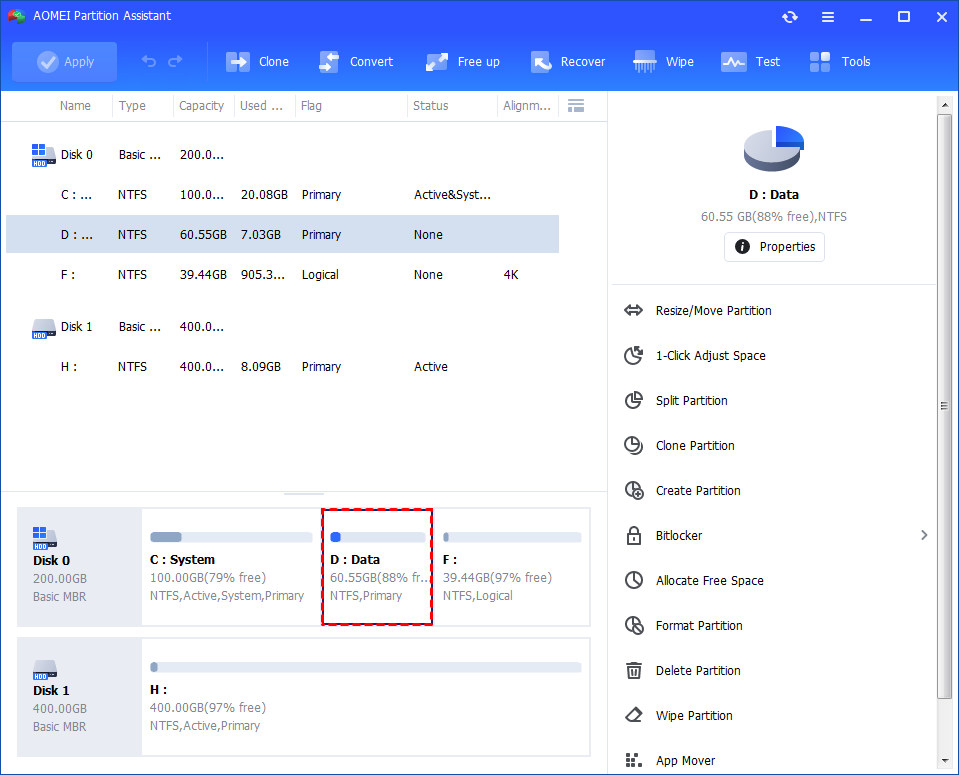
Step 5. Wait for the operation to be finished. After it is completed successfully, you will find D: is enlarged and both D: and F: are adjusted.
Fix 4. Check for bad sectors
Bad sectors on your hard drive could be one of the reasons behind the Parser Returned Error 0xC00CE508. To rule this out, it's important to check the disk for errors or damage. A reliable tool for this is AOMEI Partition Assistant, which can scan for bad sectors, format drives to FAT32, convert MBR to GPT, clone a hard drive, recover data, and more.
To scan your hard drive for bad sectors using AOMEI, simply download and install the software, then follow the on-screen instructions to begin the check.
AOMEI Partition AssistantThe Best Windows Disk Partition Manager and PC Optimizer
Step 1. Download AOMEI Partition Assistant. Launch AOMEI Partition Assistant after installation. You will see its main interface displaying your connected disks and their partitions.
Step 2. In the main window, locate the system partition (usually the C: drive where Windows is installed). Right-click on the system partition. From the context menu, select "Advanced" and then choose "Check Partition."

A new window will pop up with three options:
- Check Partition and fix errors in this partition: This option will scan the partition for file system errors and attempt to correct them automatically. This is the recommended option for troubleshooting shutdown issues.
- Check partition for errors using chkdsk.exe: This runs the standard Windows CHKDSK utility.
- Search for bad sectors on the partition: This option scans the partition surface for physical bad sectors. While useful, file system errors are more commonly linked to shutdown delays.
Step 3. Select "Check Partition and fix errors in this partition" and click "OK."
The software will begin scanning the disk. If the partition is in use (such as the system drive), you may be asked to restart your computer so the check can run before Windows starts. Confirm the restart if prompted. After the scan completes, the tool will display any detected issues and indicate whether they were successfully repaired.
Conclusion
The "Parser Returned Error 0xC00CE508" in Windows is typically caused by issues within the .NET Framework, corrupted system files, low disk space, or disk-related problems. While it may seem alarming, it’s often fixable with straightforward methods such as replacing a damaged configuration file, installing missing .NET components, freeing up disk space, or checking for bad sectors. By following the steps outlined above, you can resolve the error and restore your system's functionality.
