
 AOMEI Partition Assistant
Where Is Local Users And Groups in Windows 11?
Where is local users and groups in Windows 11? This guide provides full steps to tell you. It also covers a powerful tool to man.age Local Users and Groups in Windows 11

By Hedy / Updated on October 11, 2025


Where is Local Users and Groups in Windows 11?
In Windows 11, the Local Users and Groups management tool is not always easy to find, especially in the Home edition where it is unavailable by default. For Windows 11 Pro, Enterprise, or Education, you can access it in the following ways:
Method 1. Using Computer Management
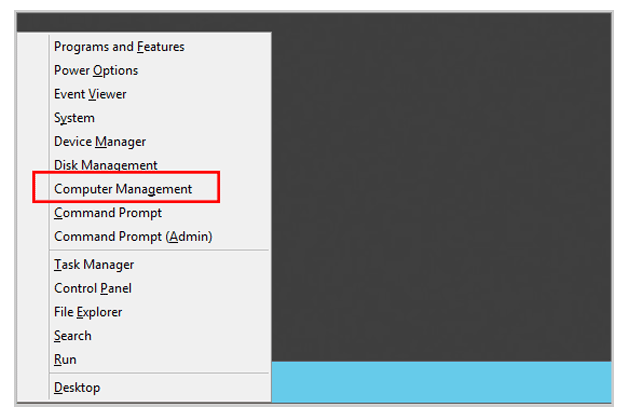
Step 1. Right-click the Start button and select Computer Management.
Step 2. In the left panel, expand System Tools.
Step 3. You will find Local Users and Groups listed there.
Method 2. Using Run Command
Step 1. Press Windows + R, type lusrmgr.msc, and hit Enter.
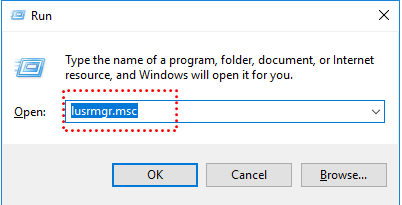
Step 2. This opens the Local Users and Groups console directly.
✍ Note: If you are on Windows 11 Home, lusrmgr.msc will not work because the feature is not included. In that case, you can still manage user accounts via Settings > Accounts > Family & other users or by using the Command Prompt / PowerShell with commands like net user or net localgroup.
For advanced management on Home editions, you may consider third-party tools such as lusrmgr.exe (open-source) to replicate similar functionality.
How to manage Local Users and Groups in Windows 11
AOMEI Partition Assistant is primarily known as a comprehensive disk management tool, but it also provides useful features for managing system-level tasks on Windows 11, including managing Local Users and Groups indirectly through system optimization and partition management. While Windows 11’s built-in Local Users and Groups management (accessible via lusrmgr.msc) can sometimes be limited or missing in certain editions (like Windows 11 Home), AOMEI Partition Assistant helps maintain system stability and access to features required for managing users.
Here’s how AOMEI Partition Assistant can support user and group management:
◆ System partition management: By resizing, moving, or merging system partitions safely, it ensures Windows 11 runs smoothly, preventing errors that may affect user accounts and group permissions.
◆ Boot management: Its Boot Repair and rebuild BCD features can restore access to Windows if startup issues prevent logging in as a user or admin.
◆ User access reliability: By keeping partitions organized and error-free, AOMEI helps prevent corruption of the SAM database, which stores Local Users and Groups data.
◆ Indirect User Management: Though not a direct user/group editor, it ensures the environment for Windows management tools is stable, so administrators can use lusrmgr.msc or other tools without encountering errors.
In short, AOMEI Partition Assistant complements Local Users and Groups management in Windows 11 by maintaining system stability, preventing partition-related issues, and ensuring administrators can manage accounts without interruptions.
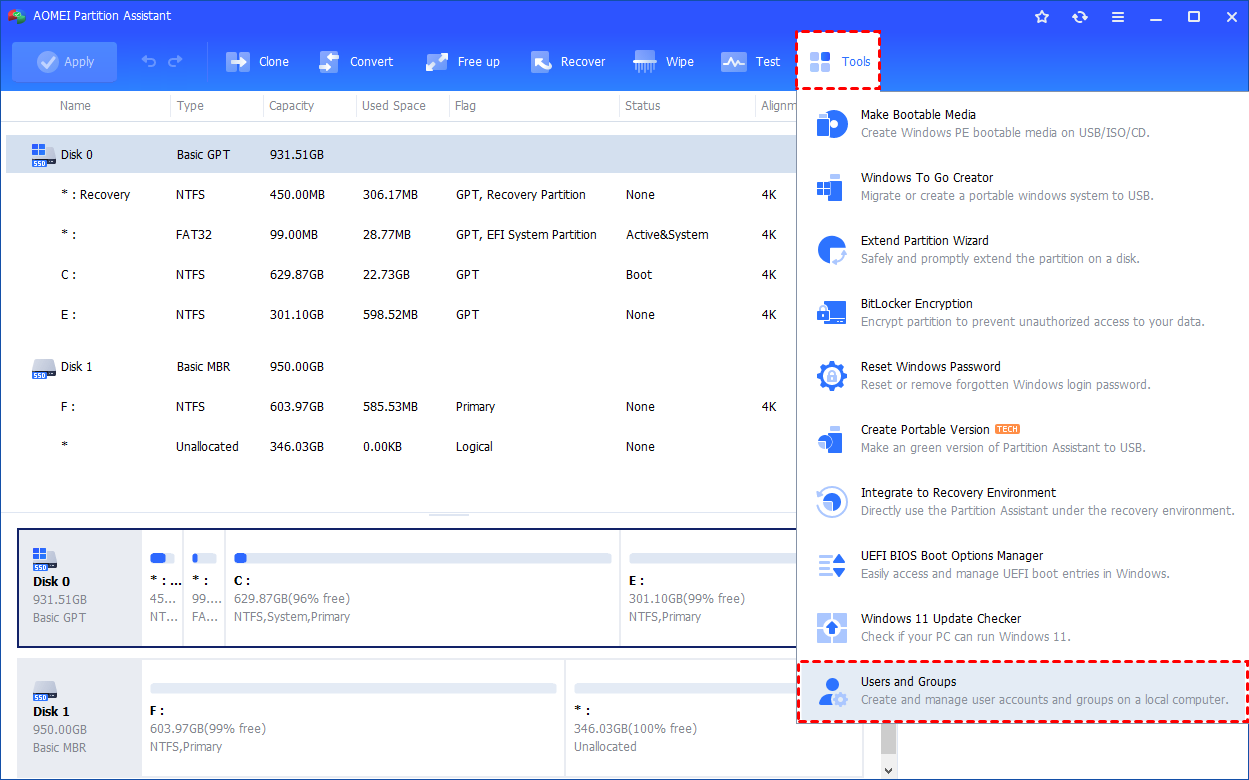
Step 1. Install and launch AOMEI Partition Assistant. Click the "Tools" main tab and select "Users and Groups".
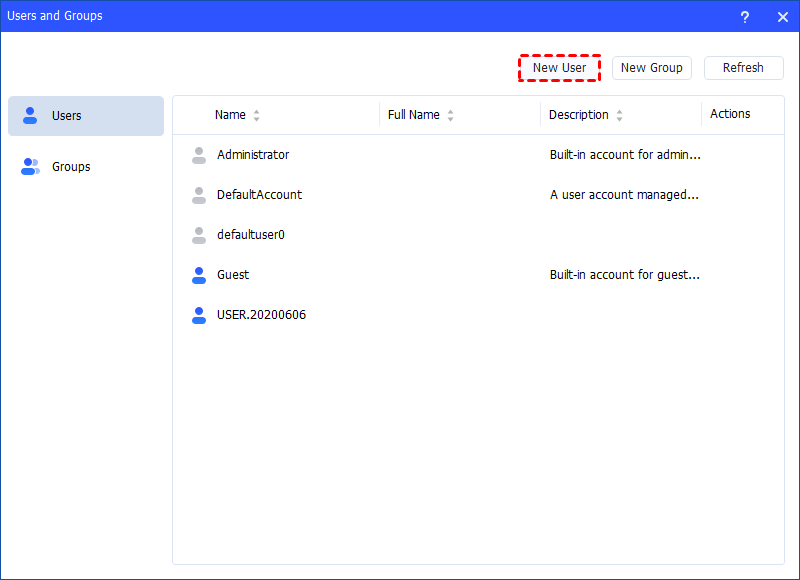
Step 2. Click the "Users" tab and then click the "New User" button to create a new user account. You can also click the "Refresh" button to refresh the user list.
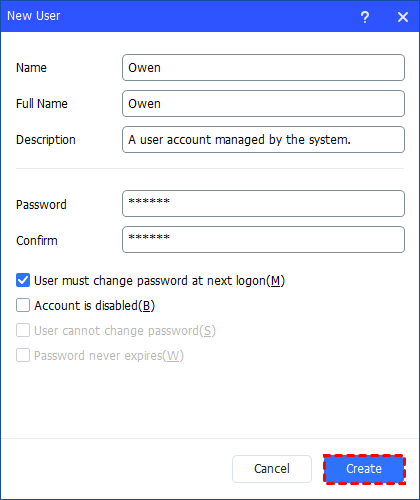
Step 3. Then, type the appropriate information in the dialog box. You can enter the name and description and set a password for the new user. And, you can select or clear the check boxes for: User must change password at next logon, Account is disabled, User cannot change password, Password never expires.
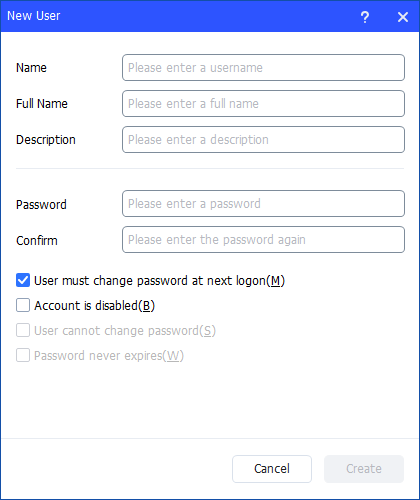
Step 4. After all is set, click "Create" to create the new user.
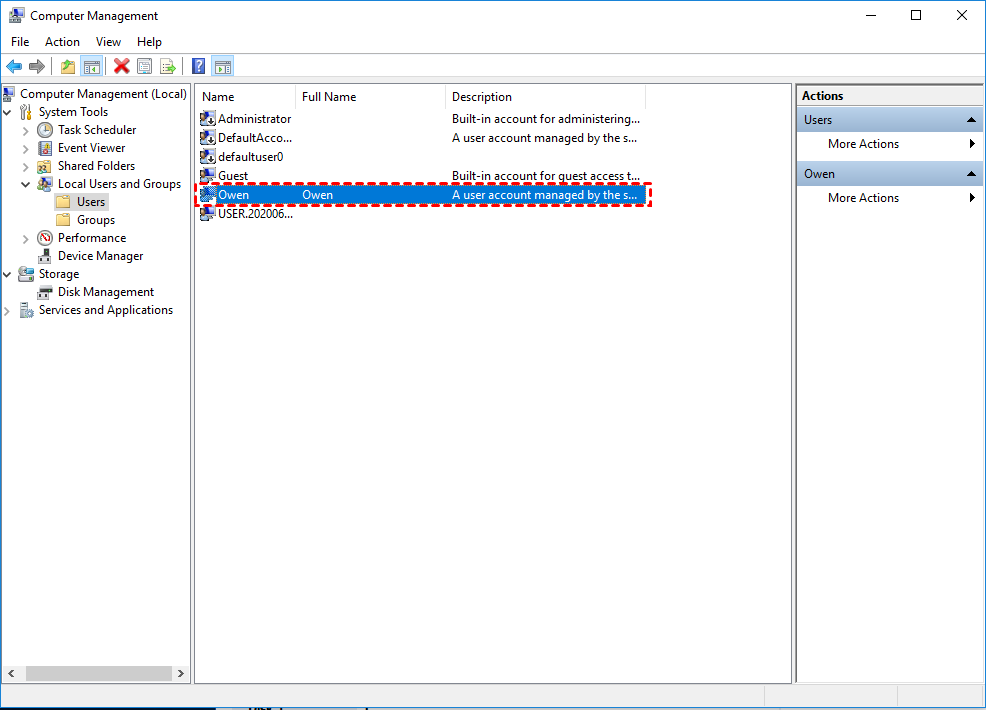
Step 5. Finally, you can see the user is created successfully in Windows Local Users and Groups. And, you can also easily manage the new user account.
Conclusion
In Windows 11, Local Users and Groups is available in Pro, Enterprise, and Education editions via Computer Management or the lusrmgr.msc command, but not in Home. Home users must manage accounts through Settings, Command Prompt, or third-party tools. To complement user and group management, AOMEI Partition Assistant helps maintain system stability, repair boot issues, and prevent errors that may disrupt account access, ensuring smoother administration.
