
 PartitionAssistant Recovery


How to Fix Delete Key Not Working in Windows 11 and 10?
This guide explains why the delete key not working in Windows 11 and 10. It also provides simple and effective methods to fix the issue and restore normal keyboard use.

By Irene / Updated on August 20, 2025


Why is my Delete key not working?
The Delete key is one of the most used keys on a Windows computer, as it helps remove text, files, or other selected items quickly. When it suddenly stops working in Windows 11, it can interrupt your daily tasks. This issue is often linked to a few common reasons.
✍ Certain system settings can disable the key.
✍ Some keyboards, especially gaming models like Corsair or Razer, include a lock function that can turn off specific keys.
✍ Malware or viruses may affect how your keyboard responds.
✍ Programs or background services sometimes block the Delete key from working.
✍ Features such as Game Mode or Xbox Game Bar in Windows 10 and 11 may interfere with keyboard input.
✍ Physical problems, like a damaged key or worn-out keyboard, can also cause the issue.
If the problem comes from software, it can often be fixed by adjusting settings or removing conflicts. You may need to try more than one solution until the Delete key starts working properly again.
How to fix keyboard Delete key not working in Windows 11 and 10?
If the Delete key is not working in Windows 11 or Windows 10, it can slow down your work. Most issues are caused by software settings or outdated drivers. Try the following methods to quickly fix your keyboard and restore the Delete key functionality.
Fix 1. Run the Keyboard Troubleshooter
One of the easiest ways to fix the Delete key not working in Windows 11 or Windows 10 is by using the built-in Keyboard Troubleshooter. This tool can detect problems caused by corrupted files, system errors, or misconfigured settings. Even if it does not fix the Delete key issue right away, it often gives a useful report to help you identify the cause. That is why it should be the first method you try.
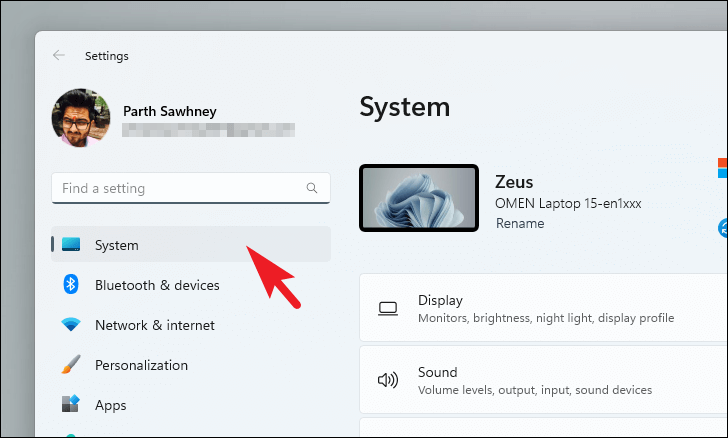
Step 1. Start by accessing the Start Menu and select the Settings tile. Alternatively, perform a search for Settings in the menu. Ensure that you have chosen the System tab in the left sidebar.
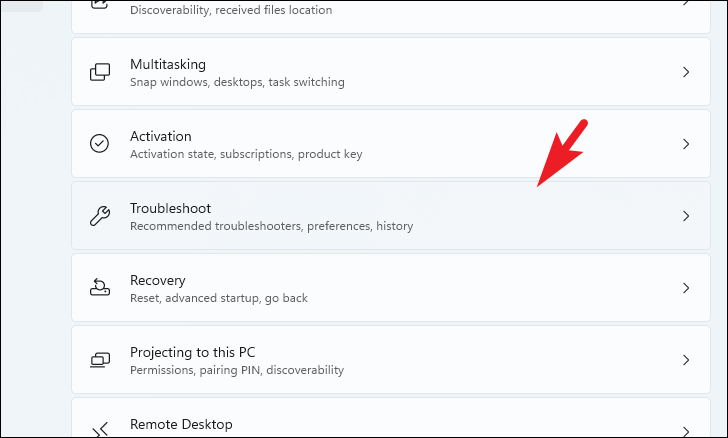
Step 2. Locate and select the Troubleshoot tile in the right section of the window.
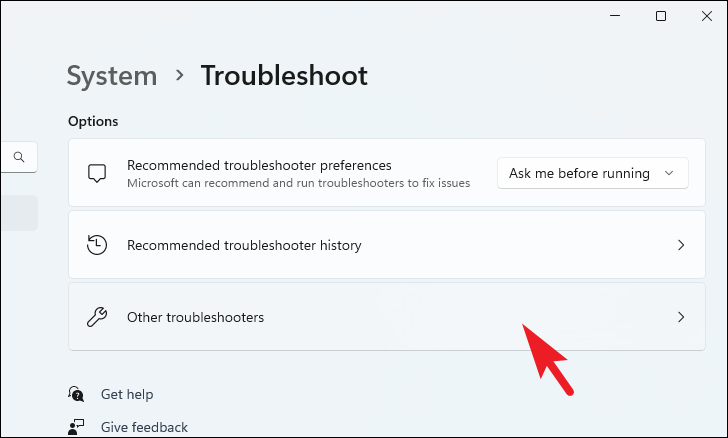
Step 3. Click on the Other troubleshooters tile.
Step 4. Find the Keyboard tile and click Run to initiate the troubleshooting process. Follow the on-screen instructions to address the issue.

Fix 2. Disable Filter Keys
Another common reason why the Delete key may not work in Windows 11 or Windows 10 is the Filter Keys feature. Filter Keys is an accessibility setting that tells Windows to ignore repeated or brief keystrokes. While it can be helpful for some users, it may also block or delay certain keys, including the Delete key. Accidentally enabling this feature could be the cause of the problem.
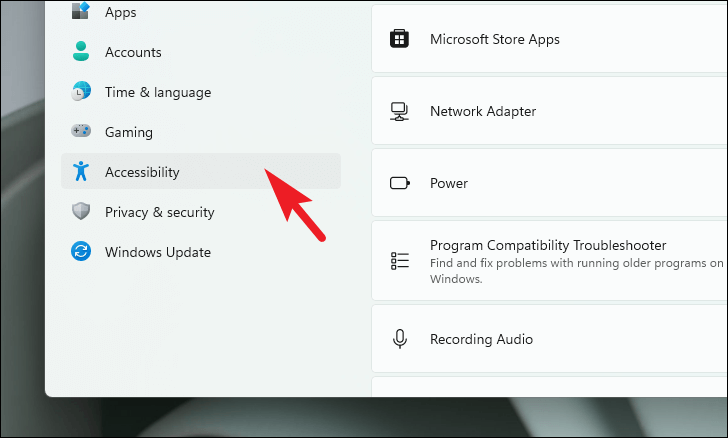
Step 1. Go to the Start Menu and click on the Settings icon. Then, select the Accessibility tab from the left sidebar.
Step 2. From the right section of the window, click on the Keyboard tile.

Step 3. Click on the toggle present on the Filter keys tile to bring it to the Off position.
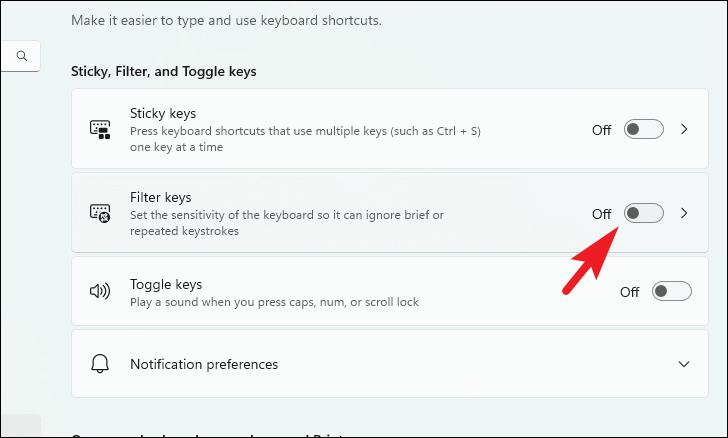
Check if the Windows key on the keyboard not working Windows 11 is troubleshooted. If not, proceed to the next method to address the issue.
Fix 3. Update keyboard drivers
Outdated or corrupted drivers are also a common reason why the Delete key is not working in Windows 11 or Windows 10. Updating the keyboard drivers can often restore normal functionality and fix the issue.
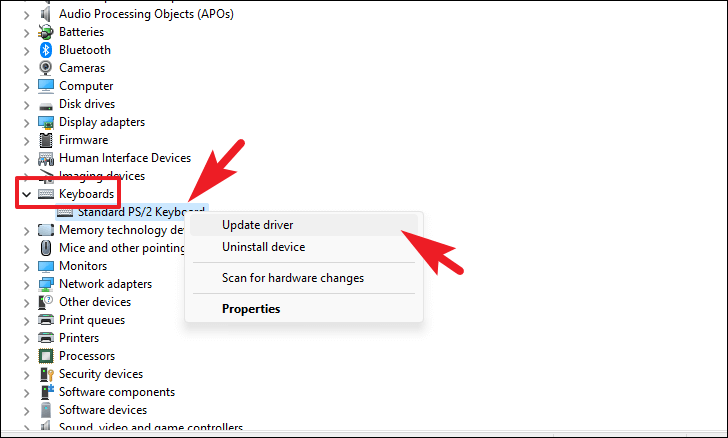
Step 1. Go to the Start Menu and search for Device Manager. Click Device Manager and open it. Double-click on the Keyboards section to expand the options. Right-click on the relevant hardware component and select Update driver from the context menu. This action will open a new window.
Step 3. Choose either Search automatically for drivers to allow Windows to download and update the driver automatically, or select Browse My Computer for the driver to manually locate a driver package using File Explorer.
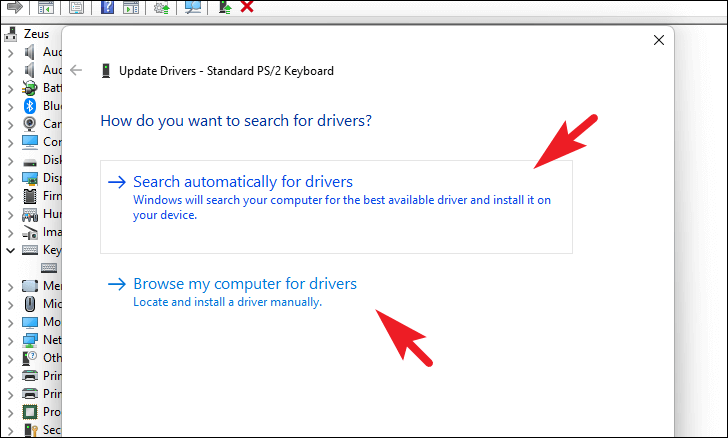
Once the driver update is complete, restart your computer and check if the Delete key is working again. This method is especially effective if the problem is caused by outdated or missing driver software.
Further reading: How to recover lost data after fixing Windows Delete key not working?
When fixing issues like the Delete key not working in Windows 11 or Windows 10, there is always a risk of unexpected problems during troubleshooting. Tasks such as forcing a keyboard rescan require careful handling, and mistakes can sometimes lead to data loss.
To prevent permanent loss, you can use PartitionAssistant Recovery. This Windows recovery software is designed to retrieve lost or deleted files from a wide range of storage devices, including HDDs, SSDs, USB drives, and SD cards. It uses advanced scanning algorithms to recover files with their original names while preserving folder structures. Supporting over 1000 file types, including recovering erased photos, videos, documents, audio files, and archives, it ensures reliable recovery after troubleshooting keyboard issues. Users can also preview files before recovery to confirm they are restoring the correct data.
With this tool, you can confidently recover lost data after fixing the Delete key not working problem in Windows 11 or Windows 10 without worrying about permanent file loss.
Step 1. Install and launch PartitionAssistant Recovery. Choose the exact partition or disk where your data lost and click Scan.

Step 2. Then, the recovery tool start to scan and search. lt will execute the “Quickly Scan" first for finding your deleted data fast, and then execute the “Deep Scan" for searching other lost data.

Step 3. Once the scan is completed, all deleted files, recycle bins and other missing files will be displayed. Please select the file you would like to recover and then click "Recover".

Step 4. Then, select a folder path to save your recovered files.

Step 5. Wait patiently for this process of recovering ends.
Conclusion
In summary, the Delete key not working in Windows 11 or Windows 10 can happen for several reasons, including system settings, Filter Keys, outdated drivers, or physical keyboard issues. By following the troubleshooting methods outlined above, like running the Keyboard Troubleshooter, disabling Filter Keys, and updating keyboard drivers, you can often restore normal Delete key functionality.
If any data is lost during the troubleshooting process, using a reliable tool like PartitionAssistant Recovery allows you to quickly and safely recover lost or deleted files. With support for multiple file types and storage devices, you can restore your important files without worry. By combining these fixes with proper data recovery, you can resolve the Delete key not working problem in Windows 11 and Windows 10 while keeping your files secure.
