
 PartitionAssistant Recovery


Can I Get My Files Off an Unbootable System After a System Crash?
Can I get my files off an unbootable system? Yes, you can. With this guide, you will learn how to recover data from unbootable hard drive after a system crash.

By Irene / Updated on August 11, 2025


Can I get my files off an unbootable system?
If your laptop will not start, you might think your files are gone. But do not worry because your data is not lost forever. Even if the system does not boot, you can still recover your files from the hard drive.
Today, computers store many important things like work documents, personal photos, and other valuable files. So when your computer crashes or fails to start, it can feel like a disaster. Like many users, you may just want to get back a few important files such as pictures or documents, but it is not always easy when the computer does not turn on.
To help you, we will first explain what happens during a computer crash. Then we will share some simple ways you can use to recover your files from an unbootable system.
How to recover files after system crash?
It is easy to recover data from unbootable hard drive. You can choose to use a handy tool or follow our steps to rely on Windows built-in features.
Fix 1. Use professional data recovery software
The first method we suggest is using professional data recovery software. This kind of tool makes the recovery process easier and helps you get back as many files as possible. If you are not comfortable using command lines or complex steps, this is a great option.
One reliable choice is PartitionAssistant Recovery. You can install it on another working computer and use it to create a bootable USB. Then, you can use this USB to start the crashed computer and open the tool. With it, you can recover over 1000 types of files from different storage devices, including HDDs, SSDs, USB drives, and SD cards. It works well even after system crashes, formatting, or virus attacks.
Step 1. Run PartitionAssistant Recovery and click "PC Crashed Recovery".
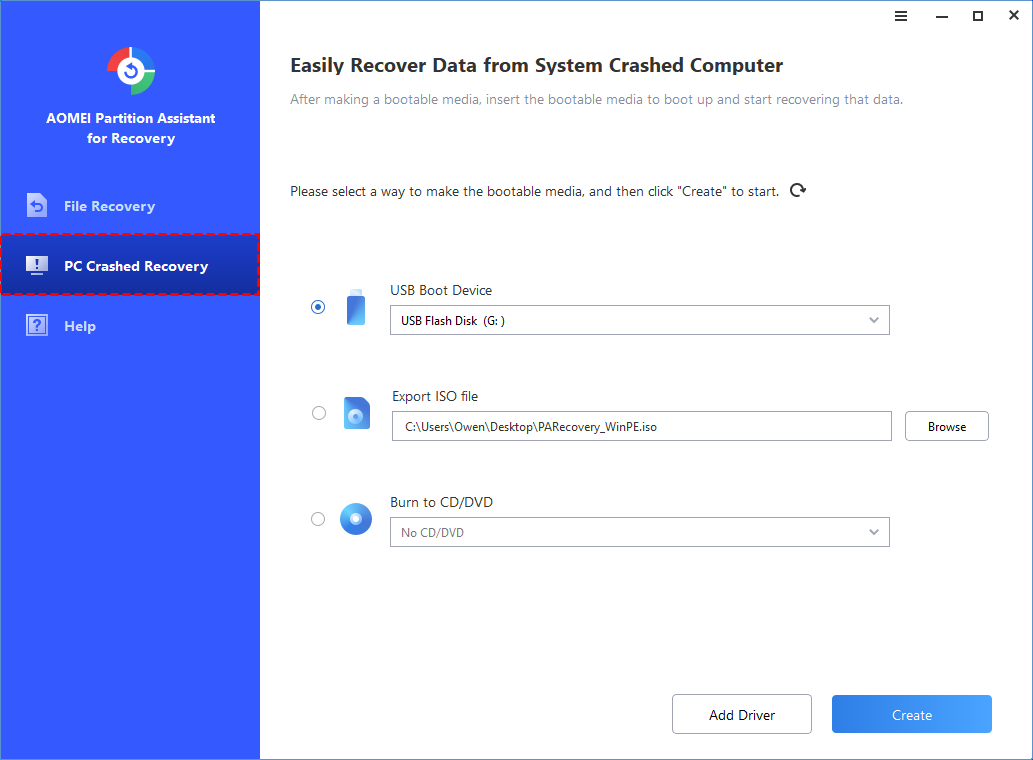
Step 2. Select a way to create bootable disk as per your needs and click "Create". (Here, we take the first USB Boot Device as an example)

There are three ways available to create bootable disk based on Windows PE.
-
USB Boot Device: To create a bootable USB Device.
-
Export ISO File: Use this method to make a bootable ISO file. After the ISO is exported, you need to burn it with a third-party burning program. Or, you can use the ISO to boot some virtual machines or burn it to other devices.
-
Burn to CD/DVD: To create a bootable CD/DVD.
Tips: "Add Drivers" allows you to manually add additional and necessary drivers into the bootable disk so that more devices will be available after you boot into WinPE.
Step 3. Then, you will get a pop-up note that this operation will format the USB hard disk. If there is important data on it, please first make a backup. If you confirm, please click "Yes" to continue.

Step 4. The creation operation will start and you can check the creation process. The progress of creating a WinPE bootable USB drive will take a few minutes.

Step 5. After the process is finished, you can will get a successful window. And, you will also get a notice of instructions to boot from the bootable disk and then recover from a crashed system.
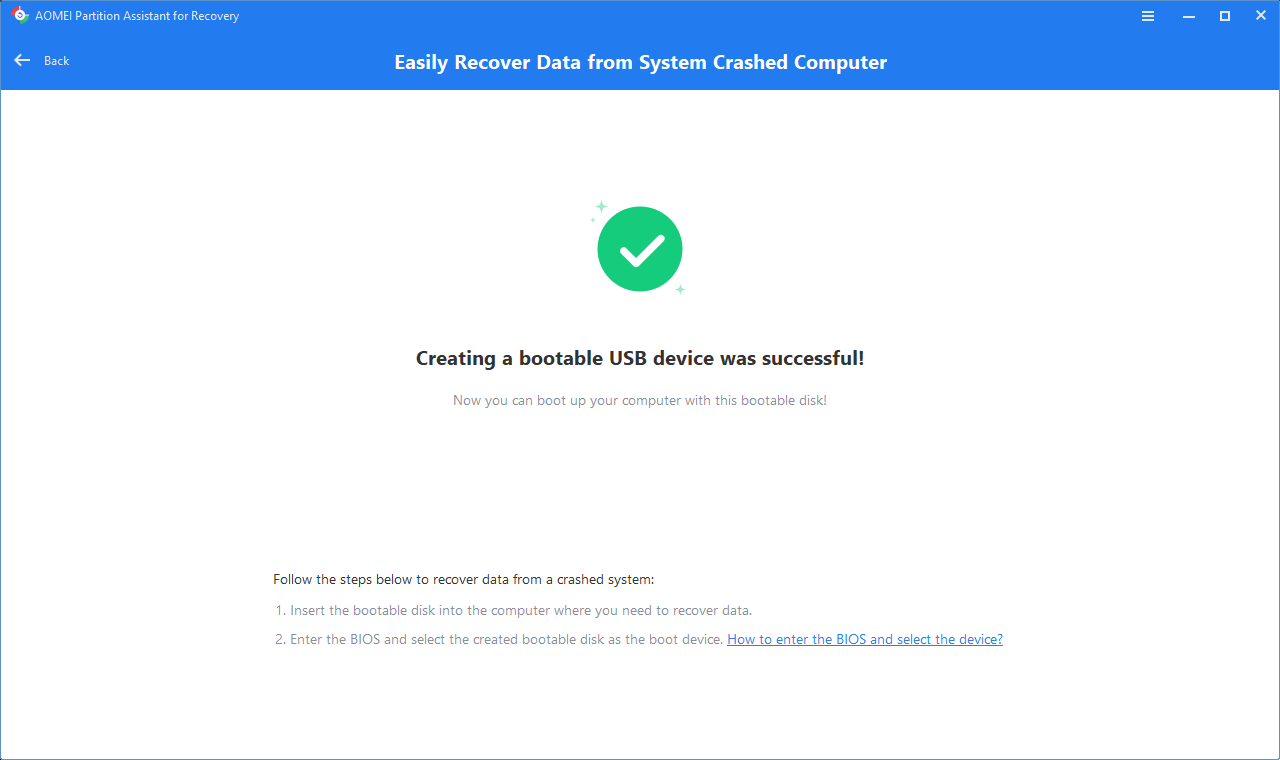
Step 6. Please insert the bootable USB to boot up the crashed PC and then start the recovery process.
To boot from the WinPE bootable USB flash drive or CD/DVD, you need to first enter into BIOS/UEFI and change boot drive order under Boot Menu. And, you may also need to disable Secure Boot under BIOS/UEFI.
Fix 2. Recover files from File History
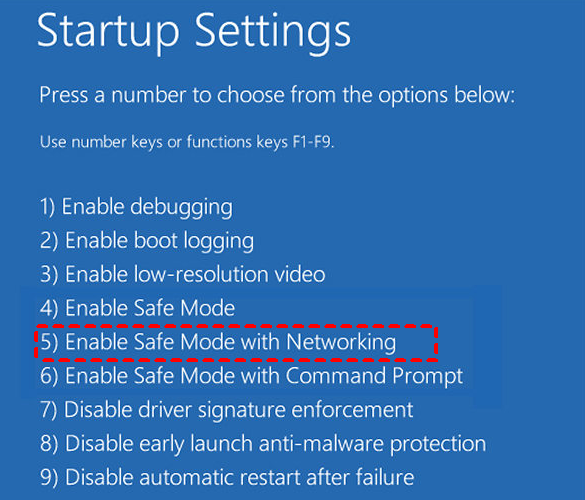
Restart your computer and repeatedly press the F8 key before the Windows logo appears. This will bring up the Advanced Boot Options menu, where you can select "Safe Mode" or "Safe Mode with Networking" to enter the system.
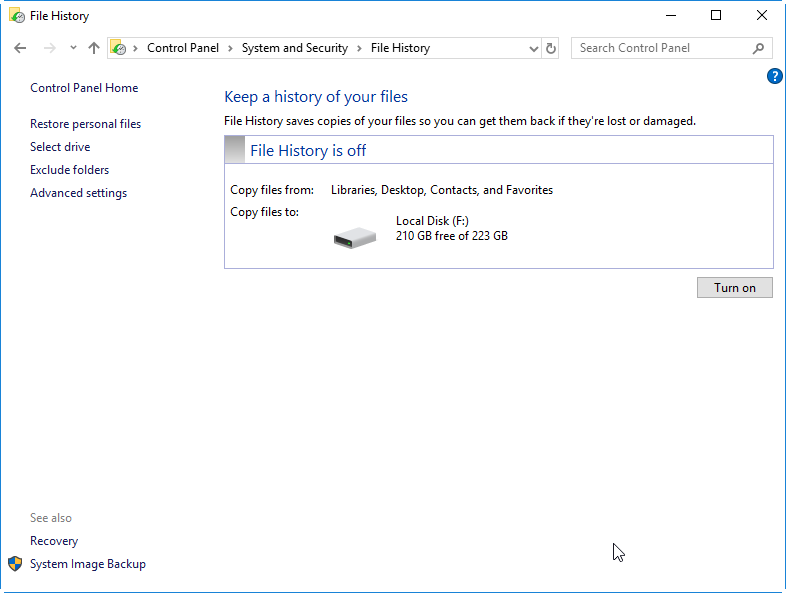
If you have made a backup of your deleted files using file history, you can effortlessly recover them in Windows 10 or 11. However, if you haven't created a backup, no files will be retrievable.
Step 1. Go to Control Panel > System and Security and click File History.
Step 2. Select Restore personal files. It will open file history recovery window. Or you can select drive to find the target files.
Step 3. Click the left arrow to locate your files, and click the Restore to original location icon to restore files.
Fix 3. Use Windows backup and restore to get data back
You can stay in boot mode and open the Control Panel to recover files from an unbootable system after a system crash.
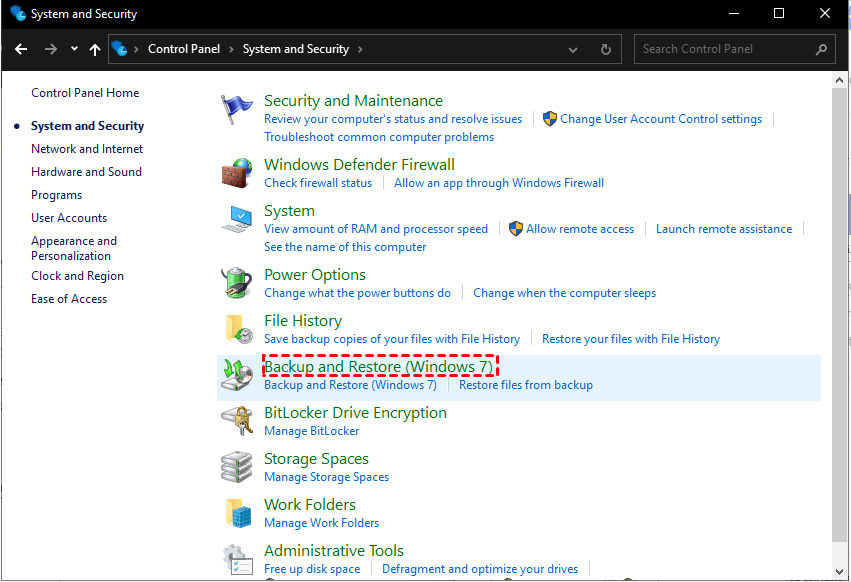
Step 1. Press “Windows” to start, then click “Control Panel” > “System and Security” and “Backup and Restore (Windows 7).”
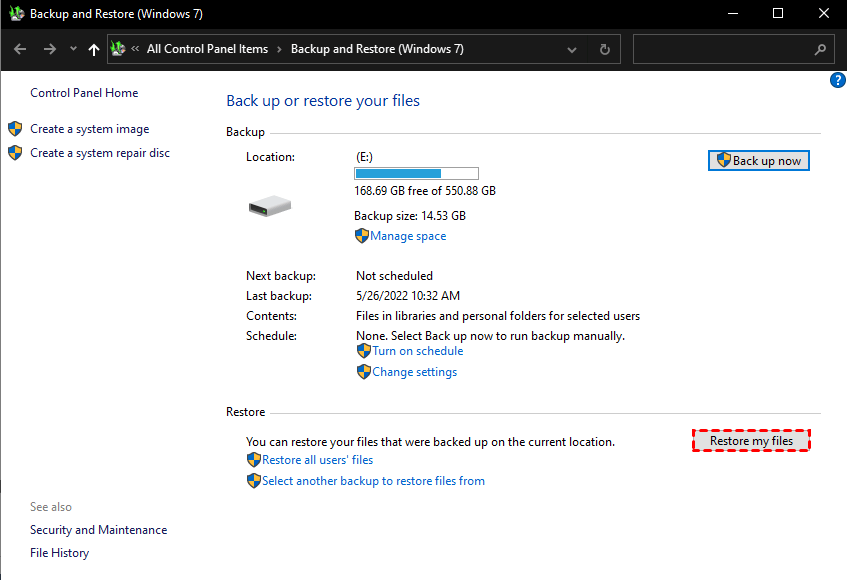
Step 2. Click “Restore my files”. If you haven’t made backups yet, you cannot restore files using this app.
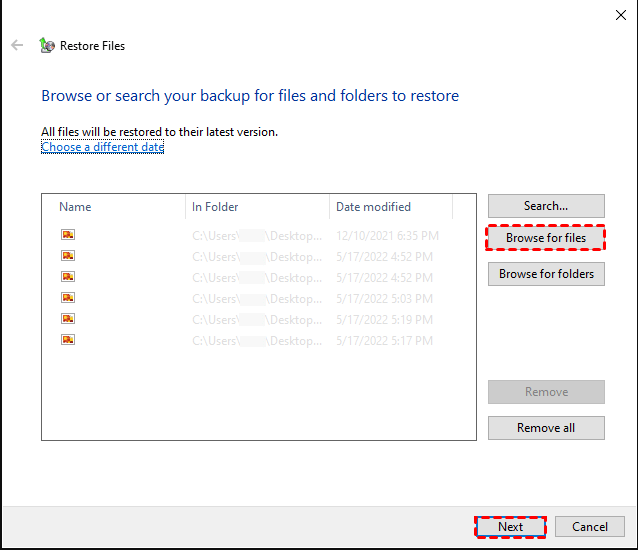
Step 3. Select the Browse for files/Browse for folders option to locate your wanted data.
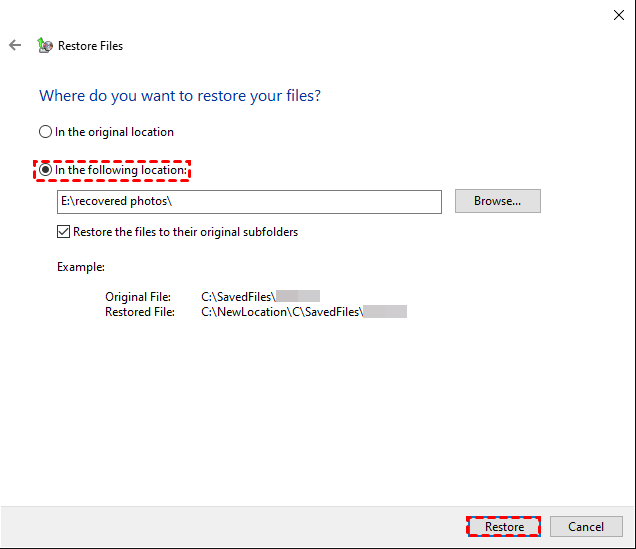
Step 4. You can store your retrieved folders in your destination path or keep them in the original location.
Conclusion
Even if your system crashes and will not start, you can still recover your important files. With the help of professional data recovery software like PartitionAssistant Recovery, backup tools, and built-in Windows features, you have several ways to get your data back. Whether you use a bootable USB, File History, or Windows Backup and Restore, these methods can help you safely recover files from an unbootable system.
