
 PartitionAssistant Recovery


[Fixed] Video_Dxgkrnl_Fatal_Error on Windows PCs
Read to learn how to fix blue screen Video_Dxgkrnl_Fatal_Error in Windows PCs. If you encounter data loss due to the BSOD, you can also learn to recover lost data caused by the system crash.

By Irene / Updated on July 18, 2025


What is BSOD VIDEO_DXGKRNL_FATAL_ERROR?
If your computer suddenly crashes and shows a blue screen with the message VIDEO_DXGKRNL_FATAL_ERROR, don’t worry—you’re not the only one. This is a common but serious Windows 10 error that usually points to issues with your system’s graphics settings or display drivers.

When this error happens, it can stop your computer from working properly and may even cause repeated system crashes. The blue screen can appear out of nowhere, interrupting your work or any other activity. To fix the problem, it’s important to first understand what’s causing it. The table below lists the main reasons why this error might occur on your Windows 10 system:
| Cause | Description |
|---|---|
| Outdated or damaged graphics drivers | If your display drivers are corrupt or no longer compatible, your system may fail to run graphics properly. |
| Faulty graphics hardware | A damaged graphics card or other display components can lead to this fatal error. |
| Corrupted system files or firmware | Critical files needed for system functions may be broken or missing. |
| Bad disk sectors | A hard drive with errors or physical damage can affect system performance and cause crashes. |
| Low system storage or heavy CPU load | Running too many tasks with not enough space on C drive or resources can freeze or crash the system. |
| BIOS or boot setting issues | Misconfigured BIOS or boot settings may trigger system instability. |
| Antivirus conflicts | Some security software may block essential system processes and cause this error. |
If you have a clear idea of what this error is and what might be causing it, let's look at some effective ways to fix VIDEO_DXGKRNL_FATAL_ERROR and get your system running smoothly again.
Recover your data before fixing the BSOD error
Before fixing the VIDEO_DXGKRNL_FATAL_ERROR, it's important to recover your data first. Actions like updating, resetting, or reinstalling Windows may accidentally overwrite or delete files permanently. To avoid data loss, use PartitionAssistant Recovery. This reliable and easy-to-use tool can recover files from HDDs, SSDs, USB drives, and memory cards—even after system crashes or formatting.
It supports over 2,000 file types, including documents, photos, videos (MP4, MOV, AVI), and more. The software runs in read-only mode, protecting your existing files during the recovery process. You can also preview and selectively recover the files you need. If files are not in the Recycle Bin and you want to avoid overwriting them, PartitionAssistant Recovery is a smart solution to act fast and restore your missing data safely.
Step 1. Install and launch PartitionAssistant Recovery. Choose the exact partition or disk where your data lost and click Scan.

Step 2. Then, the recovery tool start to scan and search. lt will execute the “Quickly Scan" first for finding your deleted data fast, and then execute the “Deep Scan" for searching other lost data.
Step 3. Once the scan is completed, all deleted files, recycle bins and other missing files will be displayed. Please select the file you would like to recover and then click "Recover".
Step 4. Then, select a folder path to save your recovered files.
Step 5. Wait patiently for this recovery process to end.
How to fix Video_Dxgkrnl_Fatal_Error in Windows PCs
There are many possible causes for the VIDEO_DXGKRNL_FATAL_ERROR on Windows 11, 10, 8, and 7. To fix it, it’s a good idea to try a few of the suggested methods and see which one works for you.
Fix 1. Start Windows in Safe Mode
If your computer shows a blue screen error like VIDEO_DXGKRNL_FATAL_ERROR, you might not be able to start Windows normally. In this case, booting into Safe Mode is a good first step. It allows your system to start with only the basic drivers and features needed, making it easier to troubleshoot the issue. If you have admin password, you can also to use Safe Mode to password reset.
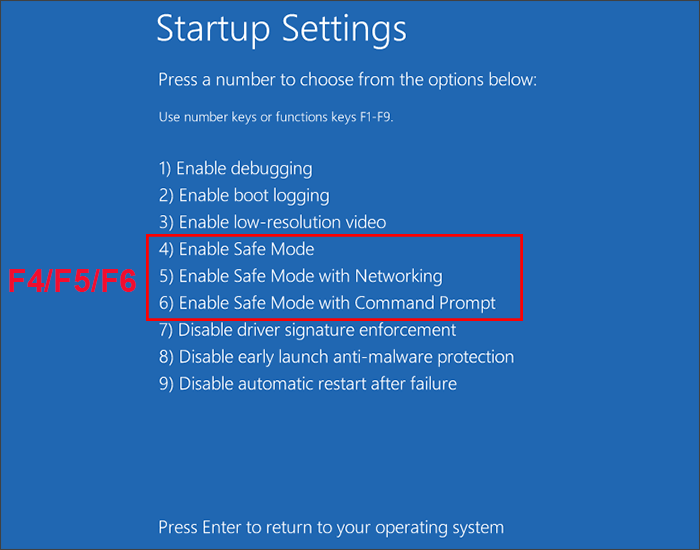
Step 1. Open your computer and quickly press the F8 key or the Ctrl key to access the Startup Settings screen. Subsequently, use the F4/F5/F6 keys to select the desired safe mode for booting.
Step 2. After a few minutes, your computer will enter Safe Mode.
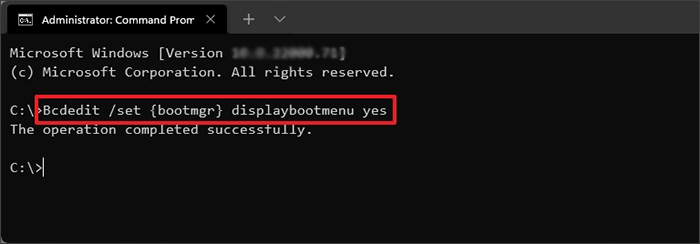
Note: To manually enable the F8 shortcut key, run the command prompt as an administrator and execute the following commands: bcdedit /set {bootmgr} displaybootmenu yes.
Fix 2. Update the outdated or corrupted driver
One common cause of the VIDEO_DXGKRNL_FATAL_ERROR is an outdated or corrupted driver—especially the graphics driver. If your system is running with faulty drivers, it can lead to serious errors and crashes. Updating these essential drivers can help fix the issue and improve system stability. Follow the steps below to update your display driver:
Step 1. Open the Device Manager by right-clicking the Start menu and selecting it, or press Windows + R, type devmgmt.msc, and press Enter.
Step 2. In Device Manager, find and expand the Display adapters section to see your graphics driver.
Step 3. Right-click the driver and choose Update driver. You can also open Properties, go to the Driver tab, and click Update Driver.

Step 4. A new window will appear. Follow the on-screen instructions to search for the latest driver and install it.
After updating, restart your computer and check if the error is resolved.
Fix 3. Run Windows Troubleshooter
Windows includes a built-in troubleshooter that can help find and fix problems like the VIDEO_DXGKRNL_FATAL_ERROR. Running this tool is a quick way to let your system detect the issue and try to resolve it automatically. Here’s how to do it:
Step 1. Click the Start menu and open Settings.
Step 2. In the Settings window, select System or search for Troubleshoot in the search bar.
Step 3. Click on Windows Update and choose Run the Troubleshoot, then choose Other troubleshooters (on some versions it may just say “Troubleshoot settings”).
Step 4. Look for the Blue Screen option and click Run next to it.
Step 5. Follow the on-screen instructions. Windows will scan your system for related issues and attempt to fix them.
Once it finishes, restart your computer and check if the error still appears.
Fix 4. Reinstall the Display Drivers
Sometimes, simply updating the graphics driver isn’t enough to fix the VIDEO_DXGKRNL_FATAL_ERROR. In that case, you can try reinstalling the driver completely. Before you do this, make sure to note your system’s details so you can download the correct driver version.
Step 1. Open the Start menu and search for System Information. Click to open it.
Step 2. In System Information, select Display from the sidebar. Find and write down the details under Adapter Description or Adapter Type.

Step 3. Next, open Device Manager. Find your display driver under Display adapters, right-click it, and select Uninstall device. Confirm the uninstallation.
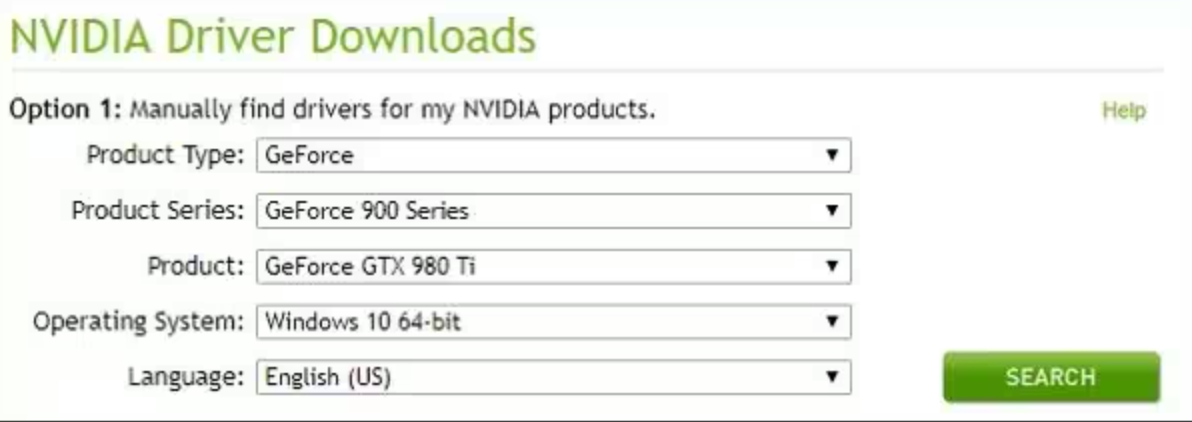
Step 4. Visit the official website of your graphics card manufacturer (like NVIDIA, AMD, or Intel). Enter the system details you noted earlier to find and download the correct driver.
Step 5. Run the downloaded installer and follow the instructions to reinstall the graphics driver. Restart your computer and check if the error is resolved.
Conclusion
The VIDEO_DXGKRNL_FATAL_ERROR is a serious but fixable issue in Windows 10, often caused by faulty graphics drivers, hardware problems, or system conflicts. While it can be frustrating, especially when it leads to repeated crashes, there are clear steps you can take to recover your data and resolve the error. By using data recovery tools like PartitionAssistant Recovery and applying effective fixes, such as updating or reinstalling drivers, using Safe Mode, and running Windows Troubleshooter. You can get your system back to normal and prevent future crashes.
