
 PartitionAssistant Recovery


Solved: Kmode Exception Not Handled Error
If you have encountered the Kmode exception not handled error, you can read this post to know how to fix it. It also covers a way to recover lost data from this error.

By Hedy / Updated on September 28, 2025


Why there is Kmode exception not handled error?
The "KMODE_EXCEPTION_NOT_HANDLED" error is a Blue Screen of Death (BSOD) that typically occurs on Windows when there's an issue with system-level software or hardware. It indicates that the kernel-mode process (which runs critical system functions) encountered an error that it couldn't handle. Here's why it can happen:
1. Driver issues: A common cause for this error is corrupt or incompatible drivers. Outdated or improperly installed drivers, particularly for hardware like graphics cards, sound cards, or network adapters, can conflict with the Windows kernel and cause this error.
2. Hardware problems: Faulty hardware, especially RAM or hard drives, can lead to this error. Issues like bad memory sectors, failing RAM, or problems with your hard disk (e.g., SSD or HDD) can corrupt the kernel’s ability to function properly.
3. Corrupt system files: If critical Windows files become corrupted or missing, it can trigger this error. This often happens after a Windows update, when system files may fail to update correctly.
4. Faulty or overloaded system resources: If your system is overloaded or has too many processes running, it might struggle to allocate resources properly, causing a kernel mode exception.
5. Windows updates: Sometimes, a Windows update can trigger this error if there’s a problem with the new update. This might be due to a conflict with existing hardware or software.
How to fix Kmode exception not handled error
This error typically occurs due to driver issues, corrupted system files, or conflicts with hardware. Let’s go through some effective solutions to fix it.
Method 1. Disable Fast Startup
Fast Startup is a feature in Windows designed to speed up the boot process. While it’s helpful, sometimes it can interfere with your system and cause errors like the Kmode Exception Not Handled error.
Step 1. Press Windows + R, type control, and hit Enter to open the Control Panel.
Step 2. Click on Power Options and then click Choose what the power buttons do on the left-hand side.
Step 3. At the top, click Change settings that are currently unavailable.
Step 4. Scroll down and uncheck Turn on fast startup (recommended) under the "Shutdown settings" section.
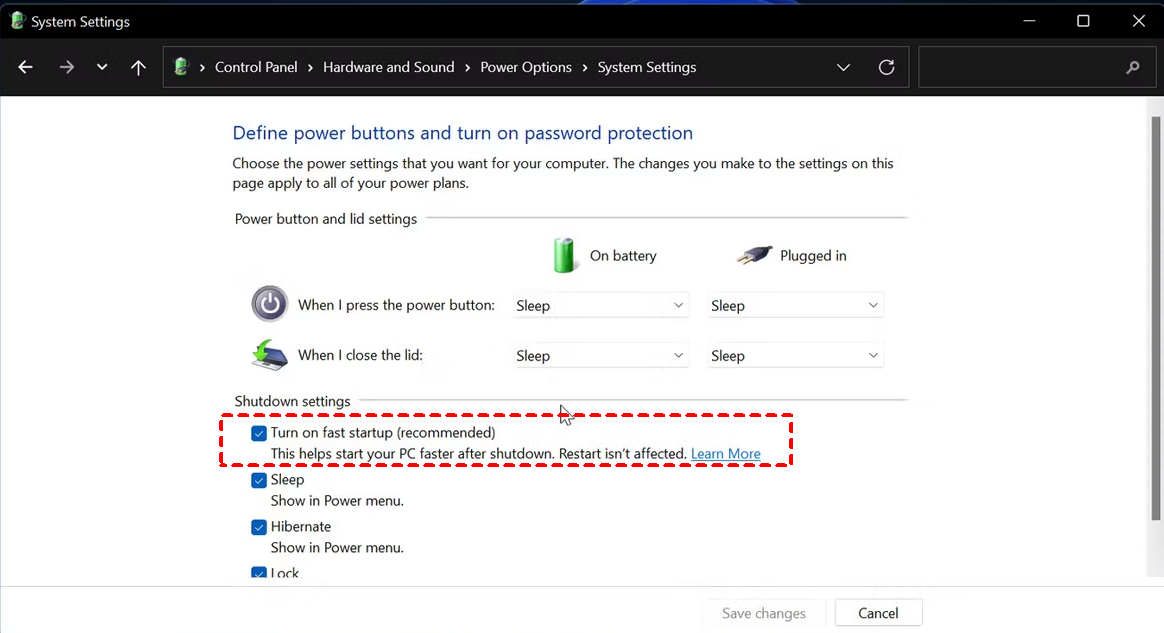
Step 5. Click on Save changes and restart your computer.
Method 2. Update the drivers
Outdated or corrupted drivers can often trigger the Kmode Exception Not Handled error. It’s essential to make sure all your drivers, especially graphics, network, and storage drivers, are up to date.
Step 1. Press Windows + X and select Device Manager from the list.
Step 2. Look for any devices with a yellow triangle symbol (indicating issues) in the Device Manager.
Step 3. Right-click on the device with the issue and select Update driver.
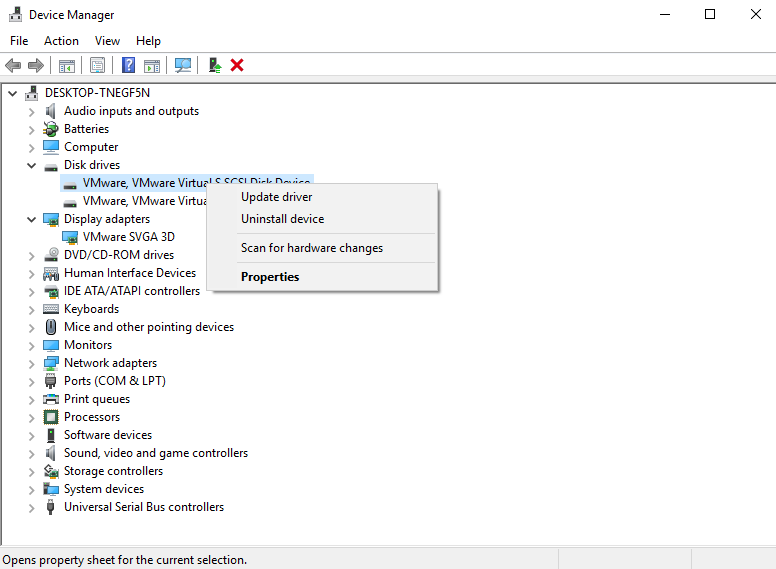
Step 4. Select Search automatically for updated driver software. Windows will find and install the latest drivers.
Step 5. Once the drivers are updated, restart your computer to check if the error is fixed.
How to recover data from Kmode exception not handled error
PartitionAssistant Recovery is a versatile data recovery tool designed to help users recover lost data due to various system errors, including the infamous Kmode Exception Not Handled error. This error, typically related to driver conflicts, system errors, or hardware issues, often causes Windows to crash, resulting in data loss or corruption. PartitionAssistant Recovery can be a life-saver in such situations by offering the following features to facilitate recovery:
Step 1. Install and launch PartitionAssistant Recovery. Choose the exact partition or disk where your data is lost and click Scan.

Step 2. Then, the recovery tool starts to scan and search. lt will execute the “Quickly Scan" first to find your deleted data fast, and then execute the “Deep Scan" for searching other lost data.

Step 3. Once the scan is completed, all deleted files, recycle bins and other missing files will be displayed. Please select the file you would like to recover and then click "Recover".

Step 4. Then, select a folder path to save your recovered files.

Step 5. Wait patiently for this process of recovery to end.
Conclusion
The KMODE_EXCEPTION_NOT_HANDLED error is a BSOD caused by faulty drivers, corrupted system files, or hardware issues. Fixes include disabling Fast Startup, updating drivers, or addressing hardware faults. If the error leads to data loss, PartitionAssistant Recovery provides a reliable way to restore files safely, ensuring you don’t lose critical data even after a system crash.
