


Excel Not Enough Disk Space to Open? Fix it Now!
Why does it say Excel not enough disk space to open? There are many reasons for it. In this guide, you will learn five effective methods to resolve this tricky problem.

By Hedy / Updated on August 25, 2025


Why does Excel say not enough disk space when I have plenty?
This error in Excel—“Not enough disk space”—can be confusing, especially when your computer still has plenty of free storage. The issue usually isn’t about actual hard drive space. Instead, it’s related to Excel’s internal limitations or system resources. Here are the most common reasons why it happens:
1. Temporary files and cache issues: Excel creates temporary files when you’re working on a spreadsheet. If the temporary folder or cache is full or corrupted, it may trigger this error.
2. File size or complexity: Very large or complex spreadsheets (with thousands of formulas, images, or embedded objects) may use up memory, causing Excel to think there’s not enough space, even if the disk itself has room.
3. Excel settings or corruption: Sometimes, Excel settings or installation may become corrupted, causing issues with file saving or handling disk space.
4. Disk permissions or issues with the file path: Even with sufficient space, Excel may not be able to access the disk due to permission issues or problems with the file path.
5. Memory limits: Excel can run out of memory for very large files, even if your disk has space. The 32-bit version of Excel has a memory limit of 2GB, which may be a factor if you are working with large data sets.
How to fix “Excel not enough disk space to open”
If you are receiving the “Excel not enough disk space to open” error, don’t worry—it’s a common problem that usually occurs due to large file sizes, unnecessary formatting, add-ins, or insufficient system resources. Below are several step-by-step fixes that can help you resolve the issue quickly.
Fix 1. Check file size
Sometimes, the main reason behind the error is that the Excel file itself is too large for your system to handle properly. Oversized workbooks with excessive data, images, or formulas can strain resources and trigger disk space warnings.
Step 1. Locate the Excel file causing the issue.
Step 2. Right-click the file and choose Properties to check its size.
Step 3. If the file size is unusually large, consider splitting the workbook into smaller files.
Step 4. Compress images or remove unnecessary worksheets to reduce the overall file size.
Fix 2. Clear temp files
Over time, temporary files created by Windows and Office applications can take up space and interfere with Excel’s performance. Clearing these files often frees up resources and resolves the error.
Step 1. Press Windows + R to open the Run dialog box.
Step 2. Type %temp% and hit Enter.
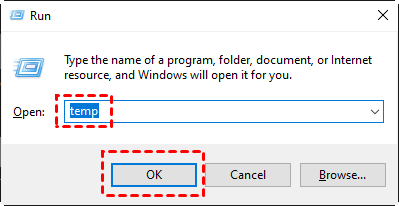
Step 3. Select all files in the Temp folder and delete them.
Step 4. Empty your Recycle Bin to make sure the files are completely removed.
In addition, a professional PC cleaner called PartitionAssistant Cleanup can make a difference in clearing temporary files. Its built-in PC Cleaner feature allows you to scan and remove unnecessary files such as system junk, cache, and temporary files. By freeing up valuable space, it not only resolves the Excel error but also improves overall PC performance.
 PartitionAssistant Cleanup
Free Up Disk Space To Keep Your PC Running Smoothly and Efficiently
Step 1. Install and launch PartitionAssistant Cleanup. Click the "Clean Junk Files" tab.

Step 2. Click the "Scan Now" button to start the process of scanning junk files.

Step 3. After the scan process is finished. All system junk files (including recycle bin files, temporary files, log files, invalid shortcuts, and so on) and registry junk files (including DLL registry, system registry, and program registry) will be displayed.

You can also click the button behind to view the junk files details.

Step 4. And, you can click the button behind to locate the file.

By default, the program will select some junk files to clean up, for example, temporary files, log files, and so on. You can also manually check to select more or uncheck to deselect fewer listed junk files. Or, click "Select All" to select all junk files to clean up if you need to clean up all.
Step 5. After selecting junk files that are not needed anymore, you can click the "Clean Now"button to start the cleanup.

The process of the cleanup might take time, and the selected files will be cleaned up. After the process is finished, you will get a cleanup completed window displaying how many files you have cleaned and not yet cleaned.

Fix 3. Remove unused formatting
Too much formatting in a worksheet, such as unnecessary cell borders, colors, or conditional formatting, can inflate the file size and cause memory errors. Cleaning up unused formatting often makes the workbook more manageable.
Step 1. Open the Excel workbook that shows the error.
Step 2. Select the worksheet and highlight unused rows and columns.
Step 3. Right-click and choose Clear Contents or use Clear Formats under the Home tab.
Step 4. Save the workbook to confirm the changes.
Fix 4. Disable add-ins
Excel add-ins can sometimes consume a lot of memory and create conflicts that lead to the disk space error. Disabling unnecessary add-ins often restores normal performance.
Step 1. Open Excel and go to File > Options.
Step 2. Select Add-ins from the left panel.
Step 3. At the bottom, choose COM Add-ins from the drop-down and click Go.
Step 4. Uncheck any unnecessary add-ins and restart Excel.
Fix 5. Increase virtual memory
When your computer’s RAM is insufficient, Windows uses virtual memory as a backup. If the virtual memory is set too low, Excel may run out of resources. Increasing the virtual memory often resolves the error.
Step 1. Press Windows + R, type sysdm.cpl, and press Enter.
Step 2. Go to the Advanced tab and click Settings under Performance.
Step 3. In the Performance Options window, go to the Advanced tab and select Change under Virtual Memory.
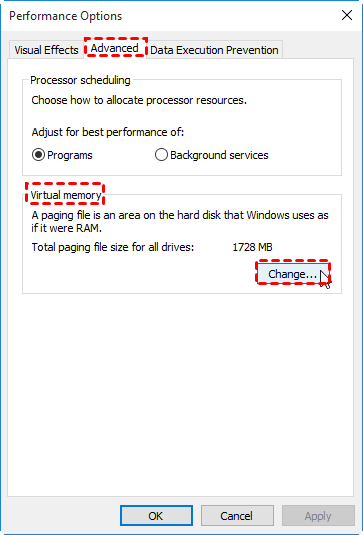
Step 4. Uncheck Automatically manage paging file size, choose your drive, and increase the custom size.
Step 5. Restart your computer for the changes to take effect.
Conclusion
Excel’s “Not enough disk space” error usually isn’t about storage but system resources, oversized files, or corrupted settings. Clearing temp files, reducing formatting, disabling add-ins, and adjusting virtual memory often fixes it. Tools like PartitionAssistant Cleanupcan also remove junk files, free space, and improve performance. With proper maintenance, you can prevent resource limits and keep Excel running smoothly, even with large spreadsheets.
